> For the complete documentation index, see [llms.txt](https://docs.globo.io/llms.txt). Markdown versions of documentation pages are available by appending `.md` to page URLs; this page is available as [Markdown](https://docs.globo.io/mega-menu/menu-blocks/custom-html.md).
# Custom HTML (Maps, Videos, Embeds)
Embed any HTML — Google Maps, YouTube videos and more.
A **Custom html** block shows any HTML you paste into it. Use it for things the other blocks don't cover: a Google Map of your shop, a YouTube video, a newsletter sign-up embed or a formatted text.
{% hint style="info" %}
Custom HTML is available on the **Pro Navigation** plan.
{% endhint %}
## Add a Custom HTML Block
{% stepper %}
{% step %}
### Copy the embed code
* **Google Maps**: search for your location > **Share** > **Embed a map** > **Copy HTML**.
* **YouTube**: open the video > **Share** > **Embed** > **Copy**.
{% endstep %}
{% step %}
### Add the block
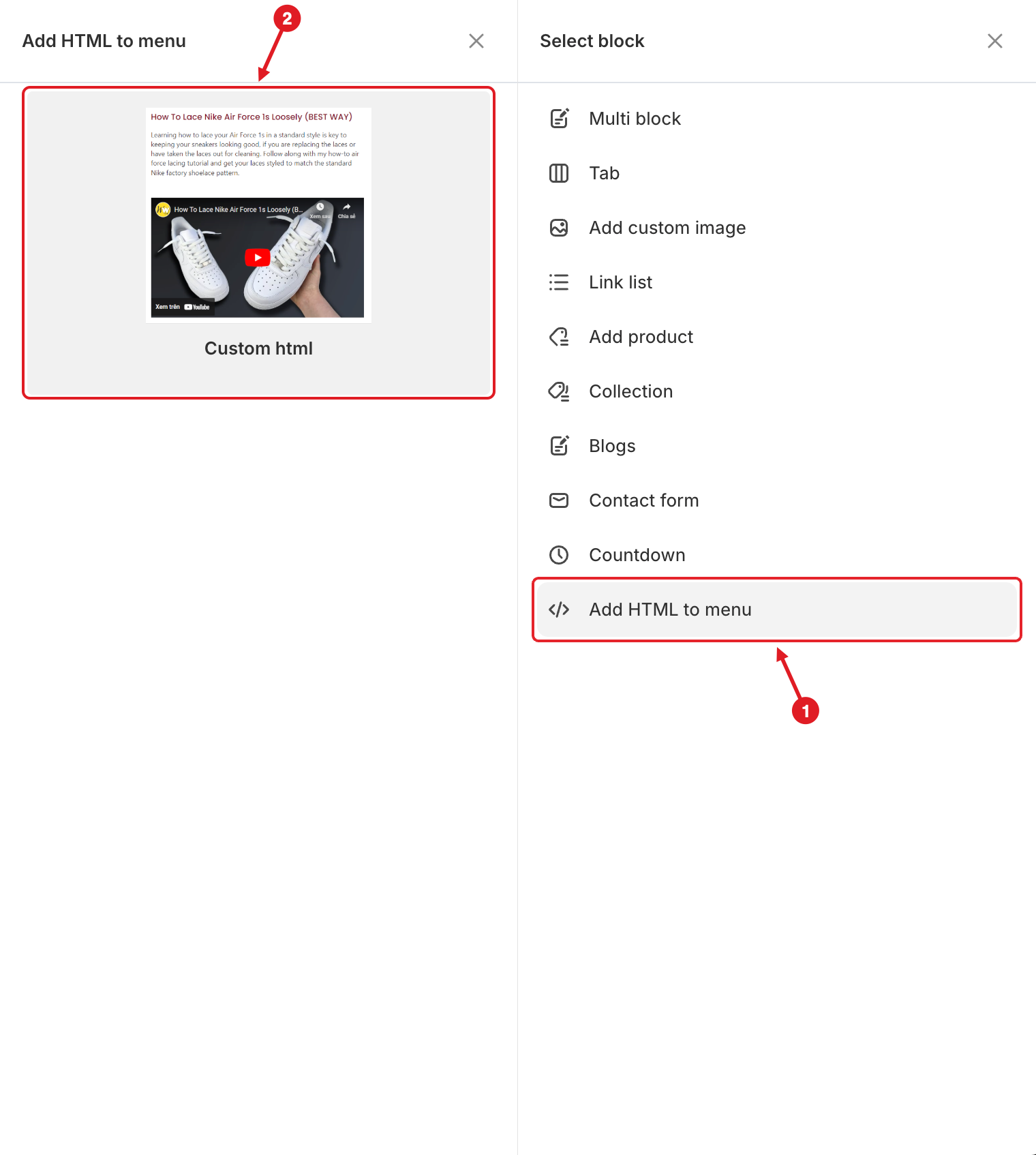
In the mega menu panel of the preview, click **+ Add block**. Then:
1. Click **Add HTML to menu** on the right.
2. Hover over **Custom html** and click **Select**.
1. Click Add HTML to menu · 2. Pick Custom html
{% endstep %}
{% step %}
### Paste the code
In **Edit Item**, enter an optional **Title** and paste your code into the **Add HTML to menu** box. Set the block **Width**.
{% endstep %}
{% step %}
### Save and publish
Click **Save**, then **Publish**, and check the result on your storefront.
{% endstep %}
{% endstepper %}
## ⚙️ Settings
| Setting | What it does |
| -------------------- | ------------------------------------------------------------------------------------------------------------------------ |
| **Width** | How much of the mega menu row the block takes (**Auto** or 8.33%–100%). |
| **Title** | Heading shown above your HTML. Leave it empty for no heading. |
| **Add HTML to menu** | The HTML code to show. |
| **Visibility** | **Hide on desktop**, **Hide on mobile**, **Hide when logged in**, **Only show when logged in**, **Schedule publishing**. |
{% hint style="warning" %}
**Extra gaps in your content?** Each line break in the code is shown as a line break on the page. Paste embed codes on one line, or remove empty lines between tags.
{% endhint %}
{% hint style="success" %}
**Tip:** Embed codes usually have a fixed `width` (for example `width="600"`). Change it to `width="100%"` so the map or video fits the block.
{% endhint %}
{% hint style="success" %}
The **Multi block** > **Map + Contact + Address** layout gives you a map, a contact form and your address ready-made.
{% endhint %}
***
### Related Articles
{% content-ref url="/pages/Str4s3CUn8YmRZwrzD5c" %}
[Can I Show a Map or YouTube Video in a Submenu?](/mega-menu/faqs/how-to-show-the-maps-youtube-video-on-submenu.md)
{% endcontent-ref %}
{% content-ref url="/pages/lCfKhNsuH04Ilz84YAA1" %}
[Contact Form](/mega-menu/menu-blocks/contact-form.md)
{% endcontent-ref %}
{% content-ref url="/pages/lUHoSham1OxSYk97Xx5H" %}
[Blocks Overview](/mega-menu/menu-blocks/blocks.md)
{% endcontent-ref %}
***
**💬 Need help?**
Email us at **📧** [**contact@globo.io**](mailto:contact@globo.io) - we’re happy to assist!