> For the complete documentation index, see [llms.txt](https://docs.globo.io/llms.txt). Markdown versions of documentation pages are available by appending `.md` to page URLs; this page is available as [Markdown](https://docs.globo.io/mega-menu/menu-blocks/link-list.md).
# Link List
A column of links — the most common mega menu block.
A **Link list** block shows a heading and a list of links, split into one or more columns. It's the classic mega menu column: use it for categories, brands, sizes or any list of pages. Each link can also have an icon, a small image, a description or a badge.
## Add a Link List
{% stepper %}
{% step %}
### Open the Select block panel
In the mega menu panel of the preview, click **+ Add block**.
{% endstep %}
{% step %}
### Pick a layout
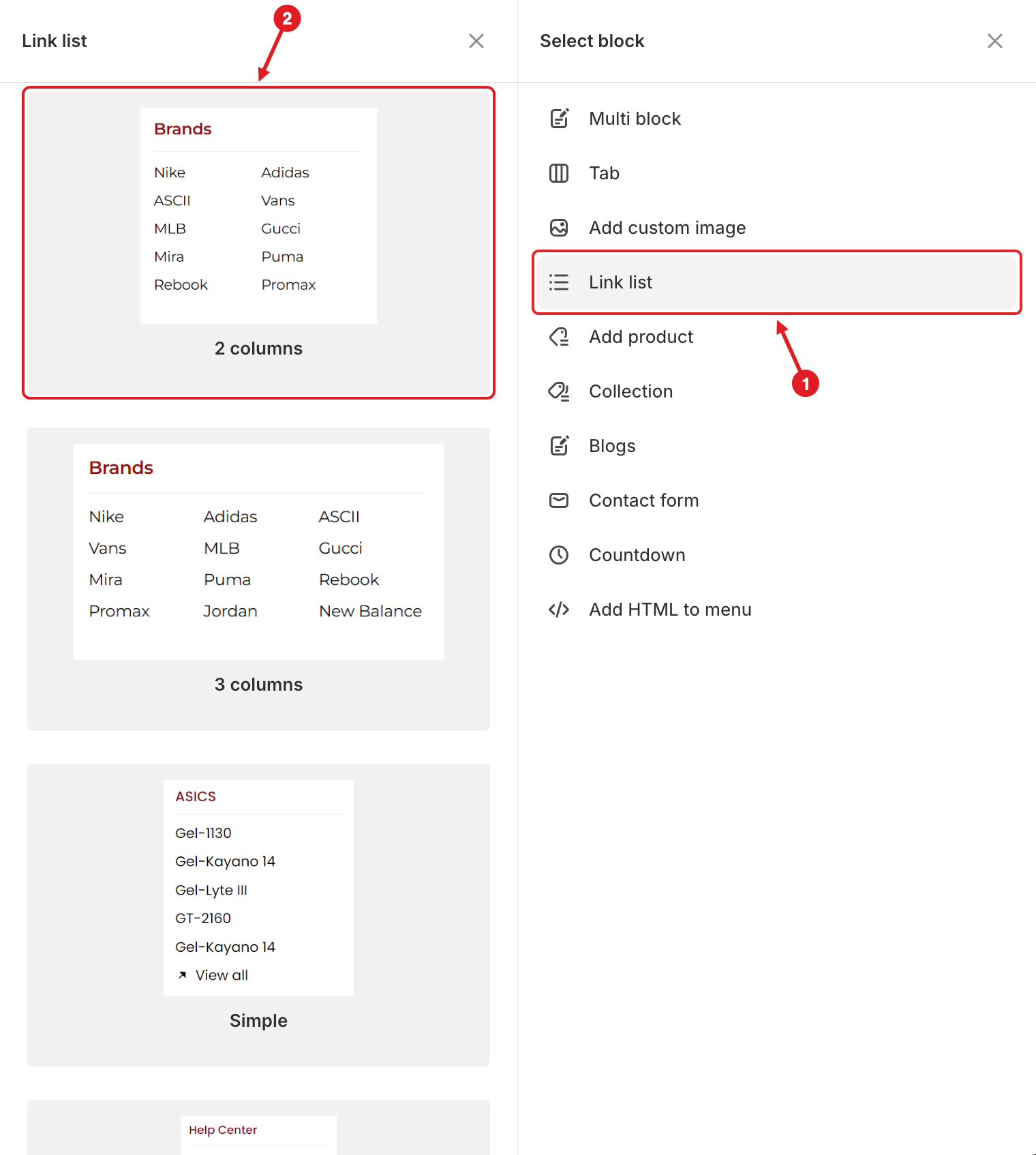
1. Click **Link list** on the right.
2. Hover over a layout on the left and click **Select**.
1. Click Link list · 2. Pick a layout
| Layout | Looks like |
| -------------------- | ---------------------------------------------------------- |
| **2 columns** | A heading with the links split into 2 columns |
| **3 columns** | A heading with the links split into 3 columns |
| **Simple** | A heading with one column of links and a **View all** link |
| **Links with icon** | Each link has an icon in front of it |
| **Links with image** | Each link has a small image in front of it |
| {% endstep %} | |
{% step %}
### Add and edit the links
Click **Add items** under the list in the preview to add a link. Then click the block to open **Edit Item** and fill in each link (see the settings below). Click **Remove** next to a link to delete it.
{% endstep %}
{% step %}
### Save and publish
Click **Save**, then **Publish**.
{% endstep %}
{% endstepper %}
## ⚙️ Block Settings
| Setting | What it does |
| ---------------------------------- | ------------------------------------------------------------------------------------------------------------------------ |
| **Width** | How much of the mega menu row the block takes (**Auto** or 8.33%–100%). |
| **Number of columns** | 1 to 6. The links of the block are spread across this many columns. |
| **Background color** | Background of the whole block. Transparent by default. |
| **Visibility** | **Hide on desktop**, **Hide on mobile**, **Hide when logged in**, **Only show when logged in**, **Schedule publishing**. |
| **Advanced** > **Extra classname** | A CSS class for [Custom CSS](/mega-menu/adjust-menu-styling/custom-css.md). |
## 🔗 Settings of Each Link
| Setting | What it does |
| -------------------------------- | ---------------------------------------------------------------------------------------------------------------------------------------- |
| **Is heading** | Styles the link as a column heading (like **Brands** above). A heading without a link is shown as plain text. |
| **Icon** | An icon shown before the link. See [Upload Custom Icon for Menu Item](/mega-menu/manage-menu-items/upload-custom-icon-for-menu-item.md). |
| **Icon width** | Appears when the icon is an uploaded image: **Auto** or **Custom** (%, px, em or rem). |
| **Title** | The link text. |
| **Link** | Search a page, product, collection or blog, or paste a URL. Tick **Open in new tab** to open it in a new tab. |
| **Image icon** / **Image width** | Shown in layouts with images, such as **Links with image**: the small image in front of the link and its size (**Auto** or **Custom**). |
| **Description** | A short line of text under the link. |
| **Badge** | A small label such as "New" or "Sale" next to the link (**Pro Navigation** plan). |
{% hint style="success" %}
**Tip:** Put one link with **Is heading** at the top of each list, then add a last link such as **View all** that points to the whole collection.
{% endhint %}
***
### Related Articles
{% content-ref url="/pages/lUHoSham1OxSYk97Xx5H" %}
[Blocks Overview](/mega-menu/menu-blocks/blocks.md)
{% endcontent-ref %}
{% content-ref url="/pages/f5H2ZdBdZILUk8k7C2Xo" %}
[Mega Menu](/mega-menu/manage-menu-items/manage-submenu-items/mega-menu.md)
{% endcontent-ref %}
{% content-ref url="/pages/fDthaESiTf5Rie5U2rrK" %}
[Upload Custom Icon for Menu Item](/mega-menu/manage-menu-items/upload-custom-icon-for-menu-item.md)
{% endcontent-ref %}
***
**💬 Need help?**
Email us at **📧** [**contact@globo.io**](mailto:contact@globo.io) - we’re happy to assist!