Mobile Bottom Navigation Bar
Add a sticky, app-like bar with quick actions for mobile shoppers.
A bottom navigation bar is a sticky bar of icons that stays on screen while shoppers scroll — like the tab bar in a mobile app. Use it to give mobile shoppers one-tap access to the pages and actions they use most: Home, the menu, the cart, search, a chat, a phone call and more. An item can also open a small submenu (for example a More item with account, contact and FAQ links).

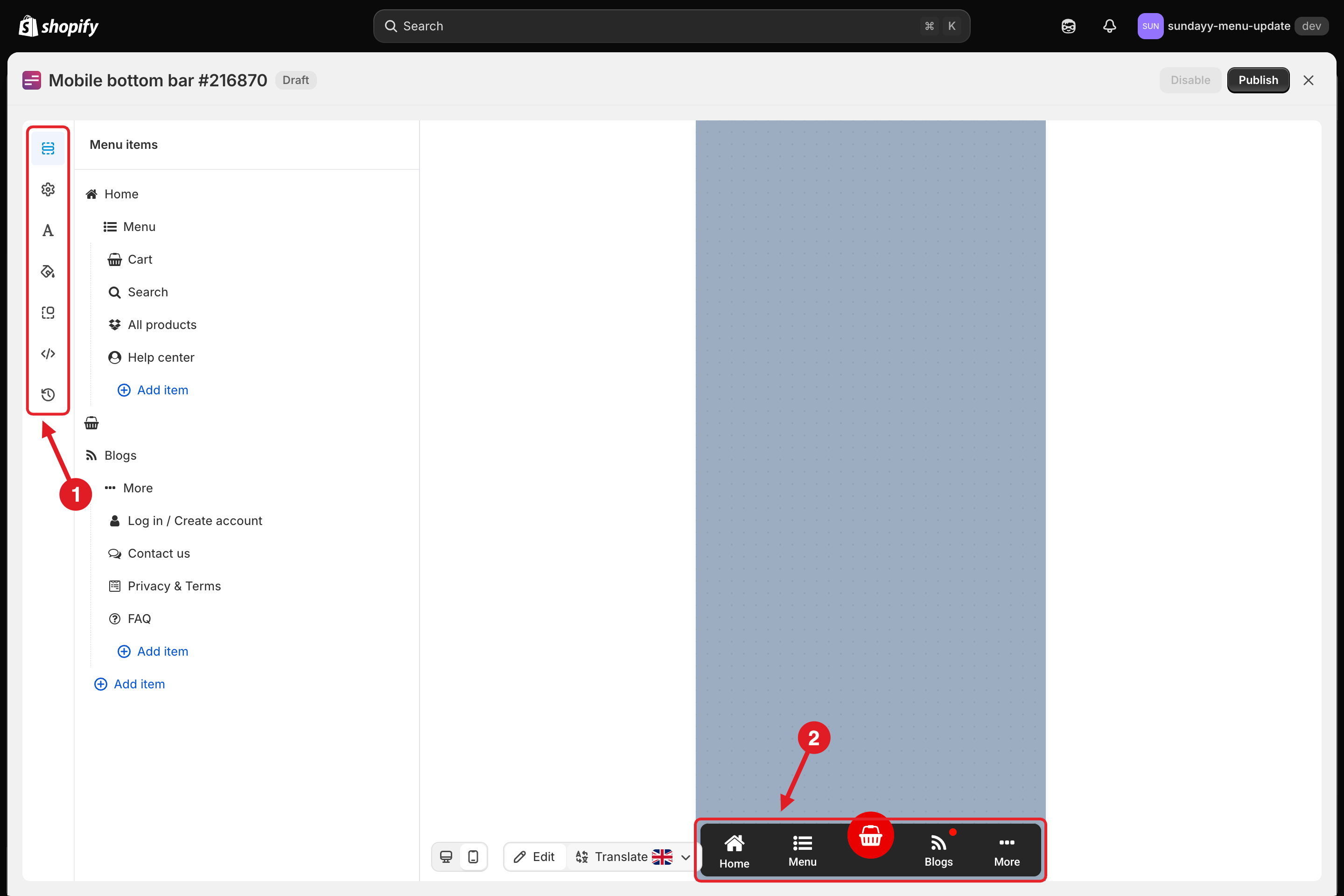
The editor has two parts:
Settings tabs in the left sidebar: Menu items, General, Typography, Colors, Position, Advanced and Version history.
Live preview of the bar. Use the desktop / mobile buttons under the preview to switch the preview device.
Create a Bottom Bar
Choose an action
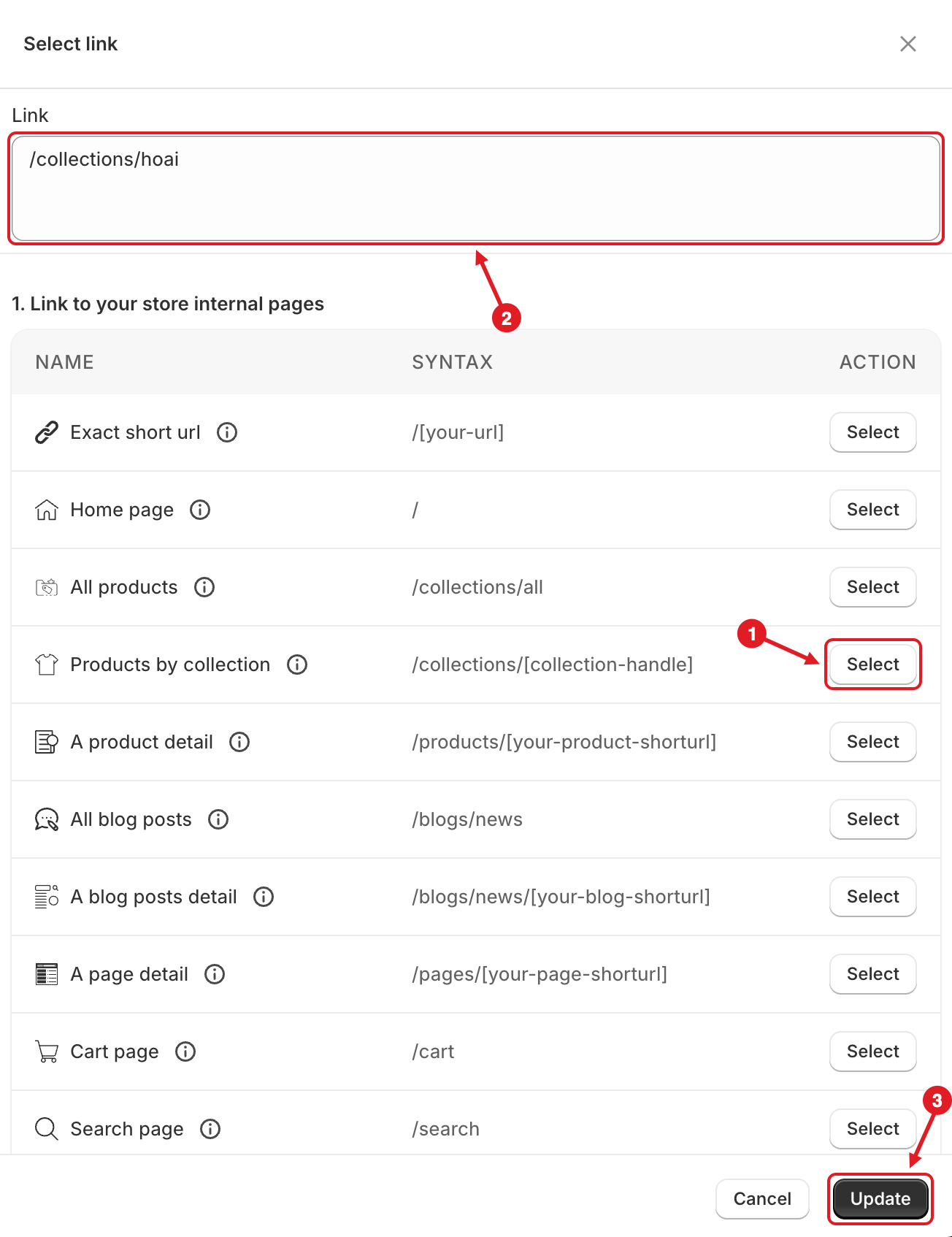
In Select link, click Select next to an action (1). Its syntax is copied into the Link box (2) — replace the placeholder in brackets with your own value, for example /collections/[collection-handle] → /collections/summer-sale. Then click Update (3).

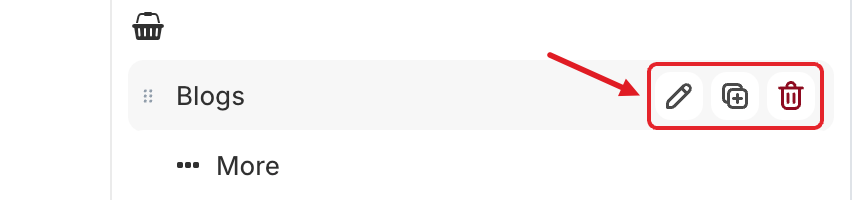
✏️ Item Settings
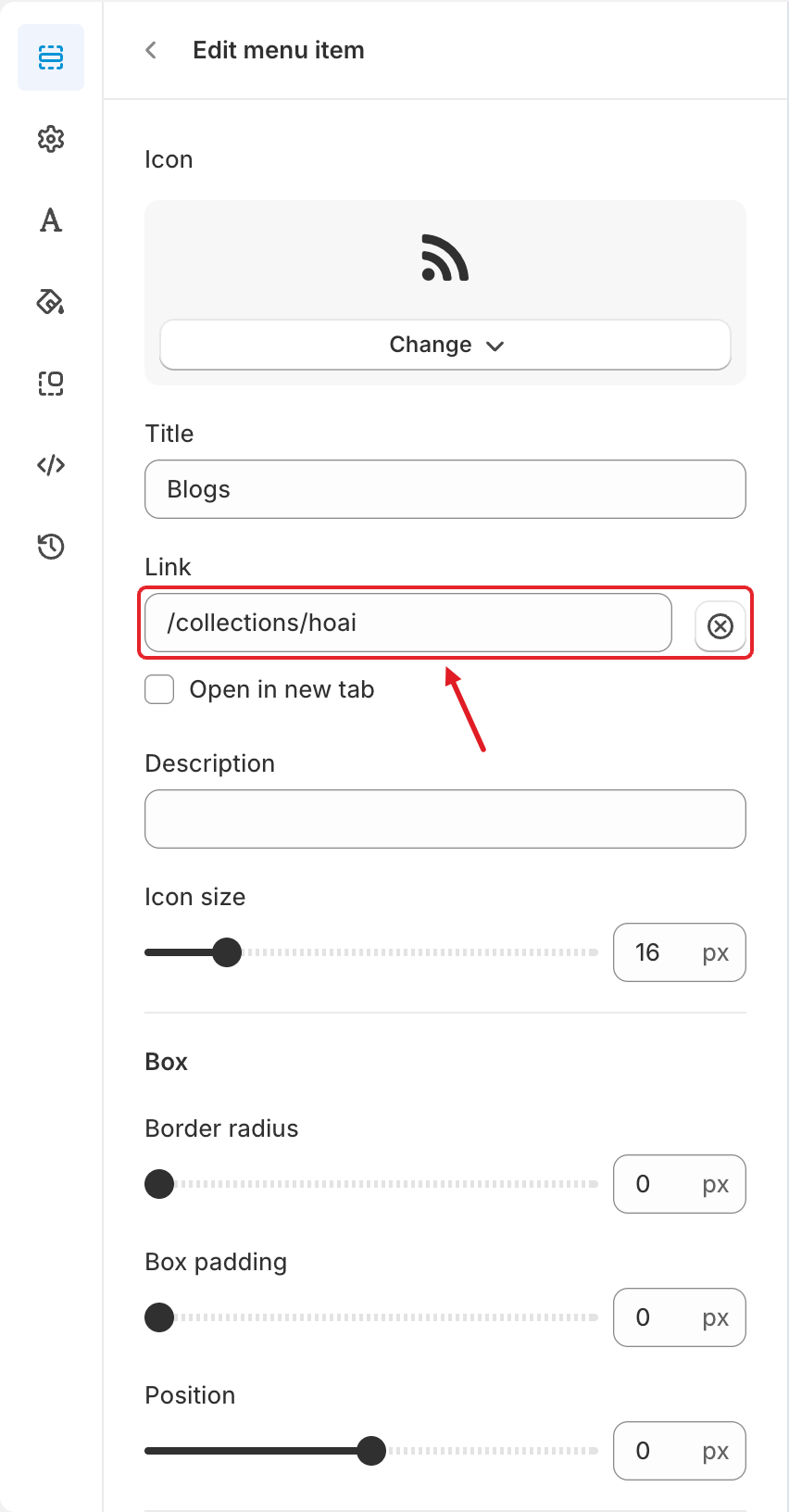
In Edit menu item:
Icon
Click Change to choose an icon or upload an image.
Title
The text under the icon.
Link
What happens when the item is tapped. Click it to open Select link (see Item Actions below). Click ⊗ to clear it.
Open in new tab
Opens the link in a new browser tab.
Description
Optional short text shown with the item.
Icon size
Icon size in px.
Box > Border radius
Rounds the corners of the item's box (0–100 px).
Box > Box padding
Space inside the item's box (0–100 px).
Box > Position
Moves the item left (negative values) or right (positive values), from −100 to 100 px.
Further down the panel you'll also find:
Color — colors for this item only: text, icon, icon background and background, each with a hover color. Click Clear settings to go back to the bar's colors.
Badge — a small label on the item, with a Title, Badge text color and Badge background color.
Visibility — Hide on desktop, Hide on mobile, Hide when logged in, Only show when logged in, and Schedule publishing (with Date starting / Date ending).
Advanced — an Extra classname for custom CSS, and Divide.
🔗 Item Actions
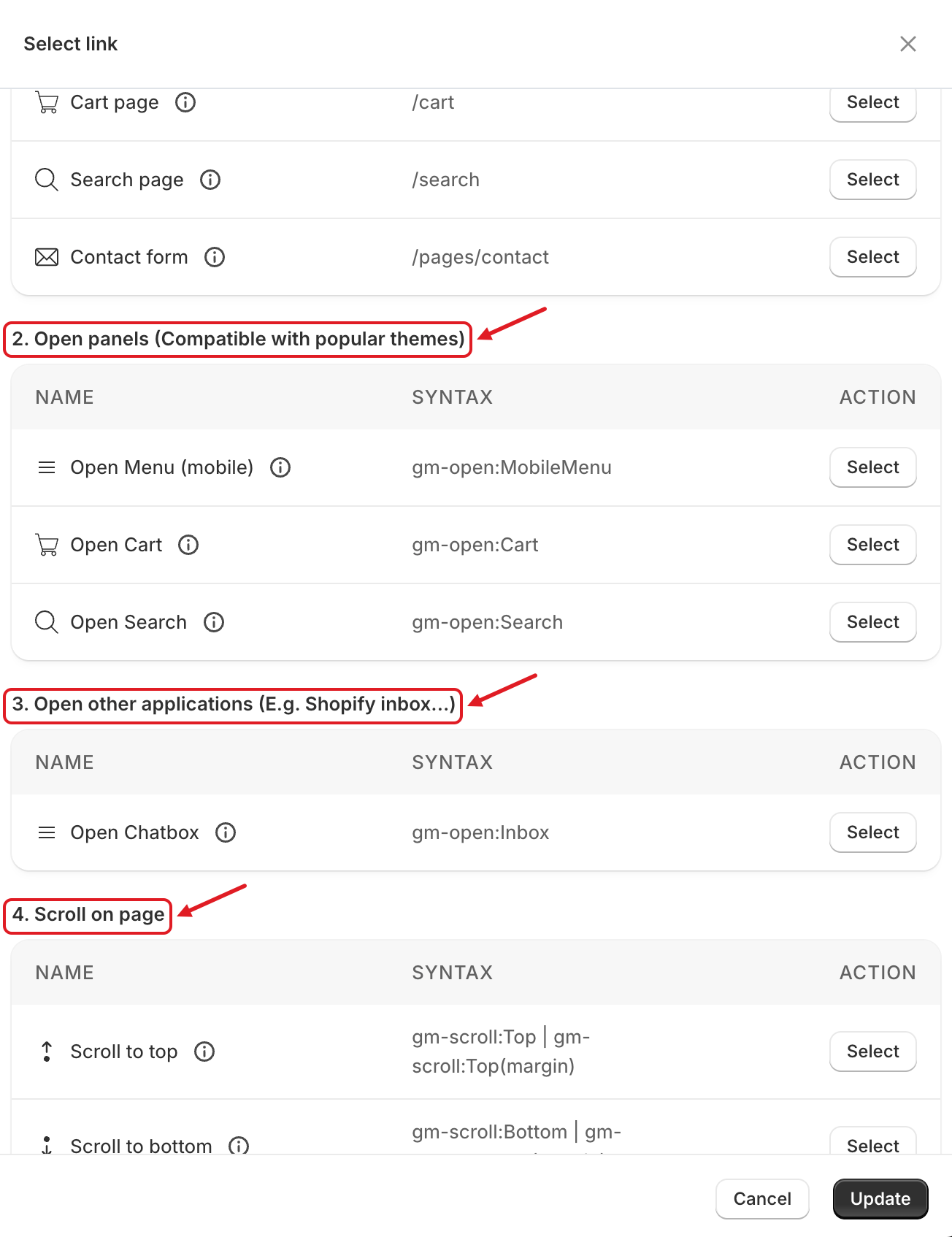
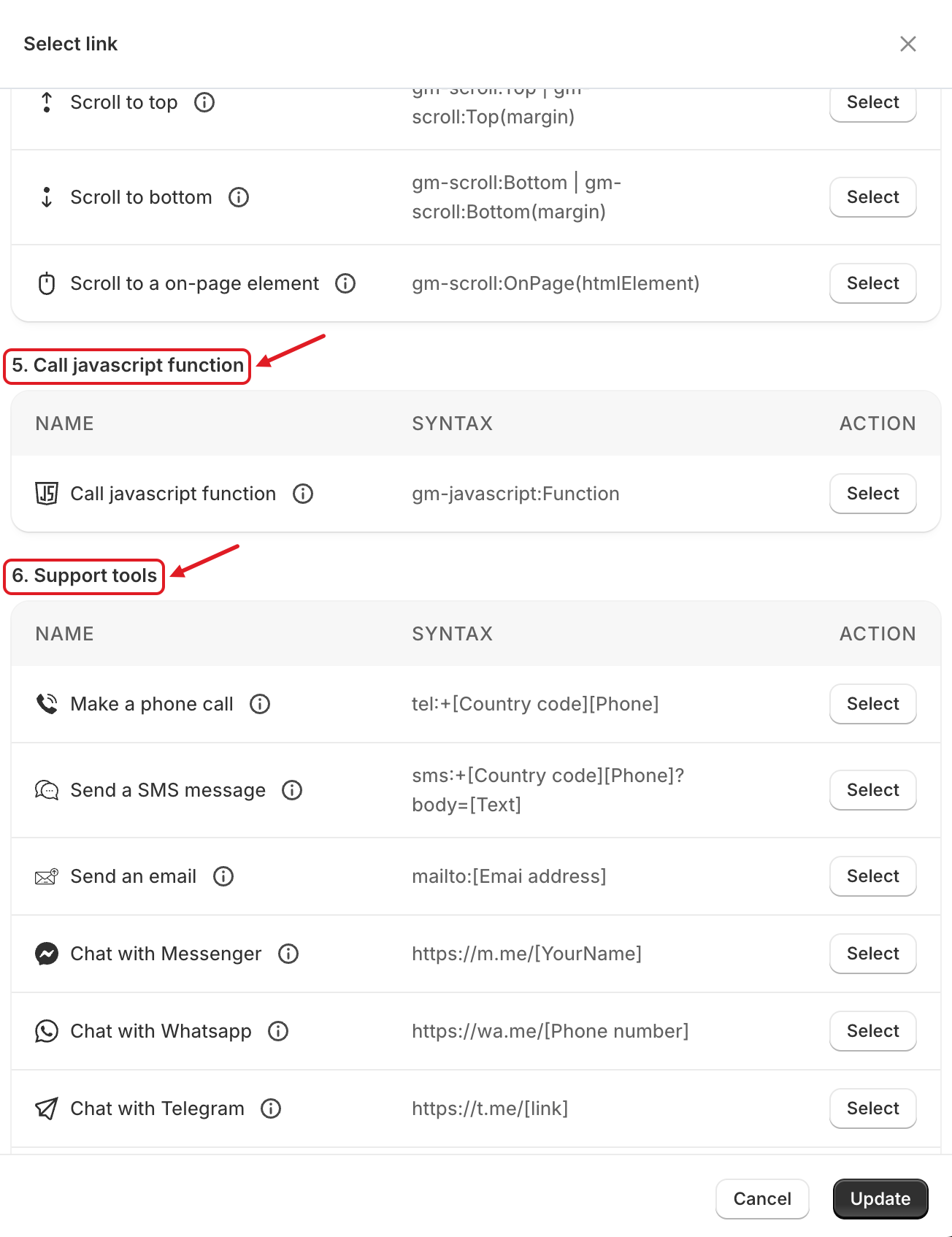
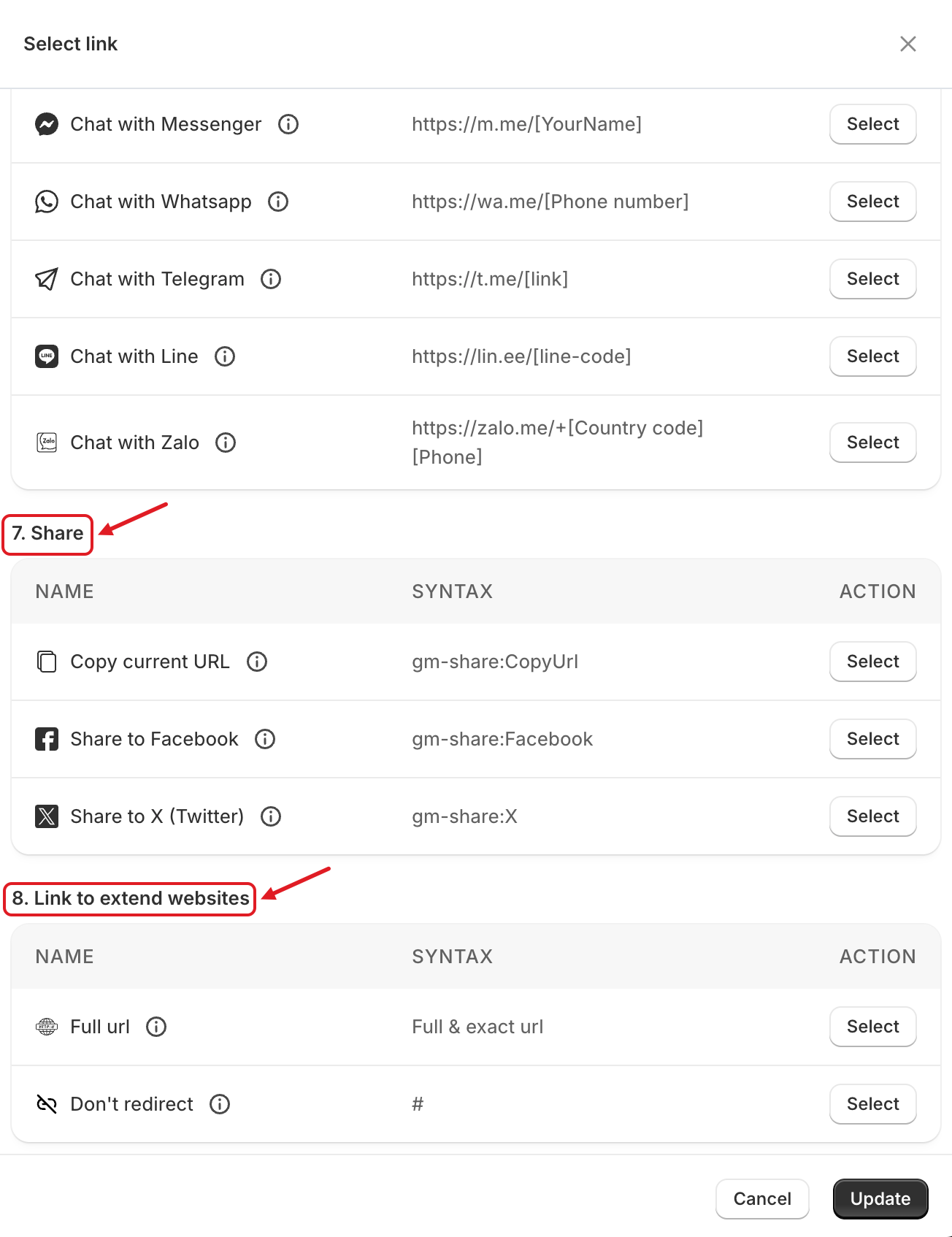
Select link groups the available actions into eight sections. Click (i) next to an action to see an example.
1. Link to your store internal pages
Exact short url /[your-url], Home page /, All products /collections/all, Products by collection /collections/[collection-handle], A product detail /products/[your-product-shorturl], All blog posts /blogs/news, A blog posts detail /blogs/news/[your-blog-shorturl], A page detail /pages/[your-page-shorturl], Cart page /cart, Search page /search, Contact form /pages/contact
2. Open panels (Compatible with popular themes)
Open Menu (mobile) gm-open:MobileMenu, Open Cart gm-open:Cart, Open Search gm-open:Search
3. Open other applications
Open Chatbox gm-open:Inbox (opens the Shopify Inbox chat)
4. Scroll on page
Scroll to top gm-scroll:Top, Scroll to bottom gm-scroll:Bottom, Scroll to a on-page element gm-scroll:OnPage(htmlElement)
5. Call javascript function
gm-javascript:Function — runs a JavaScript function on your site
6. Support tools
Make a phone call tel:, Send a SMS message sms:, Send an email mailto:, Chat with Messenger, Whatsapp, Telegram, Line or Zalo
7. Share
Copy current URL gm-share:CopyUrl, Share to Facebook gm-share:Facebook, Share to X (Twitter) gm-share:X
8. Link to extend websites
Full url (any full address, e.g. https://globo.io), Don't redirect #


Examples:
gm-scroll:Top(150)— scrolls to the top, leaving a 150 px margin.gm-scroll:OnPage(#page-title)— scrolls to the element with the IDpage-title.tel:+0123456789— calls this number.sms:+012345678?body=I need product— opens an SMS with the text filled in.https://wa.me/0123456789— opens WhatsApp chat (phone number with country code, without+).
🎨 Look and Position
General

Main menu (Level 1)
Menu rounded (corner radius of the bar), Item spacing, Padding inline, Padding block, Use box shadow
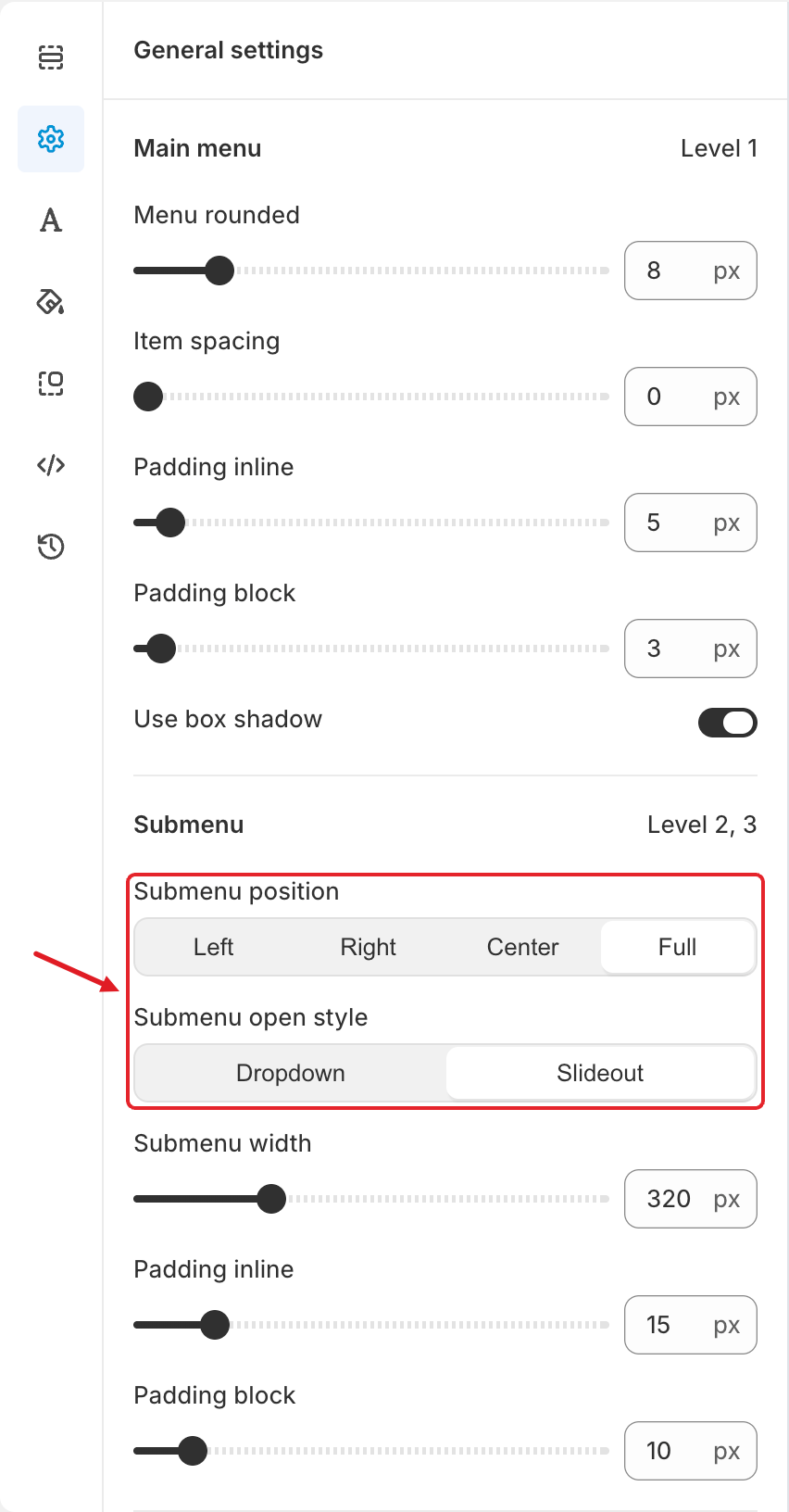
Submenu (Level 2, 3)
Submenu position: Left, Right, Center or Full width. Submenu open style: Dropdown or Slideout. Submenu width (100–900 px), Padding inline, Padding block
Icon & text
Icon size, Submenu icon size, Main menu gap: text - icon, Submenu gap: text - icon
Advanced
Hide menu text (icons only), Hide submenu text, Hide submenu description
Typography
Set Font family, Font weight and Font size for Main menu, Submenu text and Submenu description. Use custom font works as described in Adjust Menu Font.
Colors
Main menu color and Sub menu color: Text, Hover text, Icon, Hover icon, Background and Hover background colors.
Other menu color: Description, Hover description and Divide colors.
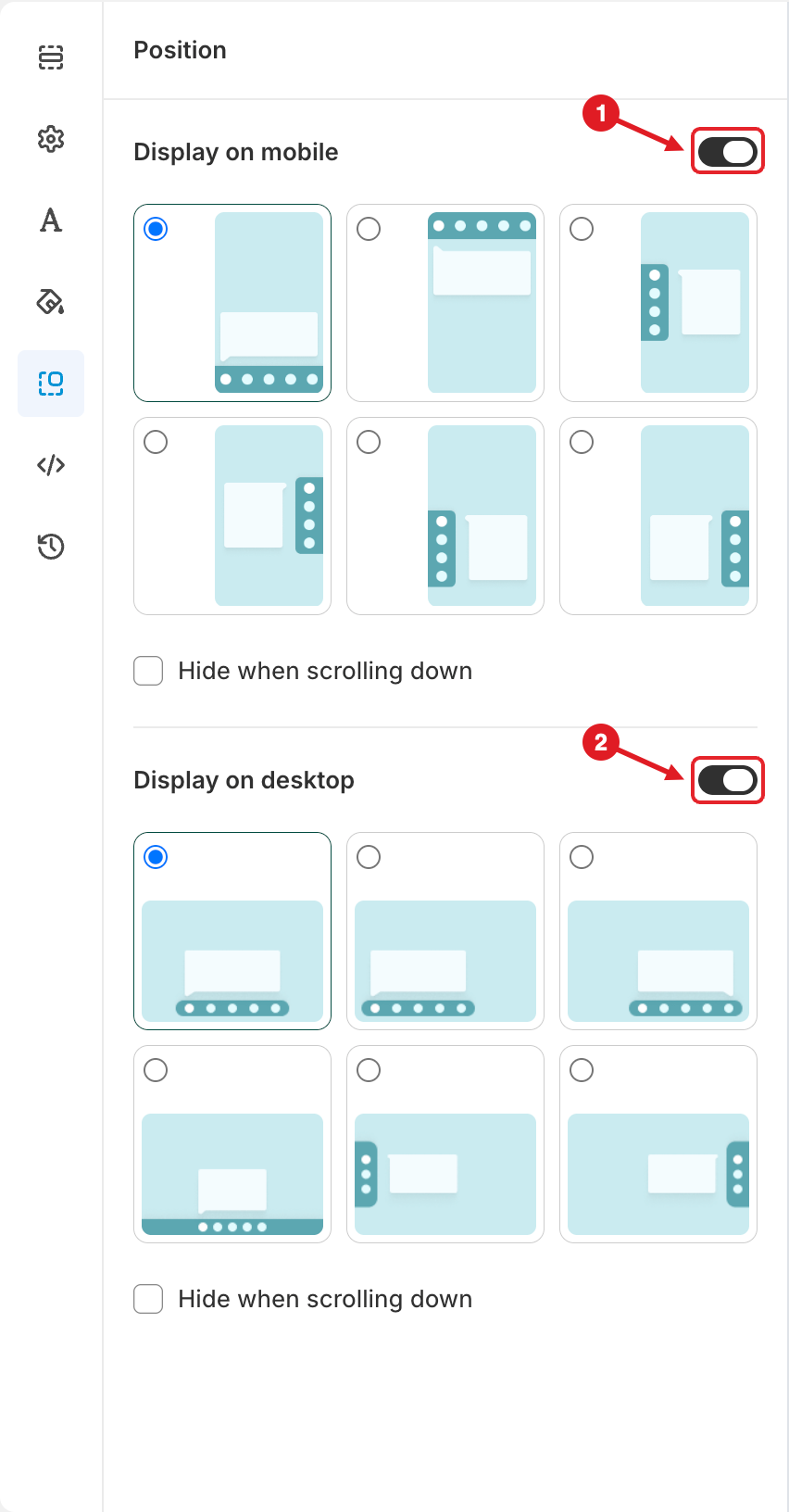
Position

Advanced
Market availability
Shows the bar only in the markets you select. See Show Menus by Market.
Menu z-index
Stacking order. Raise it if other elements cover the bar; lower it if the bar covers popups.
Menu opacity
Transparency of the bar (0–100).
Bottom margin
Space between the bar and the bottom of the screen.
Stylesheet / CSS
Custom CSS for the bar.
JavaScript
Custom JavaScript for the bar.
Related Articles
Plans and BillingEnable App EmbedUpload Custom Icon for Menu ItemVersion History💬 Need help?
Email us at 📧 contact@globo.io - we’re happy to assist!
Last updated
Was this helpful?