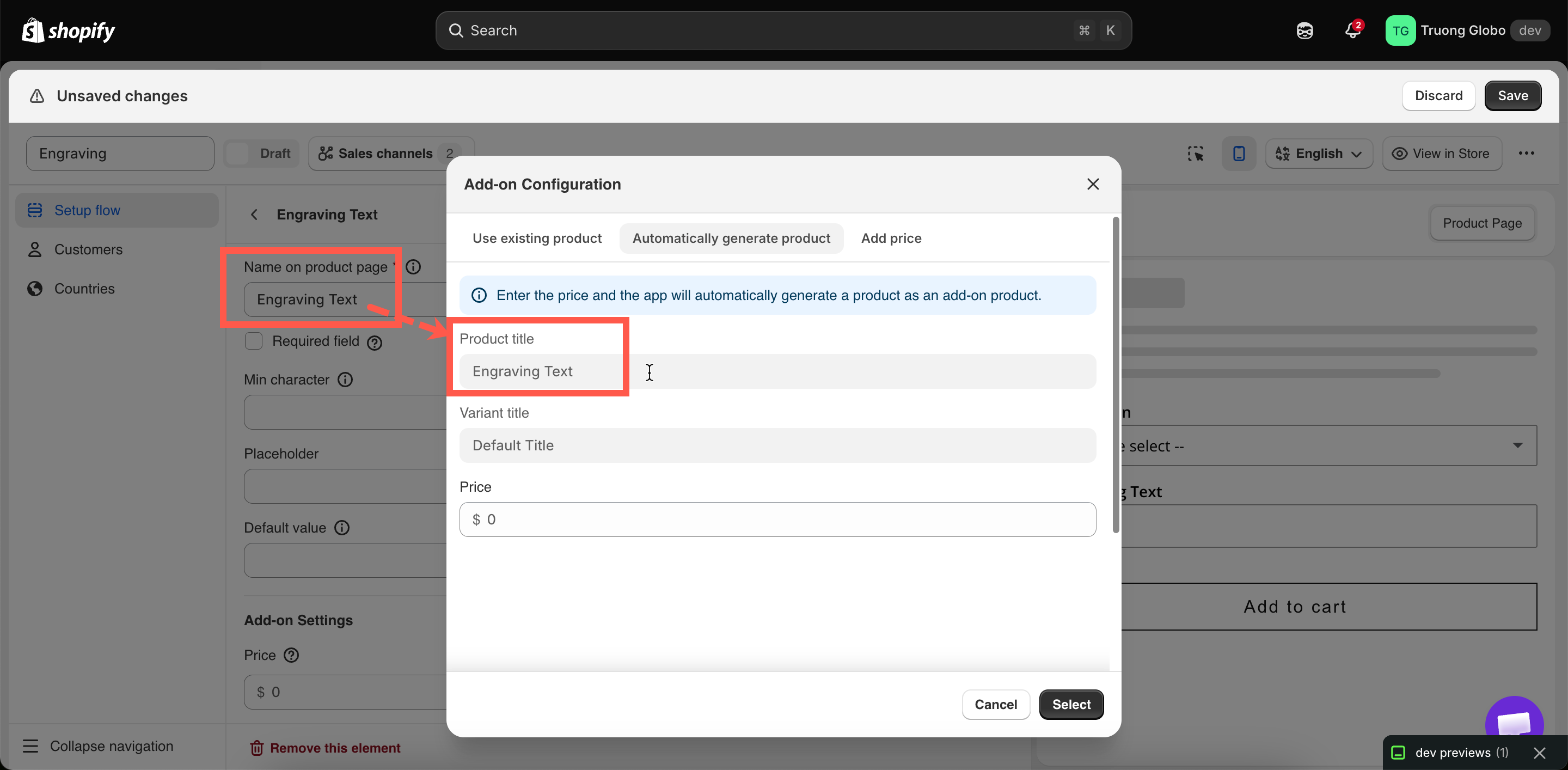
New product
Enter a price and let the app create the add-on product. What it creates, how it names the product, and how to keep it out of your storefront.
You enter a price, and the app creates a Shopify product for the add-on. The add-on then has inventory, a SKU, a weight, POS support, and its own line in your Shopify reports, without you building the product manually.
This is the recommended mode for most physical add-ons.
Steps
Check the titles, then enter the price
Product title and Variant title are displayed but cannot be edited. The product title comes from the option's Label. The variant title comes from the option value's name, or from the option itself on an input type.
Set a clear Label before you generate the product. Frame color produces a readable product name, while Select does not.
Enter the price in your store's currency. Negative amounts are rejected.
Set up its inventory
Do not skip this step. Without inventory tracking, out-of-stock behavior has no effect. See Turning on stock tracking below.

What the app creates
The following table describes the products you will find in your catalog.
Title
The option's Label
Variants
One per priced option value, named after that value. An input type gets a single variant
Status
Active
Sales channels
Published, so it can be purchased through the widget
Tags
globo-product-options, plus an identifier for the option it belongs to
Inventory policy
Set to continue selling when out of stock — so by default it never blocks a sale
One product is created per option, with one variant for each priced value. For example, an Image swatch with twelve priced fabrics creates one product with twelve variants, not twelve products. Options with a large number of priced values are split across several products.
Turning on stock tracking
Generated products are created so that they never block a sale. This is the safe default, but it means out-of-stock behavior has no effect until you enable inventory tracking.
Open the product in Shopify admin. Use the Product link in the values table, or search your products for the
globo-product-optionstag.Turn on inventory tracking on the variant and enter your quantity.
Set it to stop selling when out of stock, so Shopify does not keep selling past zero.
Set the option's Out of stock options to Hide, Blur, or Strike-through.
Test it. Set the quantity to zero and check that the value is displayed as you configured on the storefront.
For more information, see Stock and inventory.
Keeping them out of the way
Generated products are published so that customers can buy them, which also means they can appear when customers browse your store.
They appear in automated collections
Add a condition to those collections excluding the tag globo-product-options
They appear in storefront search
Exclude them in whatever controls your search — a search app's settings, or your theme's search template
They clutter your product list in admin
Filter or sort by tag. There is no need to delete them
They appear in a sitemap or feed
Exclude by tag in the tool that builds it
When to use this mode
The add-on is physical and you want to count it
It is a service with nothing to count — Fixed amount
You do not already sell it separately
You do — Existing product
You sell in person through POS
Never Fixed amount for POS
You want add-ons in your Shopify reporting
The add-on has weight that affects shipping
Notes
The product is created in the background after you save, so it may take a moment to appear.
Editing the price in the app updates the generated variant.
Renaming the option's Label does not rename the existing product. The product keeps the title it had when it was created.
Deleting an option set does not delete its generated products. They remain in your catalog. See Duplicate and delete.
Duplicating an option set does not duplicate its products. Both option sets link to the same products and share their inventory.
If a generated product is out of sync in the app, use Sync Add-on data from the builder's more-actions menu.
Last updated
Was this helpful?