> For the complete documentation index, see [llms.txt](https://docs.globo.io/llms.txt). Markdown versions of documentation pages are available by appending `.md` to page URLs; this page is available as [Markdown](https://docs.globo.io/options/add-on-pricing/auto-generate-a-product.md).

# New product

Enter a price and let the app create the add-on product. What it creates, how it names the product, and how to keep it out of your storefront.

You enter a price, and the app creates a Shopify product for the add-on. The add-on then has inventory, a SKU, a weight, POS support, and its own line in your Shopify reports, without you building the product manually.

This is the recommended mode for most physical add-ons.

## Steps

{% stepper %}
{% step %}

### Open the price field and choose the New product tab

**Price** under **Add-on Settings** on an input type, or the **Price** cell on an option value's row for a selection type.
{% endstep %}

{% step %}

### Check the titles, then enter the price

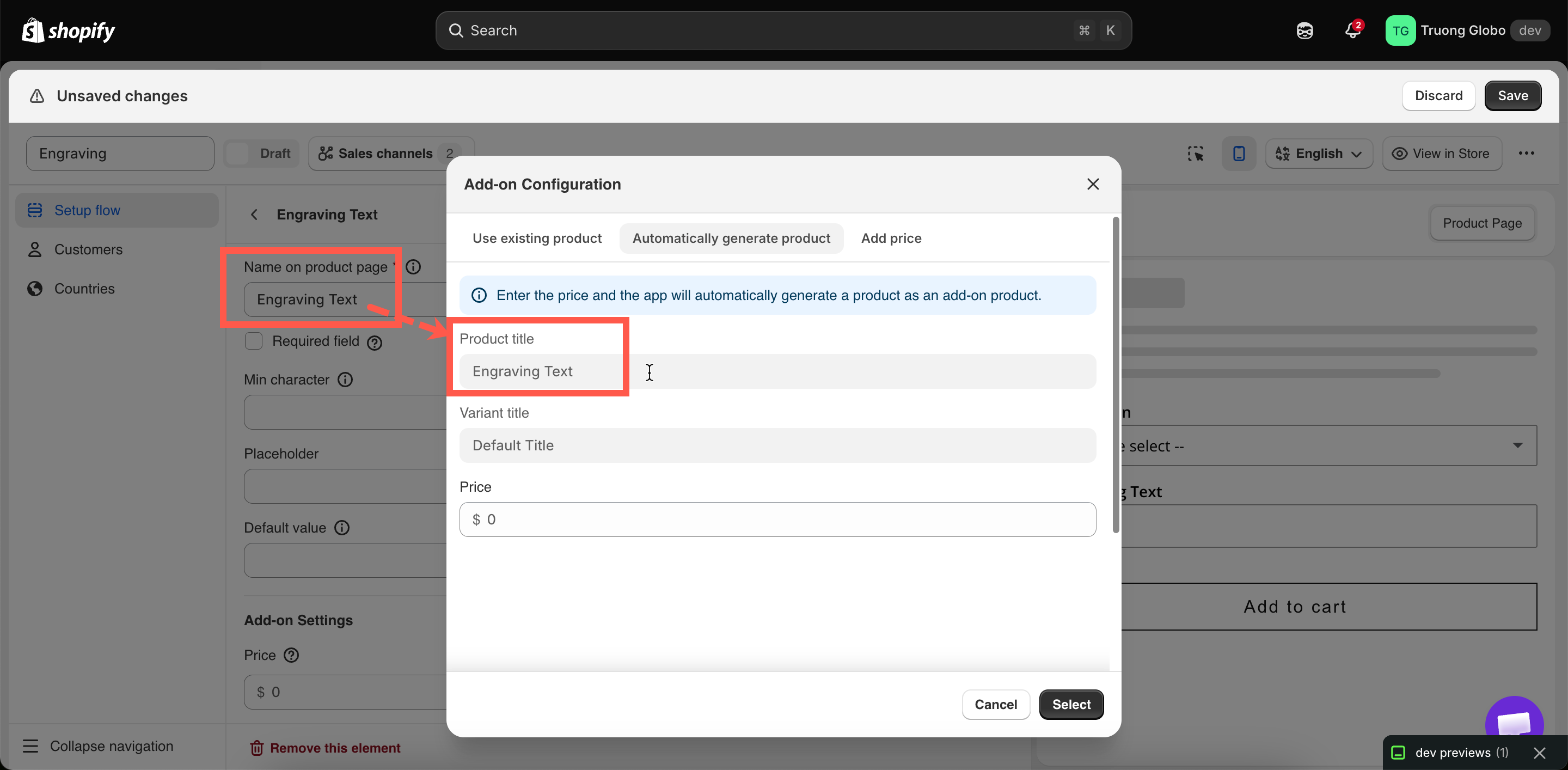
**Product title** and **Variant title** are displayed but cannot be edited. The product title comes from the option's **Label**. The variant title comes from the option value's name, or from the option itself on an input type.

Set a clear **Label** before you generate the product. `Frame color` produces a readable product name, while `Select` does not.

Enter the price in your store's currency. Negative amounts are rejected.
{% endstep %}

{% step %}

### Select Select, then Save the option set

The product is created in the background after you save, not while the dialog is open. Reload the page, and a **Product** column is added to the values table with a link to the product in Shopify admin.
{% endstep %}

{% step %}

### Set up its inventory

**Do not skip this step.** Without inventory tracking, out-of-stock behavior has no effect. See [Turning on stock tracking](#turning-on-stock-tracking) below.
{% endstep %}
{% endstepper %}

<figure><img src="https://3141646361-files.gitbook.io/~/files/v0/b/gitbook-x-prod.appspot.com/o/spaces%2FkMyxhAk2ZlJa4wZQGfBI%2Fuploads%2Fgit-blob-1b299b7eea342244731fc942cb973db8825a7091%2F2026-09-04_14-06-22.png?alt=media" alt="The New product tab showing read-only titles and a price field"><figcaption><p>The titles come from your option, so name the option well before generating.</p></figcaption></figure>

## What the app creates

The following table describes the products you will find in your catalog.

<table><thead><tr><th width="230">Property</th><th>Value</th></tr></thead><tbody><tr><td>Title</td><td>The option's <strong>Label</strong></td></tr><tr><td>Variants</td><td>One per priced option value, named after that value. An input type gets a single variant</td></tr><tr><td>Status</td><td><strong>Active</strong></td></tr><tr><td>Sales channels</td><td>Published, so it can be purchased through the widget</td></tr><tr><td>Tags</td><td><code>globo-product-options</code>, plus an identifier for the option it belongs to</td></tr><tr><td>Inventory policy</td><td>Set to continue selling when out of stock — so by default it never blocks a sale</td></tr></tbody></table>

{% hint style="info" %}
Use the `globo-product-options` tag to quickly find all generated products and exclude them from automated collections. In Shopify, search your products by this tag to view all generated products in one place.
{% endhint %}

One product is created per option, with one variant for each priced value. For example, an [Image swatch](/options/option-types/selection-types/image-swatch.md) with twelve priced fabrics creates one product with twelve variants, not twelve products. Options with a large number of priced values are split across several products.

## Turning on stock tracking

Generated products are created so that they never block a sale. This is the safe default, but it means **out-of-stock behavior has no effect until you enable inventory tracking**.

1. **Open the product in Shopify admin.** Use the **Product** link in the values table, or search your products for the `globo-product-options` tag.
2. **Turn on inventory tracking** on the variant and enter your quantity.
3. **Set it to stop selling when out of stock**, so Shopify does not keep selling past zero.
4. **Set the option's** [**Out of stock options**](/options/option-types/shared-settings/out-of-stock-options.md) to **Hide**, **Blur**, or **Strike-through**.
5. **Test it.** Set the quantity to zero and check that the value is displayed as you configured on the storefront.

For more information, see [Stock and inventory](/options/add-on-pricing/stock-and-inventory.md).

## Keeping them out of the way

Generated products are published so that customers can buy them, which also means they can appear when customers browse your store.

<table><thead><tr><th width="290">Problem</th><th>Fix</th></tr></thead><tbody><tr><td>They appear in automated collections</td><td>Add a condition to those collections excluding the tag <code>globo-product-options</code></td></tr><tr><td>They appear in storefront search</td><td>Exclude them in whatever controls your search — a search app's settings, or your theme's search template</td></tr><tr><td>They clutter your product list in admin</td><td>Filter or sort by tag. There is no need to delete them</td></tr><tr><td>They appear in a sitemap or feed</td><td>Exclude by tag in the tool that builds it</td></tr></tbody></table>

{% hint style="warning" %}
Do not **unpublish** these products from the Online Store. A product that is not published to the Online Store cannot be added to the cart, which breaks the add-on. Exclude them from collections and search instead. This hides them from browsing while keeping them purchasable.
{% endhint %}

## When to use this mode

<table><thead><tr><th width="330">Use it when</th><th>Use something else when</th></tr></thead><tbody><tr><td>The add-on is physical and you want to count it</td><td>It is a service with nothing to count — <a href="/options/add-on-pricing/add-price-directly.md">Fixed amount</a></td></tr><tr><td>You do not already sell it separately</td><td>You do — <a href="/options/add-on-pricing/use-an-existing-product.md">Existing product</a></td></tr><tr><td>You sell in person through POS</td><td>Never <strong>Fixed amount</strong> for POS</td></tr><tr><td>You want add-ons in your Shopify reporting</td><td></td></tr><tr><td>The add-on has weight that affects shipping</td><td></td></tr></tbody></table>

<details>

<summary>Examples</summary>

**Gift wrap with real stock**

<table><thead><tr><th width="290">Setting</th><th>Value</th></tr></thead><tbody><tr><td>Option</td><td><code>Gift wrap</code>, a Checkbox with one value</td></tr><tr><td>Price</td><td><strong>New product</strong> $3.00</td></tr><tr><td>Add-on quantity</td><td><strong>One time charge</strong></td></tr><tr><td>After saving</td><td>Turn on inventory tracking, enter your box count, set the policy to stop selling at zero</td></tr><tr><td>Out of stock options</td><td><strong>Hide</strong></td></tr></tbody></table>

**Twelve premium colors, each with its own inventory**

A [Color swatch](/options/option-types/selection-types/color-swatch.md) where each premium value generates a product at its own price. This creates one product with twelve variants and twelve independent inventory counts.

**An engraving plate**

A Text option for the engraving, with a generated product so the metal plate is tracked in inventory.

</details>

## Notes

* The product is created in the background after you **save**, so it may take a moment to appear.
* Editing the price in the app updates the generated variant.
* Renaming the option's **Label** does not rename the existing product. The product keeps the title it had when it was created.
* Deleting an option set does **not** delete its generated products. They remain in your catalog. See [Duplicate and delete](/options/option-sets/duplicate-and-delete.md).
* Duplicating an option set does not duplicate its products. Both option sets link to the same products and share their inventory.
* If a generated product is out of sync in the app, use **Sync Add-on data** from the builder's more-actions menu.
