> For the complete documentation index, see [llms.txt](https://docs.globo.io/llms.txt). Markdown versions of documentation pages are available by appending `.md` to page URLs; this page is available as [Markdown](https://docs.globo.io/options/automations/update-order-tags.md).

# Order tags update

Tag orders based on what the customer selected, so you can filter, route, and report on them.

This workflow adds a tag to orders containing app options. Tags are how you filter orders in Shopify admin, and how most fulfillment and reporting tools decide what to do with an order.

Unlike the other two types, you can create **as many order tag workflows as you need**.

## Two modes

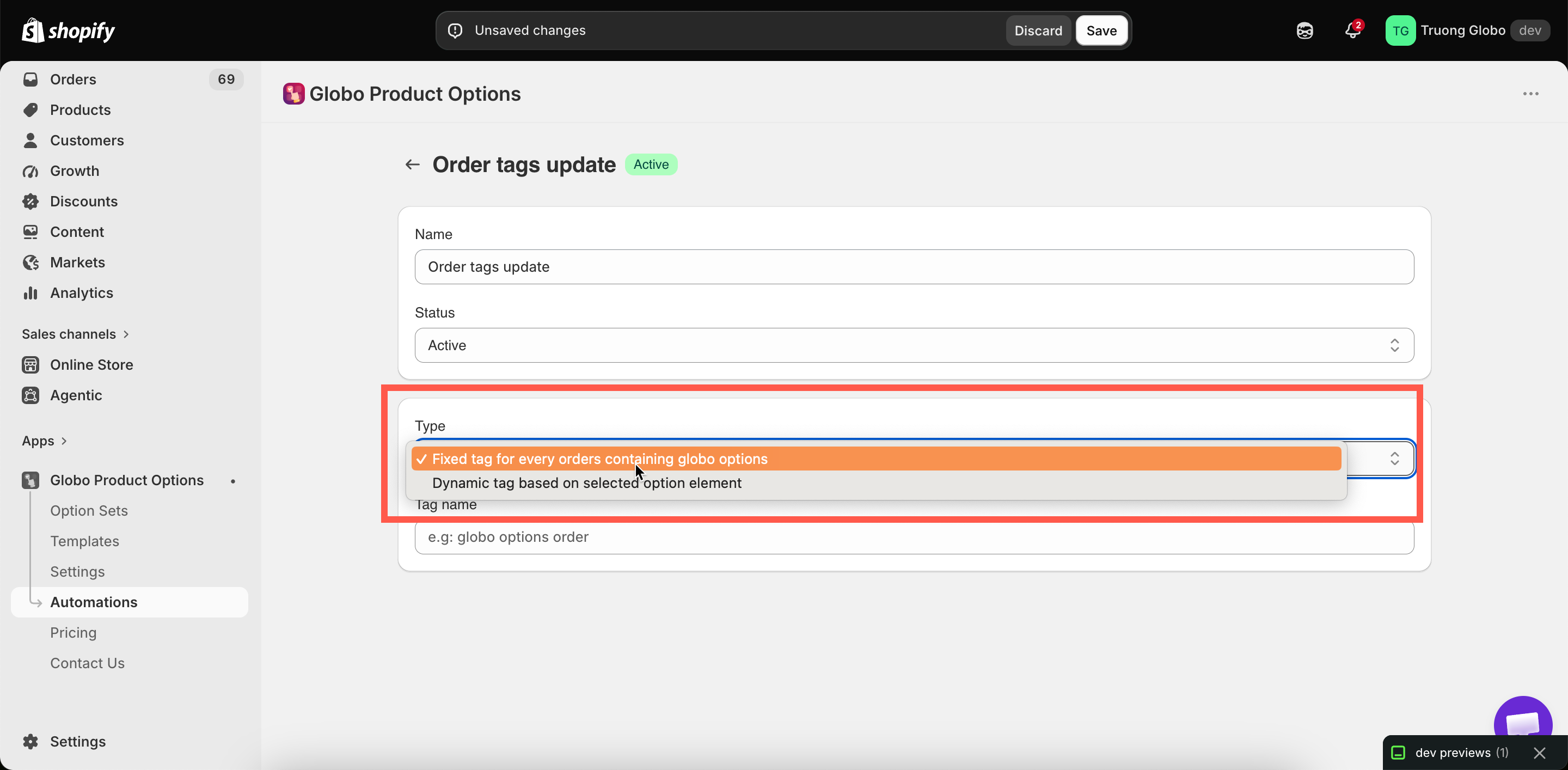
<table><thead><tr><th width="290">Mode</th><th>Tags the order with</th></tr></thead><tbody><tr><td><strong>Fixed tag for every orders containing globo options</strong></td><td>A tag you type, on every order that has options</td></tr><tr><td><strong>Dynamic tag based on selected option element</strong></td><td>The value the customer chose in a specific option</td></tr></tbody></table>

<figure><img src="https://3141646361-files.gitbook.io/~/files/v0/b/gitbook-x-prod.appspot.com/o/spaces%2FkMyxhAk2ZlJa4wZQGfBI%2Fuploads%2Fgit-blob-c3053f8a7dba1b06f4abeaa1ac47639275297963%2F2026-09-07_11-41-53.png?alt=media" alt="The order tags workflow with its type selector"><figcaption><p>A fixed tag on every order with options, or a tag from what the customer chose.</p></figcaption></figure>

## Fixed tag

Select the mode, then enter a **Tag name**. Every order containing app options receives that tag.

Use a fixed tag to separate personalized orders from standard ones:

<table><thead><tr><th width="230">Tag</th><th>Lets you</th></tr></thead><tbody><tr><td><code>personalized</code></td><td>Filter your order list to just the ones needing production work</td></tr><tr><td><code>custom-order</code></td><td>Route them to a different fulfillment flow</td></tr><tr><td><code>needs-proof</code></td><td>Flag them for a proofing step before production</td></tr></tbody></table>

One tag is often enough, because everything downstream can filter on it.

## Dynamic tag

Select the mode, then select an **Option element**, which is a specific option in a specific option set. The tag is the value the customer selected in that option.

{% stepper %}
{% step %}

### Set Type to dynamic

The option element selector is displayed.
{% endstep %}

{% step %}

### Select the option element

A picker lists your option sets and their options. Select the option whose value becomes the tag.
{% endstep %}

{% step %}

### Save and set the workflow Active

{% endstep %}

{% step %}

### Test it

Test it against a recent order that used that option.
{% endstep %}
{% endstepper %}

**Worked examples**

<table><thead><tr><th width="290">Option</th><th>Resulting tags</th><th>Useful for</th></tr></thead><tbody><tr><td><code>Delivery speed</code></td><td><code>Express</code>, <code>Standard</code></td><td>Filtering the urgent orders each morning</td></tr><tr><td><code>Engraving font</code></td><td>The font name</td><td>Batching orders by machine setup</td></tr><tr><td><code>Workshop</code></td><td>The workshop name</td><td>Routing to the right team</td></tr><tr><td><code>Gift wrap</code></td><td>The gift-wrap value</td><td>Picking wrapping materials in one pass</td></tr></tbody></table>

This is most useful for batching. Twenty orders tagged with the same font can be run through one machine setup instead of twenty.

## Using several workflows together

Because order tag workflows are unlimited, create one workflow for each thing you want to filter on:

<table><thead><tr><th width="230">Workflow</th><th width="180">Mode</th><th>Tag</th></tr></thead><tbody><tr><td>Flag personalized orders</td><td>Fixed</td><td><code>personalized</code></td></tr><tr><td>Tag by delivery speed</td><td>Dynamic</td><td>From the delivery option</td></tr><tr><td>Tag by font</td><td>Dynamic</td><td>From the font option</td></tr></tbody></table>

An order then arrives already tagged: `personalized`, `Express`, `Roboto`.

## Choosing option values that work as tags

A dynamic tag is the option value exactly as you wrote it, so your option values become your tags.

<table><thead><tr><th width="290">Good as a tag</th><th>Poor as a tag</th></tr></thead><tbody><tr><td><code>Express</code></td><td><code>Yes please, as fast as you can!</code></td></tr><tr><td><code>Oak</code></td><td><code>Natural oak with a matt finish</code></td></tr><tr><td><code>Gift wrap</code></td><td><code>Yes, wrap it as a gift</code></td></tr></tbody></table>

Long values work for customers but are harder to read in a filter list. Either shorten them, or keep them as they are. Shopify accepts long tags.

{% hint style="warning" %}
A dynamic workflow points to a **specific option in a specific option set**. If you delete that option set or change the option, the workflow has nothing to read. Check your workflows after restructuring option sets. See [Duplicate and delete](/options/option-sets/duplicate-and-delete.md).
{% endhint %}

## Testing

**Test** opens a list of your fifty most recent orders. Select one that used the relevant option, and the workflow runs against it so you can see the tag it produces.

## Notes

* You can create any number of order tag workflows.
* Tags are added, never removed. Tags set by Shopify or other apps are not changed.
* The workflow runs shortly after the order is created, so the tag appears a short time later.
* A workflow set to **Draft** does not run.
* This workflow requires order data access, which you approve once when you first open **Automations**.
* If a customer selects several values in a multi-select option, test the workflow against such an order to confirm the tags it produces.
