For the complete documentation index, see llms.txt. This page is also available as Markdown.

Build a condition

Choosing a source, an operator, and a value — plus which option types can be a trigger and which cannot.

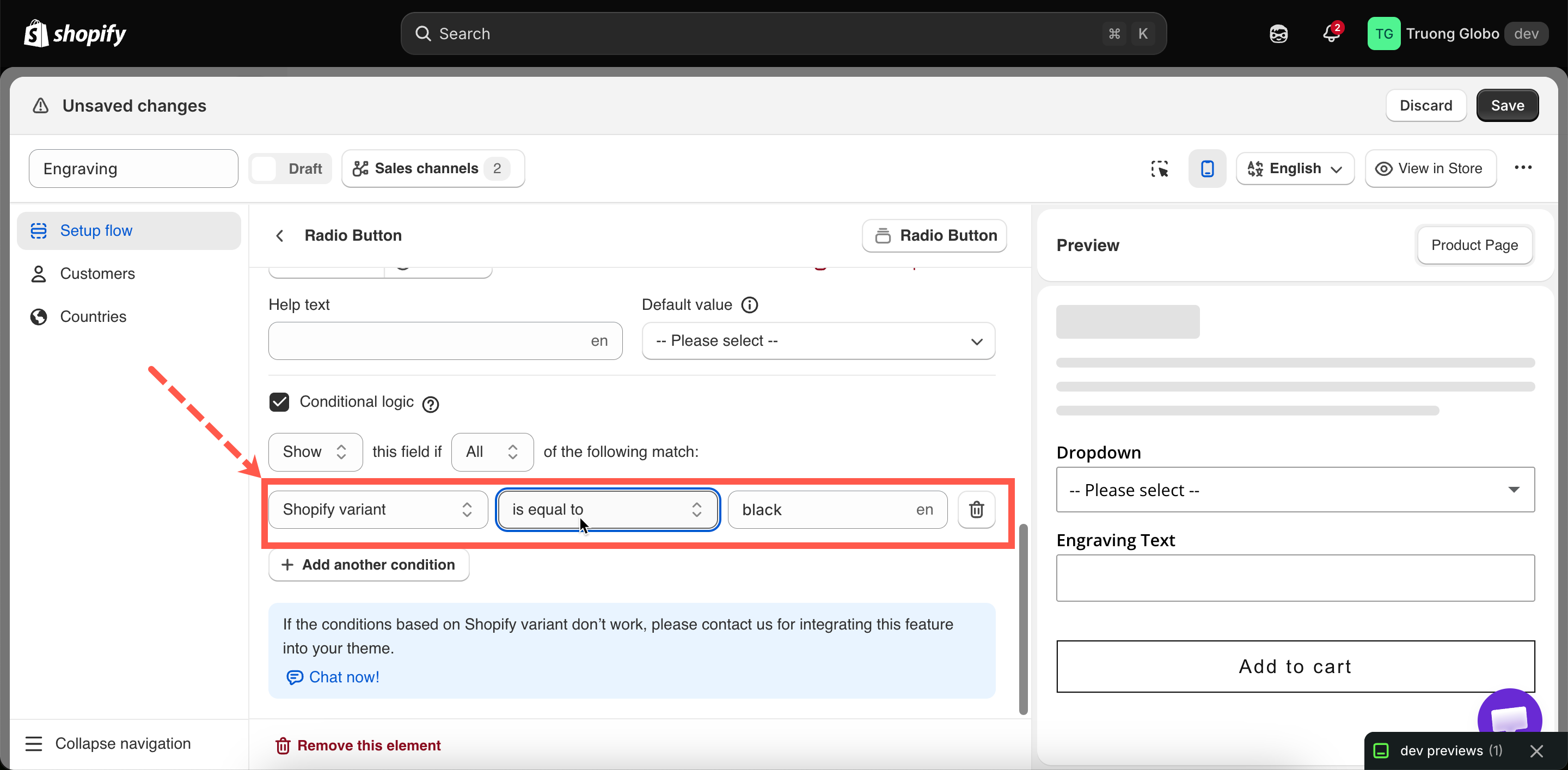
A condition consists of three dropdowns, which you fill in from left to right. Each selection changes the options available in the next dropdown.

The three parts

Part
What you choose

Source

What the condition looks at: Shopify variant, or one of the options above this one.

Operator

How to compare. The choices depend entirely on the source's type.

Value

What to compare against. The field changes shape depending on the operator — and sometimes disappears.

Always work from left to right. Changing the source resets the operator and clears the value, because each source offers a different set of operators.

One condition row showing the source, operator, and value fields
Fill the three fields left to right — each one changes what the next offers.

Choosing the source

The source dropdown lists:

  1. Shopify variant: the variant the customer selected on the product page. See Conditions based on Shopify variants.

  2. Every eligible option above the current one in the same option set.

Only options above

A condition can only reference an option that appears earlier in the form than the option the rule is applied to.

This is intentional. The customer fills in the form from top to bottom, so an option can only react to a selection they have already made.

If the option you want is not listed in the dropdown, move it above the current option in the builder. See Build your options.

What can be a trigger?

Twelve option types cannot be used as a source because they do not collect a value:

Cannot be a trigger
Why

Hidden field

Its value never changes, so a condition on it is always the same

Heading, Divider, Spacing, Paragraph, HTML, Pop-up modal, Tabs, Size chart, Section

They collect nothing

Product links

It navigates away rather than recording a choice

Dimension

It holds several measurements rather than one value

All other option types can be used as a trigger: Text, Textarea, Number, Phone, Email, Date and time picker, File upload, Color picker, Switch, Range slider, and the nine selection types that have option values.

A section cannot be used as a source, but it can carry a rule. A section is a container, so it has no value to read, but everything inside it can be shown or hidden.

Choosing the operator

The operator list is determined by the type of the source. There are seven sets of operators. For the full tables, see Operators reference.

Source type
Operator set

Text, Textarea, Email, Phone, Color picker, Shopify variant

Text: 10 operators, including character counts

Number, Range slider

Numeric: 4 operators

Date and time picker

2 operators

File upload

6 operators, including file counts

Radio button, Font picker

2 operators

Select, Dropdown, Color dropdown, Image dropdown, Checkbox, Button, Color swatch, Image swatch

8 operators, including selection counts

Switch

2 operators: is enabled, is disabled

When you select a source, the app sets a default operator: has file for a File upload, is enabled for a Switch, and is equal to for all other types.

Filling in the value

The value field changes depending on the source and operator you selected. If no value field is displayed, the condition is already complete.

Source and operator
Value field

A selection type, with a normal operator

A dropdown of that option's own values. You pick, you do not type — so there is no risk of a typo.

A selection type, with a count operator

A number field — how many selections.

Text-like, with a normal operator

A text field. What you type must match what the customer types.

Text-like, with a character-count operator

A number field.

Number or Range slider

A number field.

File upload, with has file or no file

None. The operator is the whole condition.

File upload, with a file-count operator

A number field.

Switch

None. is enabled and is disabled need nothing else.

Shopify variant

A text field, showing the current storefront language as a suffix. See Conditions based on Shopify variants.

Adding more conditions

Add another condition appends a row. All rows share the rule's All or Any mode.

Recommendations:

  • Two conditions are usually enough. Three or more usually means the option set should be restructured, often into a Section with its own rule.

  • With All, check that the conditions can be true at the same time. Size is equal to S and Size is equal to L can never both be true.

  • With Any, check that the conditions are not so broad that the rule always matches.

What happens if the source option changes later
You do this
What happens to the rule

Rename an option value

Conditions pointing at the old value stop matching. Reopen the rule and reselect the value.

Delete the source option

The condition is no longer valid and resets to an empty row. Rebuild it.

Change the source option's type

The operator set changes, so the existing operator may no longer be valid. Reopen the rule and reselect.

Move the source option below this one

It is no longer eligible as a source. Move it back, or rebuild the rule.

Duplicate or import options

Names are renumbered to stay unique, and rules pointing at them are repointed automatically.

Test your rules in the preview after editing option values.

Notes

  • Conditions can only reference options in the same option set. A rule cannot reference an option in another option set, even when both apply to the same product.

  • A hidden option is not validated and not charged.

  • All conditions in a rule share the same matching mode. You cannot combine and and or in a single rule.

  • Variant conditions require the advanced level of conditional logic.

Last updated

Was this helpful?