> For the complete documentation index, see [llms.txt](https://docs.globo.io/llms.txt). Markdown versions of documentation pages are available by appending `.md` to page URLs; this page is available as [Markdown](https://docs.globo.io/options/conditional-logic/build-a-condition.md).

# Build a condition

Choosing a source, an operator, and a value — plus which option types can be a trigger and which cannot.

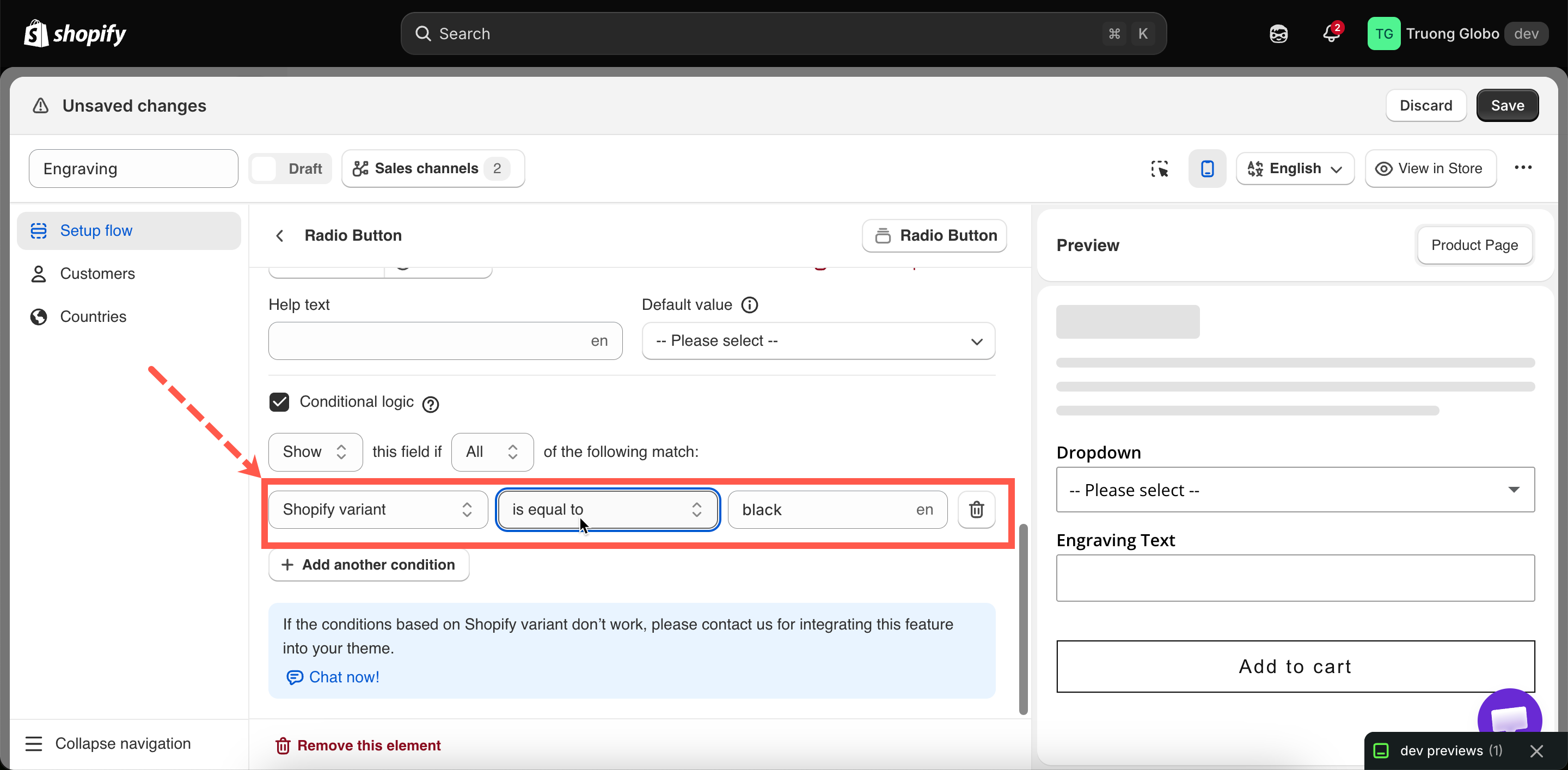
A condition consists of three dropdowns, which you fill in from left to right. Each selection changes the options available in the next dropdown.

## The three parts

<table><thead><tr><th width="180">Part</th><th>What you choose</th></tr></thead><tbody><tr><td>Source</td><td>What the condition looks at: <strong>Shopify variant</strong>, or one of the options above this one.</td></tr><tr><td>Operator</td><td>How to compare. The choices depend entirely on the source's type.</td></tr><tr><td>Value</td><td>What to compare against. The field changes shape depending on the operator — and sometimes disappears.</td></tr></tbody></table>

{% hint style="info" %}
Always work from left to right. Changing the source resets the operator and clears the value, because each source offers a different set of operators.
{% endhint %}

<figure><img src="https://3141646361-files.gitbook.io/~/files/v0/b/gitbook-x-prod.appspot.com/o/spaces%2FkMyxhAk2ZlJa4wZQGfBI%2Fuploads%2Fgit-blob-ee024468c61d9fa41bd75501ded257e8d19148fa%2F2026-09-04_10-21-52.png?alt=media" alt="One condition row showing the source, operator, and value fields"><figcaption><p>Fill the three fields left to right — each one changes what the next offers.</p></figcaption></figure>

## Choosing the source

The source dropdown lists:

1. **Shopify variant**: the variant the customer selected on the product page. See [Conditions based on Shopify variants](/options/conditional-logic/conditions-on-shopify-variants.md).
2. **Every eligible option above the current one** in the same option set.

### Only options above

A condition can only reference an option that appears **earlier** in the form than the option the rule is applied to.

This is intentional. The customer fills in the form from top to bottom, so an option can only react to a selection they have already made.

If the option you want is not listed in the dropdown, move it above the current option in the builder. See [Build your options](/options/option-sets/build-options.md).

### What can be a trigger?

Twelve option types cannot be used as a source because they do not collect a value:

<table><thead><tr><th width="290">Cannot be a trigger</th><th>Why</th></tr></thead><tbody><tr><td>Hidden field</td><td>Its value never changes, so a condition on it is always the same</td></tr><tr><td>Heading, Divider, Spacing, Paragraph, HTML, Pop-up modal, Tabs, Size chart, Section</td><td>They collect nothing</td></tr><tr><td>Product links</td><td>It navigates away rather than recording a choice</td></tr><tr><td>Dimension</td><td>It holds several measurements rather than one value</td></tr></tbody></table>

All other option types can be used as a trigger: Text, Textarea, Number, Phone, Email, Date and time picker, File upload, Color picker, Switch, Range slider, and the nine selection types that have option values.

{% hint style="info" %}
**A section** cannot be used as a source, but it can carry a rule. A section is a container, so it has no value to read, but everything inside it can be shown or hidden.
{% endhint %}

## Choosing the operator

The operator list is determined by the type of the source. There are seven sets of operators. For the full tables, see [Operators reference](/options/conditional-logic/operators-reference.md).

<table><thead><tr><th width="330">Source type</th><th>Operator set</th></tr></thead><tbody><tr><td>Text, Textarea, Email, Phone, Color picker, Shopify variant</td><td>Text: 10 operators, including character counts</td></tr><tr><td>Number, Range slider</td><td>Numeric: 4 operators</td></tr><tr><td>Date and time picker</td><td>2 operators</td></tr><tr><td>File upload</td><td>6 operators, including file counts</td></tr><tr><td>Radio button, Font picker</td><td>2 operators</td></tr><tr><td>Select, Dropdown, Color dropdown, Image dropdown, Checkbox, Button, Color swatch, Image swatch</td><td>8 operators, including selection counts</td></tr><tr><td>Switch</td><td>2 operators: <strong>is enabled</strong>, <strong>is disabled</strong></td></tr></tbody></table>

When you select a source, the app sets a default operator: **has file** for a File upload, **is enabled** for a Switch, and **is equal to** for all other types.

## Filling in the value

The value field changes depending on the source and operator you selected. If no value field is displayed, the condition is already complete.

<table><thead><tr><th width="290">Source and operator</th><th>Value field</th></tr></thead><tbody><tr><td>A selection type, with a normal operator</td><td>A <strong>dropdown of that option's own values</strong>. You pick, you do not type — so there is no risk of a typo.</td></tr><tr><td>A selection type, with a count operator</td><td>A number field — how many selections.</td></tr><tr><td>Text-like, with a normal operator</td><td>A text field. What you type must match what the customer types.</td></tr><tr><td>Text-like, with a character-count operator</td><td>A number field.</td></tr><tr><td>Number or Range slider</td><td>A number field.</td></tr><tr><td>File upload, with <strong>has file</strong> or <strong>no file</strong></td><td><strong>None.</strong> The operator is the whole condition.</td></tr><tr><td>File upload, with a file-count operator</td><td>A number field.</td></tr><tr><td>Switch</td><td><strong>None.</strong> <strong>is enabled</strong> and <strong>is disabled</strong> need nothing else.</td></tr><tr><td>Shopify variant</td><td>A text field, showing the current storefront language as a suffix. See <a href="/options/conditional-logic/conditions-on-shopify-variants.md">Conditions based on Shopify variants</a>.</td></tr></tbody></table>

{% hint style="warning" %}
When the value is a **text field**, the comparison is exact. `Yes, wrap it` and `Yes, wrap it.` are different values, as are `Large` and `large` with a trailing space.

When the source is a selection type, select the value from the dropdown instead of typing it. This prevents typing errors.
{% endhint %}

## Adding more conditions

**Add another condition** appends a row. All rows share the rule's **All** or **Any** mode.

Recommendations:

* Two conditions are usually enough. Three or more usually means the option set should be restructured, often into a [Section](/options/option-types/static-types/section.md) with its own rule.
* With **All**, check that the conditions can be true at the same time. `Size is equal to S` and `Size is equal to L` can never both be true.
* With **Any**, check that the conditions are not so broad that the rule always matches.

<details>

<summary>What happens if the source option changes later</summary>

<table><thead><tr><th width="290">You do this</th><th>What happens to the rule</th></tr></thead><tbody><tr><td>Rename an option value</td><td>Conditions pointing at the old value stop matching. Reopen the rule and reselect the value.</td></tr><tr><td>Delete the source option</td><td>The condition is no longer valid and resets to an empty row. Rebuild it.</td></tr><tr><td>Change the source option's type</td><td>The operator set changes, so the existing operator may no longer be valid. Reopen the rule and reselect.</td></tr><tr><td>Move the source option below this one</td><td>It is no longer eligible as a source. Move it back, or rebuild the rule.</td></tr><tr><td>Duplicate or import options</td><td>Names are renumbered to stay unique, and rules pointing at them are repointed automatically.</td></tr></tbody></table>

Test your rules in the preview after editing option values.

</details>

## Notes

* Conditions can only reference options in the **same option set**. A rule cannot reference an option in another option set, even when both apply to the same product.
* A hidden option is not validated and not charged.
* All conditions in a rule share the same matching mode. You cannot combine `and` and `or` in a single rule.
* Variant conditions require the advanced level of conditional logic.
