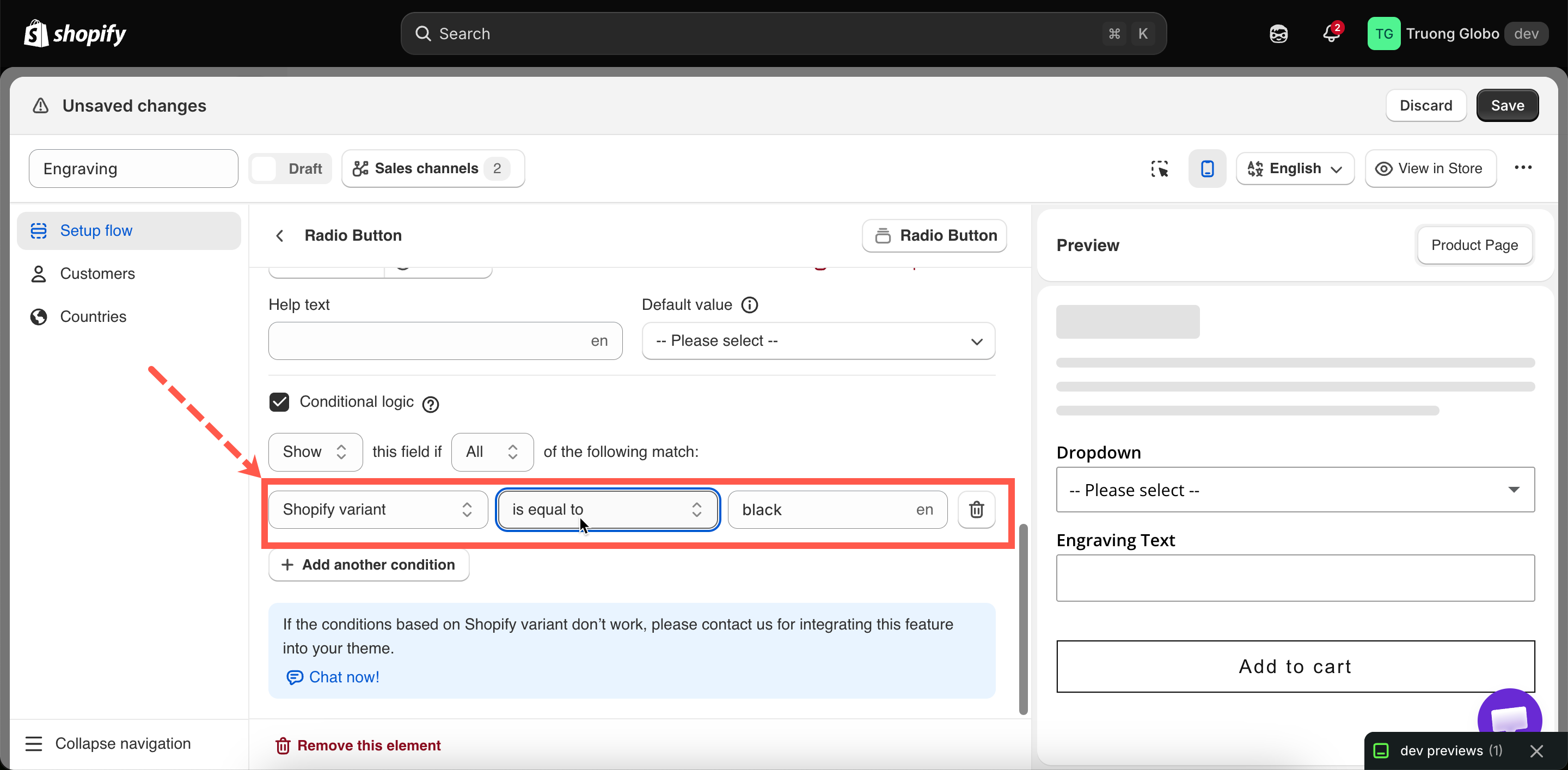
Conditions based on Shopify variants
Show or hide options based on the Shopify variant the customer selected — how to set it up, and what to check when it does not work.
Conditional logic normally reads the app's own options. It can also read the Shopify variant the customer selected on the product page, such as the size, color, or material defined on the product itself.
For example:
Show engraving options only on the metal version of a product.
Show shoe width options only for wide-fit sizes.
Show a warning only on the extra-large frame.
What this is for
Product variants and app options are two separate systems. Variants belong to Shopify and have their own prices and inventory. Options are added by the app on top of the product.
A variant condition connects the two.
Engraving only on the metal version
You cannot engrave the fabric one
A shoe width choice only on wide-fit sizes
It is meaningless on the others
A longer lead-time note only on the largest size
Only that one is made to order
A different set of colors per material
Your palettes differ by material
A warning only on one variant
It has a limitation the others do not
Before you start
This requires the advanced level of conditional logic. On other plans you can select Shopify variant as a source, but the operator and value fields are locked. See Compare plans.
Know the exact variant name as it appears on your product in Shopify admin.
You have a product page to test on. The builder's preview cannot evaluate variant conditions, because no variant is selected there.
Steps
Choose an operator and type the variant name
Variant conditions use the text operators: is equal to, is not equal to, starts with, ends with, contains, does not contain, plus the character-count ones. Use is equal to for one specific variant, contains when the name has several parts and you only care about one.
The value is a text field rather than a dropdown, because the app cannot know which products the option set will be applied to.
The field displays your current storefront language as a suffix. This matters if your store is translated. See Translated variant names below.

Products with several variant dimensions
A product with both Size and Color has variant names that combine both values, usually in the form Large / Silver.
Only the Large Silver variant
is equal to — Large / Silver
Every Silver variant, whatever the size
contains — Silver
Every Large variant, whatever the color
contains — Large
Everything except Silver
does not contain — Silver
Variants whose name begins with Large
starts with — Large
Translated variant names
Variant names are text, so they are translated. A customer on your French storefront sees the French variant name, and the condition needs the French text to match it. This is why the value field displays your current storefront language as a suffix.
The condition stores one value per language, so:
Type the variant name in your primary storefront language.
Switch language with the control in the builder header, and re-enter the same variant name in that language.
Repeat for every storefront language, then test on each storefront.
Variant condition or a separate option set?
In some cases, a separate option set is a better solution than a condition.
One or two options differ by variant
Variant conditions
Almost the whole form differs by variant
Two option sets, targeted at different products by tag — see Assign to products
The variant is really a product option, not a variant
Move it into the app as a real option, and free up the Shopify variant
You are past Shopify's variant limit
That is what this app is for — replace variants with options
Notes
Requires the advanced level of conditional logic.
The value is typed, not selected. The app cannot list the variants of a product the option set has not been applied to yet.
Matching is exact and language-specific.
The builder preview cannot evaluate variant conditions. Always test with View in Store.
If you rename a variant in Shopify, every condition referencing it stops matching. Check your option sets after renaming a variant.
One condition reads one variant name. For several variants, add several conditions with Any matching, or use contains with a part of the name they share.
Last updated
Was this helpful?