> For the complete documentation index, see [llms.txt](https://docs.globo.io/llms.txt). Markdown versions of documentation pages are available by appending `.md` to page URLs; this page is available as [Markdown](https://docs.globo.io/options/conditional-logic/turn-it-on.md).

# Turn on conditional logic

Where the conditional logic switch lives, and what the Show, Hide, All, and Any choices actually do.

## Before you start

* An option set is open in the builder with at least two options: one that reacts, and one that triggers the rule.
* The option you want to use as a condition must appear **above** the option you are configuring. If it does not, move it up first. See [Build your options](/options/option-sets/build-options.md).
* Conditional logic may not be available on all plans. If the switch is grayed out, see [Compare plans](/options/plans-and-billing/compare-plans.md).

## Steps

{% stepper %}
{% step %}

### Select the option that should appear or disappear

Apply the rule to the option whose **visibility** you want to control, not to the option that triggers it.

For example, to display a gift message field when gift wrapping is selected, apply the rule to the **gift message** option.
{% endstep %}

{% step %}

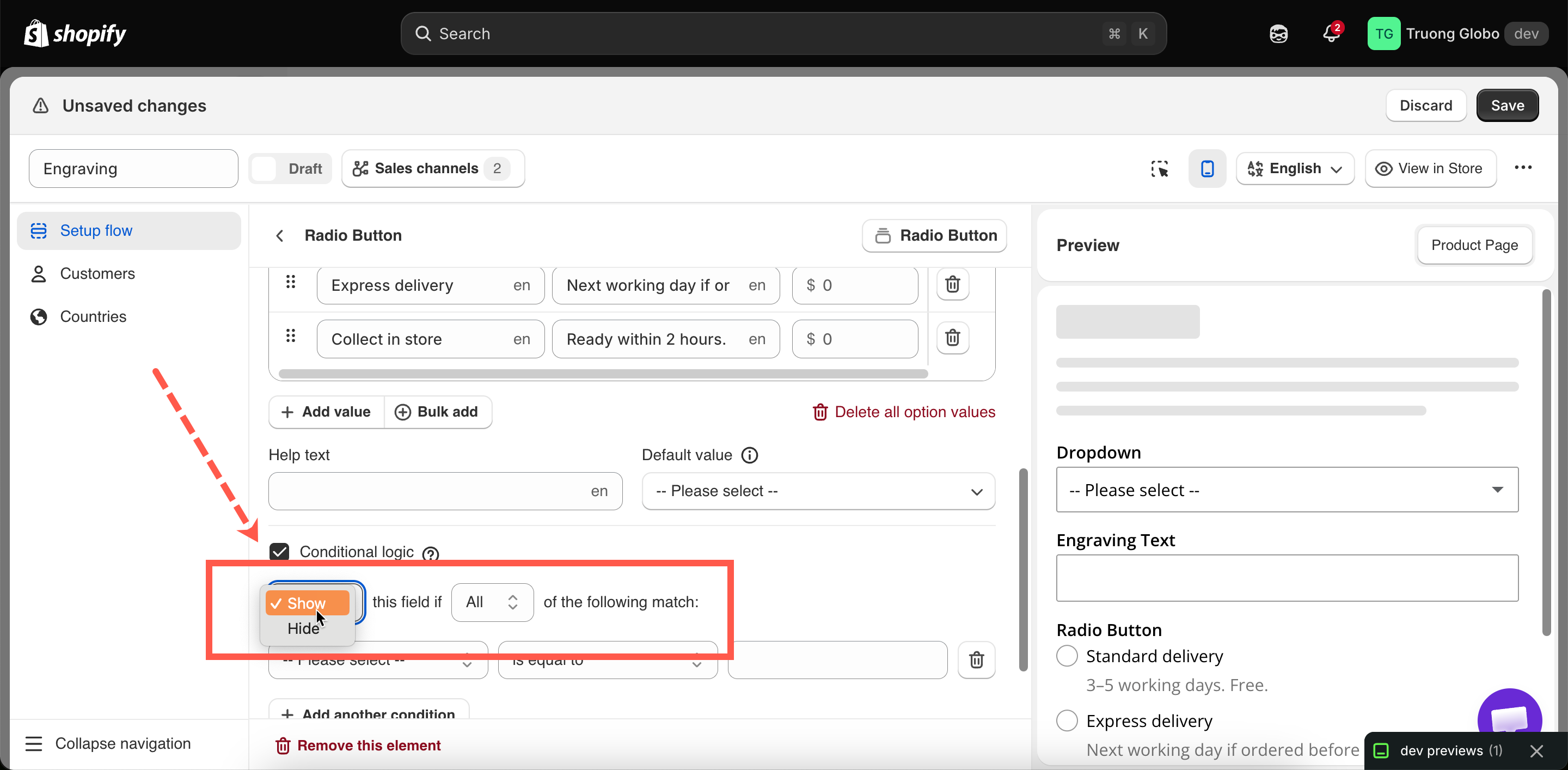
### Turn on Conditional logic

On **Basic**, find the **Conditional logic** switch and turn it on.

A rule builder appears directly underneath.
{% endstep %}

{% step %}

### Choose the action

The first dropdown is **Show** or **Hide**.
{% endstep %}

{% step %}

### Choose the matching mode

The second dropdown is **All** or **Any**. It applies only when a rule has more than one condition.
{% endstep %}

{% step %}

### Build the condition

One row: a source, an operator, and a value. See [Build a condition](/options/conditional-logic/build-a-condition.md).
{% endstep %}

{% step %}

### Test it in the preview

The builder's live preview applies your rules. Change the trigger option and check that the dependent option is displayed and hidden as expected.

The preview cannot test variant-based conditions, because no variant is selected there. See [Live preview and inspector](/options/option-sets/live-preview-and-inspector.md).
{% endstep %}

{% step %}

### Save

Then test on your storefront with **View in Store**, checking both branches.
{% endstep %}
{% endstepper %}

<figure><img src="https://3141646361-files.gitbook.io/~/files/v0/b/gitbook-x-prod.appspot.com/o/spaces%2FkMyxhAk2ZlJa4wZQGfBI%2Fuploads%2Fgit-blob-4e53584cff87be4ad6abcab889d8703eea4affa1%2F2026-09-04_10-03-15.png?alt=media" alt="The conditional logic switch turned on with the rule builder revealed underneath"><figcaption><p>The rule goes on the option being shown or hidden, not on the trigger.</p></figcaption></figure>

## Show or Hide

Both produce the same result from opposite directions. The rule is evaluated, and then:

<table><thead><tr><th width="180">Action</th><th width="230">Conditions met</th><th>Conditions not met</th></tr></thead><tbody><tr><td><strong>Show</strong></td><td>The option is visible</td><td>The option is hidden</td></tr><tr><td><strong>Hide</strong></td><td>The option is hidden</td><td>The option is visible</td></tr></tbody></table>

### Which to choose

The two actions are logically interchangeable, but one is usually easier to read later.

<table><thead><tr><th width="330">What you want</th><th>Use</th></tr></thead><tbody><tr><td>An option that is normally irrelevant and becomes relevant</td><td><strong>Show</strong> — the default state is hidden, which is what you want</td></tr><tr><td>An option that is normally relevant, with one exception</td><td><strong>Hide</strong> — the default state is visible</td></tr><tr><td>An option revealed by a single yes-or-no choice</td><td><strong>Show</strong> when the switch is enabled</td></tr><tr><td>An option that must disappear for one specific variant</td><td><strong>Hide</strong> when the variant matches</td></tr></tbody></table>

{% hint style="info" %}
Use **Show** by default. An option that starts hidden and appears when needed keeps the initial form short, which is the main purpose of conditional logic.
{% endhint %}

## All or Any

<table><thead><tr><th width="180">Mode</th><th>Fires when</th><th>Effect</th></tr></thead><tbody><tr><td><strong>All</strong></td><td>Every condition is true</td><td>Narrows. Each condition you add makes the rule fire less often.</td></tr><tr><td><strong>Any</strong></td><td>At least one condition is true</td><td>Widens. Each condition you add makes the rule fire more often.</td></tr></tbody></table>

With a single condition, this setting has no effect.

### Worked comparison

Two conditions: `Gift wrap` **contains** `Yes` and `Delivery` **is equal to** `Express`.

<table><thead><tr><th width="230">Mode and action</th><th>The option appears when</th></tr></thead><tbody><tr><td><strong>Show</strong> + <strong>All</strong></td><td>Gift wrap is ticked <strong>and</strong> delivery is Express</td></tr><tr><td><strong>Show</strong> + <strong>Any</strong></td><td>Gift wrap is ticked <strong>or</strong> delivery is Express</td></tr><tr><td><strong>Hide</strong> + <strong>All</strong></td><td>Everything except when both are true</td></tr><tr><td><strong>Hide</strong> + <strong>Any</strong></td><td>Only when neither is true</td></tr></tbody></table>

The last two combinations are the ones most often misread. **Hide** with **Any** hides the option when any one condition is true, so the option is displayed only when none of them are true.

## Adding and removing conditions

* **Add another condition** appends a row.
* Each row has a delete action.
* All rows in a rule share the same **All** or **Any** mode. You cannot combine `A and (B or C)` in a single rule.

### When you need mixed logic

To build logic such as `A and (B or C)`, split it across two rules:

* Apply part of the logic to a [Section](/options/option-types/static-types/section.md) and the rest to the option inside it. Both rules must match for the option to be displayed, which creates an **AND** between them.
* Or add two copies of the option, each with its own rule, and make sure their conditions cannot both be true at the same time.

## Rules on a Section

**Section** supports conditional logic in the same way as other option types. A rule on a section controls every option inside it.

Use a section rule when more than two options share the same condition. One rule replaces several identical rules, and you only need to edit it in one place when the condition changes.

See [Section](/options/option-types/static-types/section.md).

## Notes

* A hidden option is **not validated**, so a required option that is currently hidden does not block **Add to cart**.
* A hidden option with an add-on price is **not charged**. Hiding removes the charge.
* Rules are evaluated in the customer's browser as they make selections. No page reload is required.
* Rules are evaluated on the storefront and in the builder preview. Customer and country rules are not, because they control whether the whole option set is displayed.
