> For the complete documentation index, see [llms.txt](https://docs.globo.io/llms.txt). Markdown versions of documentation pages are available by appending `.md` to page URLs; this page is available as [Markdown](https://docs.globo.io/options/getting-started/enable-the-app-embed.md).
# Enable the app embed
Turn on the app embed so your option sets can actually appear on the storefront.
The app displays its widget on your storefront through a Shopify **Theme App Embed**. Until the embed is enabled on your **live theme**, none of your option sets will appear, even if they have already been fully configured and assigned to products.
The app does **not modify or add code to your theme**.
## Steps
{% stepper %}
{% step %}
### Open Theme Setup
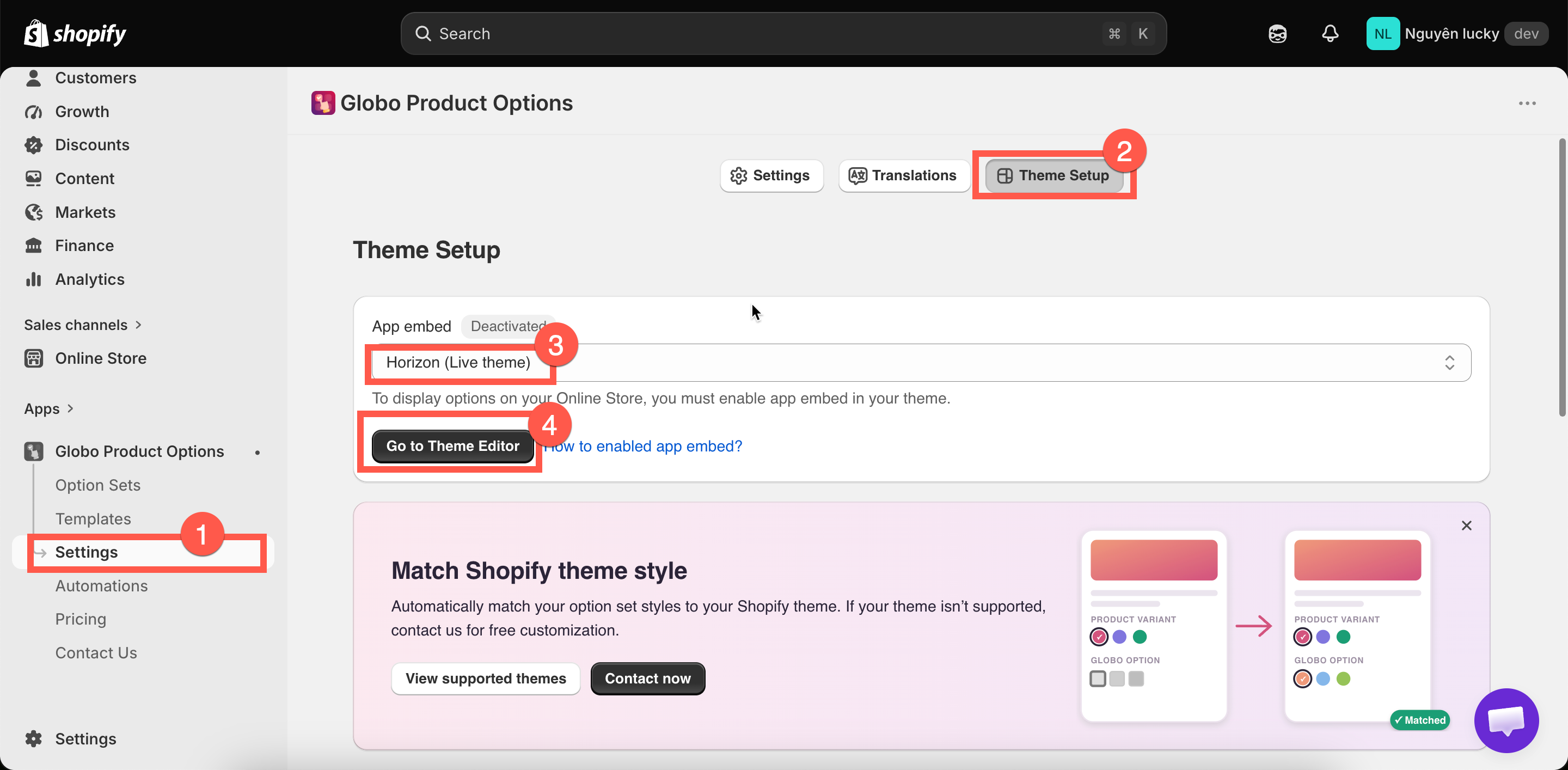
In the app, go to **Settings**, then the **Theme Setup** tab.
The page shows an **App embed** badge — **Activated** or **Deactivated** — for the theme selected in the dropdown below it. If you publish more than one theme, use the dropdown to check each.
{% endstep %}
{% step %}
### Click Go to Theme Editor button
This opens Shopify's theme editor for that theme, already scoped to the app embeds section.
Theme Setup shows whether the embed is on, for the theme you select.
{% endstep %}
{% step %}
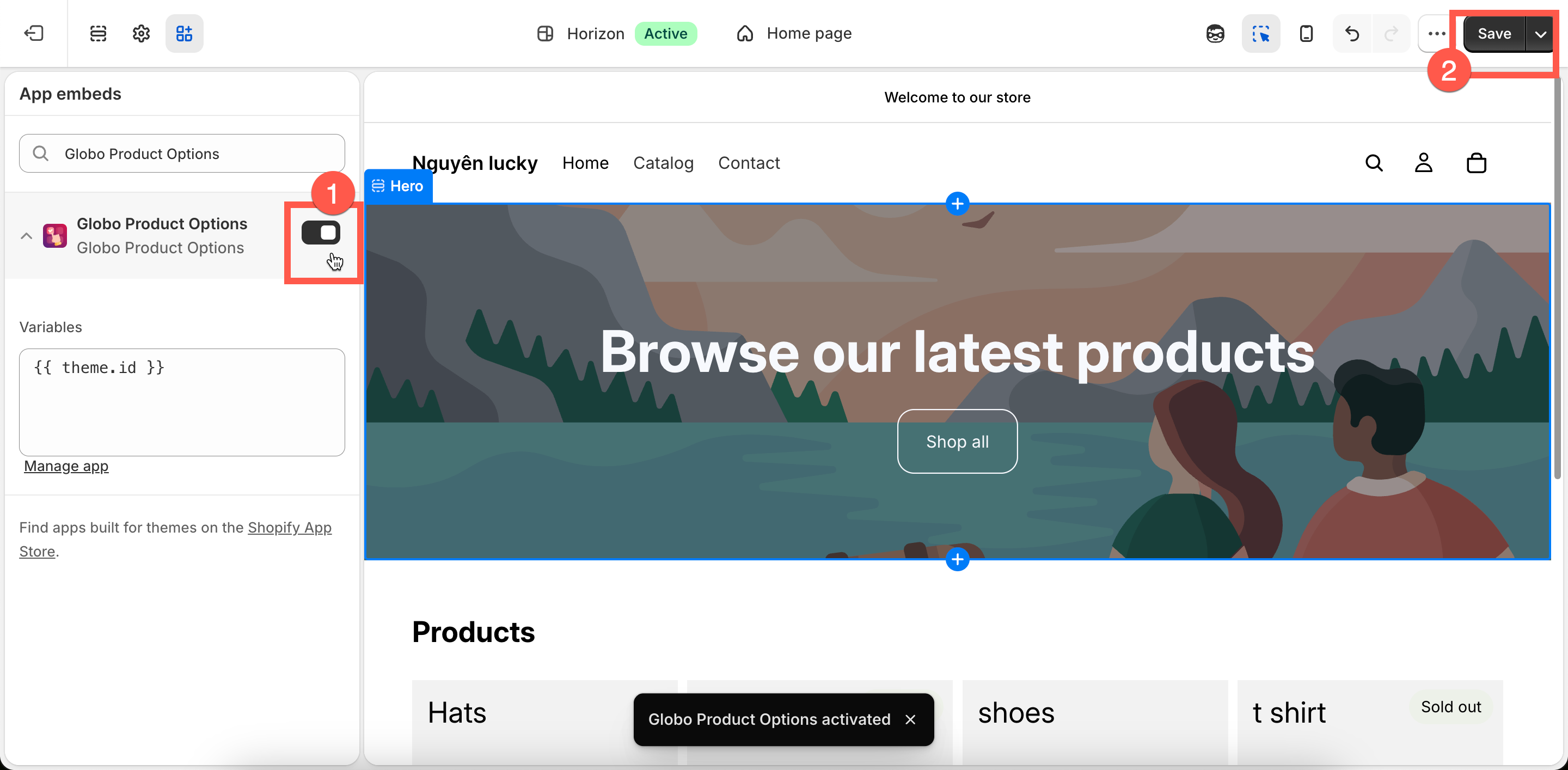
### Turn on Globo Product Options
Find **Globo Product Options** in the **App embeds** list, turn its toggle on, and select **Save** in the theme editor.
Turn the toggle on, then save in the theme editor.
{% endstep %}
{% step %}
### Confirm it is activated
Go back to the app tab. The **App embed** badge will automatically change to **Activated** once the app detects the change — in most cases, you don’t need to reload the page.
Then open a product page where one of your active option sets is assigned and check that the options are displayed correctly.
{% endstep %}
{% endstepper %}
{% hint style="success" %}
Once the badge shows as **Activated,** you don't need to come back to this step anymore — unless you publish a different theme.
{% endhint %}
## Two things worth knowing
{% hint style="warning" %}
The **App Embed is enabled separately for each theme**. If you publish a different theme — even a duplicate of your current theme — the App Embed will not be enabled on the new theme, so your options will stop appearing.
If you’re working on a duplicate theme, make sure to **enable the App Embed on that theme before publishing it**.
This is the **most common reason** why options suddenly stop appearing.
{% endhint %}
{% hint style="info" %}
Enabling the App Embed only makes the app available on your storefront — **it does not display the options by itself**.
For an option set to appear, it must also:
* Be **Active**
* Be published to the **Online Store**
* Be correctly assigned to the product based on its rule. See [Assign to products](/options/option-sets/assign-to-products.md) for more details.
Conversely, if you turn the App Embed off, this is a clean way to **disable the app across the storefront** without deleting your option sets or uninstalling the app.
{% endhint %}
## Other ways to access the same switch
The **Theme Setup** route above is the recommended method because it also confirms whether the App Embed was successfully activated. However, you can also enable it through either of these shortcuts:
* **Setup guide:** On the app’s Dashboard, click **Enable app embed** in step 2.
* **Shopify directly:** Go to **Online Store → Themes → Customize**, then click the **App embeds** icon in the left sidebar.