
Kaching Cart
Using product options with the Kaching slide cart, including how its upsell filtering differs.
Kaching CartDrawer Cart Upsell is recognized automatically. There is nothing to connect and no selector to enter.
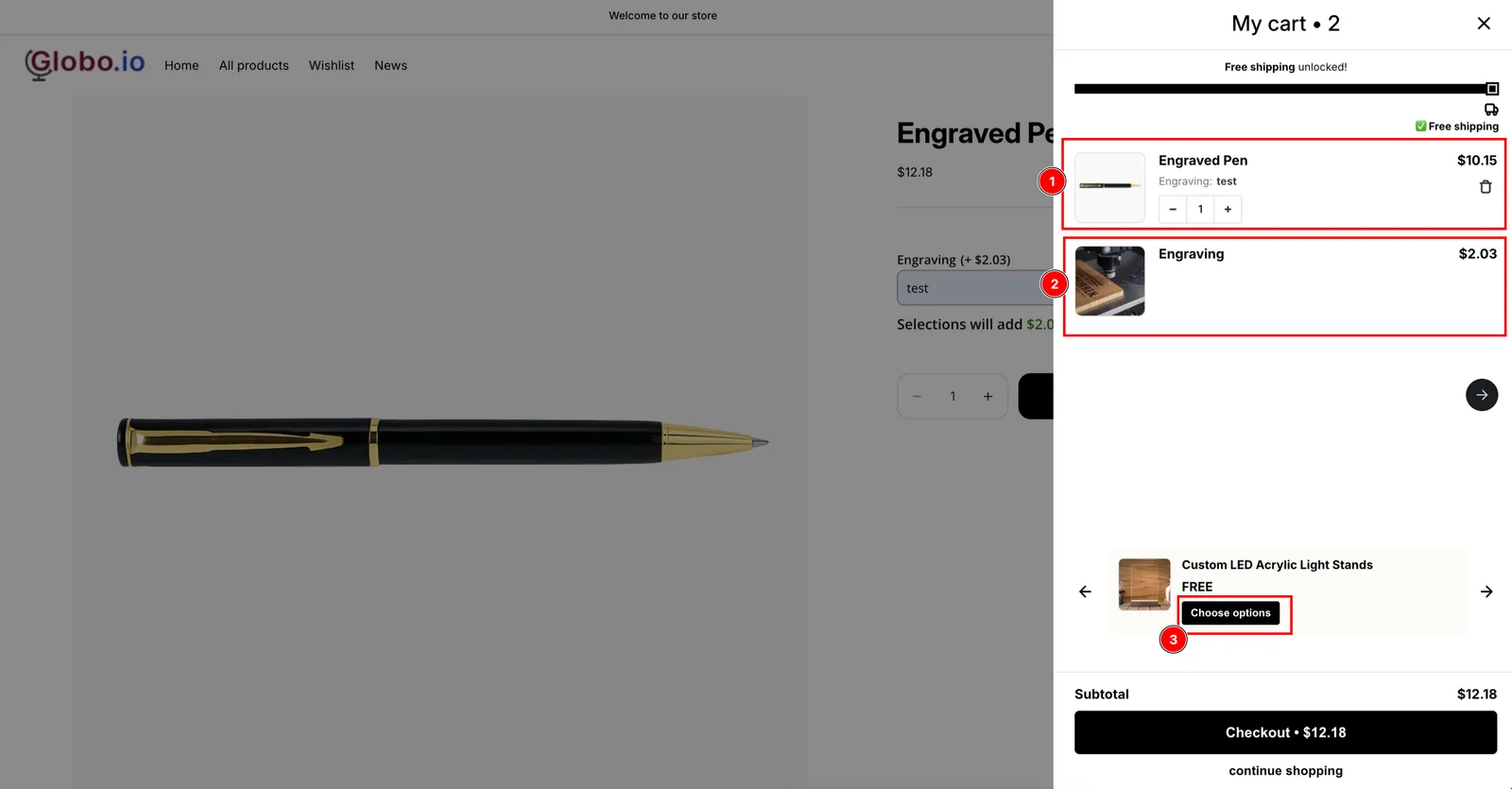
Variant selectors are hidden on add-on lines
Kaching’s slide cart lets customers switch an item’s variant from inside the drawer. On add-on lines that control is hidden, along with the quantity box and the Remove button.
Without this, a customer could switch a Small gift box to Large in the drawer while the option they chose on the product page still said Small, and you would receive an order that contradicts itself.
Upsell filtering works differently here
The app keeps the add-on products it generated for you out of a drawer’s upsell list, so an auto-generated gift box is never offered as an upsell. With UpCart and Monster Cart, it does that through their own filter, before the list is drawn.
Kaching does not offer such a filter. Instead, the app checks each upsell product’s tags after the list is drawn and hides the ones that are yours. Two things follow, and shoppers can see both:
| What can happen | What to do about it |
|---|---|
| An add-on product is visible in the upsell list for a moment before it disappears | Nothing. It is brief, and the product is gone before most customers read the list |
| The check does not complete, and the add-on product stays in the list | Turn on Send cart drawer app upsells to the product page. The customer is then taken to the product page rather than buying it in one click |
That second setting is worth turning on here even if you would leave it off elsewhere. See Upsells in the drawer skip your option form.
Next steps
- Set up — the two settings, with screenshots
- What a drawer cannot do — Edit Options, design previews, and the other limits
- UpCart, Monster Cart, Qikify Slide Cart, Unicorn Cart Drawer, and Essent Cart Drawer — the other recognized cart drawer apps
Was this helpful?
Thanks for your feedback! Tell us what was missing
Report an issue