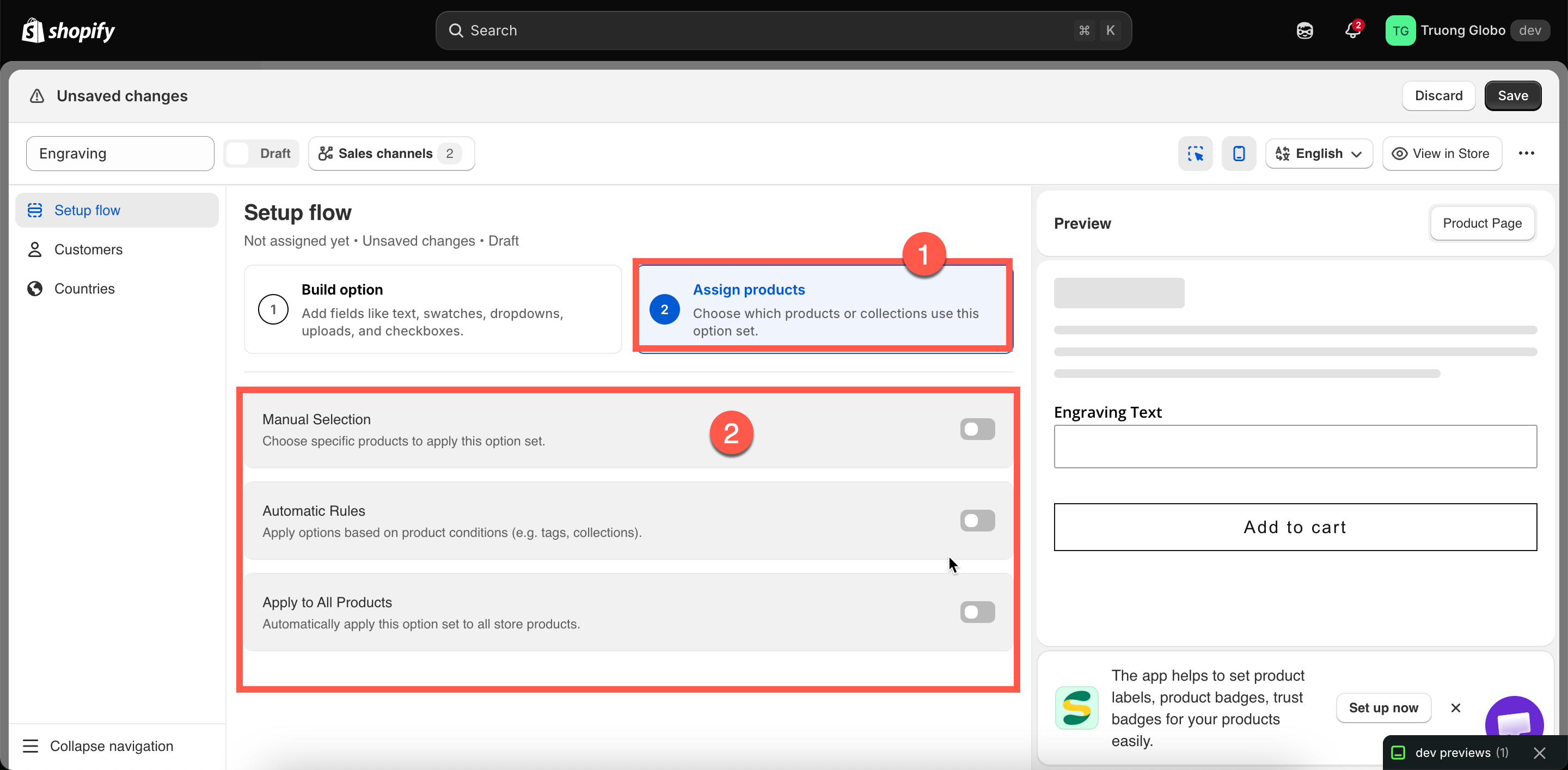
Three targeting methods; switching one on switches the others off.
| Method | How it decides | Best for |
|---|---|---|
| Manual Selection | You pick products by hand. | A short, stable list. Options for one flagship product. |
| Automatic Rules | Conditions on product title, type, vendor, price, tag, or collection. | Best for rules that should continue to apply as you add new products. This is the most common choice. |
| Apply to All Products | Every product in the store. | Store-wide options such as a delivery note or gift message. |
Three targeting methods; switching one on switches the others off.
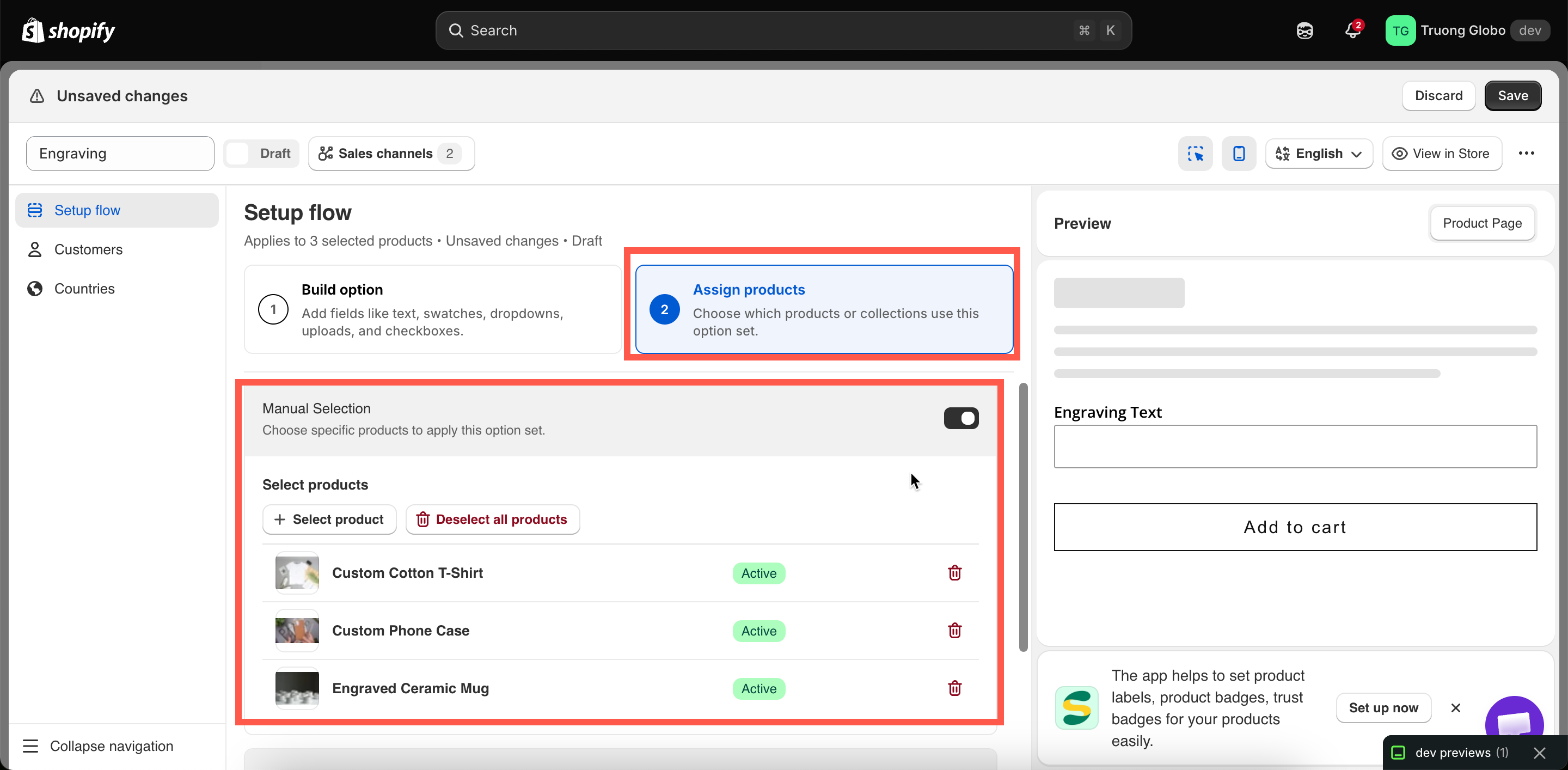
Manually selected products are listed with their Shopify status.
| Setting | Meaning |
|---|---|
| all conditions | A product must satisfy every condition. Conditions narrow the match. |
| any condition | A product needs to satisfy at least one. Conditions widen the match. |
| Field | Matches against |
|---|---|
| Product title | The product's title in Shopify. |
| Product type | The product's Type that set up in Shopify. |
| Product vendor | The product's Vendor that set up in Shopify. |
| Product price | The product's price. |
| Product tag | The product's tag that set up in Shopify |
| Collection | The products that are included in the collection. |
| Field | Operators |
|---|---|
| Product title, Product type, Product vendor | is equal to, is not equal to, starts with, ends with, contains, does not contain |
| Product price | is equal to, is not equal to, is greater than, is less than |
| Product tag, Collection | is equal to, is not equal to |
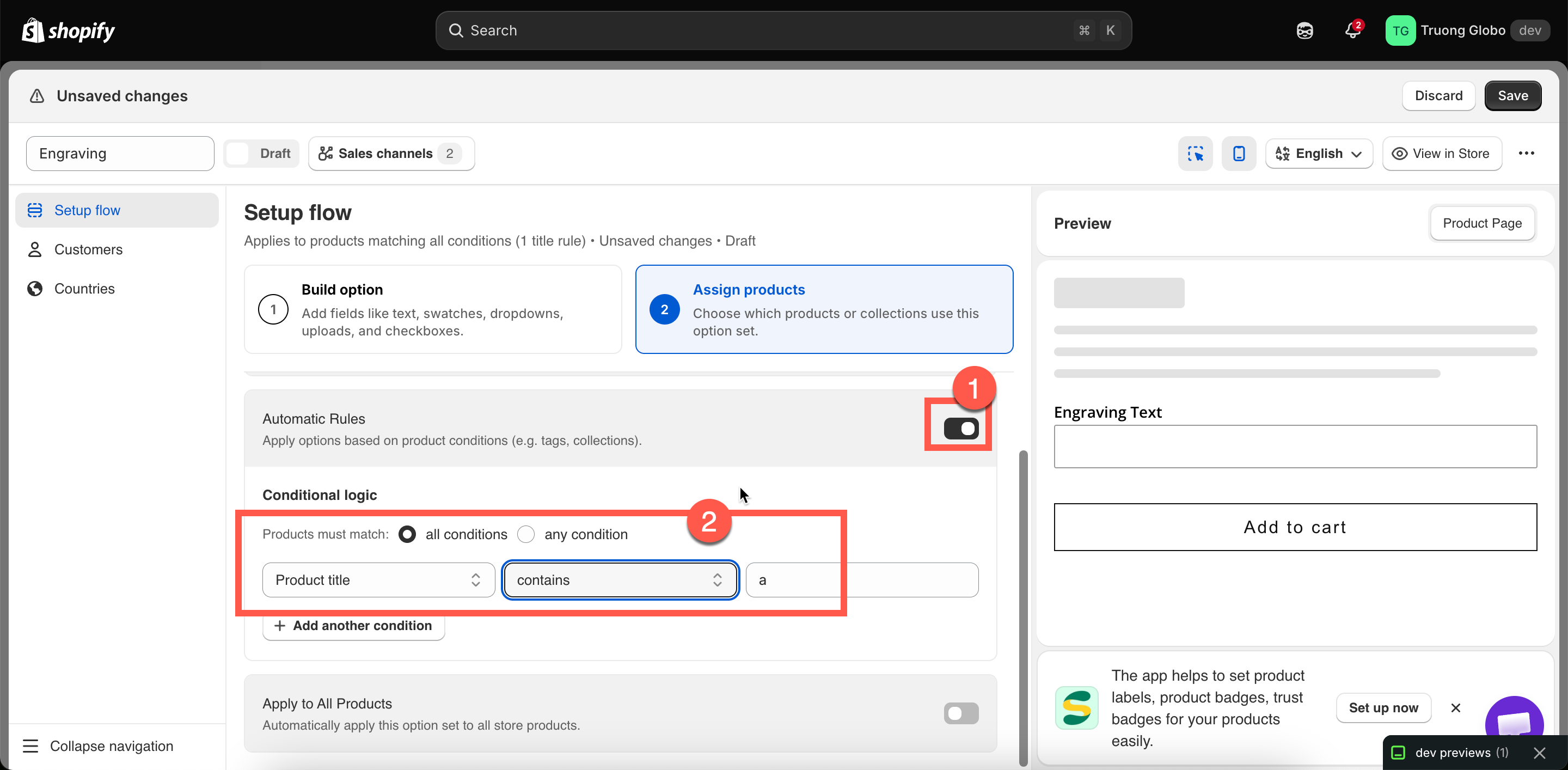
Conditions combine with all or any, and the operators change with the field.
| You want | Set up |
|---|---|
Every product tagged engravable | Product tag — is equal to — engravable |
| Everything in the Wedding collection | Collection — is equal to — pick Wedding |
| All t-shirts from one brand | all conditions; Product type — is equal to — T-Shirt; Product vendor — is equal to — the brand name |
| Anything over $100, for insurance options | Product price — is greater than — 100 |
Anything tagged custom or bespoke | any condition; Product tag — is equal to — custom; Product tag — is equal to — bespoke |
| Personalized products, except sale items | all conditions; Product tag — is equal to — personalized; Product tag — is not equal to — sale |
| Everything whose title mentions "Gift" | Product title — contains — Gift |