For the complete documentation index, see llms.txt. This page is also available as Markdown.

Create an option set

Create and publish your first option set in just a few steps.

Before you start: Make sure the app is installed and you’ve chosen a plan (Install the app). If you’re not sure which options to offer your customers yet, browse Option types or start with a template.

Steps

1

Create from scratch

Go to Option Sets > Create option set > Create from scratch.

The other option, Use a template, creates a copy of a complete option set that you can then edit — see Templates.

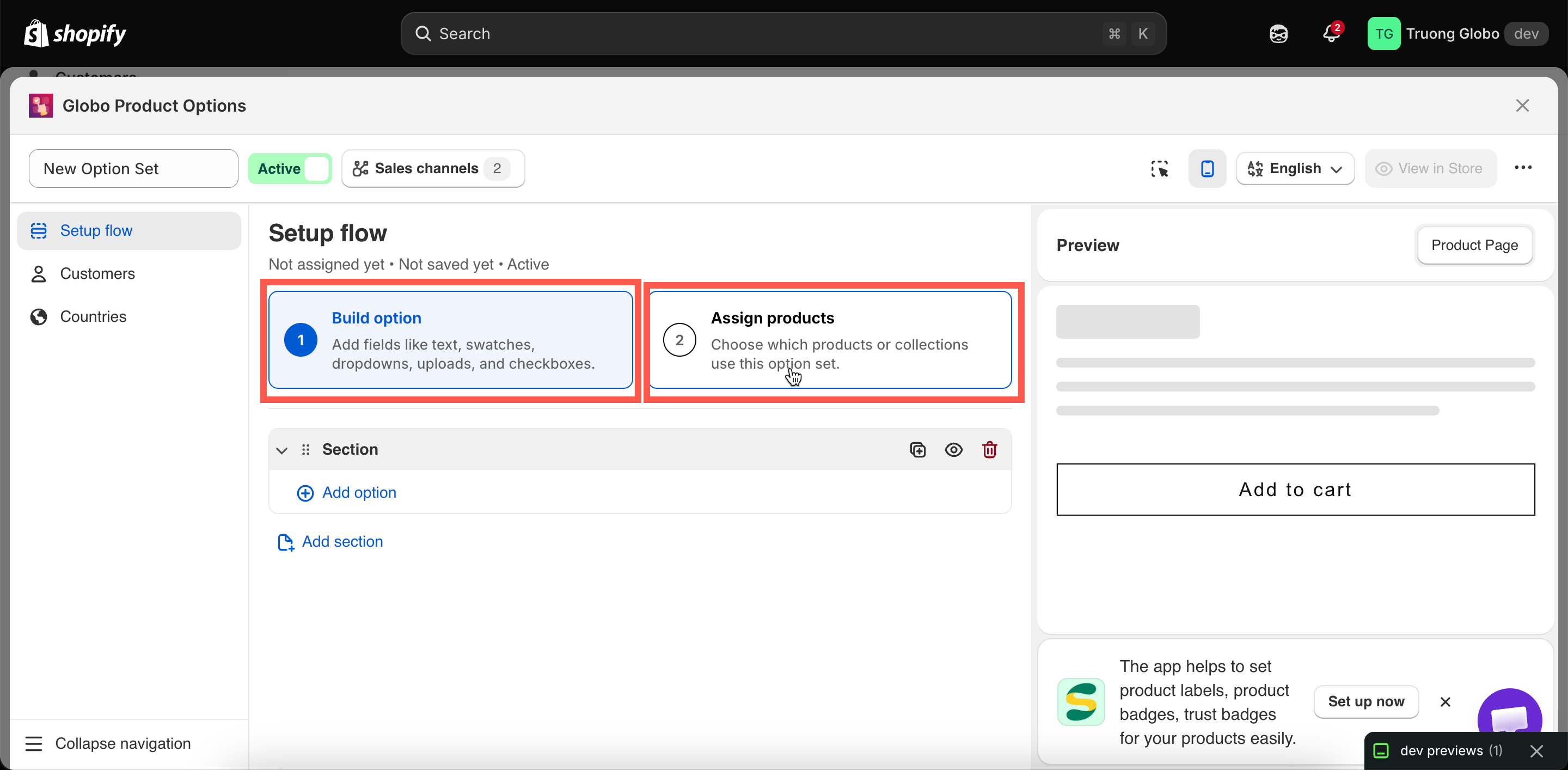
The builder opens on Setup flow, which has exactly two steps. These are the two things every option set needs:

  1. Build option — the fields and choices you want to show customers.

  2. Assign products — the products you want those options to apply to.

The Setup flow tab of a new option set showing the Build option and Assign products steps
Setup flow reduces the required work to two steps.
2

Add your options

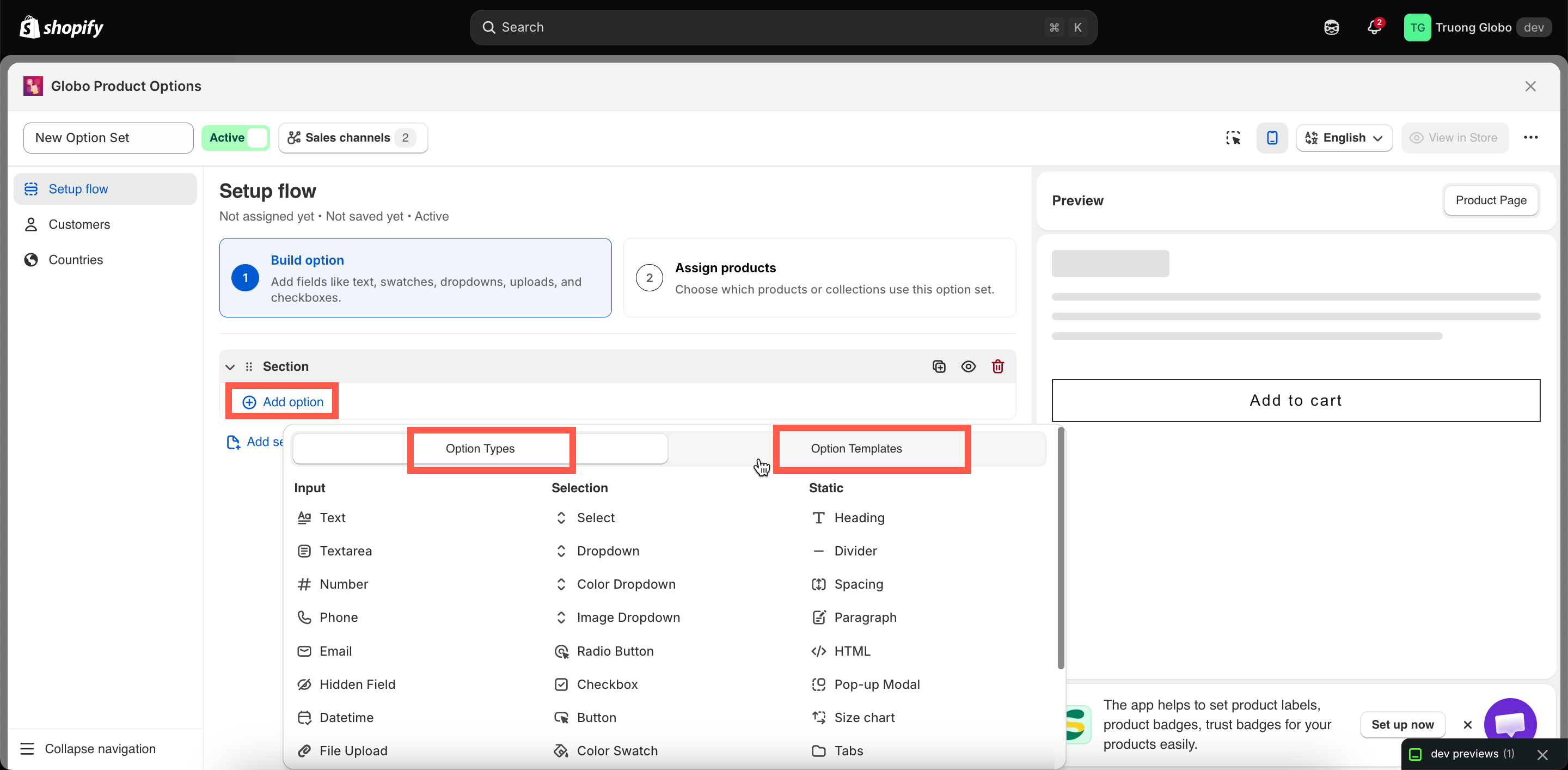
Select Add option inside the section and choose an option type. The picker has two tabs:

  • Option Types — the 32 individual option types.

  • Option Templates — ready-made groups of options you can insert and customize.

The Add option picker showing the Option Types and Option Templates tabs
Choose an option type, or insert a ready-made group from Option Templates.

For each option, set at least these three fields:

Field
Notes

Label

The text customers see. No restrictions

Name

The name is stored with the cart item and order. Must be unique within the option set and cannot contain . , : , " , ' , \ , or | — see Label and Name

Required field

Whether customers must complete the option before adding the product to the cart.

Selection-style options also need their values — see Working with option values. For reordering, duplicating, and grouping options, see Build your options.

3

Assign it to products

Switch to Assign products and turn on one of three methods:

Method
Best for

Manual Selection

A fixed and small product list that you pick by hand

Automatic Rules

Anything matching a tag, type, vendor, price, or collection. Keeps working as your catalog grows

All Products

Store-wide options such as a delivery note

Read here for full details: Assign to products.

4

Optionally narrow by customer or country

Two additional tabs on the left rail are optional and available only on certain plans:

  • Customers — limit the option set to specific customers.

  • Countries — include or exclude specific countries.

Skip these tabs if you want the option set to be available to everyone, everywhere.

See Assign to customers and Assign to countries.

5

Check the preview, then Save

The live preview on the right renders the real widget, runs your conditional logic, and previews add-on prices. See Live preview and inspector.

Then select Save in the top-right.

6

Publish the option set

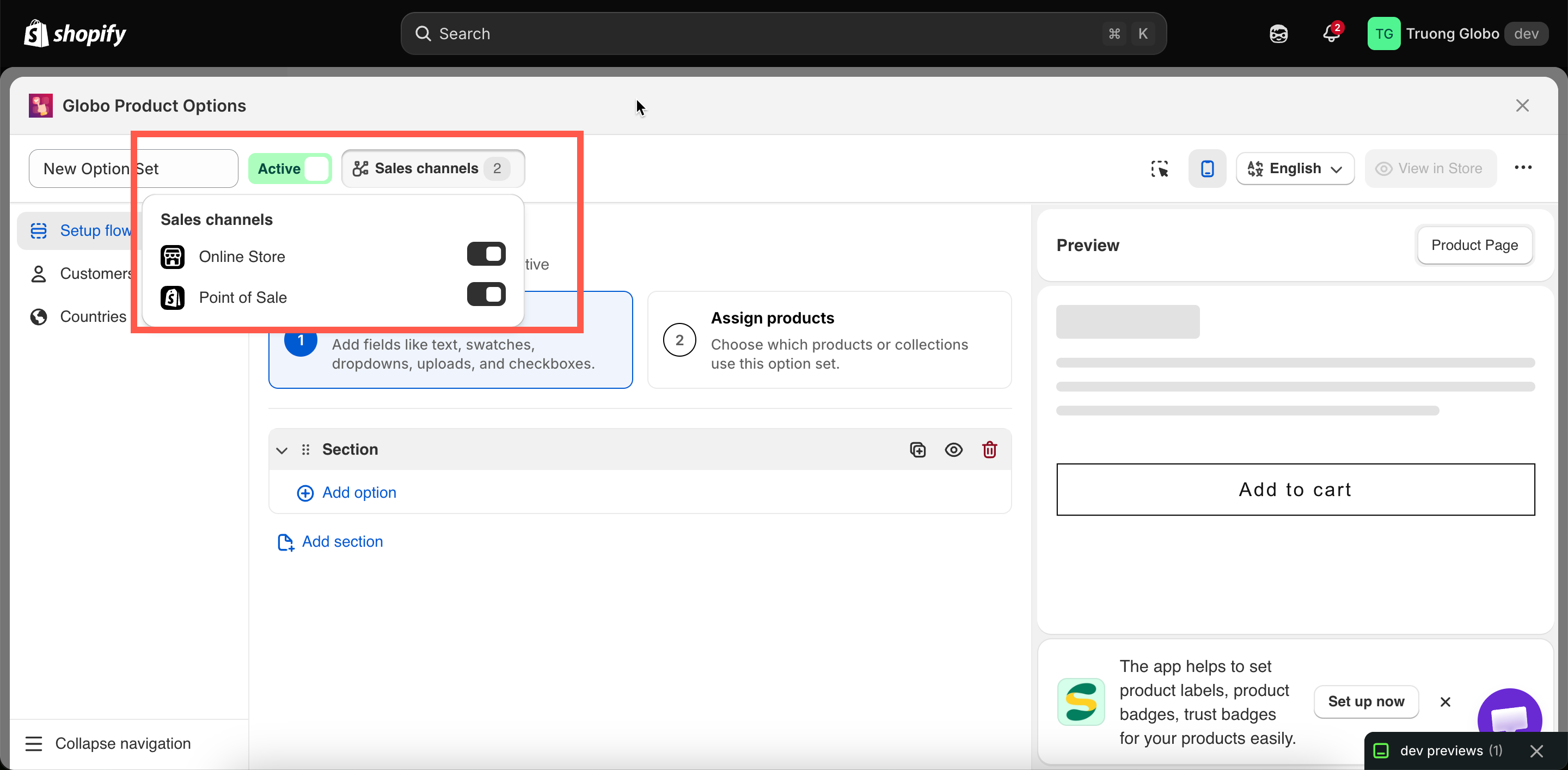
Set the status to Active using the control beside the option set’s name, then check Sales channels:

Channel
What it covers

Online Store

Your storefront: product pages, quickview popups, and featured-product sections

Point of Sale

Orders you take in person through the Shopify POS app

Both are on by default. Turn one off to say "these options are for in-store orders only", or the reverse.

The status control and Sales channels popover in the builder header
Status and Sales channels sit next to the option set's name.
7

View it on your storefront

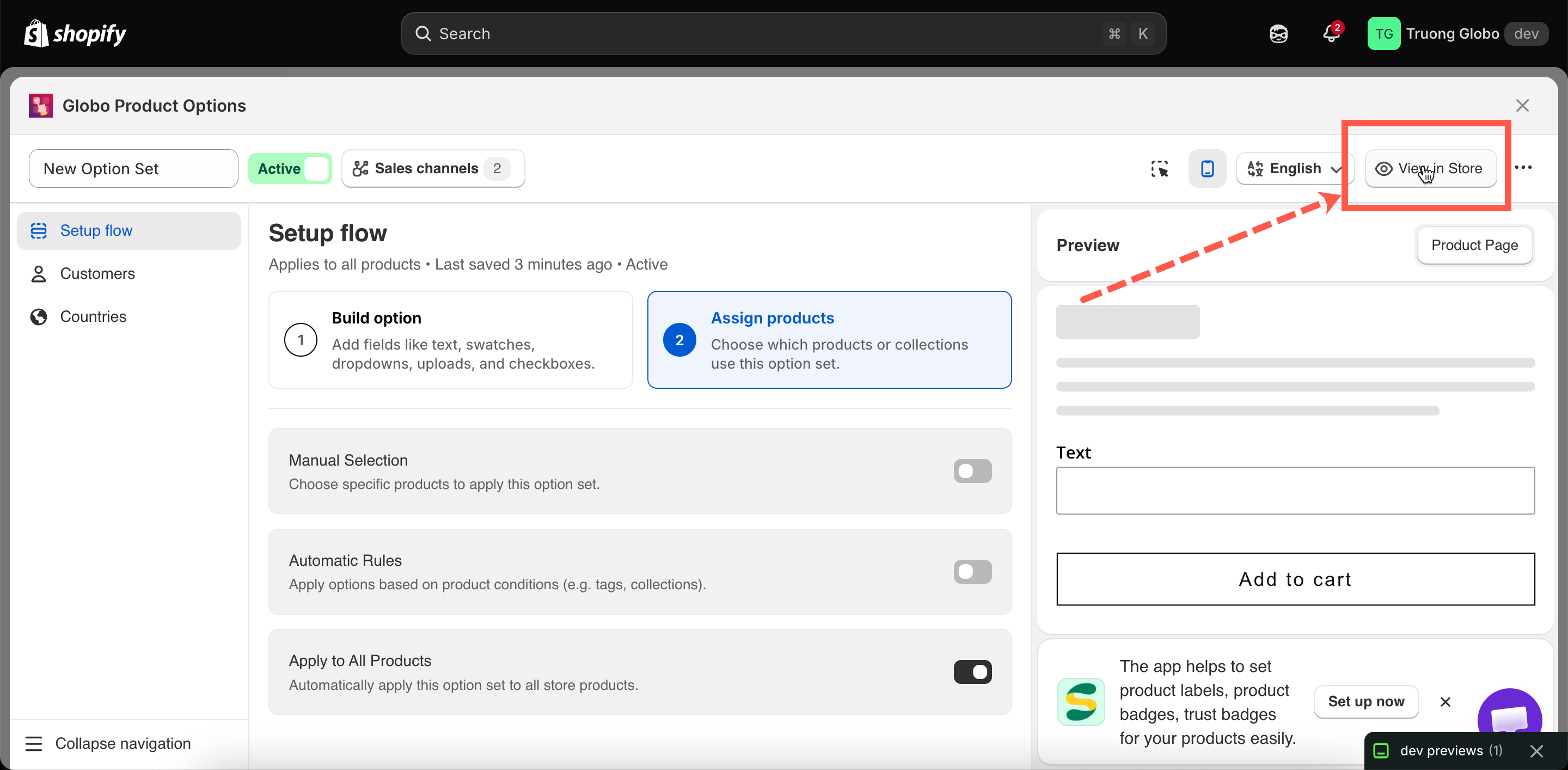
Select View in Store in the builder header to open a product that this option set applies to. If the option set is Active and the app embed is enabled, your options will appear on the product page.

The View in Store button in the builder header
View in Store opens a product that the option set applies to.
What Save stores, and what lives elsewhere
Saved with the option set
Store-wide, saved elsewhere

Options and all their settings

Colors, borders, typography — Settings > Design

Option values, prices, and images

Widget position — Settings > General

Conditional logic rules

Widget text and validation messages — Settings > Translations

Product, customer, and country rules

Automations — Automations

Status and sales channels

The Personalizer background for this set

This is why copying an option set to another store does not copy its look. See Import and export.

Last updated

Was this helpful?