Duplicate and delete
Duplicate an option set to use it as a starting point, or permanently delete an option set when you no longer need it.
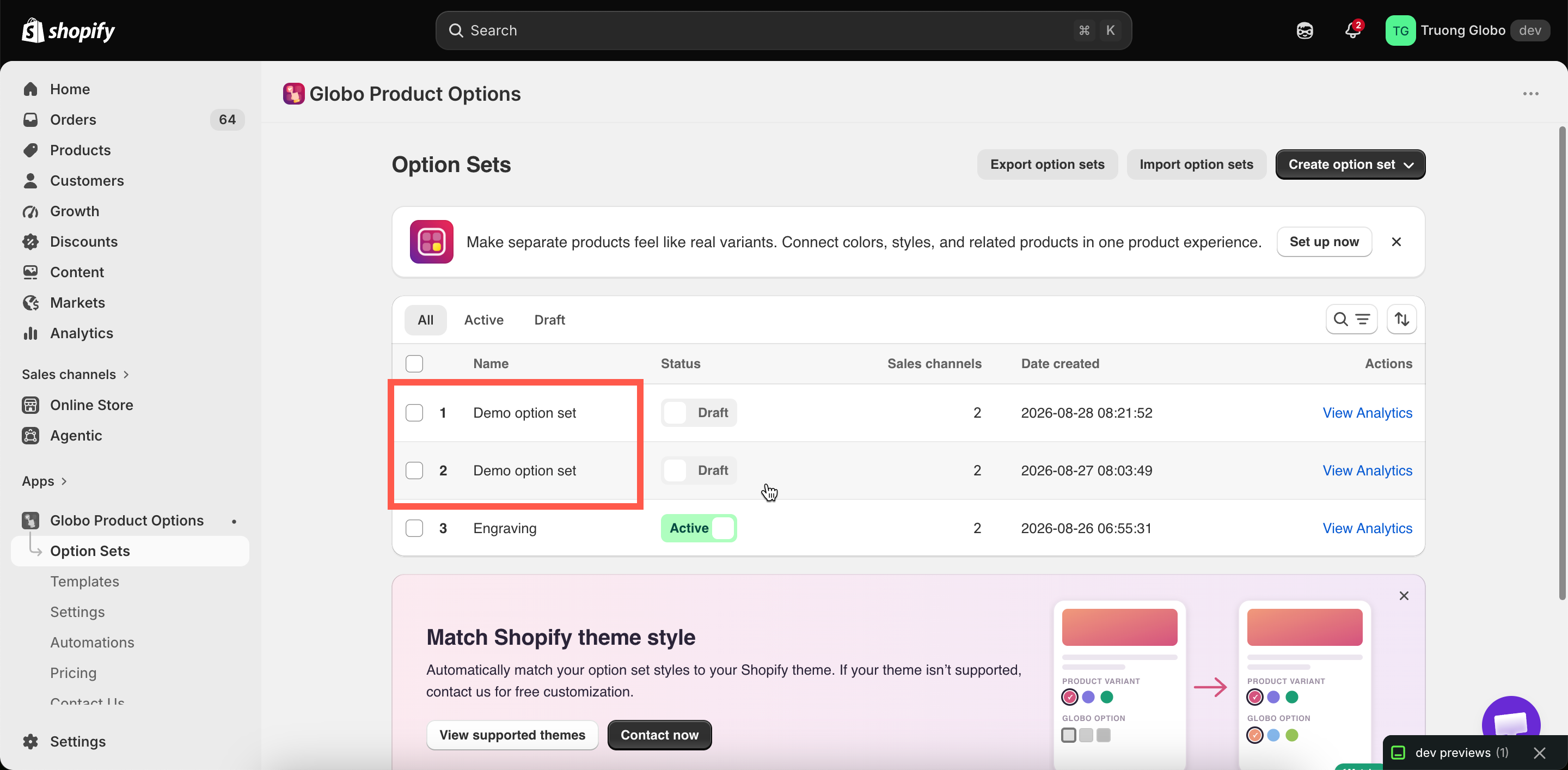
Both actions are available as bulk actions on the Option Sets list. Select the option sets you want to manage, then choose the appropriate action.
Duplicate
Duplicating is a quick way to create a variation — for example, a version for a different customer group or country, or a copy to use before making major changes.

Everything else is copied too, including all options and their settings, values, prices, images, help text, conditional logic, all three targeting rules, and the Personalizer background.
One thing is not copied: add-on products are shared. If a value in the original option set is linked to a generated add-on product, the duplicate uses the same product. Both option sets will sell from the same product inventory.
This is usually what you want. If you need separate inventory, reconfigure the add-on product in the duplicate. See Add-on pricing.
Delete
Use Draft instead - in most cases
For most situations where you might consider deleting an option set, Set as draft is the better choice:
Stops the option set from rendering immediately
Permanently removes the option set
Keeps all your settings and work
Removes all settings and work
Can be reversed at any time
Cannot be undone
Keeps the option set in your list
Removes it from your list
If you're unsure whether you'll need an option set again, set it to Draft rather than deleting it. You can always delete it later if you no longer need it.
If you are deleting anyway
Before deleting an option set, there are three things to check:
Export the option set. Select the set and use Export option sets to create a backup that you can re-import later. See Import and export.
Review its add-on products. Products generated by the app are not deleted when you delete the option set. They remain in your Shopify catalog, so delete or archive them in Shopify admin if you no longer need them.
Check your automations. A workflow using dynamic order-tag mode can reference a specific option in a specific option set. Deleting that set will break the workflow. See Order tags update.
When you're ready, select the option sets you want to delete, choose Delete option sets from the bulk action menu, and confirm.
What deleting does not touch
Deleting an option set does not affect:
Orders that have already been placed. Option details on past orders are stored as part of the order record.
Add-on products, as described above.
Templates you saved from the option set.
Store-wide settings, colors, and translations.
Last updated
Was this helpful?