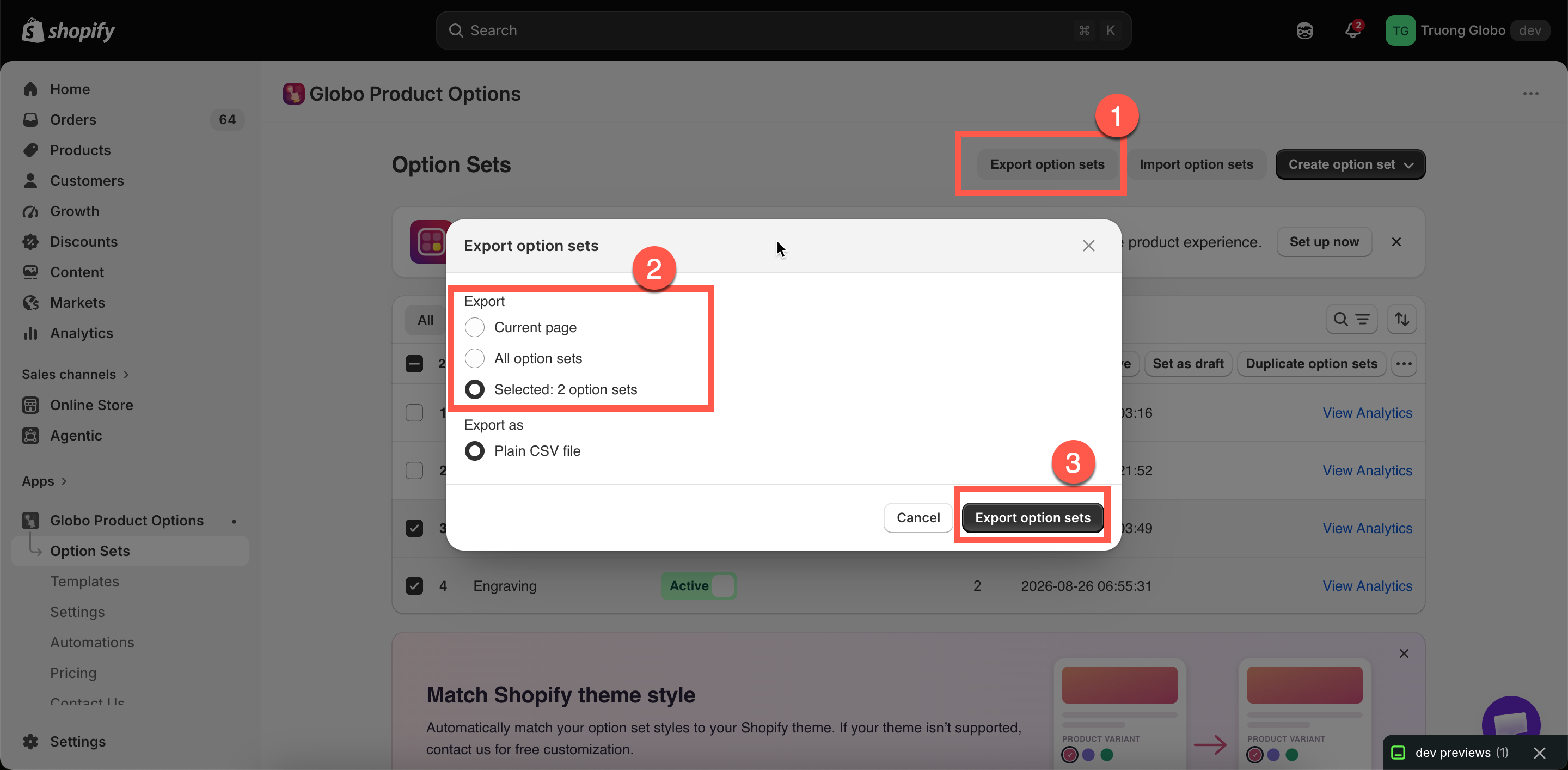
Export the current page, everything, or just your selection.
| Choice | Includes |
|---|---|
| Current page | Every option set on the page you are looking at |
| All option sets | Every option sets in your store |
| Selected: N option sets | Only selected rows. Unavailable when nothing is chosen. |
Export the current page, everything, or just your selection.
| Column | Holds |
|---|---|
option_id | Identifies the option. Repeat it on extra rows to add more values to the same option |
option_type | text, select, checkbox, color-swatches, and so on |
option_label, option_name | What the customer reads, and what appears on the order. See Label and Name |
required, min, max | Yes or No, and the limits for that option type |
placeholder, helptext | The hint inside the field, and the text beside it |
option_value | One choice. Selection types need one row per choice |
addon | The add-on price for that row |
swatch_value | A hex color such as #FF0000 for color swatches, or an image URL for image swatches |
paragraph | The content of a Paragraph element |
products | The product the option set applies to |
| Check | Why |
|---|---|
| Add-on pricing | Pricing from the other app may not map exactly. Review each price and choose the appropriate pricing mode. See Add-on pricing |
| Conditional logic | Operators can differ between apps, so some conditions may need to be rebuilt. |
| Option Name fields | Make sure they are readable and unique. See Label and Name |
| Product rules | Confirm that each option set targets the products you expect. |
| Swatch images | You may need to upload them again if the previous app hosted the images itself. |
| Column | Contains |
|---|---|
option_set_id | The option set's ID, repeated on every row of that set |
option_set_name | The option set's name. First row only |
option_id | The option's internal ID within the set |
option_type | The option's type |
option_label | The option's Label, including any translations |
option_name | The option's Name |
required | yes when Required field is on |
allow_multiple | yes when multiple selection or multiple file upload is on |
min, max | The option's minimum and maximum, whatever they measure for that type |
placeholder | The option's Placeholder |
helptext | The option's Help text and its position |
option_value | The value on this row, with its own help text where it has one |
addon | The add-on configuration: which mode, which product and variant, and the price |
swatch_name | The swatch's internal name |
swatch_value | The color, the two colors of a split swatch, or the image address |
swatch_asset_name | The uploaded image's file name |
default_value | The option's default value |
rich_text_value | Rich-text content for Paragraph, Pop-up modal, HTML, Size chart, and Tabs |
advanced_settings | Everything from the Advanced and Personalizer tabs, in one cell |
columnWidth | The option's Column width |
conditionalField | yes when conditional logic is on for this option |
condition_logic | The conditional logic rule itself |
products | The product rule. First row only |
customers | The customer rule. First row only |
countries | The country rule. First row only |
settings | Option set settings, including the Personalizer background. First row only |