> For the complete documentation index, see [llms.txt](https://docs.globo.io/llms.txt). Markdown versions of documentation pages are available by appending `.md` to page URLs; this page is available as [Markdown](https://docs.globo.io/options/option-sets/import-and-export.md).

# Import and export

Move option sets between stores using CSV files, create backups, or migrate from another product options app.

**Export option sets** creates a CSV file containing your option sets. **Import option sets** lets you upload a CSV file created by this app or exported from another supported product options app.

Use these tools to back up your option sets before making major changes, move a setup from a development store to a live store, or migrate from an app you are replacing.

Both actions are available next to **Create option set** on the **Option Sets** page. Import and export are controlled separately by your plan, so you may have access to one without the other.

## Export

{% stepper %}
{% step %}

### Select the option sets you want to include if you only want to export specific sets.

Skip this to export everything.
{% endstep %}

{% step %}

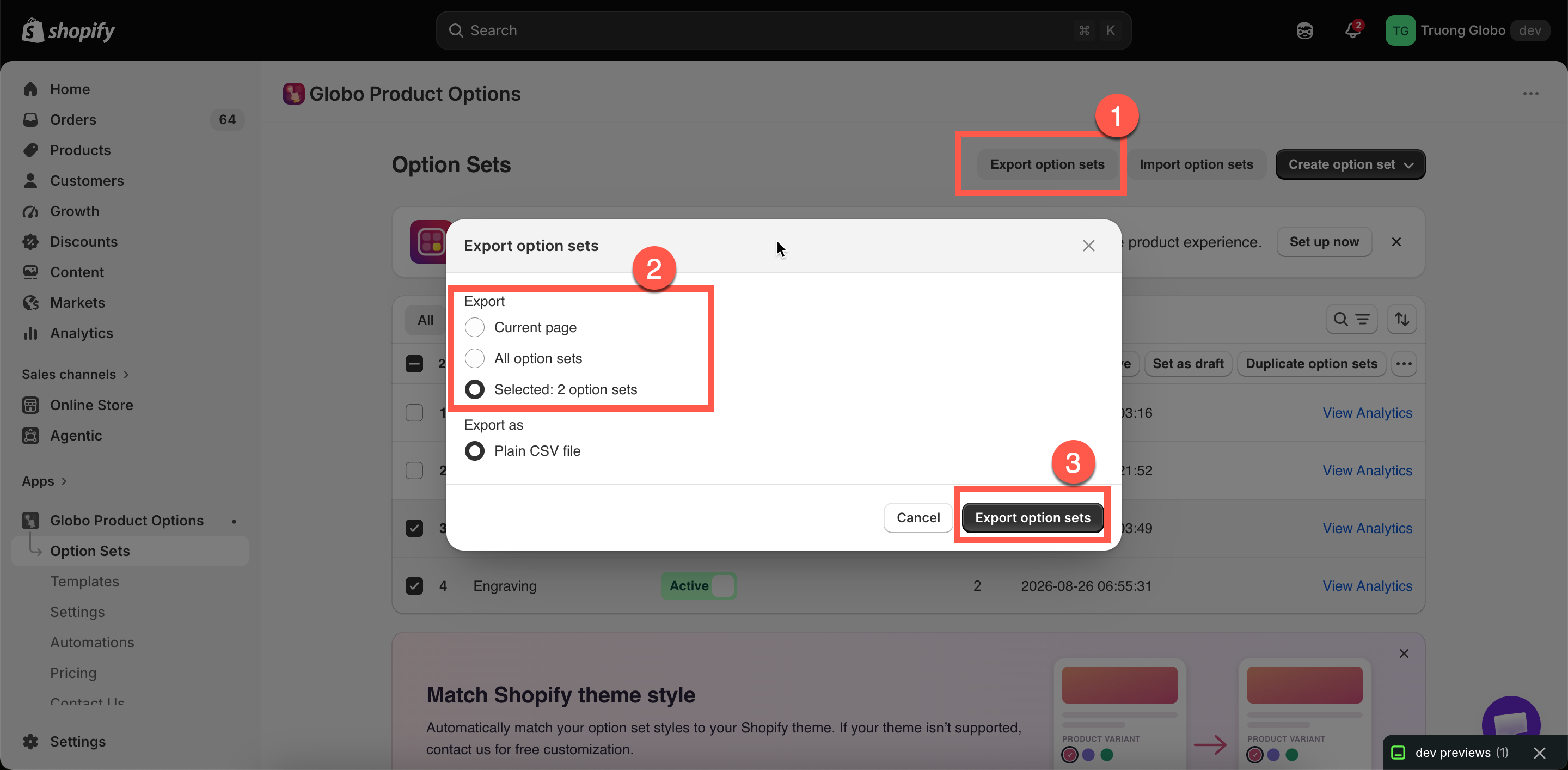
### Select Export option sets, then choose the scope

<table><thead><tr><th width="260">Choice</th><th>Includes</th></tr></thead><tbody><tr><td><strong>Current page</strong></td><td>Every option set on the page you are looking at</td></tr><tr><td><strong>All option sets</strong></td><td>Every option sets in your store</td></tr><tr><td><strong>Selected: N option sets</strong></td><td>Only selected rows. Unavailable when nothing is chosen.</td></tr></tbody></table>

The format is a **Plain CSV file**.
{% endstep %}

{% step %}

### Select Export option sets again

Your browser downloads `OptionsExport.csv`.
{% endstep %}
{% endstepper %}

<figure><img src="https://3141646361-files.gitbook.io/~/files/v0/b/gitbook-x-prod.appspot.com/o/spaces%2FkMyxhAk2ZlJa4wZQGfBI%2Fuploads%2Fgit-blob-d693a7c9d05218339bf057ef0d5ab884b97f1c44%2F2026-08-31_09-03-43.png?alt=media" alt="The export dialog with scope choices and the CSV format option"><figcaption><p>Export the current page, everything, or just your selection.</p></figcaption></figure>

{% hint style="info" %}
Export your option sets before making any changes you are unsure about. The exported file serves as a backup and is the only way to restore an option set after it has been deleted.
{% endhint %}

## Import

{% stepper %}
{% step %}

### Select Import option sets and add your file

Select **Import option sets**, then upload your file by dragging it into the drop zone or browsing your device.

Supported file formats: `.csv`, `.txt`, `.xlsx`, and `.xls`. The maximum file size is 10 MB.

Creating a file manually? Use the **sample CSV template** provided in the dialog instead of creating the file structure from scratch.
{% endstep %}

{% step %}

### Select the source app

**Select app for import** tells the app how to interpret the columns in your file. It defaults to **Globo Product Options, Variant** and also supports files from **Easify**, **Avis**, **OPTIS**, **Qikify**, **Hulk**, and **APO**.

Selecting the wrong app is the most common cause of import errors or incorrectly mapped data.
{% endstep %}

{% step %}

### Leave "Set all imported option sets as Active" off

By default, imported option sets are saved as **Draft**, so you can review them before they become visible to customers. Enable this option only when you are sure the imported sets are ready to go live.
{% endstep %}

{% step %}

### Select Upload and continue, then review the imported sets

Open each imported option set and check its options, **Name** fields, add-on configuration, and product rules.
{% endstep %}
{% endstepper %}

## Building the file yourself

If you are not exporting from another app, start from the sample file. It contains one working example of each of the main option types, so you can see the exact column layout rather than guessing it.

{% file src="/files/IaEzi88aoqwFxDpxnSbM" %}
A sample option set, with one example of each of the main option types.
{% endfile %}

### How the columns work

<table><thead><tr><th width="200">Column</th><th>Holds</th></tr></thead><tbody><tr><td><code>option_id</code></td><td>Identifies the option. Repeat it on extra rows to add more values to the same option</td></tr><tr><td><code>option_type</code></td><td><code>text</code>, <code>select</code>, <code>checkbox</code>, <code>color-swatches</code>, and so on</td></tr><tr><td><code>option_label</code>, <code>option_name</code></td><td>What the customer reads, and what appears on the order. See <a href="/options/option-types/shared-settings/labels-and-visibility.md">Label and Name</a></td></tr><tr><td><code>required</code>, <code>min</code>, <code>max</code></td><td><code>Yes</code> or <code>No</code>, and the limits for that option type</td></tr><tr><td><code>placeholder</code>, <code>helptext</code></td><td>The hint inside the field, and the text beside it</td></tr><tr><td><code>option_value</code></td><td>One choice. Selection types need one row per choice</td></tr><tr><td><code>addon</code></td><td>The add-on price for that row</td></tr><tr><td><code>swatch_value</code></td><td>A hex color such as <code>#FF0000</code> for color swatches, or an image URL for image swatches</td></tr><tr><td><code>paragraph</code></td><td>The content of a Paragraph element</td></tr><tr><td><code>products</code></td><td>The product the option set applies to</td></tr></tbody></table>

The pattern to copy is the one used by every selection type in the sample: put the option's own columns on its **first** row, then add a row per extra value that fills in only `option_id` and `option_value`.

```
select-1,select,Select,Select,No,,,Please select,,select 1,,,,
select-1,,,,,,,,,select 2,,,,
```

{% hint style="info" %}
Export one option set you have already built and open that file too. It shows your own products, prices, and swatches in the same format, which is usually quicker to adapt than the sample.
{% endhint %}

## Migrating from another app

The import process is the same as above, with two additional recommendations:

1. **Import without activating the option sets.** Review them first, then activate them when you're ready.
2. **Test at least one imported set on a real product before uninstalling the old app.** Uninstalling the old app first can leave a gap that is immediately visible to customers.

Some cleanup may be needed because different apps structure options differently. Pay particular attention to:

<table><thead><tr><th width="220">Check</th><th>Why</th></tr></thead><tbody><tr><td>Add-on pricing</td><td>Pricing from the other app may not map exactly. Review each price and choose the appropriate pricing mode. See <a href="/options/add-on-pricing/add-on-pricing.md">Add-on pricing</a></td></tr><tr><td>Conditional logic</td><td>Operators can differ between apps, so some conditions may need to be rebuilt.</td></tr><tr><td>Option <strong>Name</strong> fields</td><td>Make sure they are readable and unique. See <a href="/options/option-types/shared-settings/labels-and-visibility.md">Label and Name</a></td></tr><tr><td>Product rules</td><td>Confirm that each option set targets the products you expect.</td></tr><tr><td>Swatch images</td><td>You may need to upload them again if the previous app hosted the images itself.</td></tr></tbody></table>

## What travels, and what does not

Exported option sets contain their own configuration. Store-wide settings are handled separately:

* Colors, borders, typography, custom CSS, widget position and behavior — export from **Settings**. See [Import and export settings](/options/settings/import-export-settings.md).
* Widget text and validation messages — **Settings > Translations**.
* Automations — configured per store.
* **Add-on products** — the file records which product an add-on was linked to, but that product may not exist in the destination store. Reconnect add-ons after importing between stores.

## Notes

* Imported option sets are added as new sets; existing sets are never merged or overwritten. Importing the same file twice creates two copies.
* Import respects your plan limits and features. If the file contains features that your plan does not support, the import is rejected rather than partially applied.
* Files exported from older versions of the app are still supported. The app automatically detects the older column format.

<details>

<summary>What the exported CSV contains, column by column</summary>

You only need this if you intend to read or edit the file by hand.

The file has one row per option value. Options without values, such as text fields, get a single row. Columns describing the whole option set or the whole option are filled on the **first** row only and left blank on the rest.

<table><thead><tr><th width="230">Column</th><th>Contains</th></tr></thead><tbody><tr><td><code>option_set_id</code></td><td>The option set's ID, repeated on every row of that set</td></tr><tr><td><code>option_set_name</code></td><td>The option set's name. First row only</td></tr><tr><td><code>option_id</code></td><td>The option's internal ID within the set</td></tr><tr><td><code>option_type</code></td><td>The option's type</td></tr><tr><td><code>option_label</code></td><td>The option's <strong>Label</strong>, including any translations</td></tr><tr><td><code>option_name</code></td><td>The option's <strong>Name</strong></td></tr><tr><td><code>required</code></td><td><code>yes</code> when <strong>Required field</strong> is on</td></tr><tr><td><code>allow_multiple</code></td><td><code>yes</code> when multiple selection or multiple file upload is on</td></tr><tr><td><code>min</code>, <code>max</code></td><td>The option's minimum and maximum, whatever they measure for that type</td></tr><tr><td><code>placeholder</code></td><td>The option's <strong>Placeholder</strong></td></tr><tr><td><code>helptext</code></td><td>The option's <strong>Help text</strong> and its position</td></tr><tr><td><code>option_value</code></td><td>The value on this row, with its own help text where it has one</td></tr><tr><td><code>addon</code></td><td>The add-on configuration: which mode, which product and variant, and the price</td></tr><tr><td><code>swatch_name</code></td><td>The swatch's internal name</td></tr><tr><td><code>swatch_value</code></td><td>The color, the two colors of a split swatch, or the image address</td></tr><tr><td><code>swatch_asset_name</code></td><td>The uploaded image's file name</td></tr><tr><td><code>default_value</code></td><td>The option's default value</td></tr><tr><td><code>rich_text_value</code></td><td>Rich-text content for Paragraph, Pop-up modal, HTML, Size chart, and Tabs</td></tr><tr><td><code>advanced_settings</code></td><td>Everything from the <strong>Advanced</strong> and <strong>Personalizer</strong> tabs, in one cell</td></tr><tr><td><code>columnWidth</code></td><td>The option's <strong>Column width</strong></td></tr><tr><td><code>conditionalField</code></td><td><code>yes</code> when conditional logic is on for this option</td></tr><tr><td><code>condition_logic</code></td><td>The conditional logic rule itself</td></tr><tr><td><code>products</code></td><td>The product rule. First row only</td></tr><tr><td><code>customers</code></td><td>The customer rule. First row only</td></tr><tr><td><code>countries</code></td><td>The country rule. First row only</td></tr><tr><td><code>settings</code></td><td>Option set settings, including the Personalizer background. First row only</td></tr></tbody></table>

{% hint style="warning" %}
`addon`, `condition_logic`, `advanced_settings`, `products`, `customers`, `countries`, and `settings` each hold structured data in one cell. Editing them by hand is easy to get wrong — change the setting in the app and export again instead.

Spreadsheet programs also mangle CSV files: they reformat numbers, strip leading zeros, and change quoting. If you must edit, use a plain text editor, or import the CSV as text rather than opening it directly.
{% endhint %}

</details>
