Live preview and inspector
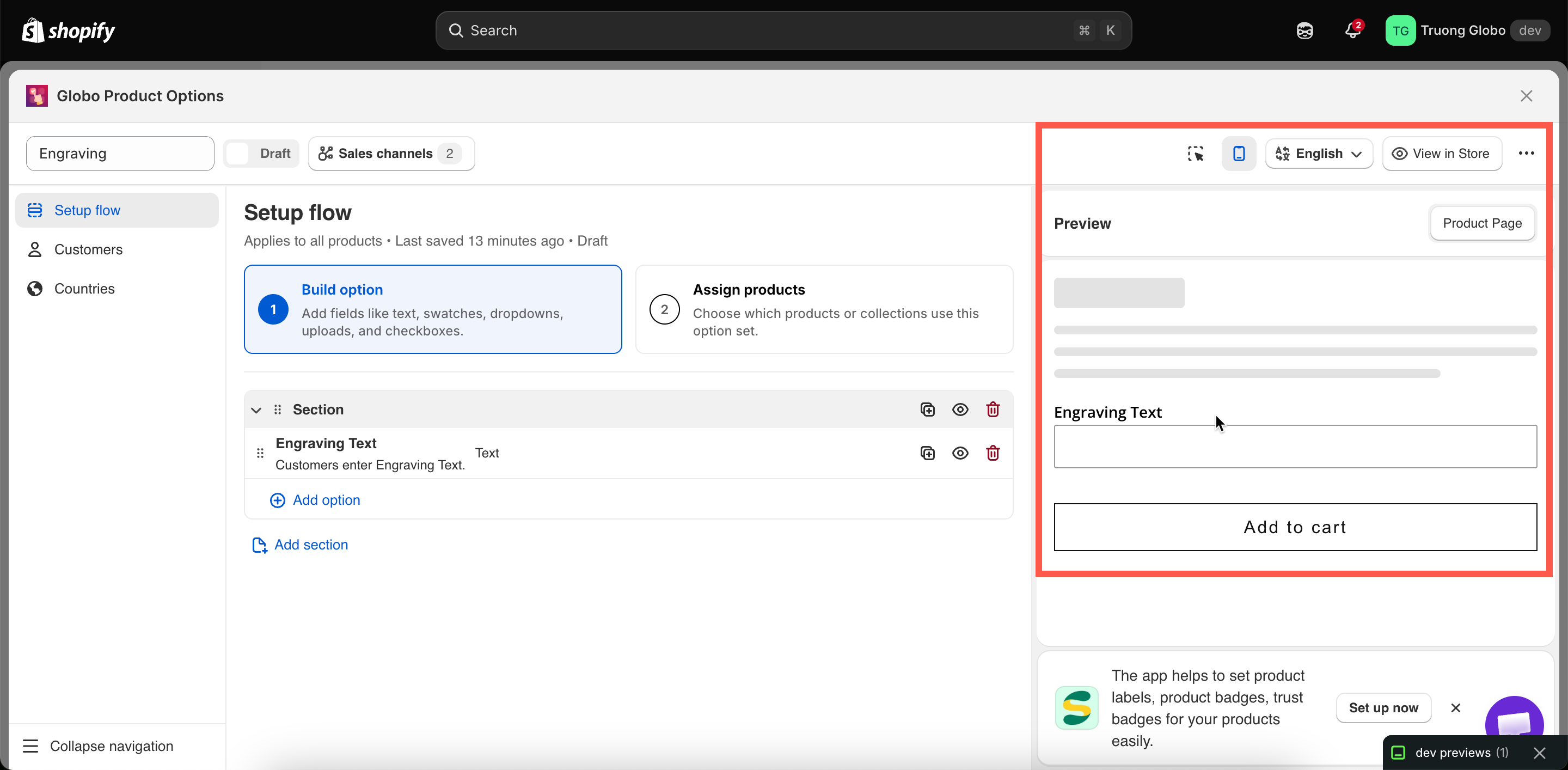
Preview your option form directly in the app before publishing it to your store. You can also click any option in the preview to quickly find and edit its settings.
The preview on the right is a working version of your widget, not just a static mockup. It runs your conditional logic, updates add-on prices, and displays each option type as it will appear on your storefront.
Using the live preview makes it easier to test your option form and fine-tune its settings without constantly switching between the builder and your storefront.
Before you start
Make sure you have an option set open in the builder with at least one option added.
What the preview does
Render every option type as customers see it
Use your theme's fonts, colors, or spacing — it uses the app's own styling
Run conditional logic, so you can test show and hide rules
Add anything to a real cart
Show add-on price previews and the running total
Charge anything
Run validation, so you can see your error messages
Apply your customer or country rules
Draw the Personalizer live preview on the background image
Show other option sets that also apply to a product
The four header controls
Editor / preview toggle
On narrow screens, switches between the settings panel and the preview. On wide screens both are visible at once.
Desktop / mobile toggle
Renders the preview at desktop or mobile width. Worth checking both — column widths and swatch sliders behave differently.
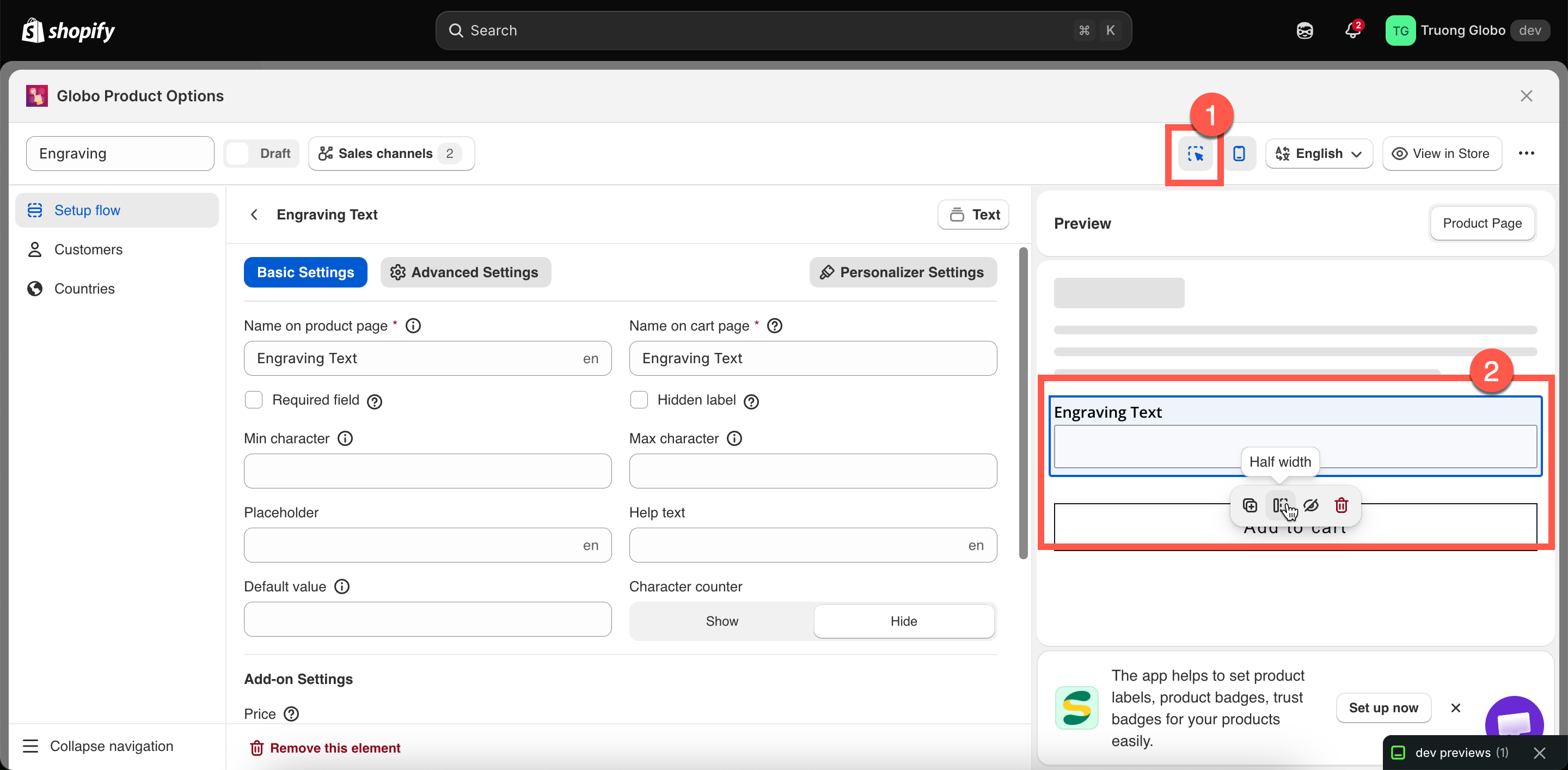
Inspector toggle
Turns the click-to-edit overlay on and off. See below.
Language switcher
Renders the preview in one of your storefront languages, using your translated labels and values.

The inspector
Turn on the inspector to make the preview interactive. Hover over an option to highlight it, then click it to open its settings in the panel. This lets you quickly go from spotting an issue in the preview to editing the corresponding option.
The inspector also displays a small action bar on the highlighted option:
Duplicate
Copies the option, exactly like the panel's duplicate action.
Half width
Sets the option's Column width to 50%.
Full width
Sets the option's Column width to 100%.
Hide
Hides the option from the storefront while keeping it in the set.
Delete
Removes the option.
Half width and full width are the most commonly used column widths, so they are available directly in the inspector. For more control, you can choose from the full range of widths — 25%, 33%, 50%, 66%, 75%, and 100% — in the option's Advanced tab. See Column width.

Testing conditional logic in the preview
This is one of the preview's most useful features. Conditional rules are evaluated live, so you can:
Select the trigger option and see the dependent option appear.
Deselect it and confirm that the dependent option disappears.
Change a dropdown value and check which conditional branch is displayed.
There are two types of conditions the preview cannot test because it does not have real customer context:
Conditions based on Shopify variants — the preview does not have a selected variant, so variant-based conditions are not evaluated. Test these on a real product page using View in Store. See Conditions based on Shopify variants.
Customer and country rules — these determine whether the entire option set is displayed and are evaluated only on the storefront.
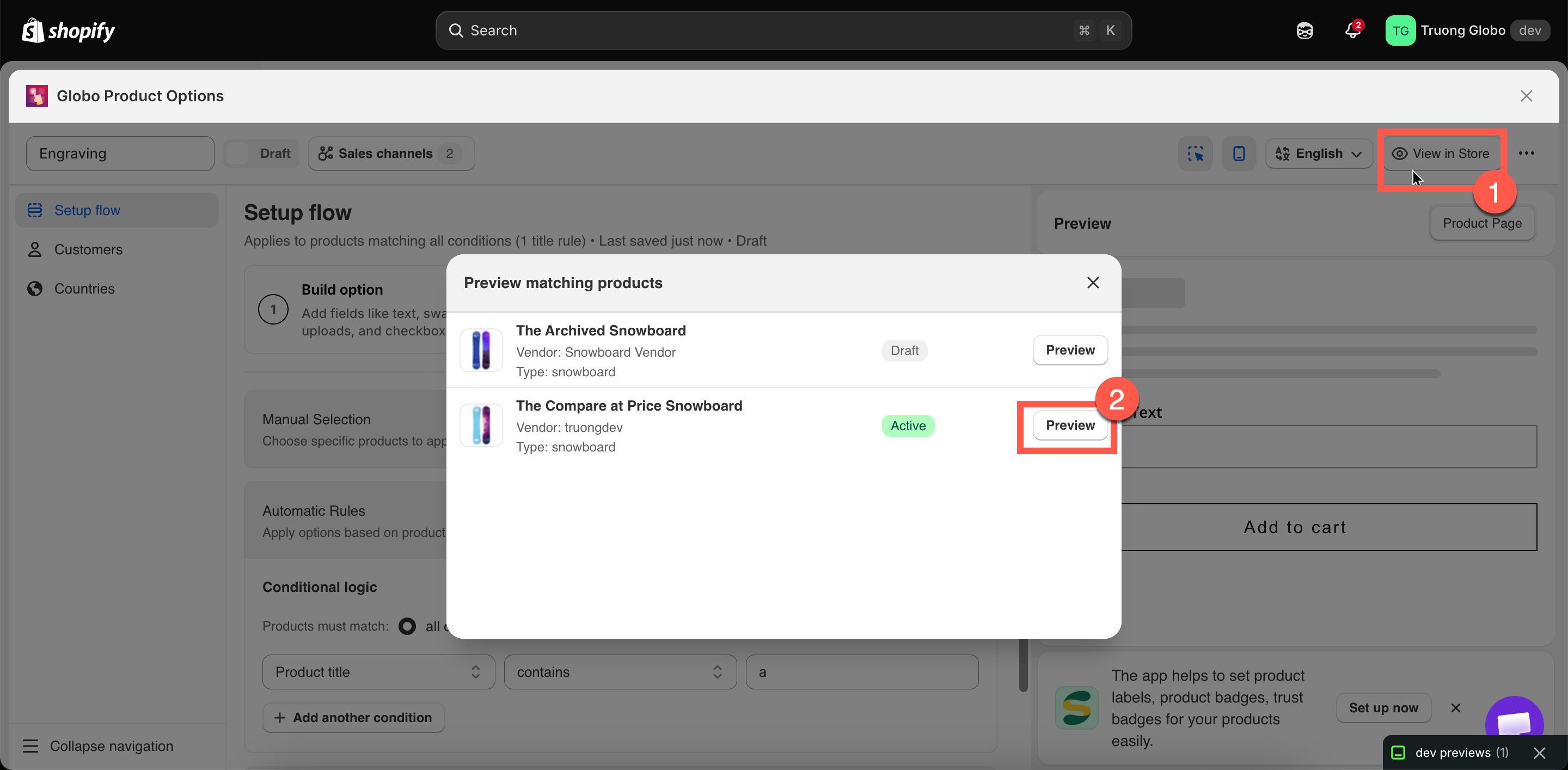
Preview matching products
When your product rule uses Automatic Rules, you can check which products currently match your conditions before saving the rule.
Open Preview matching products to see a list of matching products, including each product's image, title, vendor, type, and status. Click Preview on any product to open its storefront page.

View in Store
View in Store in the builder header opens a real product page on your storefront where the option set is applied.
This is the most accurate way to test your option set. Use it to check:
the widget's position within your theme
how it looks with your theme's fonts and colors
variant-based conditional logic
the actual add-to-cart flow and what is added to the cart
For View in Store to work, the option set must be Active, published to the Online Store, and the app embed must be enabled.
When the preview switches itself off
The live preview is disabled for very large option sets. The app counts each option, with each value in a selection option counted separately, and stops rendering the preview when the total reaches around 100.
This is intentional. Rendering hundreds of swatches on every keystroke would slow down the builder and make it difficult to use. Your option set will still save and work normally on the storefront — only the in-app preview is disabled.
If this happens, either split the option set into two smaller sets or test it using View in Store.
Last updated
Was this helpful?