For the complete documentation index, see llms.txt. This page is also available as Markdown.

Working with option values

Adding, bulk-adding, reordering, and pricing the individual choices inside a selection option — plus the characters you cannot use.

Selection-style options — such as dropdowns, radio buttons, checkboxes, buttons, and swatches — use lists of choices. Each entry in the list is an option value. This page covers the rules and actions that apply to option values across all selection-style options.

Input-style options, such as Text or Number, do not have option values because customers enter a value instead of choosing one.

The three rules for a value

These characters are restricted because option values are stored in the order record alongside other data, where they are used as separators.

The exception is Product links, where values are products you select rather than text you enter. The uniqueness check does not apply to product links.

Adding values

One at a time

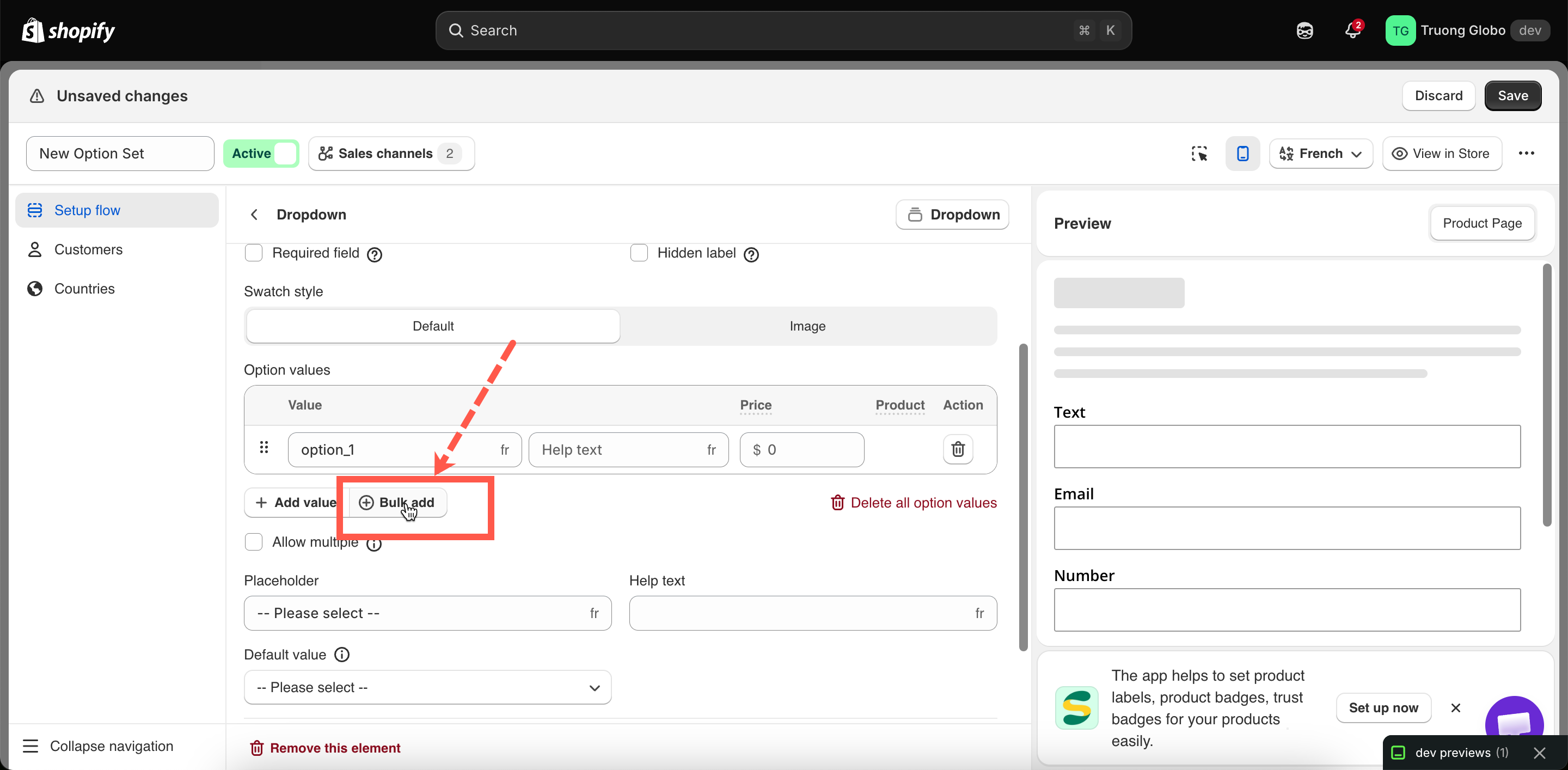
Select Add value to add a new empty row. Enter the value, then set a price or image if needed.

Many at once

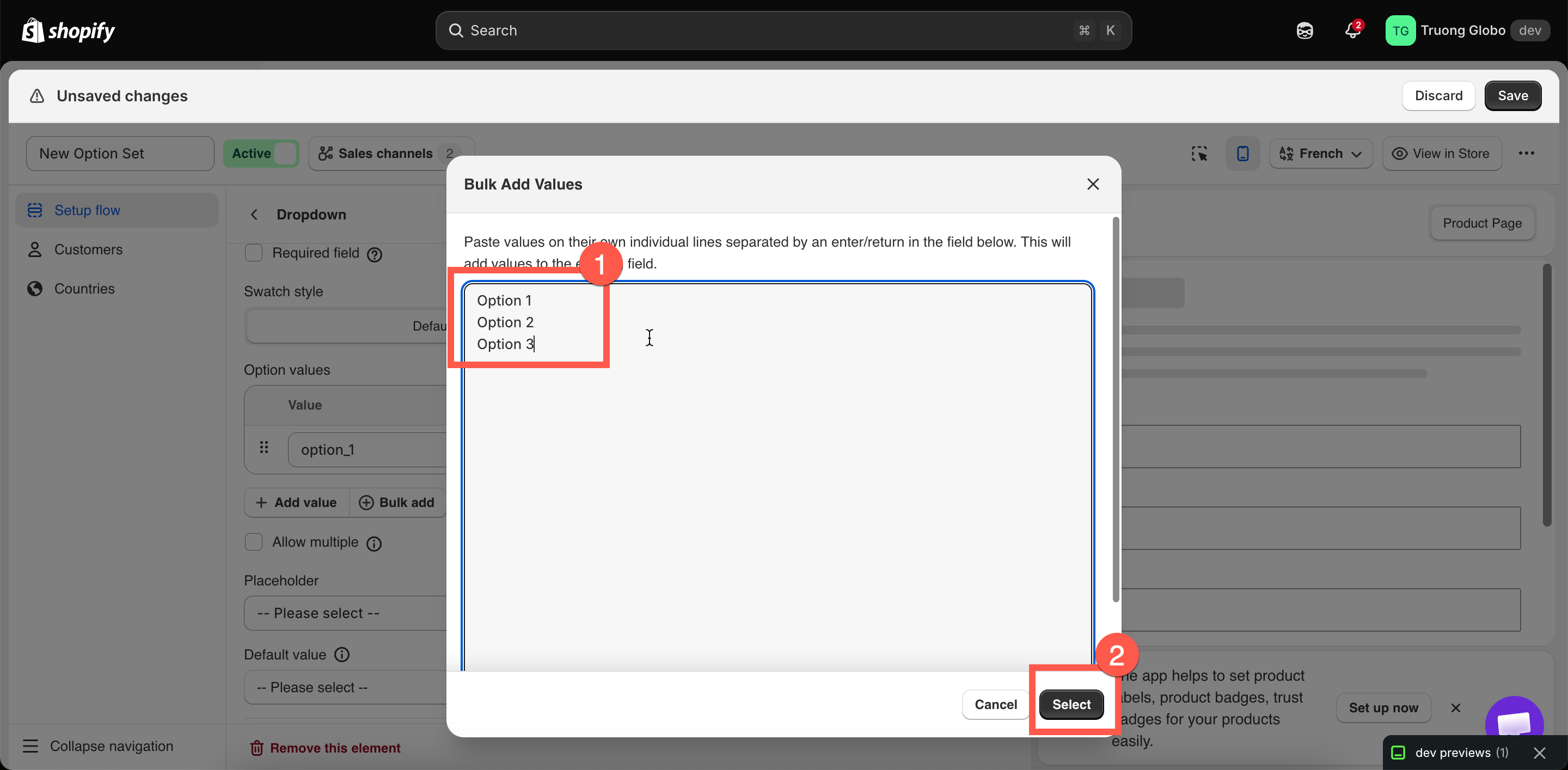
Select Bulk add, then paste your list into the box with one value per line.

The Bulk add box with one value entered per line
Bulk add takes one value per line.

Bulk add validates the entire list before accepting it:

  • Blank lines are ignored, and leading and trailing spaces are trimmed.

  • If any line contains a blocked character, the entire paste is rejected and the reason is shown.

  • If any line duplicates another line or an existing value in the table, the entire paste is rejected.

The Bulk Add Values dialog with several values pasted one per line
Bulk add takes one value per line and appends them to the existing list.
Help text on a value

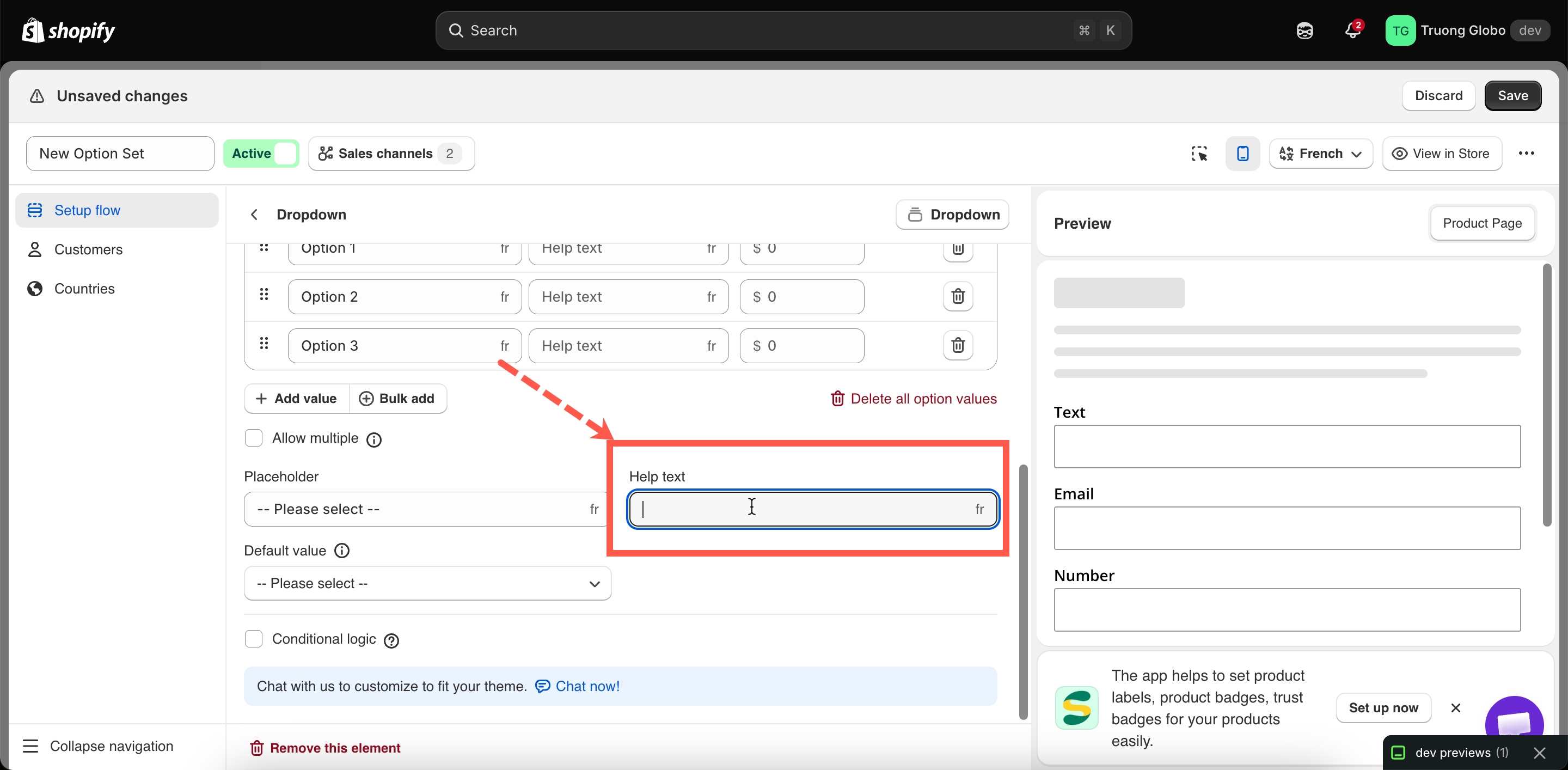
Each value can have its own short explanation, shown next to that choice rather than below the entire option.

This is useful for explaining what a choice means or how it affects processing time — for example, Adds 3 working days.

Most selection types support help text for individual values. Select, Product links, and Tabs support help text at the option level only.

A values table with help text entered against an individual value
Help text on a value appears beside that choice rather than below the whole option.

Pricing a value

Select the Price cell to open the add-on dialog. It offers three modes:

Mode
Use it when

Existing product

You already sell the item as a product. The app uses the price and stock from a variant of an existing product.

New product

You want stock tracking without creating the product manually. The app creates a product automatically at the price you specify, allowing the add-on to have its own stock tracking.

Fixed amount

You only need to charge an additional amount. No stock is tracked. Not supported on Shopify POS.

Values without a price are free.

See Add-on pricing for an in-depth guide to all three modes, and Advanced add-on modes for how charges can scale with quantity.

Colors and images on a value

Swatch-style options can have a Color or Image column, depending on the option’s Swatch style setting:

  • Color — choose one color or two colors for a split swatch.

  • Image — upload an image or reuse one of the product’s existing images.

See Swatch style, Color swatch, and Image swatch.

Translating values

If your storefront supports multiple languages, you can translate values for each language on the option set's Translations tab.

The option’s Name is not translated, so your order records remain consistent across languages.

See Translate option content.

Last updated

Was this helpful?