> For the complete documentation index, see [llms.txt](https://docs.globo.io/llms.txt). Markdown versions of documentation pages are available by appending `.md` to page URLs; this page is available as [Markdown](https://docs.globo.io/options/option-sets/option-values.md).

# Working with option values

Adding, bulk-adding, reordering, and pricing the individual choices inside a selection option — plus the characters you cannot use.

Selection-style options — such as dropdowns, radio buttons, checkboxes, buttons, and swatches — use lists of choices. Each entry in the list is an **option value**. This page covers the rules and actions that apply to option values across all selection-style options.

Input-style options, such as **Text** or **Number**, do not have option values because customers enter a value instead of choosing one.

## The three rules for a value

{% hint style="warning" %}
**A value cannot be empty.**

**Values must be unique within the option.** The uniqueness check ignores capitalization and leading or trailing spaces, so `Red` and `red` are treated as the same value.

**A value cannot contain any of these characters:** `,` `:` `"` `'` `|`
{% endhint %}

These characters are restricted because option values are stored in the order record alongside other data, where they are used as separators.

The exception is **Product links**, where values are products you select rather than text you enter. The uniqueness check does not apply to product links.

## Adding values

### One at a time

Select **Add value** to add a new empty row. Enter the value, then set a price or image if needed.

### Many at once

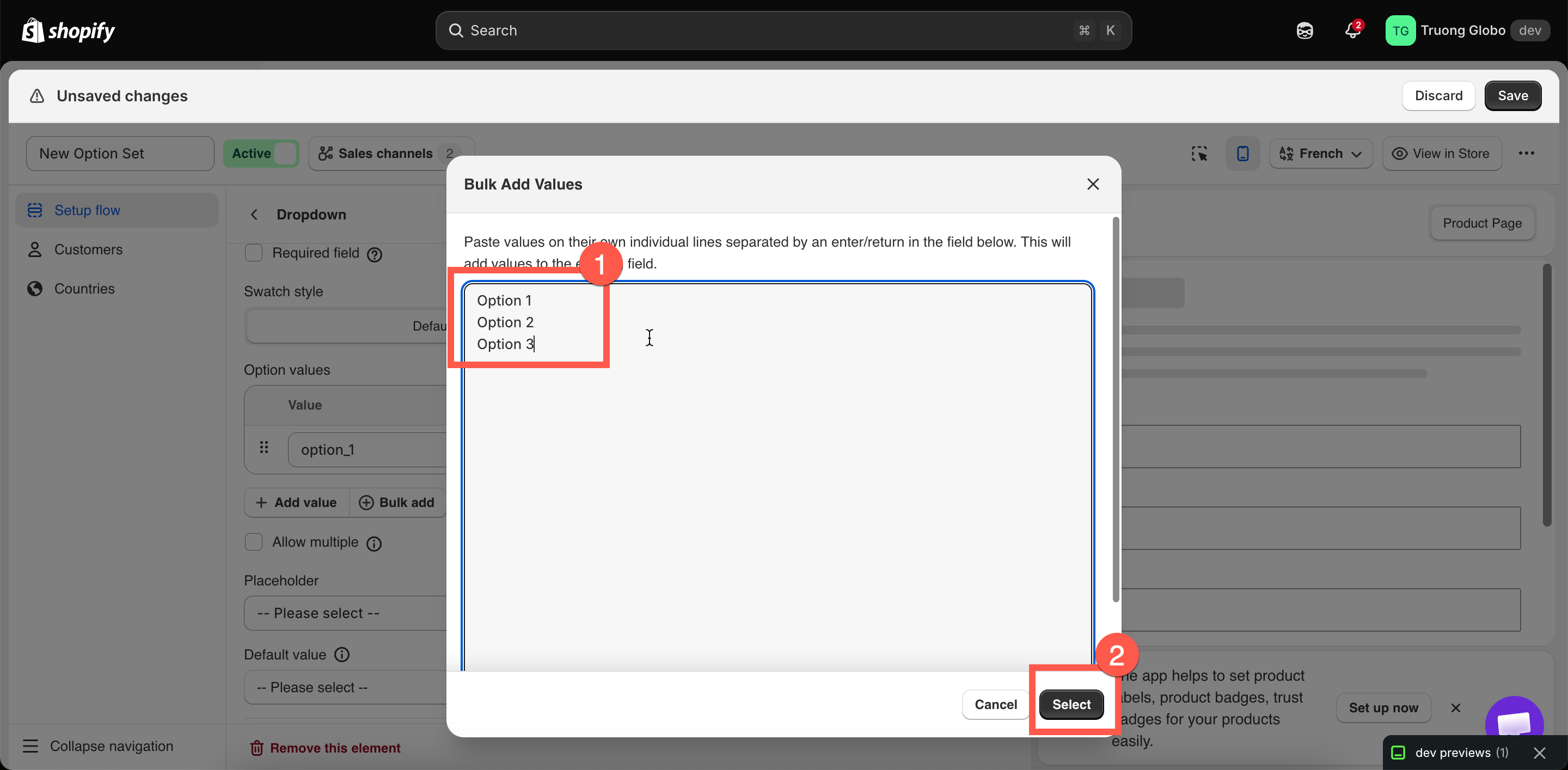
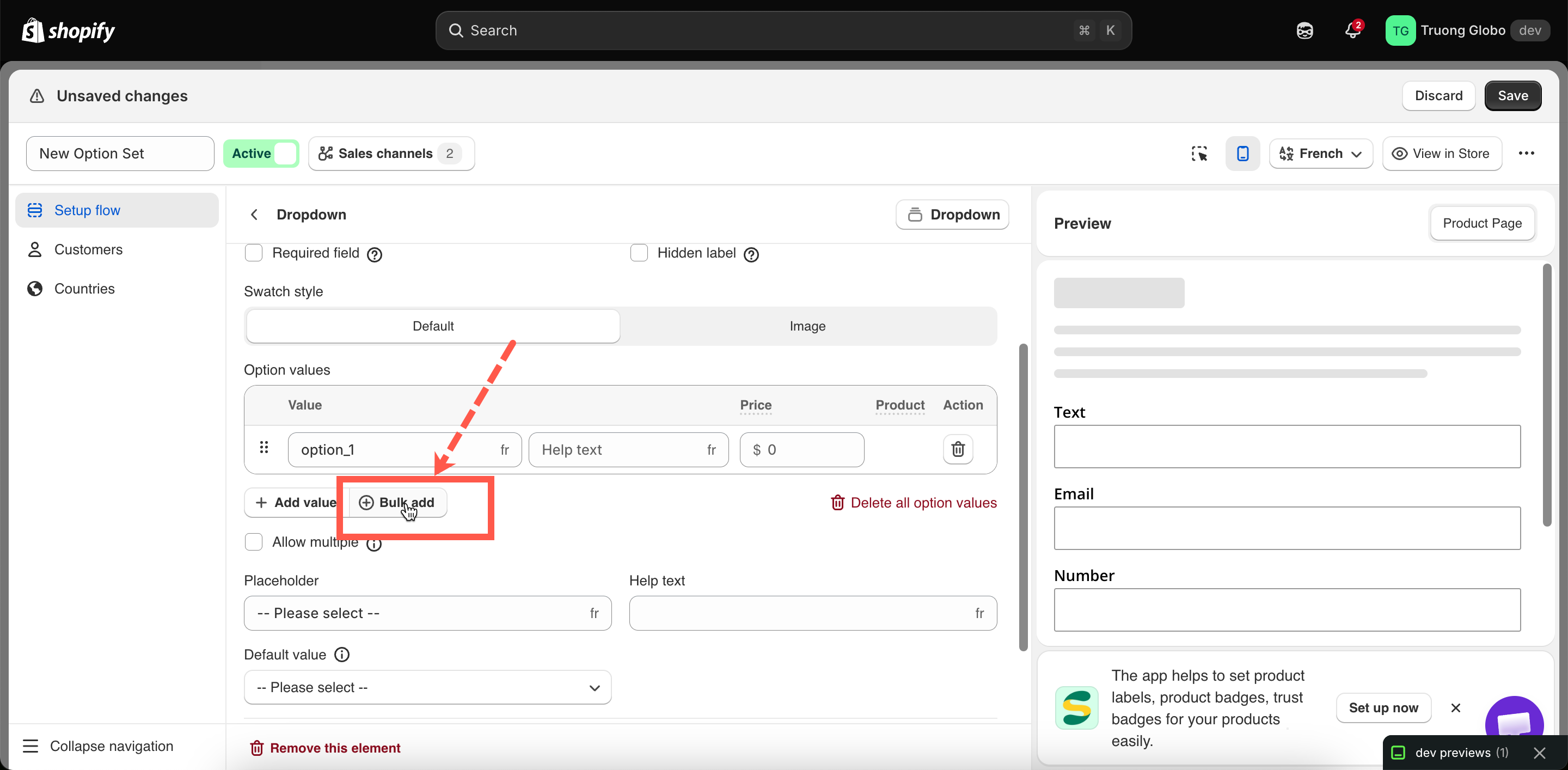
Select **Bulk add**, then paste your list into the box with **one value per line.**

<figure><img src="https://3141646361-files.gitbook.io/~/files/v0/b/gitbook-x-prod.appspot.com/o/spaces%2FkMyxhAk2ZlJa4wZQGfBI%2Fuploads%2Fgit-blob-40b6b85f897519859f8967198084c0637f4872c3%2F2026-08-27_15-49-25.png?alt=media" alt="The Bulk add box with one value entered per line"><figcaption><p>Bulk add takes one value per line.</p></figcaption></figure>

Bulk add validates the entire list before accepting it:

* Blank lines are ignored, and leading and trailing spaces are trimmed.
* If any line contains a blocked character, the entire paste is rejected and the reason is shown.
* If any line duplicates another line **or an existing value in the table**, the entire paste is rejected.

<figure><img src="https://3141646361-files.gitbook.io/~/files/v0/b/gitbook-x-prod.appspot.com/o/spaces%2FkMyxhAk2ZlJa4wZQGfBI%2Fuploads%2Fgit-blob-cca0883d1c815bb93c77d7dbc088eaecedcf315c%2F2026-08-27_15-52-39.png?alt=media" alt="The Bulk Add Values dialog with several values pasted one per line"><figcaption><p>Bulk add takes one value per line and appends them to the existing list.</p></figcaption></figure>

## Help text on a value

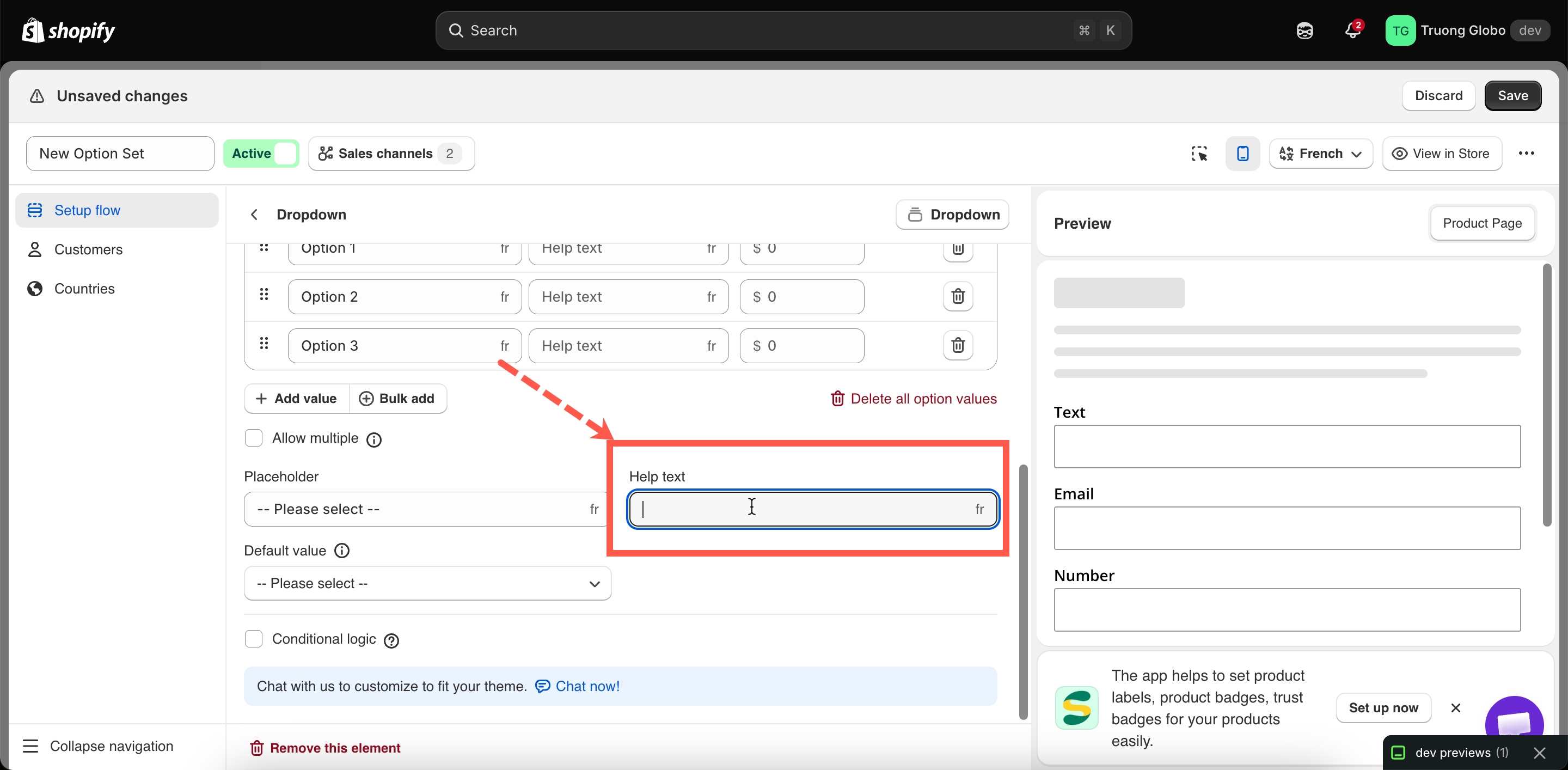
Each value can have its own short explanation, shown next to that choice rather than below the entire option.

This is useful for explaining what a choice means or how it affects processing time — for example, `Adds 3 working days`.

Most selection types support help text for individual values. **Select**, **Product links**, and **Tabs** support help text at the option level only.

<figure><img src="https://3141646361-files.gitbook.io/~/files/v0/b/gitbook-x-prod.appspot.com/o/spaces%2FkMyxhAk2ZlJa4wZQGfBI%2Fuploads%2Fgit-blob-1c04c2999ffae859f936b9e43c8a648def954b65%2F2026-08-27_15-54-44.png?alt=media" alt="A values table with help text entered against an individual value"><figcaption><p>Help text on a value appears beside that choice rather than below the whole option.</p></figcaption></figure>

## Pricing a value

Select the **Price** cell to open the add-on dialog. It offers three modes:

<table><thead><tr><th width="270">Mode</th><th>Use it when</th></tr></thead><tbody><tr><td><strong>Existing product</strong></td><td>You already sell the item as a product. The app uses the price and stock from a variant of an existing product.</td></tr><tr><td><strong>New product</strong></td><td>You want stock tracking without creating the product manually. The app creates a product automatically at the price you specify, allowing the add-on to have its own stock tracking.</td></tr><tr><td><strong>Fixed amount</strong></td><td>You only need to charge an additional amount. No stock is tracked. Not supported on Shopify POS.</td></tr></tbody></table>

Values without a price are free.

See [Add-on pricing](/options/add-on-pricing/add-on-pricing.md) for an in-depth guide to all three modes, and [Advanced add-on modes](/options/add-on-pricing/advanced-add-on-modes.md) for how charges can scale with quantity.

## Colors and images on a value

Swatch-style options can have a **Color** or **Image** column, depending on the option’s **Swatch style** setting:

* **Color** — choose one color or two colors for a split swatch.
* **Image** — upload an image or reuse one of the product’s existing images.

See [Swatch style](/options/option-types/shared-settings/swatch-style-and-previews.md#swatch-style), [Color swatch](/options/option-types/selection-types/color-swatch.md), and [Image swatch](/options/option-types/selection-types/image-swatch.md).

## Translating values

If your storefront supports multiple languages, you can translate values for each language on the option set's **Translations** tab.

The option’s **Name** is not translated, so your order records remain consistent across languages.

See [Translate option content](/options/translations-and-languages/translate-option-content.md).