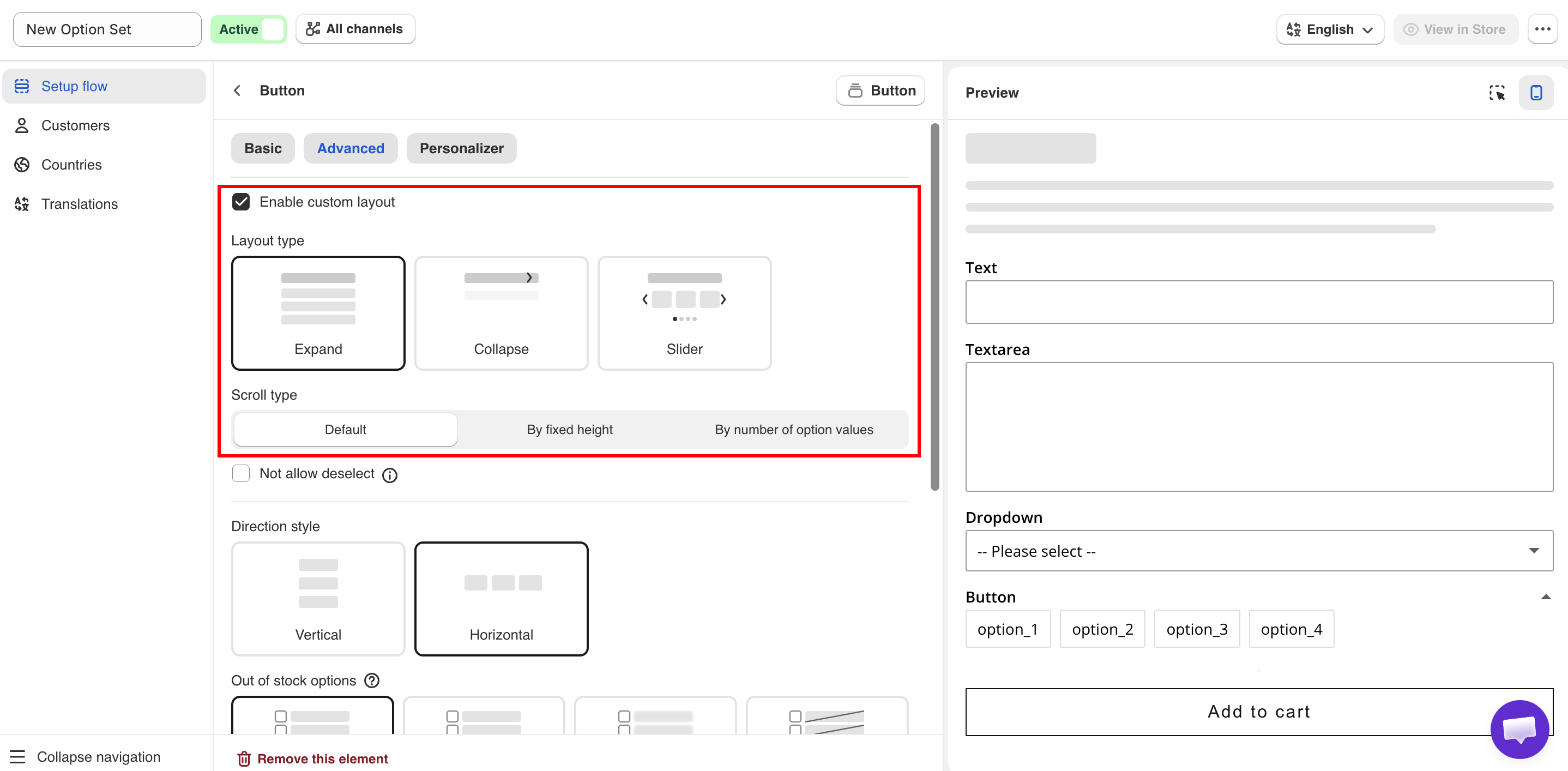
Turning on Enable custom layout reveals the Layout type choices.
Turning on Enable custom layout reveals the Layout type choices.
| Value | Description |
|---|---|
| Expand (default) | The values are displayed in an expanded list. Customers can collapse it. |
| Collapse | The values are hidden. Customers click to expand the list. |
| Slider | The values are displayed in a horizontal slider. |
| Value | Description |
|---|---|
| Default | All values are displayed without scrolling. |
| By fixed height | Sets a fixed height in pixels. Displays the Scroll height setting. |
| By number of option values | Displays a set number of values before scrolling. Displays the Number of option values setting. |
| Setting | Default | Description |
|---|---|---|
| Number of rows | 1 | Number of rows displayed in the slider. |
| Swatches per row | 3 | Number of swatches in each row. A decimal such as 4.5 displays part of the next swatch. |
| Show navigation arrows | Hide | Displays previous and next arrows. |
| Show indicators | Hide | Displays indicators below the slider. |
| Slider style | Style 1 | Selects the arrow style. Available when Show navigation arrows is Show. |