For the complete documentation index, see llms.txt. This page is also available as Markdown.

Direction, width, and CSS

Set the direction of option values, control how much width an option uses, and add a CSS class for custom styling.

These three settings control the layout of an option. All of them are available on the Advanced tab.

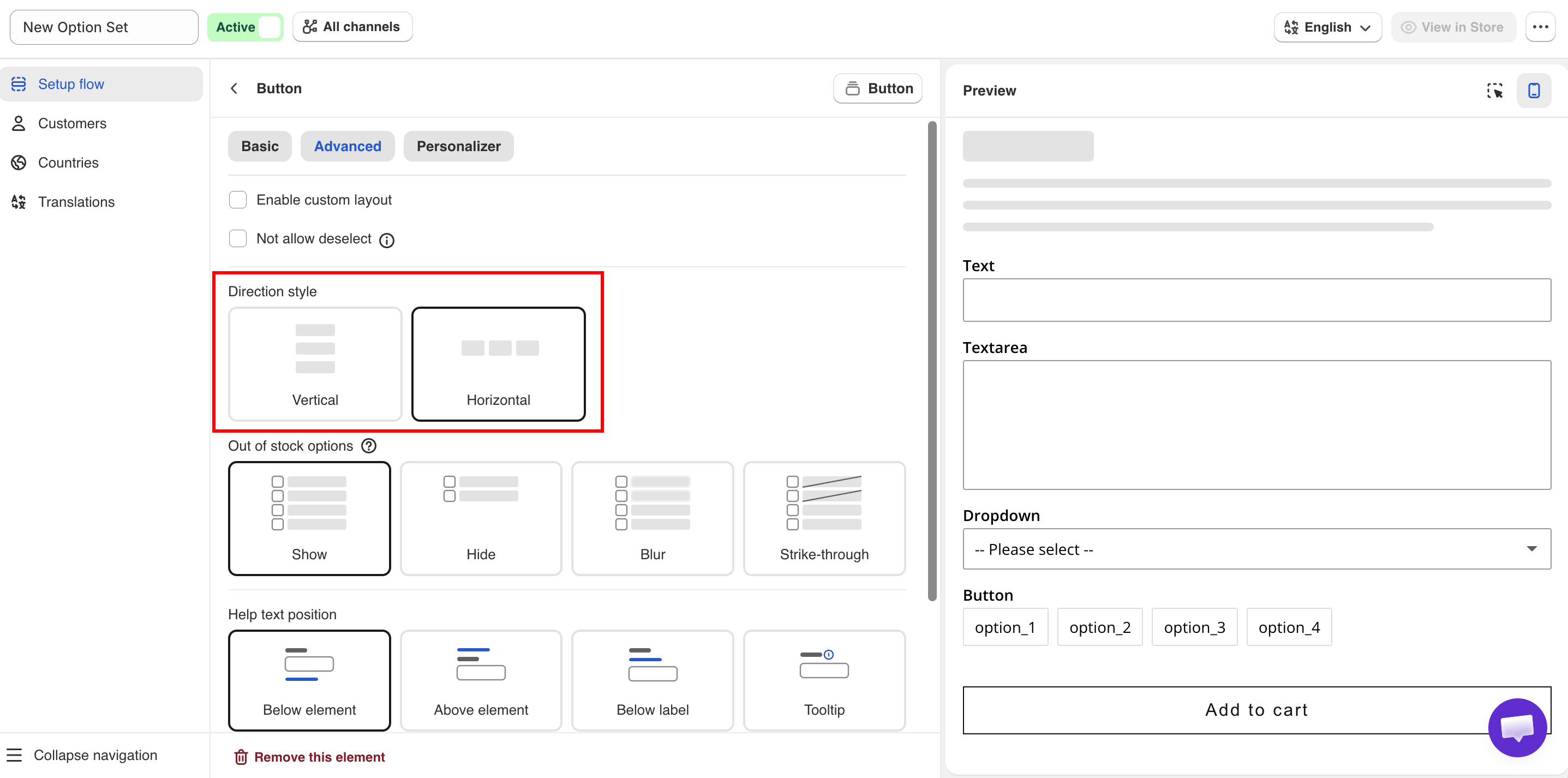
Direction style

Sets whether option values are listed vertically or horizontally.

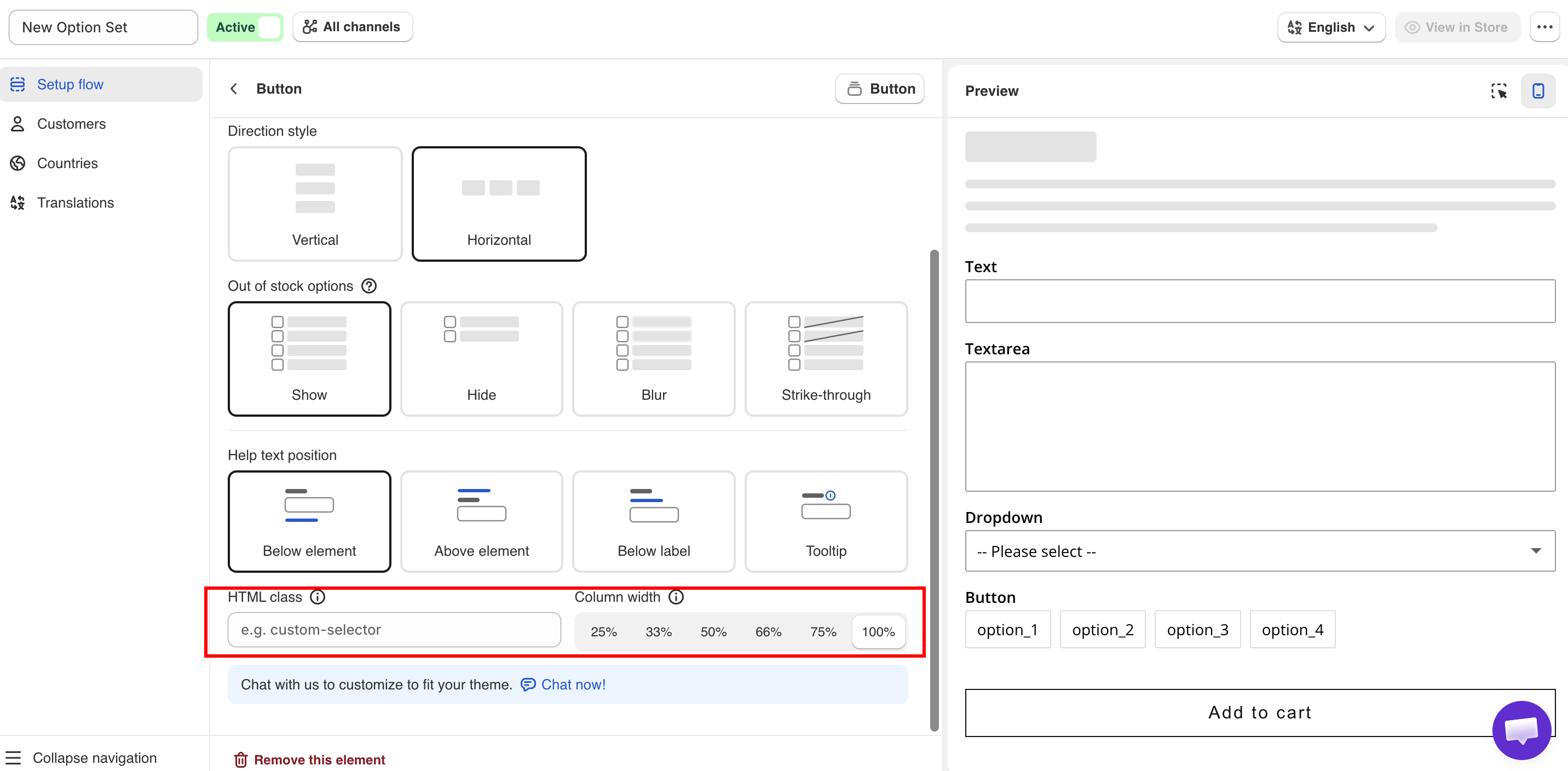
Advanced tab showing Direction style, Column width, and HTML class
Direction style, column width, and HTML class, all on the Advanced tab.
Value
Description

Vertical (default)

Each value is displayed on its own line.

Horizontal

Values are displayed across the page and wrap to the next line.

Use Vertical for long value names or values with their own help text. Use Horizontal for short values such as sizes or small color chips.

On the Tabs option type, Horizontal displays the tab titles above the content and Vertical displays them beside it.

Check the mobile preview after selecting Horizontal. Values that fit on one row on desktop can wrap into several rows on a phone.

Column width

Sets how much of the widget width the option uses. The values are 25%, 33%, 50%, 66%, 75%, and 100%. The default is 100%.

Options set to less than 100% are displayed side by side on the same row, in the order they appear in the option list, until the row is full. On narrow screens, options are displayed at full width.

For example, two text options at 50% display a first name and last name field on one row.

HTML class

Adds a CSS class to the option so you can apply your own styles. Empty by default.

Enter one class name, for example engraving-field. Do not include a leading dot. Only letters, numbers, hyphens, and underscores are accepted.

Add your rules to Custom CSS for the widget under Settings > Settings > Design > Additional:

Custom CSS applies to the widget on your storefront, not to the builder preview. Use View in Store to check the result.

Before using custom CSS, check whether a setting already covers your requirement: Column width for layout, design settings for colors and fonts, or Match your theme style to match your theme.

For more information, see Custom CSS.

Direction style, Column width, and HTML class settings
Direction style, Column width, and HTML class on the Advanced tab.

Last updated

Was this helpful?