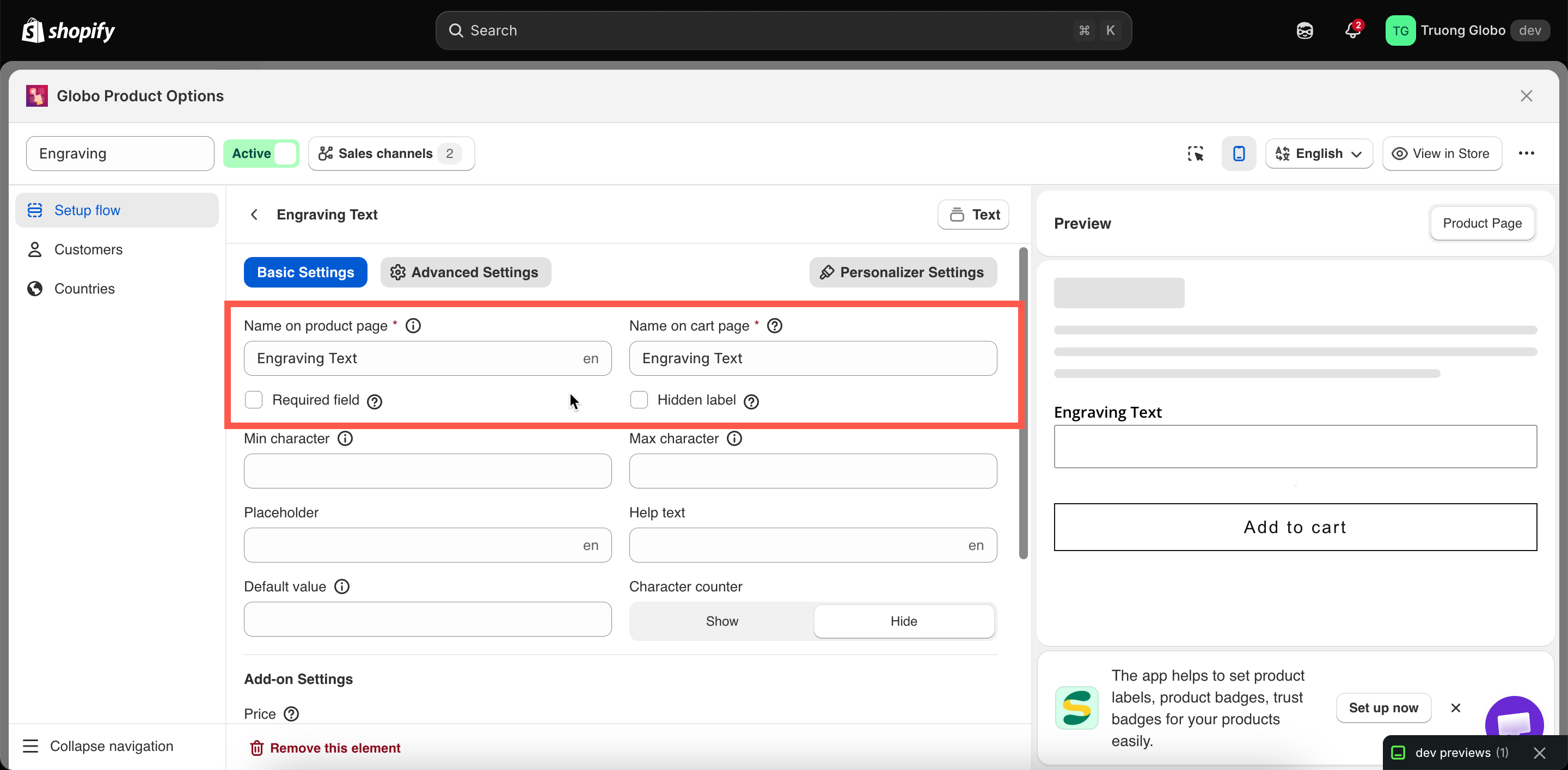
Labels and visibility
Label, Name, and Hidden label — the three settings that control how an option is identified and whether its label is visible to customers.
Every option that collects customer input has a Label and a Name, and most also offer Hidden label. Together, these settings determine what customers see on the product page and what is stored with the order.
They are one of the most common sources of confusion in the app, so start with the key difference:
Who reads it
The customer, on the product page
You and your team — and the customer, once the item is in their cart
Where it appears
Above the option field in the widget
Cart page, checkout, order details in Shopify admin, order emails, invoices, packing slips
Required
Yes
Yes
Must be unique
No
Yes, within the option set
Restricted characters
No
Yes
Can be hidden
Yes, with Hidden label
No — it always travels with the order
Translatable per language
Yes
No
Label
The text shown above the option field on your product page.
Default
The option type's name — for example a new Text option starts with the label Text
Available on
All types except the purely visual statics, which use their own content fields instead: Divider, Spacing, Heading, Paragraph, HTML, Pop-up modal, Size chart, Tabs
How it behaves
Required. An option cannot be saved with an empty Label.
No character restrictions. Punctuation, apostrophes, emoji, and non-Latin scripts are all fine.
Not required to be unique. Two options may legitimately share a Label — for example a
Colourdropdown in a "Front" section and another in a "Back" section.Translatable per storefront language. See Translate option content.
On a Section, the Label is the group heading rather than a field label.
Writing good labels
Text
Engraving text
Options
Choose your frame color
Upload
Upload your photo
Date
Delivery date
Say what you want, not what the field is. Put the constraint in Help text rather than the Label — Engraving text with help text Up to 20 characters reads better than Engraving text (max 20 characters).
Name
The internal name of the option. It appears on the cart page, at checkout, on the order in your Shopify admin, and in order emails, invoices, and packing slips.
Default
The option type's internal identifier — text, checkbox, select, and so on
Available on
All types that collect input. Not on Section or the visual statics, which never reach the order
How it behaves
Not translatable, deliberately. Your team sees the same consistent name regardless of the language the customer uses.
Renamed automatically when needed. If you duplicate an option or import options with duplicate names, the copy is automatically renamed using the option type and a number, such as
text-2. Conditional logic rules that reference the renamed option are updated automatically.Used by other features to identify the option. This includes the dynamic order-tag workflow, order note templates, and the
option_namecolumn in CSV exports.
Practical advice
Change the default Name before you go live. An order line such as text: Forever yours tells you what was entered but not what the field means. Engraving text: Forever yours is much clearer for the person packing the order.
The simplest approach is to make Name the same as Label. Use a different name when:
The Label is long or styled for the storefront, such as
Add an engraving ✨ (optional), but you want a clean order line such asEngraving text.The Label contains a character that Name does not allow, such as an apostrophe or colon.
Two options have the same Label but need different names in the order, such as
Colourin two sections namedFront colourandBack colour.Your storefront supports multiple languages. The Label can be translated per language, while Name stays in one language so your team always sees the same name.
Hidden label
Hidden label hides the option’s Label on the product page. The option still works, and its Name is still included with the order.
Default
Off
Available on
22 types — all input and selection types except Hidden field, which has no visible label.
When to use it
The option is self-explanatory from its placeholder — a single
Search…box, for example.You are building a compact row of options and the labels waste vertical space.
You are using an image swatch row where the images speak for themselves.
When not to use it
On required fields. A customer who cannot see what a field is for will not know they have to fill it in, and your error message will be the first explanation they get.
On anything with a price attached. Customers should be able to see what they are paying for.
As a way to fix a layout problem. If labels are crowding your page, use Column width or a collapsible Section instead.

Last updated
Was this helpful?