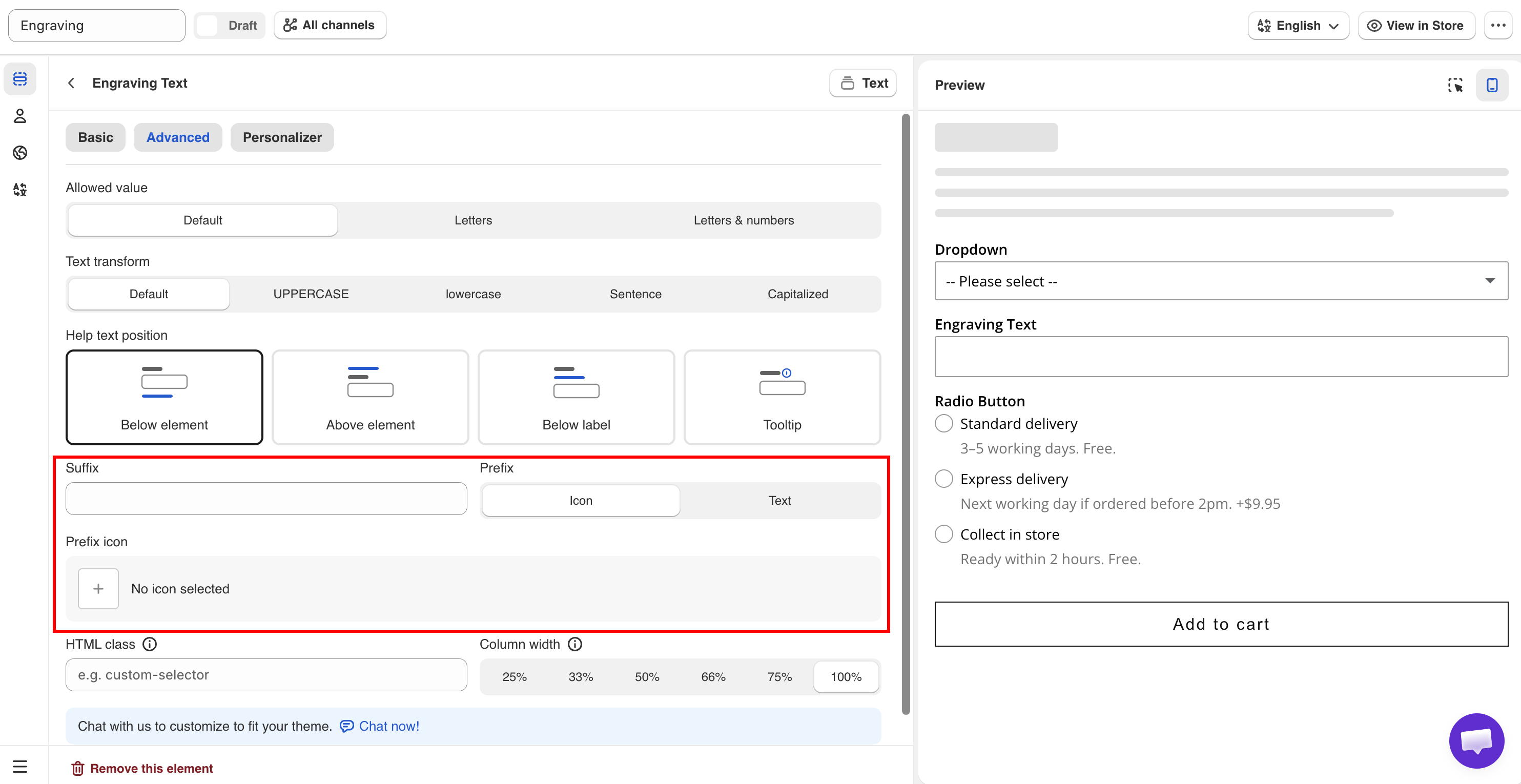
Prefix, suffix, and icons
Add an icon or fixed text inside a field, add a unit after a field, and add an icon to a Section or Size chart.
These settings add fixed text or an icon to a field. They do not change the value the customer submits. All of them are available on the Advanced tab.
Prefix
Adds an icon or fixed text at the start of the field.
Icon (default)
Displays the Prefix icon setting, where you select an icon from the app's icon picker.
Text
Displays the Prefix text setting, where you enter text.
Nothing is displayed on the storefront until you select an icon or enter text.
Use an icon when it is widely understood, such as an envelope for an email field or a calendar for a date field. Use text for a symbol or unit, such as $ or #. Keep prefix text to one or two characters, because it reduces the space available for the customer's input.
On the Range slider option type, Prefix and Suffix are plain text fields without the icon option.
Suffix
Adds fixed text at the end of the field. Empty by default.
A suffix is normally a unit, such as cm, kg, or %.
Adding the unit as a suffix keeps the submitted value clean. The customer enters 30, and 30 is saved to the order. This is required if you calculate the price from the value. See Dimension add-on formula.
A suffix is always displayed and is not part of the value. A placeholder is displayed only while the field is empty. Use the suffix for a unit and the placeholder for an example of the format.
Element icons
The Section and Size chart option types have their own icon setting, which is separate from field prefixes. Section uses Prefix icon on the Basic tab, displayed beside the section heading. Size chart uses Chart icon on the Advanced tab, displayed beside the link that opens the chart.
Choosing an icon
Wherever you pick an icon, the picker has two tabs.
Library
The icons that come with the app
Your images
Images you uploaded yourself
Both tabs are searchable, so you can type what you are after rather than scrolling.
Uploading your own image
Select Upload image on the Your images tab. Use it when the built-in icons do not cover what you sell — a fabric symbol, a care icon, your own badge.
Format
PNG, JPG, or WebP
File size
Up to 500 KB
Dimensions
Anything larger than 128 × 128 is scaled down for you, keeping its proportions
Icons display small, so upload the image close to the size it will be used at. A photograph scaled down to 128 pixels rarely reads as an icon — a simple shape on a transparent background does.

Notes
Uploaded icons are images, so they do not change color with your theme the way the built-in icons do. Upload them in the color you want.
Prefix and suffix text cannot be translated per language. If units differ by market, use separate option sets with country rules.
Prefix and suffix text is not saved to the order. If your production team needs the unit, add it to the option's Name, for example
Width (cm).Prefix and suffix do not validate input. Use Limits and Text input rules to control what customers can enter.

Last updated
Was this helpful?