For the complete documentation index, see llms.txt. This page is also available as Markdown.

Required field and default value

Make an option compulsory or pre-fill it — the two settings that determine what happens when a customer leaves an option untouched.

They answer the same question from opposite directions: what happens if the customer ignores this option? Required field prevents them from continuing without making a choice or entering a value. Default value makes the choice for them automatically.

Required field

Blocks Add to cart until the option is filled in.

Tab
Basic

Default

Off

Available on

21 types — every input and selection type except Hidden field and Product links, which do not have a customer-entered value that can be missing.

How it behaves

  • On the storefront, the label is marked with the required-field color set in Settings > Design.

  • If a customer tries to add the product to the cart without completing the required field, the add-to-cart action is blocked and the validation message appears. The default message is This field is required, and you can edit it in Settings > Translations.

  • The page automatically scrolls to the first error. This is controlled by Auto-scroll to first error message in Settings > General, which is enabled by default. See Widget behavior.

  • On a Checkbox, required means at least one box must be selected. To require exactly two of five choices, use Min and max selections instead.

  • On a File upload, required means that at least one file must be attached.

What counts as filled in

Type
Satisfied when

Text, Textarea, Number, Phone, Email

Any character has been entered

Select, Dropdown, Radio, Button, swatches

A value is selected

Checkbox

At least one value is ticked

File upload

At least one file is attached

Date and time picker

A date, or a time, or both, depending on the format

Switch

The switch is on

Range slider

A value has been set

Color picker

A color has been chosen

Dimension

Every axis row has a value

When to use it — and when not

Use Required field when you genuinely cannot fulfill the order without the customer’s answer — for example, a size, an engraving spelling, or a photo to print.

Do not use it for anything that is optional but nice to have. A required gift message on every product turns a simple purchase into a form to fill in, which can lead to customers abandoning the purchase.

If you’re unsure, leave Required field off and see whether customers choose to fill it in anyway.

Default value

Pre-fills the option so that a customer who makes no changes still submits a value.

Tab
Basic

Default

Empty

Available on

18 types. It takes four different shapes depending on the type — see below

Shape
On these types
What you enter

Free text

Text, Textarea, Email, Phone, Hidden field, Range slider

Any text, or a number for the slider

Number

Number

A number, which must fall inside Min value and Max value

Value picker

Select, Dropdown, Color dropdown, Image dropdown, Radio, Checkbox, Button, Color swatch, Image swatch, Font picker

One of the option's own values, chosen from a list. Multi-select types accept several

Color

Color picker

A color

How it behaves

  • The option appears pre-filled on the product page, and the default value is submitted unless the customer changes it.

  • A default value with an add-on price is charged immediately. The customer sees the higher price as soon as the page loads, without having to make a selection. This can be useful for a paid upgrade you expect most customers to choose, but it is also the most common reason for questions like, “Why is this product more expensive than the listed price?”

  • On a value-picker type, the default must match one of the option’s current values. If you rename or delete that value, update the default as well.

  • On a Number field, a default outside the minimum or maximum is rejected while editing, with the message The value must be between min and max.

  • The Personalizer displays the default value in the live preview, so a text layer has content to show before the customer starts typing. See Text layers.

Good uses

Situation
Default

Most customers pick the standard size

Preselect it — fewer decisions, faster checkout

Quantity-style number field

1

Free option among paid ones

Preselect the free one, so nobody is charged by accident

Personalizer text layer

Your name, so the preview is not blank

Hidden field carrying fixed information

The value itself — that is the whole purpose of the type

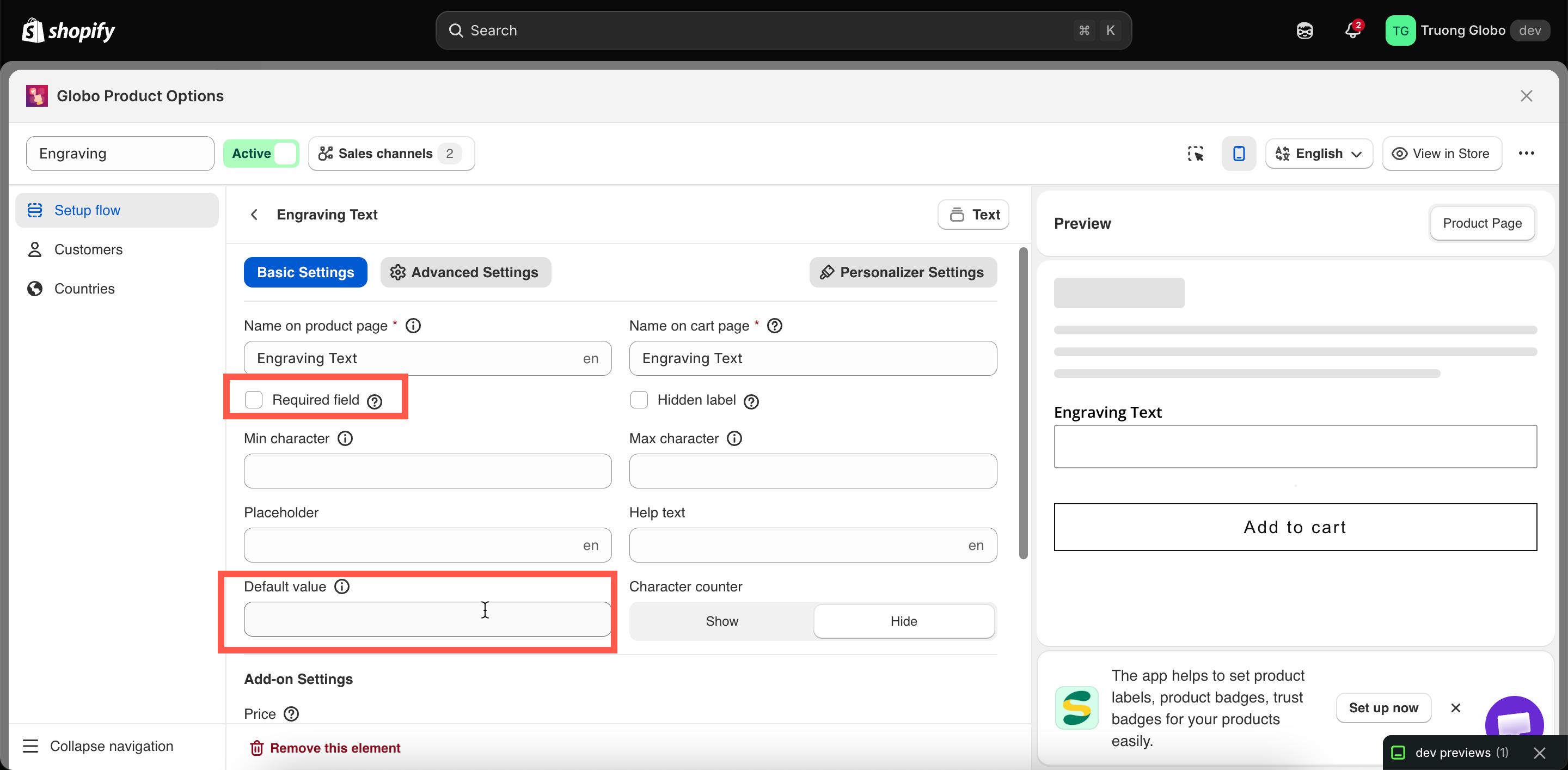
An option's Basic tab with Required field enabled and a default value selected
Required field and Default value, both on the Basic tab.

Required or default?

You want
Use

The customer must actively decide

Required field, no default

A sensible answer if they do not care

Default value, not required

They must decide, but you want to nudge one option

Both — but make sure the default is the free or safest choice

Nothing at all should be submitted when they skip it

Neither

Setting both is usually unnecessary: an option with a default value is never empty, so Required field cannot fail. The exception is a value picker where the default value may be removed later.

Last updated

Was this helpful?