For the complete documentation index, see llms.txt. This page is also available as Markdown.

Selection behaviour

Allow multiple, Not allow deselect, and Search suggestion — settings that control how selection options behave when customers interact with them.

Three settings that change how a selection option responds to customer clicks. Allow multiple is the most important: it enables additional settings and changes how add-on pricing works.

Allow multiple

Lets the customer choose more than one value.

Tab
Basic

Default

Off

Available on

Select, Dropdown, Color dropdown, Image dropdown, Button, Color swatch, Image swatch. It is also available on File upload, where it allows customers to upload multiple files rather than select multiple values.

Checkbox is inherently multi-select, so it does not have this setting. Radio button is inherently single-select, so it does not have it either. The setting is available on option types that can support either single or multiple selections.

What turning it on changes

Effect
Detail

The customer can select several values

Selecting a second value no longer clears the first.

They are meaningless on a single-select option, so they stay hidden until now.

It only applies to single-select options.

Default value accepts several values

You can preselect more than one.

Add-on pricing adds up

Every selected value with a price contributes. A customer picking three paid extras pays for three.

Mixed quantity becomes available

An advanced add-on mode that gives each value its own quantity box. See Advanced add-on modes.

On File upload

The setting is labeled accordingly and allows customers to upload up to 20 files. Turning it on reveals Min number of files and Max number of files. See File upload.

Choosing between multi-select types

You want
Use

A plain list of extras to tick

Checkbox

Several choices without a long list on the page

Dropdown with Allow multiple

Several colors or finishes, shown visually

Color swatch or Image swatch with Allow multiple

Several choices as prominent buttons

Button with Allow multiple

Not allow deselect

Once a customer makes a selection, they cannot clear it — they can only switch to another value.

Tab
Advanced

Default

Off

Available on

Dropdown, Color dropdown, Image dropdown, Button, Color swatch, Image swatch - only if Allow multiple is off

Why it exists

On these option types, clicking the currently selected value normally clears the selection, leaving nothing selected. That is useful for optional extras but can be problematic for mandatory choices — a customer who accidentally clears their size selection has to notice and select it again.

Turning this on means that once the customer has made a selection, they cannot return the option to an unselected state.

When to use it

  • A mandatory choice such as size, finish, or material.

  • Any option where “nothing selected” is not a valid answer.

  • Together with a Default value, when you want the option to start with a selection and prevent it from being cleared.

When not to use it

  • Optional paid extras. If a customer selects a $20 upgrade and then changes their mind, they should be able to remove it. Preventing that can lead to complaints and refunds.

Not allow deselect is not the same as Required field. Required blocks Add to cart when nothing is selected; this setting prevents the customer from clearing an existing selection. They work well together for mandatory choices.

Search suggestion

Adds a search box to the top of a dropdown so the customer can type to filter.

Tab
Advanced

Default

Off

Available on

Dropdown, Color dropdown, Image dropdown, Font picker

How it behaves

  • The dropdown gains a search field, and typing narrows the list of values.

  • The search prompt is store-wide and editable — Search... in Settings > Translations. See Translate widget text.

  • It searches only the values you defined; it does not search your product catalog.

When to use it

Once a list grows beyond roughly fifteen values, scrolling can become the slowest part of the purchase. Turn it on for:

  • Long color or finish lists.

  • Country, region, or city lists.

  • Font lists — the Font picker benefits especially, since customers often arrive knowing the font name.

  • Long lists of compatible models or sizes.

For shorter lists, it adds a control customers may not need. Consider whether a collapsible layout or slider would suit the list better instead.

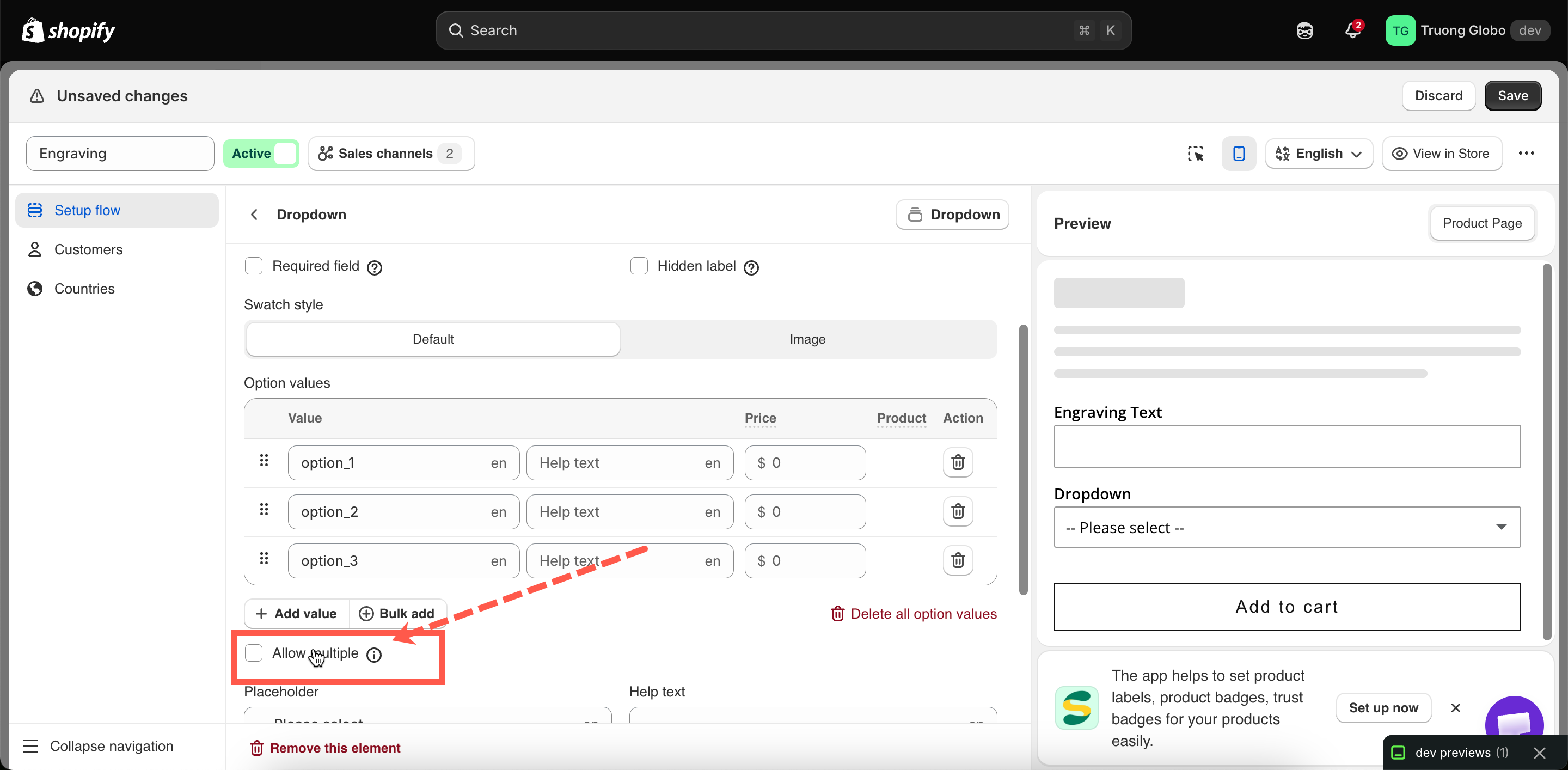
A Dropdown's Basic tab with Allow multiple highlighted below the values table
Allow multiple is on the Basic tab, directly below the values table.
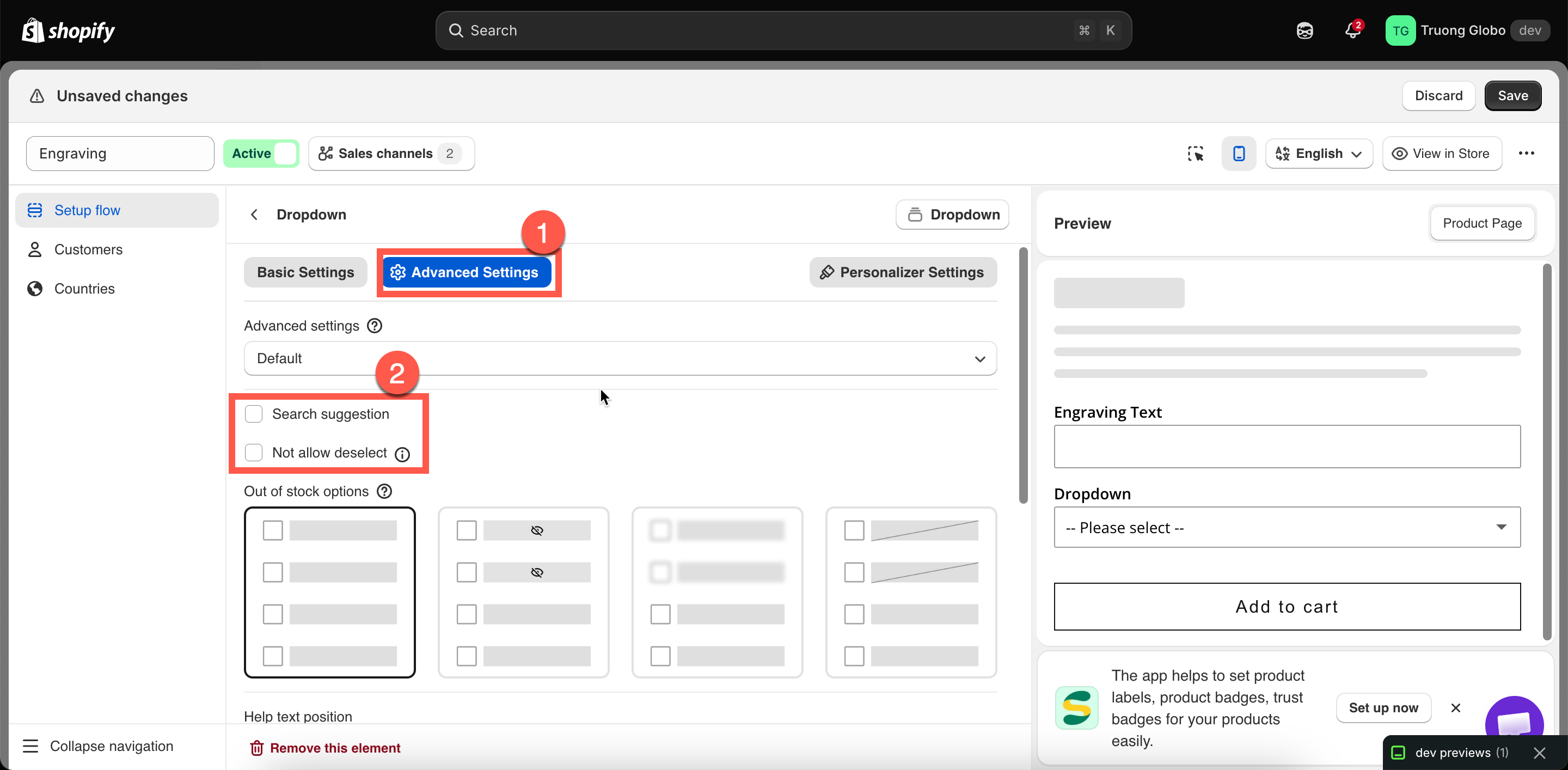
Allow multiple on the Basic tab, with Search suggestion and Not allow deselect on the Advanced tab
Allow multiple is a Basic setting; the other two are Advanced.

Last updated

Was this helpful?