Google Drive sync
Copy the files customers upload into your own Google Drive, organized into a folder per order.
Files a customer uploads are stored with the order, but they stay inside the app. This workflow copies them into your own Google Drive and sorts them into folders, so your production team can work from Drive instead of opening orders one at a time.
Orders in the app menu, then the Automations tab, then Add workflow > Google Drive sync. It has its own configuration page rather than the standard workflow form, and you can create one per store.
It copies every file attached through a File upload option, and optionally the Personalizer design image. Only line items created by the app are read, so ordinary products in the same order are skipped.
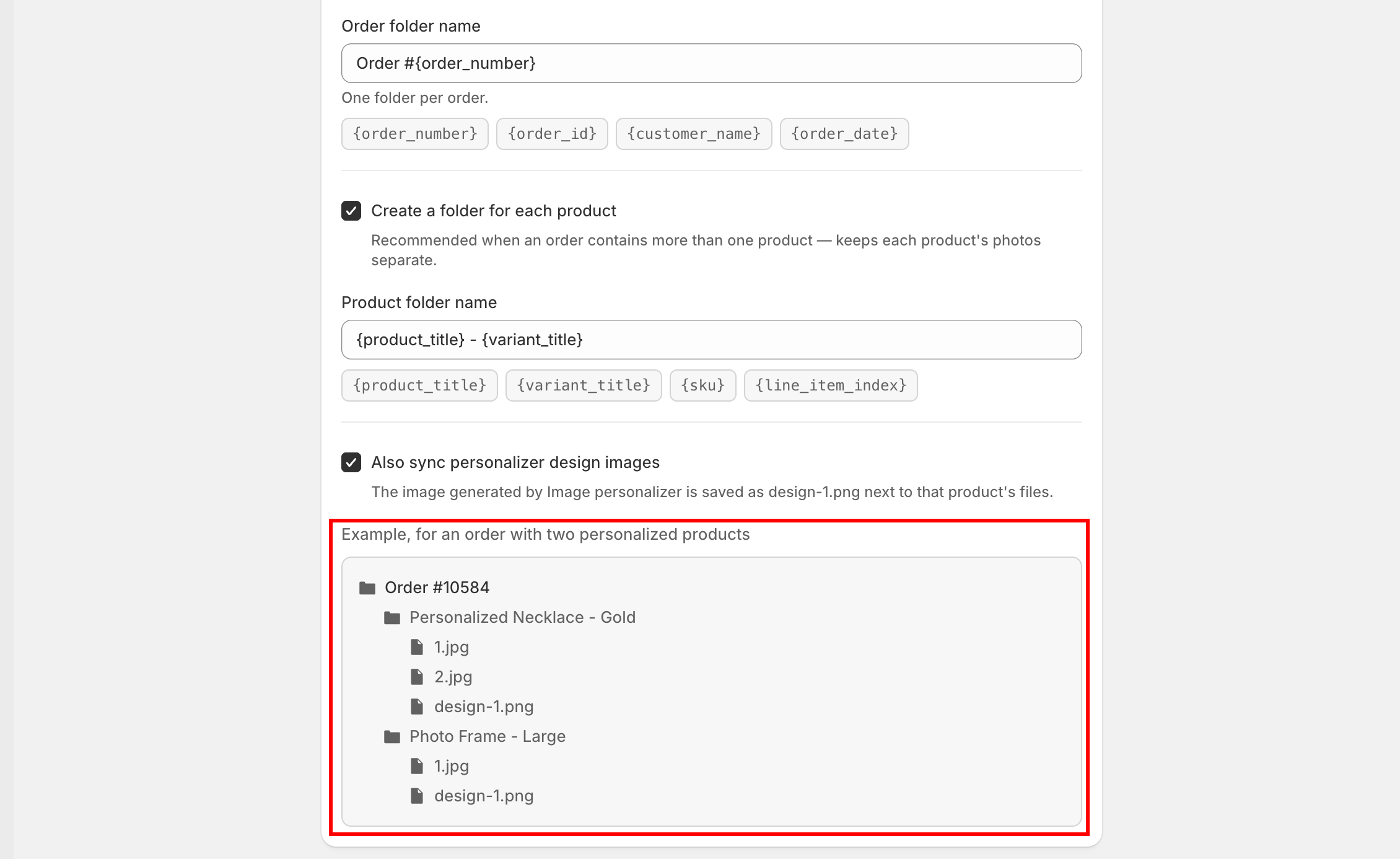
Files are filed into a folder per order and a folder per product. See What it looks like in Drive. Each order's own page has an Open in Drive link straight to its folder — see Order details.

Before you start
Automations may not be available on all plans. See Compare plans.
Google Drive has to be enabled for your store first. If it is not, the page says Google Drive is not set up for this app yet. Contact support to enable it. See Contact support.
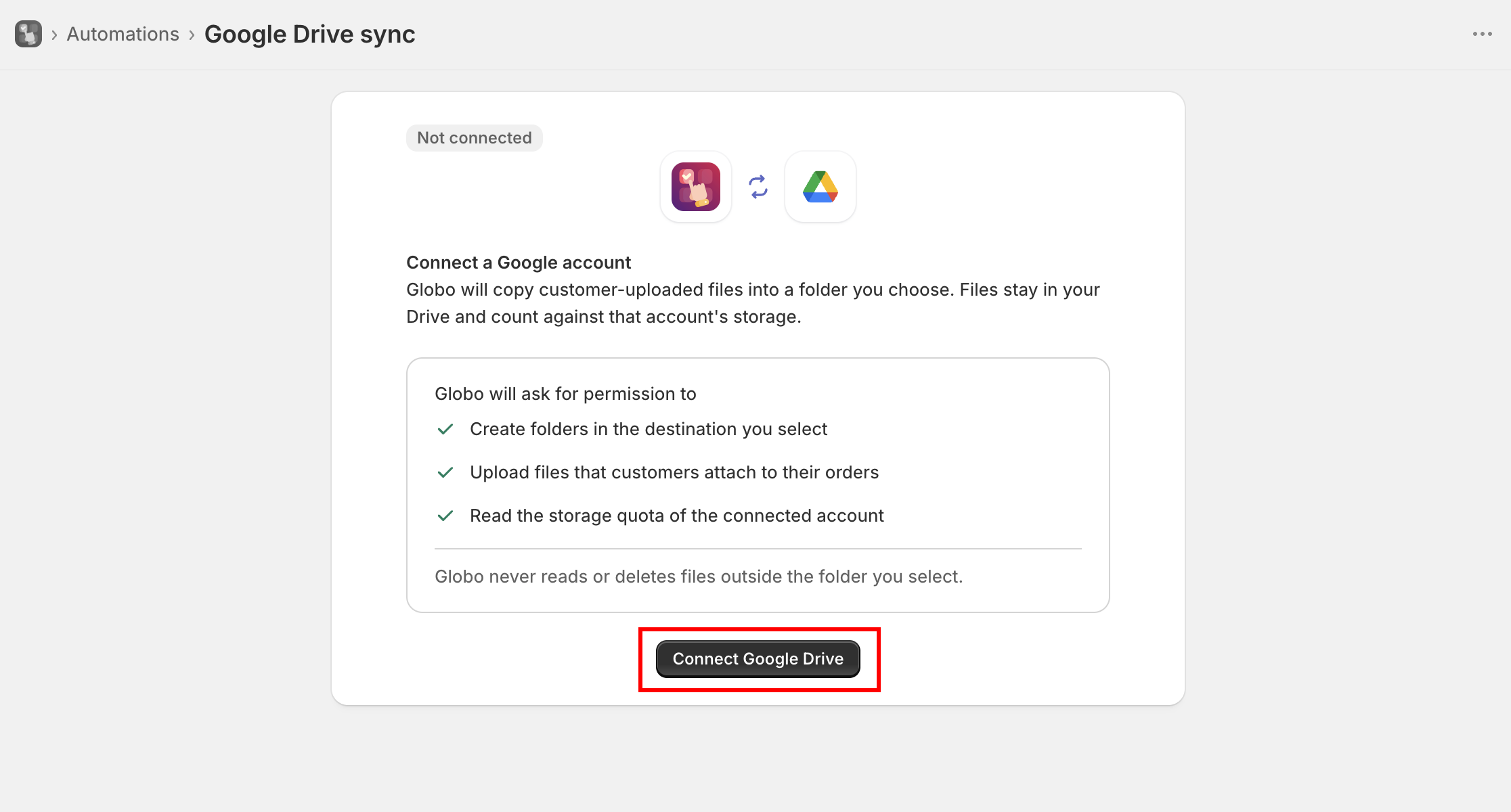
Connect a Google account
Select Connect Google Drive
A Google window opens and asks for permission to create folders in the destination you select, upload files that customers attach to their orders, and read the storage quota of the account. The app never reads or deletes files outside the folder you select.


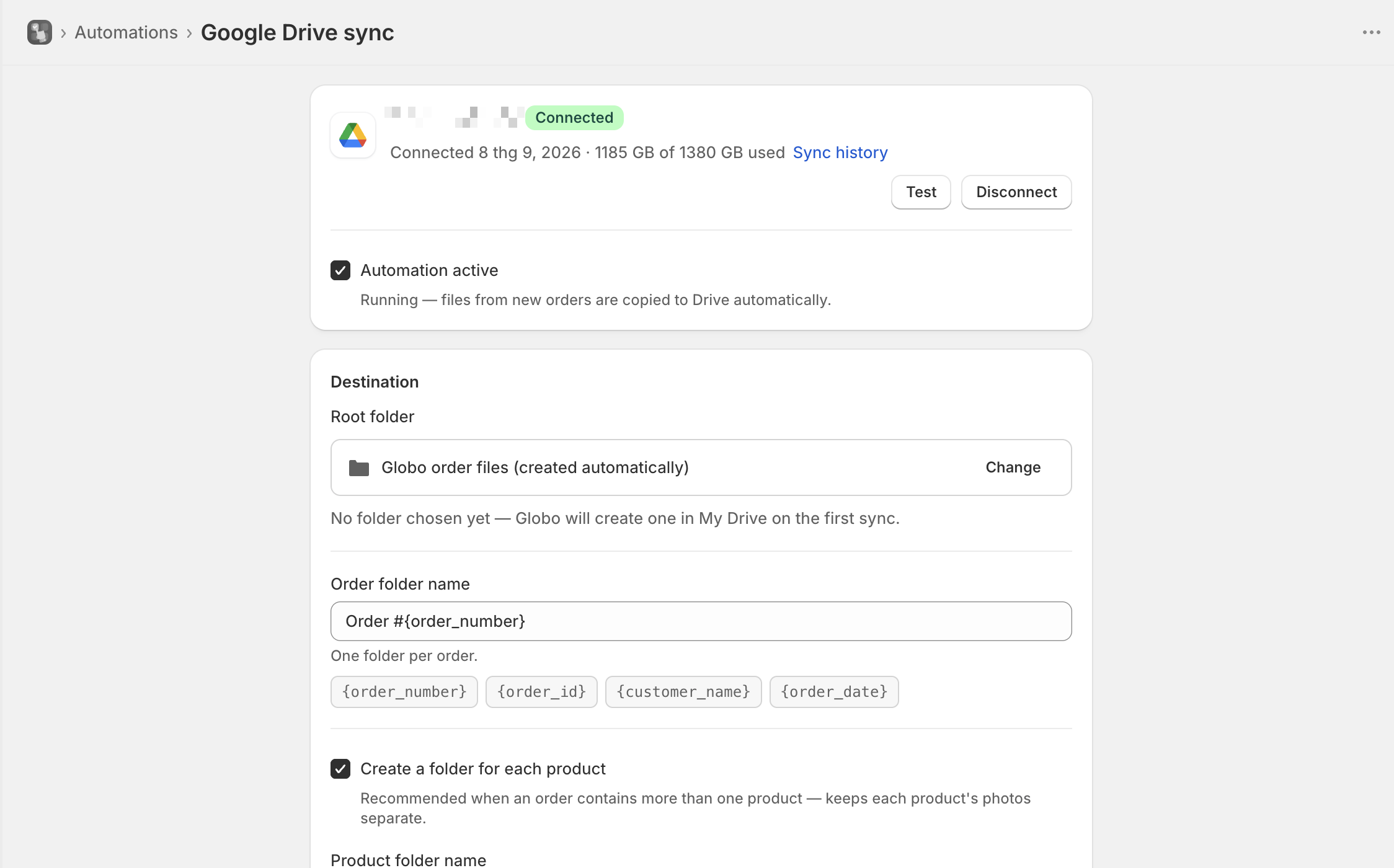
Once connected, the page shows the account's email, the date it was connected, and how much of its storage is in use. If the app later loses access, the account is badged Reconnect required and syncing stops until you reconnect. Files already in Drive are not affected.
Destination
Root folder
Created automatically
Where everything else is created. Change opens Google's own folder picker
Order folder name
Order #{order_number}
One folder per order, inside the root folder
Create a folder for each product
On
A folder per product inside the order folder
Product folder name
{product_title} - {variant_title}
The name of each product folder. Only displayed when the setting above is on
Also sync personalizer design images
On
Saves the Personalizer's generated image as design-1.png beside that product's files
If you do not choose a root folder, the app creates one called Globo order files in My Drive the first time it syncs.
Keep Create a folder for each product on. An order with three personalized products otherwise puts every photo in one folder, and nothing tells you which photo belongs to which item.
Folder name tokens
Select a token chip to insert it, rather than typing it.
{order_number}
{product_title}
{order_id}
{variant_title}
{customer_name} — Guest with no account
{sku}
{order_date} — as 2026-09-04
{line_item_index} — position in the order, from 1
A token that does not exist is removed rather than printed, so a typo leaves a gap instead of {prodct_title}. Characters Drive cannot use — / \ : * ? " < > | — become spaces, and names longer than 100 characters are shortened.
The page previews the folder tree as you type, using a sample order, so you can check the structure before saving. For what the result actually looks like in Drive, see What it looks like in Drive.

File names
Files are numbered in upload order inside each folder: 1.jpg, 2.jpg, 3.jpg. Personalizer images are numbered separately as design-1.png, so they never take a number from a customer's upload. The name the file had on the customer's own computer is not kept, which is why numbering is used.
Running it
Automation active controls whether the workflow runs. On, it is Running and files from new orders are copied automatically. Off, it is Paused and no new files are copied. Pausing removes nothing from Drive.
Test opens a list of your recent orders. Select one that has uploads, and the workflow runs against it, so you can check the folder structure and file names in your Drive before real orders arrive.
Sync history records every file the workflow has handled, and is where you retry anything that did not arrive. See Google Drive sync history.
Disconnecting
Disconnect removes the Google account from the app. It asks you to confirm first, because it also pauses the automation.
Files already in Drive stay there. New order files stop syncing until you connect an account again.
Notes
One Google Drive sync workflow per store.
The workflow runs shortly after an order is created, so files appear in Drive a short time later rather than immediately.
Files are copied, not moved. They remain available from the order in Shopify admin. See Show options on orders.
Changing the folder name settings affects new orders only. Folders that already exist are not renamed.
Staff accounts can open the page and read the sync history, but cannot connect, change settings, disconnect, or retry.
Last updated
Was this helpful?