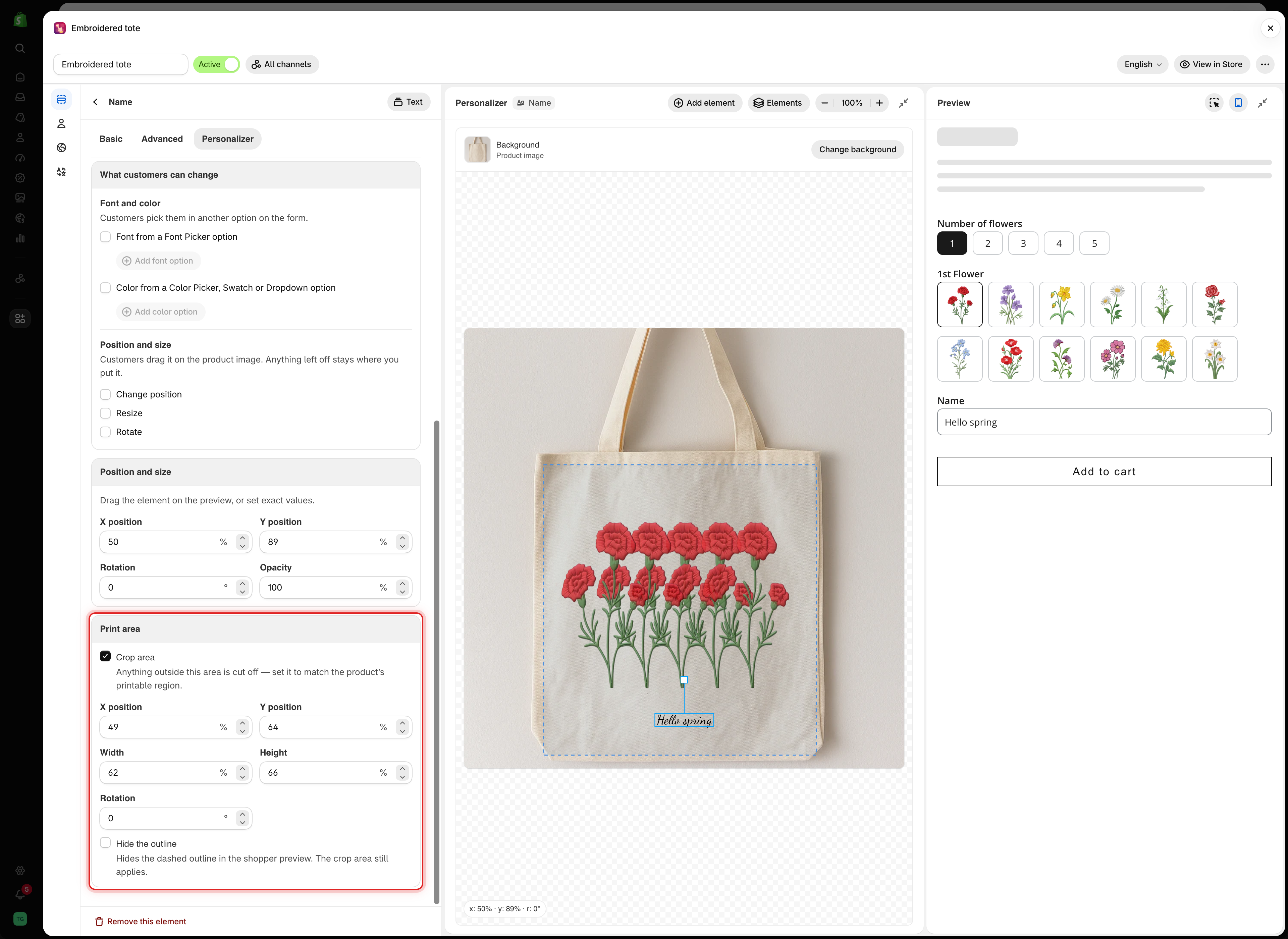
With Crop area on, its dashed outline appears on the canvas, where you can also drag and resize it.
With Crop area on, its dashed outline appears on the canvas, where you can also drag and resize it.
| Setting | Default | What it does |
|---|---|---|
| Crop area | Off | Turns the crop area on and shows the settings below |
| X position | 50% | Horizontal center of the area |
| Y position | 50% | Vertical center of the area |
| Width | 50% | How wide the area is |
| Height | 50% | How tall the area is |
| Rotation | 0° | Turns the area, from -180 to 180 |
| Hide the outline | Off | Hides the dashed outline from customers. The crop area still applies |
| Situation | Why it helps |
|---|---|
| Customers can move an element | They cannot drag it off the printable area |
| Customers can resize an element | An oversized photo is cut at the edge instead of covering the product |
| A photo goes into a fixed window | The photo fills the window and nothing spills out |
| Text must stay on an engraved panel | Long entries are cut at the panel edge |
| Crop area | Auto-fit max width | |
|---|---|---|
| What it does | Cuts off whatever is outside the area | Shrinks text so it fits |
| Works on | Text and image elements | Text and Number |
| Long entry | Cut off | Smaller but complete |
| Best for | A hard boundary, especially when customers can move things | Keeping the whole entry visible |