Text effects
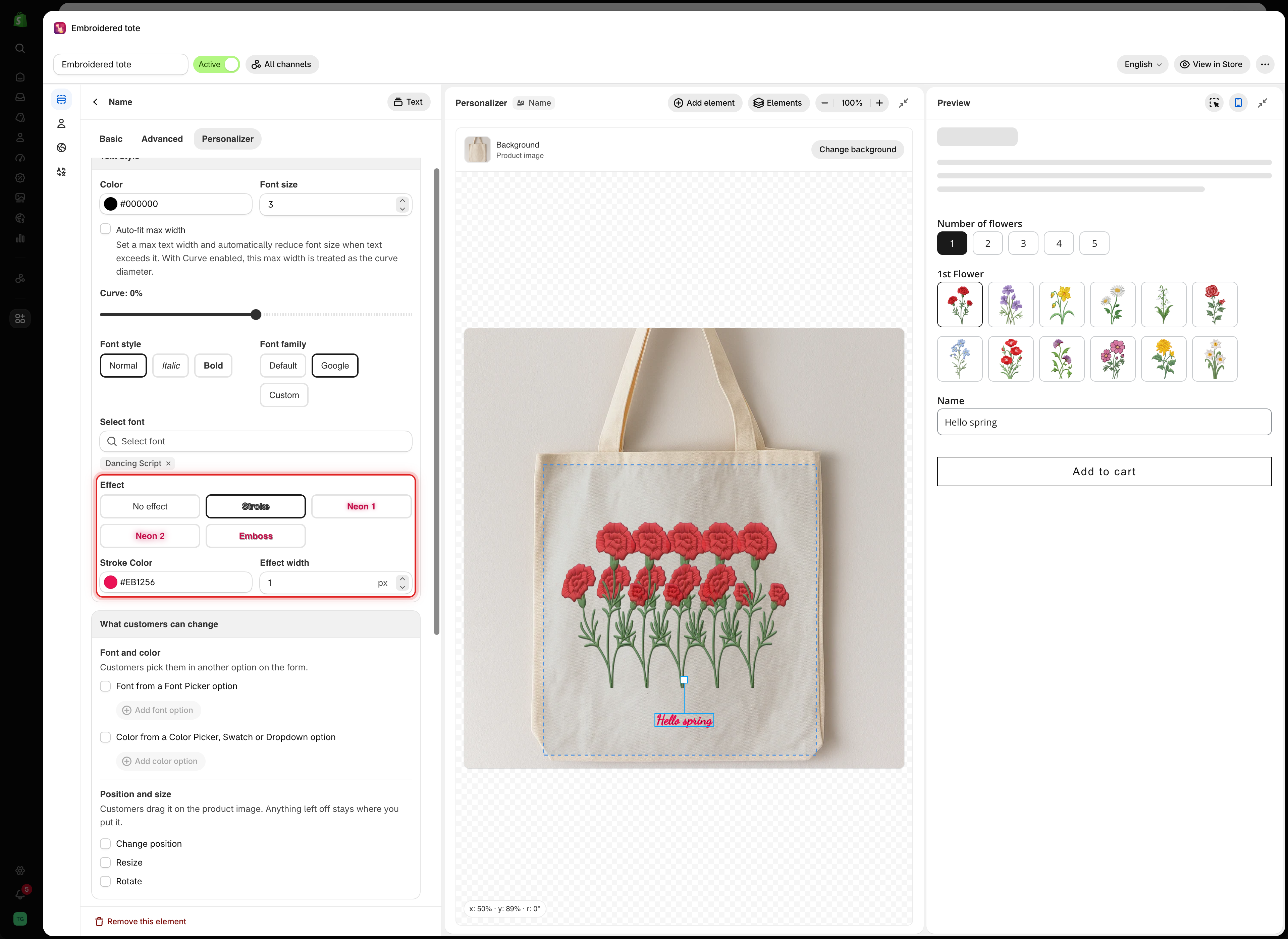
Five text effects — stroke, two neon styles, and emboss — with the settings each one reveals.
Custom Effect applies a visual treatment to a text layer. Select an effect that matches the product you produce.
Applies to: Text, Textarea, Number.
The five effects
No effect
Plain text. The default
Nothing
Stroke
An outline around each letter
Stroke Color, Effect width
Neon 1
A glowing outline
Nothing
Neon 2
A second glow treatment
Nothing
Emboss
A raised or pressed look, using a shadow
Shadow X position, Shadow Y position

Stroke
An outline in a color you select.
Stroke Color
A pink
The outline color
Effect width
1 px
The thickness of the outline
When to use it
A stroke can be decorative, but its main purpose is keeping text readable over a photograph. Light text with a thin dark stroke remains legible over uploaded photos, regardless of how light or dark they are.
If customers can upload their own images and you place text over them, use a stroke. You cannot predict whether their photos will be light or dark.
Keep Effect width low. Above about 2, the outline can start to obscure the letters.
Neon 1 and Neon 2
Two glow effects with no additional settings.
Use them for products designed to emit light, such as LED signs, acrylic light panels, and neon-style displays. They are not suitable for engraved products.
The two effects create different glow styles. Compare both with your own background image to choose the one that looks best.
Emboss
Creates a raised or pressed appearance by using a positioned shadow.
Shadow X position
1 px
Horizontal shadow offset, from -100 to 100
Shadow Y position
1 px
Vertical shadow offset, from -100 to 100
How to position the shadow
The shadow offset determines the lighting direction. Small offsets create a subtle, physical impression, while larger offsets make the effect look more like a drop shadow.
Pressed into the surface — debossed
Small positive values, around 1 to 2
Raised off the surface — embossed
Small negative values
Matching your photograph's lighting
Offset in the same direction as the shadows already in the image
Match the shadow direction to the lighting in your product photo. If the light comes from the top left, the shadow should fall toward the bottom right.
Choosing an effect
Engraved metal or wood
Emboss with small offsets, or No effect
Printed text on fabric or paper
No effect
Text over a customer's uploaded photo
Stroke, thin, in a contrasting color
LED or acrylic light products
Neon 1 or Neon 2
Vinyl or sticker lettering
Stroke matching your cut outline
Embroidery
No effect, with a font that suits stitching
Notes
You can apply one effect per layer.
Effects apply to the entire layer, not to individual parts of the text.
Effects are drawn on top of the layer's Text color, so check both settings together.
Effects apply to the preview only. They do not affect the actual product or production process.
Thick strokes and large shadows on long text can take longer to render, which may be noticeable on older devices.
Last updated
Was this helpful?