> For the complete documentation index, see [llms.txt](https://docs.globo.io/llms.txt). Markdown versions of documentation pages are available by appending `.md` to page URLs; this page is available as [Markdown](https://docs.globo.io/options/product-personalizer/layer-settings/image-layers.md).

# Shape and fill

Print an uploaded photo or a chosen design on the product, cut to a shape and fitted the way you want.

An image element prints a picture on the product image: the file the customer uploaded, or the image attached to the value they selected. The **Shape and fill** card is the first card on its **Personalizer** tab.

**Applies to:** [File upload](/options/option-types/input-types/file-upload.md), and eight selection types: [Dropdown](/options/option-types/selection-types/dropdown.md), [Color dropdown](/options/option-types/selection-types/color-dropdown.md), [Image dropdown](/options/option-types/selection-types/image-dropdown.md), [Radio button](/options/option-types/selection-types/radio-button.md), [Checkbox](/options/option-types/selection-types/checkbox.md), [Button](/options/option-types/selection-types/button.md), [Color swatch](/options/option-types/selection-types/color-swatch.md), [Image swatch](/options/option-types/selection-types/image-swatch.md).

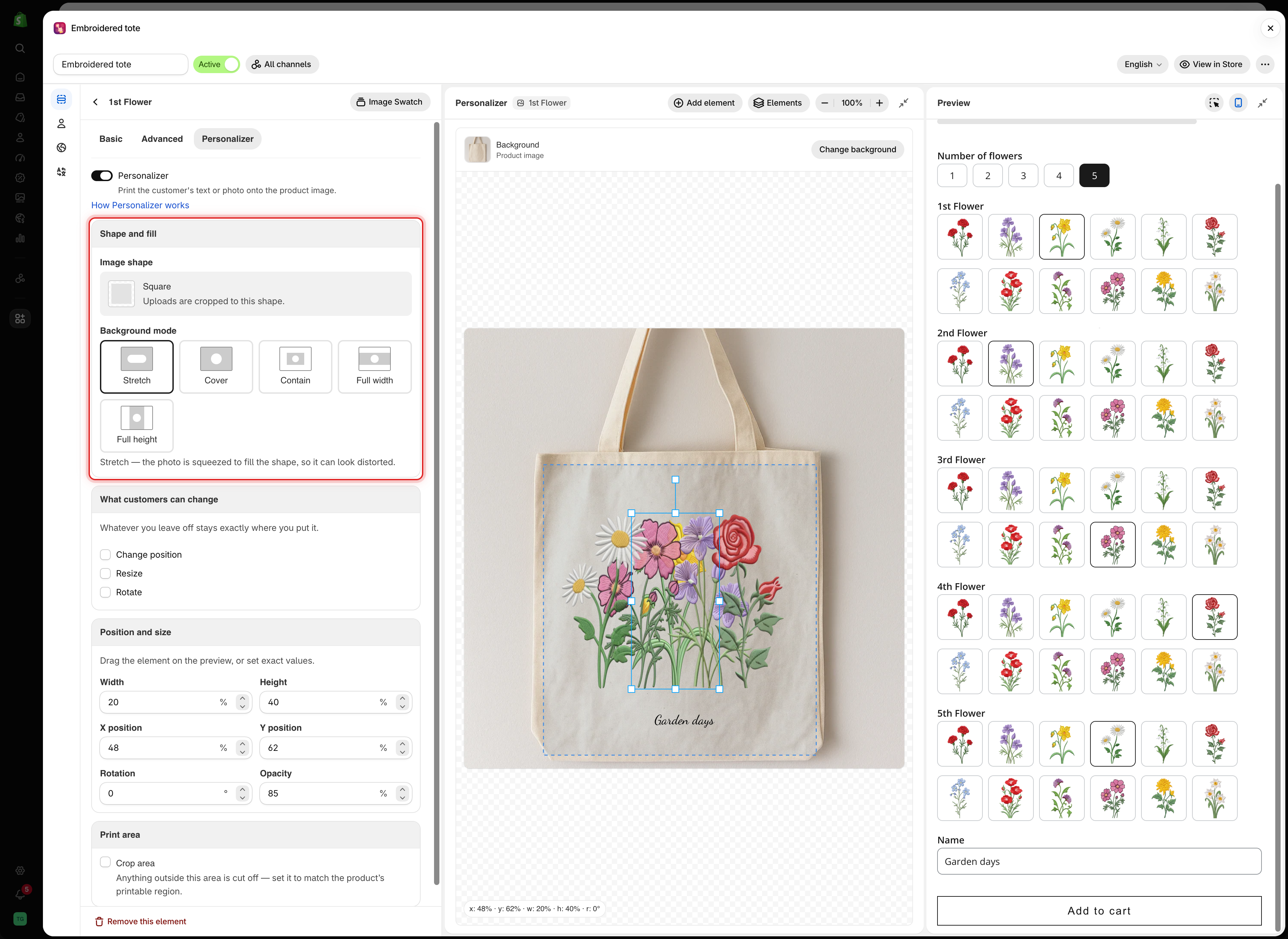
<figure><img src="https://3141646361-files.gitbook.io/~/files/v0/b/gitbook-x-prod.appspot.com/o/spaces%2FkMyxhAk2ZlJa4wZQGfBI%2Fuploads%2Fgit-blob-63c2fc95b1612c1ead480db5051781a4feeab0eb%2Fscreenshot-personalizer-shape-and-fill.png?alt=media" alt="The Shape and fill card with Image shape and the five Background mode buttons for an image element"><figcaption><p>Image shape sets the outline of the element, and Background mode sets how the picture fills it.</p></figcaption></figure>

## Where the image comes from

<table><thead><tr><th width="290">Option type</th><th>The element prints</th></tr></thead><tbody><tr><td>File upload</td><td>The file the customer uploaded</td></tr><tr><td>The eight selection types</td><td>The image on the option value they selected</td></tr></tbody></table>

For selection types, give each value its own image in the values table. See [Working with option values](/options/option-sets/option-values.md).

## Image shape

The image is cut to a shape, as the card says: **Uploads are cropped to this shape.** Select **Change** to open **Select shape image**.

* Choose a preset: **Square**, **Circle**, **Triangle**, **Diamond**, **Pentagon**, **Hexagon**, **Gem**, **Heart**, **Semicircle**, **Star**, **Crescent**, or **Cross**.
* Or upload your own shape image for an unusual window, such as a locket or a phone case camera cut-out.

Match the shape's proportions to the real window on your product. A square shape on a portrait frame crops the customer's photo unexpectedly. Set the proportions with **Width** and **Height** in [Position and size](/options/product-personalizer/layer-settings/position-size-rotation.md).

## Background mode

How the picture fills the shape. The card describes the selected mode below the buttons.

<table><thead><tr><th width="200">Mode</th><th>What happens</th></tr></thead><tbody><tr><td><strong>Stretch</strong></td><td>The photo is squeezed to fill the shape, so it can look distorted</td></tr><tr><td><strong>Cover</strong> (default)</td><td>The photo fills the shape and anything past the edge is cropped</td></tr><tr><td><strong>Contain</strong></td><td>The whole photo fits inside the shape, so some of the shape stays empty</td></tr><tr><td><strong>Full width</strong></td><td>The photo spans the full width. Top and bottom may be cropped</td></tr><tr><td><strong>Full height</strong></td><td>The photo spans the full height. Left and right may be cropped</td></tr></tbody></table>

{% hint style="warning" %}
Do not use **Stretch** for customer uploads. A portrait photo in a landscape shape looks squashed. Use **Cover**, and turn on the File upload option's [image editor](/options/option-types/input-types/file-upload.md) so customers can crop their photo before it is printed.
{% endhint %}

## Example

A t-shirt where the customer uploads a photo for the front print:

<table><thead><tr><th width="290">Setting</th><th>Value</th></tr></thead><tbody><tr><td>Option</td><td>File upload, required, <strong>Allowed extensions</strong> <code>jpg</code>, <code>jpeg</code>, <code>png</code></td></tr><tr><td>Help text</td><td><code>JPG or PNG, at least 1500 × 1500 pixels</code></td></tr><tr><td><strong>Image shape</strong></td><td><strong>Square</strong></td></tr><tr><td><strong>Background mode</strong></td><td><strong>Cover</strong></td></tr><tr><td><strong>Width</strong> and <strong>Height</strong></td><td>The size of the print, for example 30 and 32</td></tr><tr><td><strong>Crop area</strong></td><td>On, matching the printable area on the chest</td></tr><tr><td><strong>What customers can change</strong></td><td><strong>Change position</strong> and <strong>Resize</strong></td></tr></tbody></table>

## Letting customers pick a design instead

{% stepper %}
{% step %}

### Add a selection option with an image on each value

An [Image swatch](/options/option-types/selection-types/image-swatch.md) shows a grid. An [Image dropdown](/options/option-types/selection-types/image-dropdown.md) suits a long list. Use the same proportions for every value image.
{% endstep %}

{% step %}

### Turn on the Personalizer

On the option's **Personalizer** tab, or with **Add element** in the editor.
{% endstep %}

{% step %}

### Set the shape and place it

Choose **Image shape** and **Background mode**, then drag the element to where the design goes.
{% endstep %}

{% step %}

### Leave customer controls off

You placed the design already, so customers only need to choose it.
{% endstep %}
{% endstepper %}

An option that allows several selections prints one image per selected value, and they can overlap. Limit it to one selection, or place the values so they do not overlap.

## Notes

* An image element shows nothing until a file is uploaded or a value with an image is selected. It has no default value.
* Small uploads look blurry when enlarged. State a minimum size in the help text.
* An uploaded shape image can be reused on other options.
