> For the complete documentation index, see [llms.txt](https://docs.globo.io/llms.txt). Markdown versions of documentation pages are available by appending `.md` to page URLs; this page is available as [Markdown](https://docs.globo.io/options/product-personalizer/layer-settings/text-layers.md).

# Text layers

Color, size, style, and alignment for text drawn on the product photo.

A text layer draws the text the customer entered onto the product image. These settings control its appearance.

**Applies to:** [Text](/options/option-types/input-types/text.md), [Textarea](/options/option-types/input-types/textarea.md), [Number](/options/option-types/input-types/number.md).

## The settings

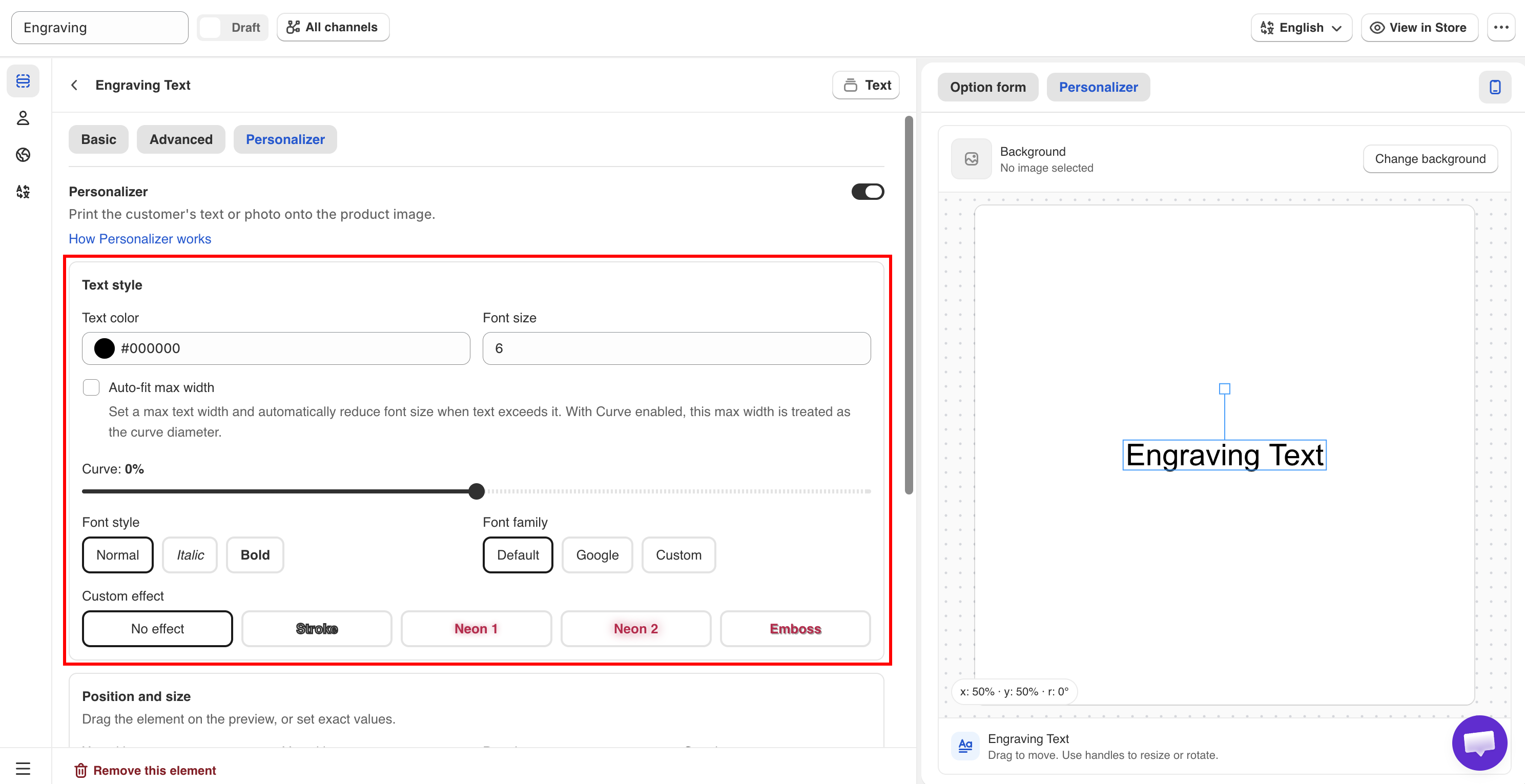
<table><thead><tr><th width="230">Setting</th><th width="170">Default</th><th>What it does</th></tr></thead><tbody><tr><td><strong>Text color</strong></td><td>Black</td><td>The color the text is drawn in.</td></tr><tr><td><strong>Font size</strong></td><td><code>6</code></td><td>The size, on a scale from 0 to 50 relative to the image.</td></tr><tr><td><strong>Text alignment</strong></td><td><strong>Center</strong></td><td><strong>Left</strong>, <strong>Center</strong>, or <strong>Right</strong>. <strong>Textarea only.</strong></td></tr><tr><td><strong>Font style</strong></td><td><strong>Normal</strong></td><td><strong>Normal</strong>, <strong>Italic</strong>, or <strong>Bold</strong>.</td></tr><tr><td><strong>Font family</strong></td><td><strong>Default</strong></td><td><strong>Default</strong>, <strong>Google</strong>, or <strong>Custom</strong>. See <a href="/options/product-personalizer/layer-settings/fonts.md">Fonts</a>.</td></tr></tbody></table>

The remaining text layer settings are documented on their own pages: [effects](/options/product-personalizer/layer-settings/effects.md), [position, size, and rotation](/options/product-personalizer/layer-settings/position-size-rotation.md), [curve and auto-fit](/options/product-personalizer/layer-settings/curve-and-auto-fit.md), [crop area](/options/product-personalizer/layer-settings/clip-area.md), and [customer controls](/options/product-personalizer/layer-settings/customer-controls.md).

<figure><img src="https://3141646361-files.gitbook.io/~/files/v0/b/gitbook-x-prod.appspot.com/o/spaces%2FkMyxhAk2ZlJa4wZQGfBI%2Fuploads%2Fgit-blob-f375dac7feafc0dfc1b43c17cba799abe1e4c68d%2Fperson4.png?alt=media" alt="The text layer settings for color, font size, font style, and font family"><figcaption><p>The first group on the Personalizer tab styles the text itself.</p></figcaption></figure>

## Font size

The scale runs from 0 to 50 and is relative to the background image rather than measured in points. This keeps the layer in proportion at any display size, from a phone to a large monitor.

The default value is `6`. The value you need depends on how much of the image the personalization should cover.

<table><thead><tr><th width="230">Roughly</th><th>Suits</th></tr></thead><tbody><tr><td><code>3</code>–<code>5</code></td><td>Small discreet engraving — the inside of a ring, a subtle monogram</td></tr><tr><td><code>6</code>–<code>10</code></td><td>Typical engraving or printed name</td></tr><tr><td><code>12</code>–<code>20</code></td><td>A bold statement — a jersey number, a large printed word</td></tr><tr><td><code>25</code>+</td><td>Text as the main design element</td></tr></tbody></table>

Set the value against your own background image, then check it with the longest entry your **Max character** limit allows.

## Text color

Two points to consider:

**Contrast.** Dark text on a dark product is difficult to read. Check the color against the background image you configured, not against the builder panel.

**Accuracy.** Use a color you can produce. If you engrave in silver, a preview in black is closer to the result than a preview in bright blue.

The color set here is fixed. To let the customer select the color and see it applied to their text, use the **Color preview** and **Select text box** settings on a [Color picker](/options/option-types/input-types/color-picker.md) or [Color swatch](/options/option-types/selection-types/color-swatch.md) option. See [Swatch style and previews](/options/option-types/shared-settings/swatch-style-and-previews.md#color-preview).

## Text alignment

Available on **Textarea** only, because it is the only text type that produces more than one line.

<table><thead><tr><th width="200">Alignment</th><th>Use for</th></tr></thead><tbody><tr><td><strong>Left</strong></td><td>Addresses, lists, anything read as a block</td></tr><tr><td><strong>Center</strong></td><td>Messages, verses, greetings. The default and usually right</td></tr><tr><td><strong>Right</strong></td><td>Rarely — a signature, or a deliberately asymmetric design</td></tr></tbody></table>

Alignment applies within the layer's **Width**, which Textarea also has. Without a width, alignment has no visible effect.

## Font style

The values are **Normal**, **Italic**, and **Bold**. The style applies to the whole layer. You cannot apply it to part of the text.

Not every font includes a true italic or bold version. If a custom font does not, the text may appear artificially slanted or thickened. Test the result.

## A worked example

An engraved bracelet:

<table><thead><tr><th width="290">Setting</th><th>Value</th></tr></thead><tbody><tr><td>Option type</td><td>Text, <strong>Max character</strong> 15</td></tr><tr><td>Default value</td><td><code>Your name</code></td></tr><tr><td>Text color</td><td>A light gray, matching engraved silver</td></tr><tr><td>Font size</td><td><code>5</code></td></tr><tr><td>Font style</td><td><strong>Normal</strong></td></tr><tr><td>Font family</td><td><strong>Google</strong>, a clean script</td></tr><tr><td>Position</td><td>Centered on the bracelet plate</td></tr><tr><td>Auto-fit max width</td><td>On, so long names shrink rather than overflow</td></tr></tbody></table>

## Notes

* Set a **Default value** on the **Basic** tab so the preview is never empty.
* [Text transform](/options/option-types/shared-settings/text-input-rules.md#text-transform) is applied before the text is rendered, so the layer displays the transformed text.
* The layer displays the current entry, so a **Max character** limit also limits how far the text can extend.
* Number layers work the same way as Text layers. Use them for jersey numbers, years, and other numeric values.
