Cart page
Add-on lines, letting customers edit their options, and how personalized designs are previewed in the cart.
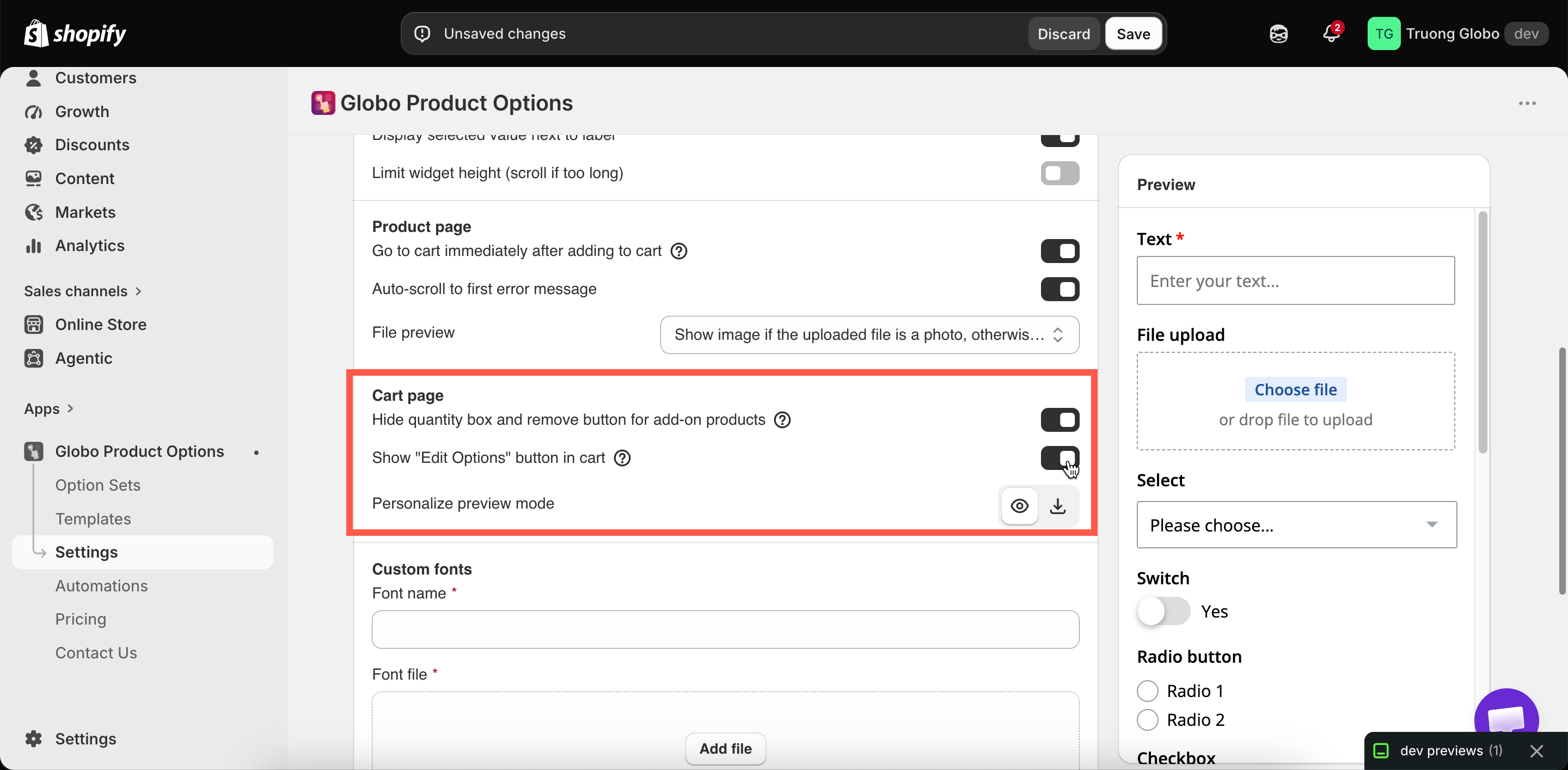
Four settings in Settings > Settings > General > Cart page, plus one in the add-on settings, control how a personalized order behaves once it is in the cart.

Hide quantity box and remove button for add-on products
Default
On
Prevents customers from changing the quantity of an add-on line, or removing it, separately from the item it belongs to.
Keep this on. Without it, a customer can remove the gift box while keeping the "gift wrapped" option on the main item, so you receive an order for something that was not paid for.
It applies to product-backed add-ons, because those are the ones with their own cart line. A Fixed amount charge has no separate line.
This setting also covers theme cart drawers and the UpCart, Monster Cart, and Kaching drawers, not only your full cart page.
Show "Edit Options" button in cart
Default
Off
Adds a button to the cart line that reopens the option form, so customers can change their choices without removing the item and starting again.
You sell personalized products, where a typo is likely and costly
Your options are simple and quick to redo
Forms are long enough that redoing one is a real deterrent
You would rather the cart stayed as simple as possible
You want fewer abandoned carts from small mistakes
This is worth turning on for personalized products. Without it, a customer who notices a misspelled engraving in the cart has to remove the item and enter everything again.
This setting may not be available on all plans. See Compare plans.
You can edit the button's text, along with Cancel and Save Changes, for each language in Settings > Translations. See Translate widget text.
Send cart drawer app upsells to the product page
Default
Off
This one only matters if you use a cart drawer app. UpCart, Monster Cart, and Kaching show upsells inside the drawer, and their Add button puts the product in the cart in one click, without opening a product page.
If an upsell product has options, the customer never sees the form. You receive an order with no engraving text, no size, and no uploaded file.
With this setting on, the upsell's Add button reads Choose options and opens the product page instead, where the customer fills the form and adds to cart normally.
It applies to every upsell in the drawer, not only the ones with options, because the drawer does not tell the app which products have an option set. Decide based on whether any of them do.
Separately, and with no setting needed, the app keeps the add-on products it generated for you out of those upsell lists, so an auto-generated gift box is not offered as an upsell. A product you already sell and use as an add-on is a normal product, and can still be upsold.
You can edit the button's text for each language as Choose options in the Cart widget group. See Translate widget text.
Personalize preview mode
Default
View in modal
This setting controls how a personalized design is displayed from the cart.
View in modal
Opens in a dialog on the cart page
Download file
Downloads as a file
Use View in modal in most cases, because a customer who has to download a file to check their design often will not. Use Download file only when customers need to keep or forward a copy, for example to approve artwork with someone else.
This setting may not be available on all plans, and it applies only if you use the Personalizer. See Designs in cart and orders.
Merge main product and add-ons
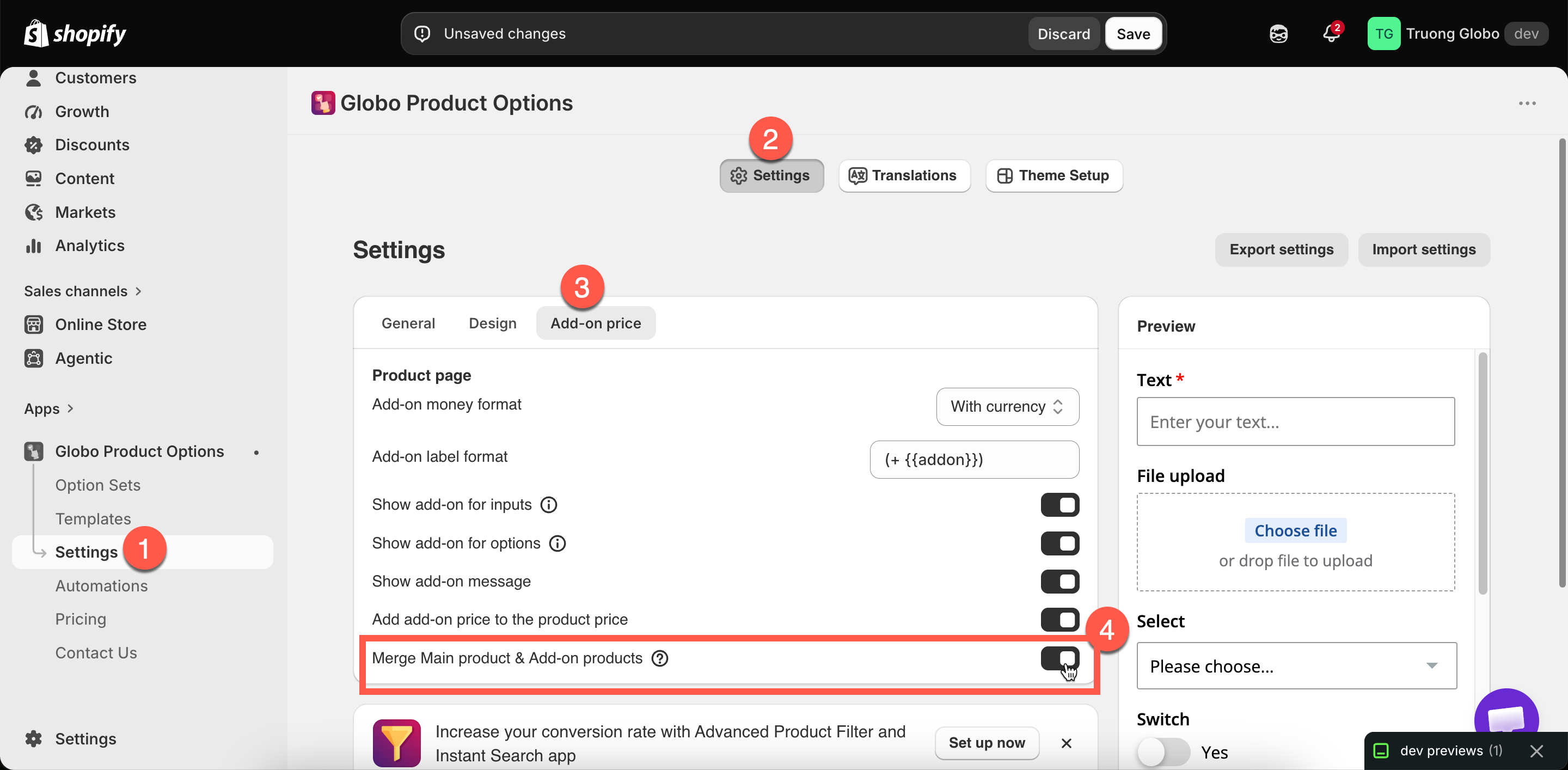
This setting is on a different page, but it changes the cart more than the four above. Settings > Settings > Add-on price > Merge Main product & Add-on products displays add-on lines as part of the main item instead of separately.
It is off by default on new stores. See Merge main product and add-ons.

What the cart always displays
Regardless of these settings, the cart displays the option details under each item: the text the customer entered, the values they selected, and links to any files they uploaded. This happens automatically because option values are stored as line item properties.
Recommended configuration for personalized products
Hide quantity box and remove button for add-on products
On
Show "Edit Options" button in cart
On
Personalize preview mode
View in modal
Merge Main product & Add-on products
On, unless you want add-on prices itemised
Notes
All of these settings are store-wide.
Two of the three may not be available on all plans.
The appearance of the cart also depends on your theme, which builds the cart page. Check your own cart after changing any of these settings.
Options are collected before the cart, so a customer cannot add an option from the cart page. They can only edit the options already on the item.
Last updated
Was this helpful?