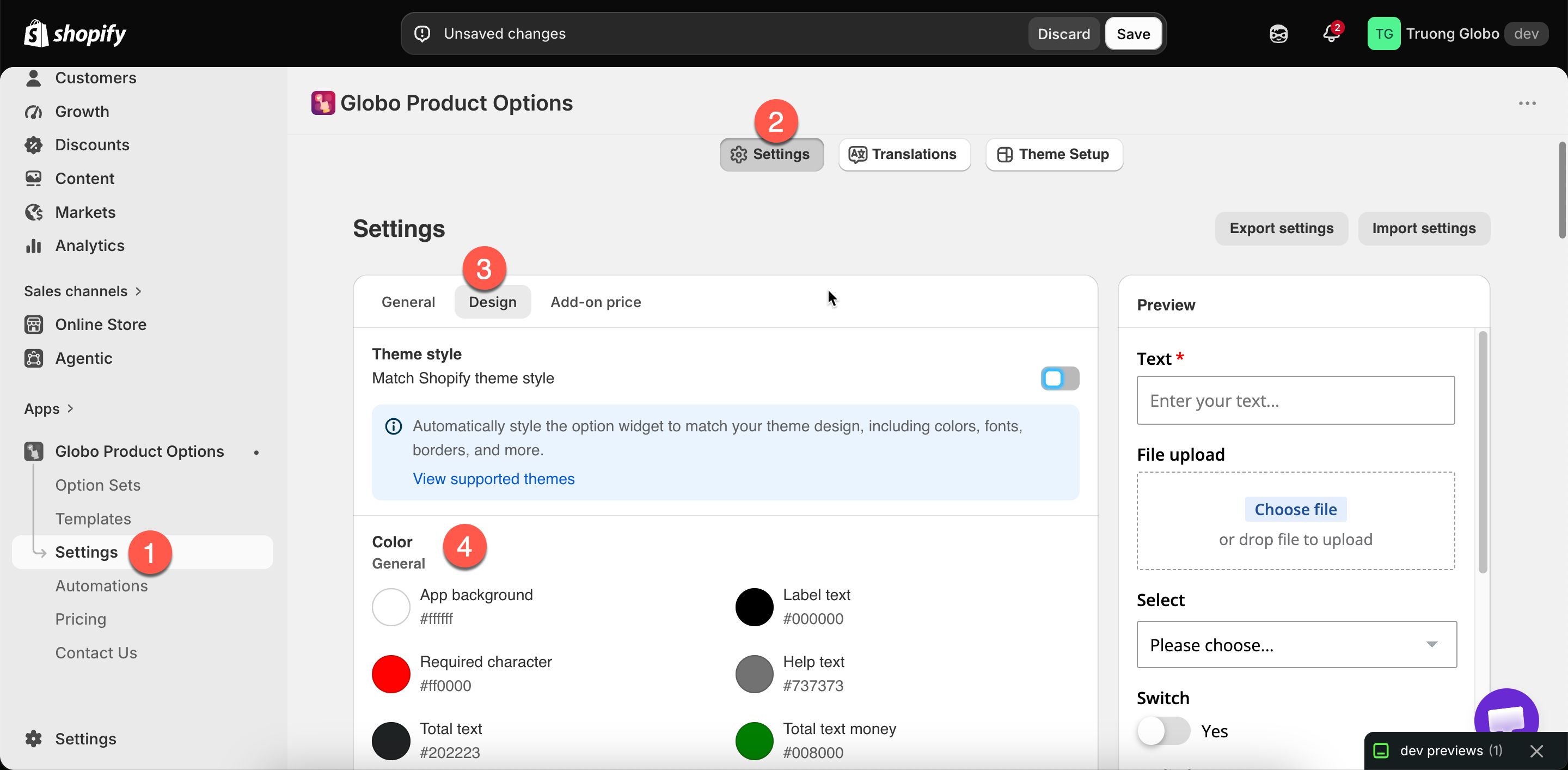
The Color group in Design settings, grouped as the app groups it.
The Color group in Design settings, grouped as the app groups it.
| Setting | Colors |
|---|---|
| App background | The widget's own background. Usually left matching your page background |
| Label text | Option labels |
| Required character | The marker on required options. Traditionally red — make sure it is visible against your background |
| Help text | Help text under and around options |
| Total text | The add-on total's label |
| Total text money | The amount itself. Often a green or your brand color |
| Setting | Colors |
|---|---|
| Input text | What the customer types |
| Input border | The field's outline |
| Input background | Inside the field |
| Switch background | A switch when off |
| Switch active background | A switch when on |
| Range slider thumb | The slider handle |
| Range slider background | The unfilled track |
| Range slider active background | The filled part of the track |
| Setting | Colors |
|---|---|
| Dropdown text | Text in a dropdown |
| Dropdown border | Its outline |
| Dropdown background | Inside it |
| Dropdown selected | The highlight on the chosen entry |
| Checkbox & Radio text | Their labels at rest |
| Checkbox & Radio text hover | On hover |
| Checkbox & Radio text active | When selected |
| Checkbox & Radio hover | The control on hover |
| Checkbox & Radio active | The control when selected |
| Setting | Colors |
|---|---|
| Button text / hover / active | Button labels in each state |
| Button background / hover / active | Button fills in each state |
| Swatch border | A swatch at rest |
| Swatch border hover | On hover |
| Swatch border active | When selected |
| Setting | Colors |
|---|---|
| Tab title | Inactive tab titles |
| Tab title active | The open tab's title |
| Tab title hover | On hover |
| Tab content | The text inside a panel |
| Tab border | The lines around and between tabs |
| Setting | Colors |
|---|---|
| Group label | The section heading text |
| Group icon | The section's prefix icon |
| Group chevron | The open and close arrow on a collapsible section |