For the complete documentation index, see llms.txt. This page is also available as Markdown.

Display options in packing slip

Add option details to your packing slips, through Order Printer or Shopify's own packing slip template.

There are two ways to do this. Use whichever matches how you print your packing slips.

Using Shopify Order Printer

Our Product Options app works with Shopify's Order Printer app, so you can include custom option details right on your packing slips.

1

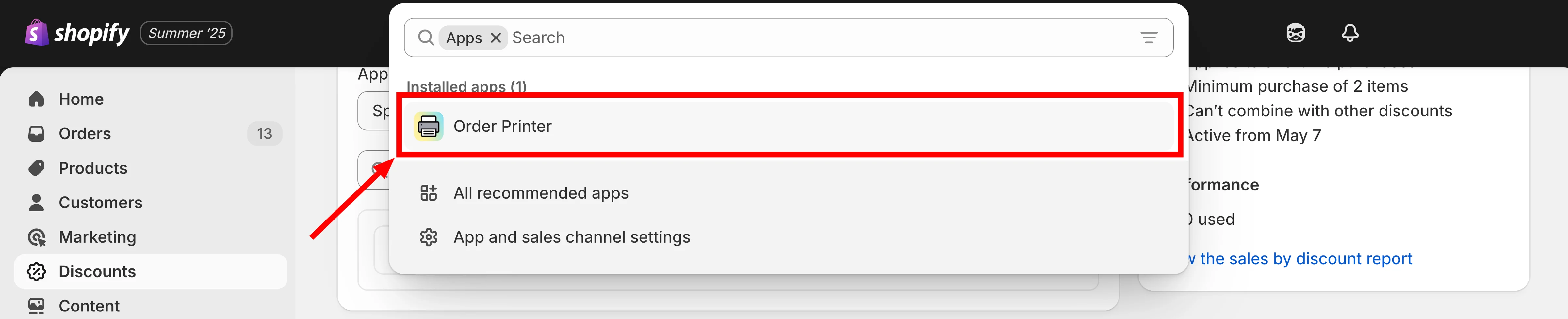
From your Shopify admin, click on Apps

2

Select Order Printer from your app list

The Apps list in Shopify admin with Order Printer highlighted
Open Order Printer from your app list.
3

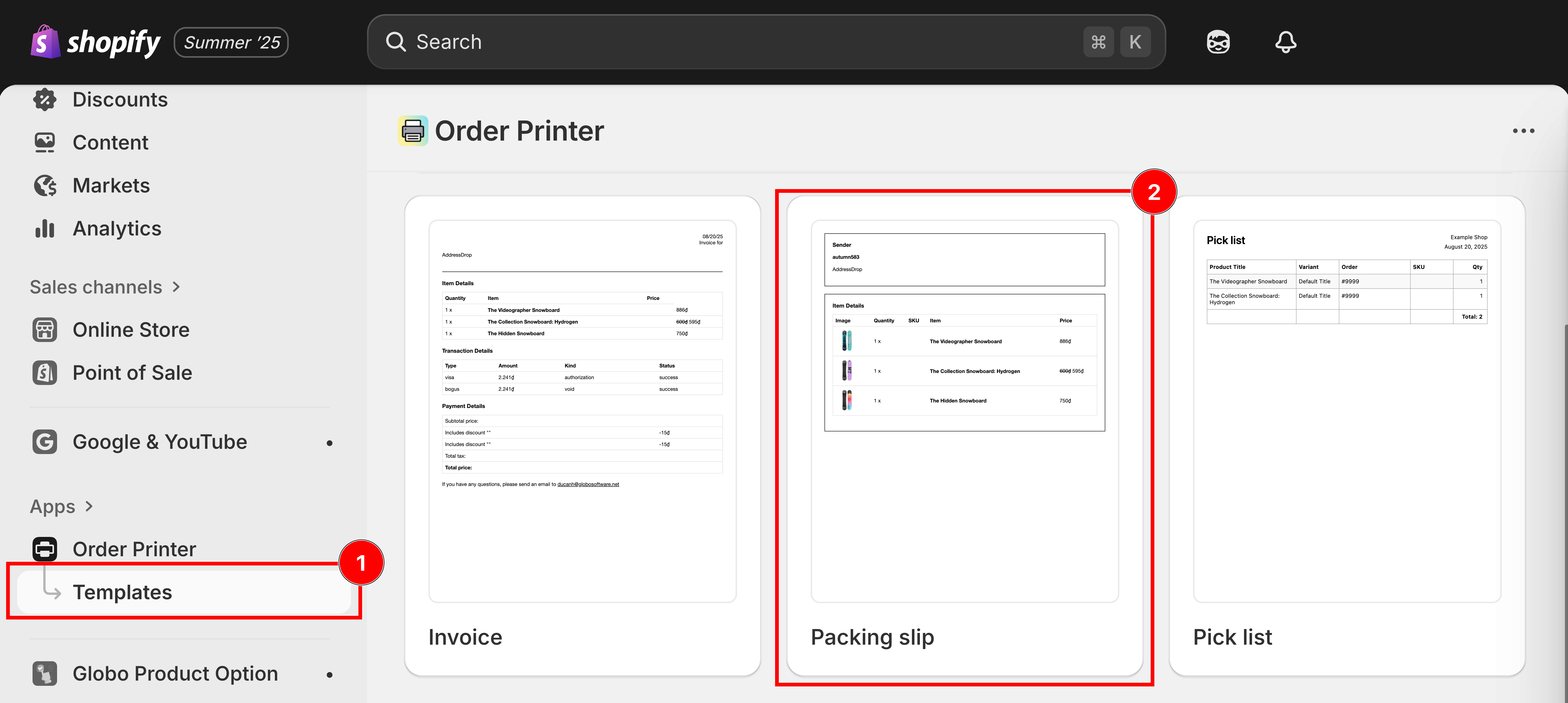
Click Manage Templates > Packing slip

The Order Printer templates screen with Manage templates and the Packing slip template highlighted
Manage templates, then open the Packing slip template.
4

Download the packing slip template

Click this button to download

5

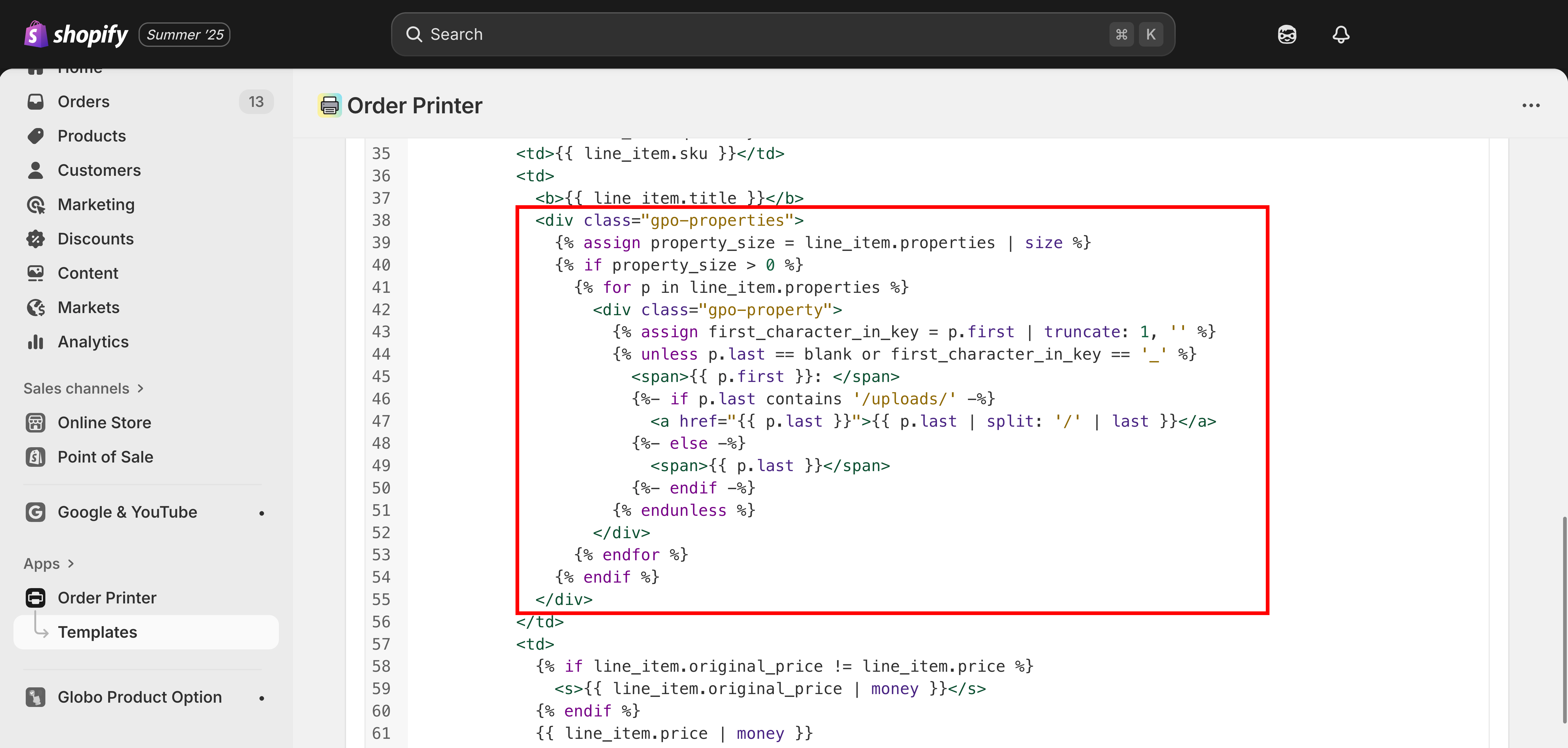
Copy the code and paste to Template Details section

 <div class="gpo-properties">
    {% assign property_size = line_item.properties | size %} 
    {% if property_size > 0 %} 
      {% for p in line_item.properties %} 
        <div class="gpo-property">
          {% assign first_character_in_key = p.first | truncate: 1, '' %}
          {% unless p.last == blank or first_character_in_key == '_' %} 
            <span>{{ p.first }}: </span>
            {%- if p.last contains '/uploads/' -%} 
              <a href="{{ p.last }}">{{ p.last | split: '/' | last }}</a> 
            {%- else -%} 
              <span>{{ p.last }}</span>
            {%- endif -%} 
          {% endunless %} 
        </div> 
      {% endfor %}
    {% endif %} 
  </div>
The Order Printer packing slip editor with the snippet pasted into the Template Details field
Paste the snippet into the Template Details section.
6

Save the change

Through Shopify settings

This method lets you directly update Shopify's built-in packing slip template from your store's settings.

1

From your Shopify admin, click on Settings

2

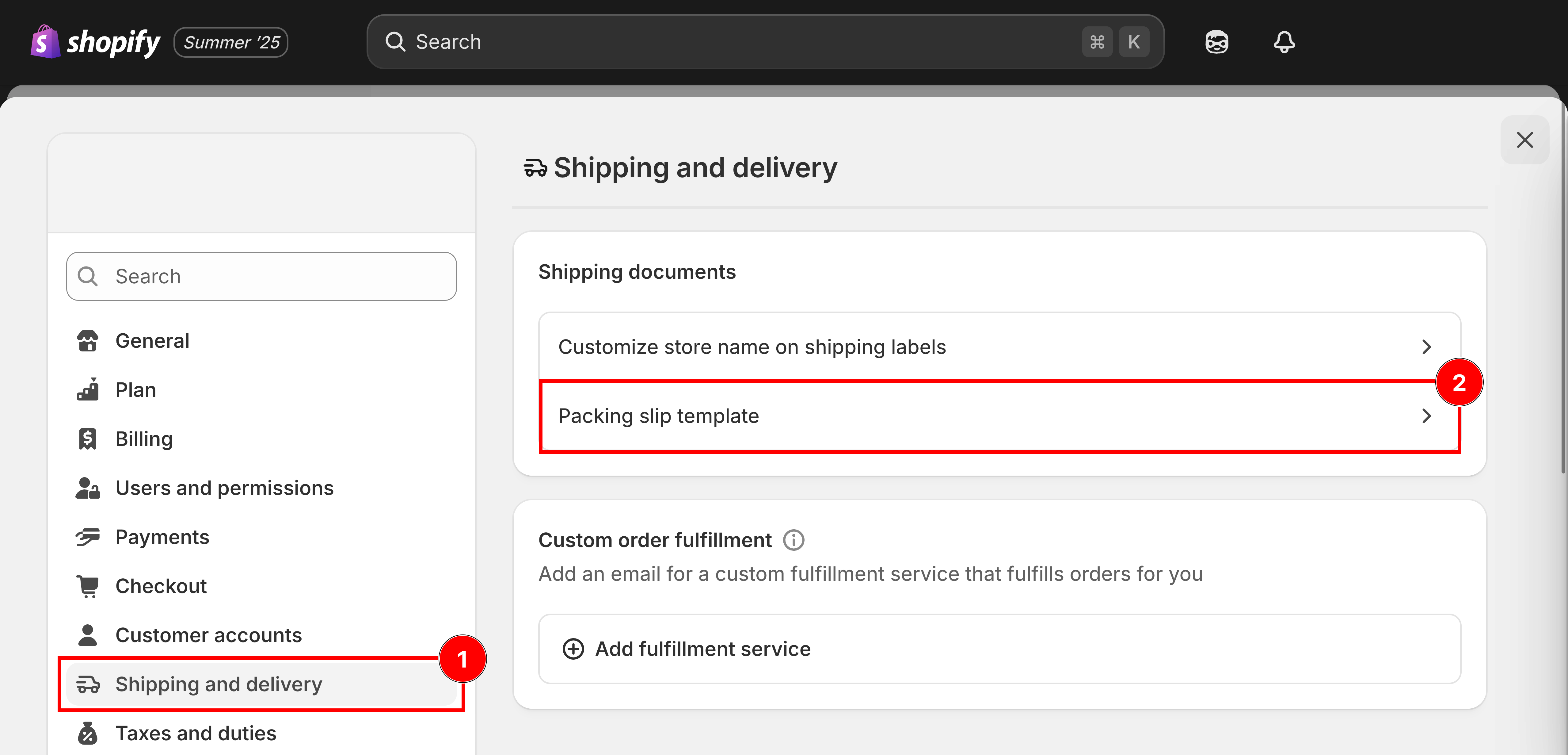
Go to Shipping and Delivery

3

Scroll down to the Packing Slip Template section

Click Edit next to the Packing Slip Template.

Shopify's Shipping and delivery settings with the Packing slip template row highlighted
Shipping and delivery, then the Packing slip template.
4

Download the packing slip template

Click this button to download

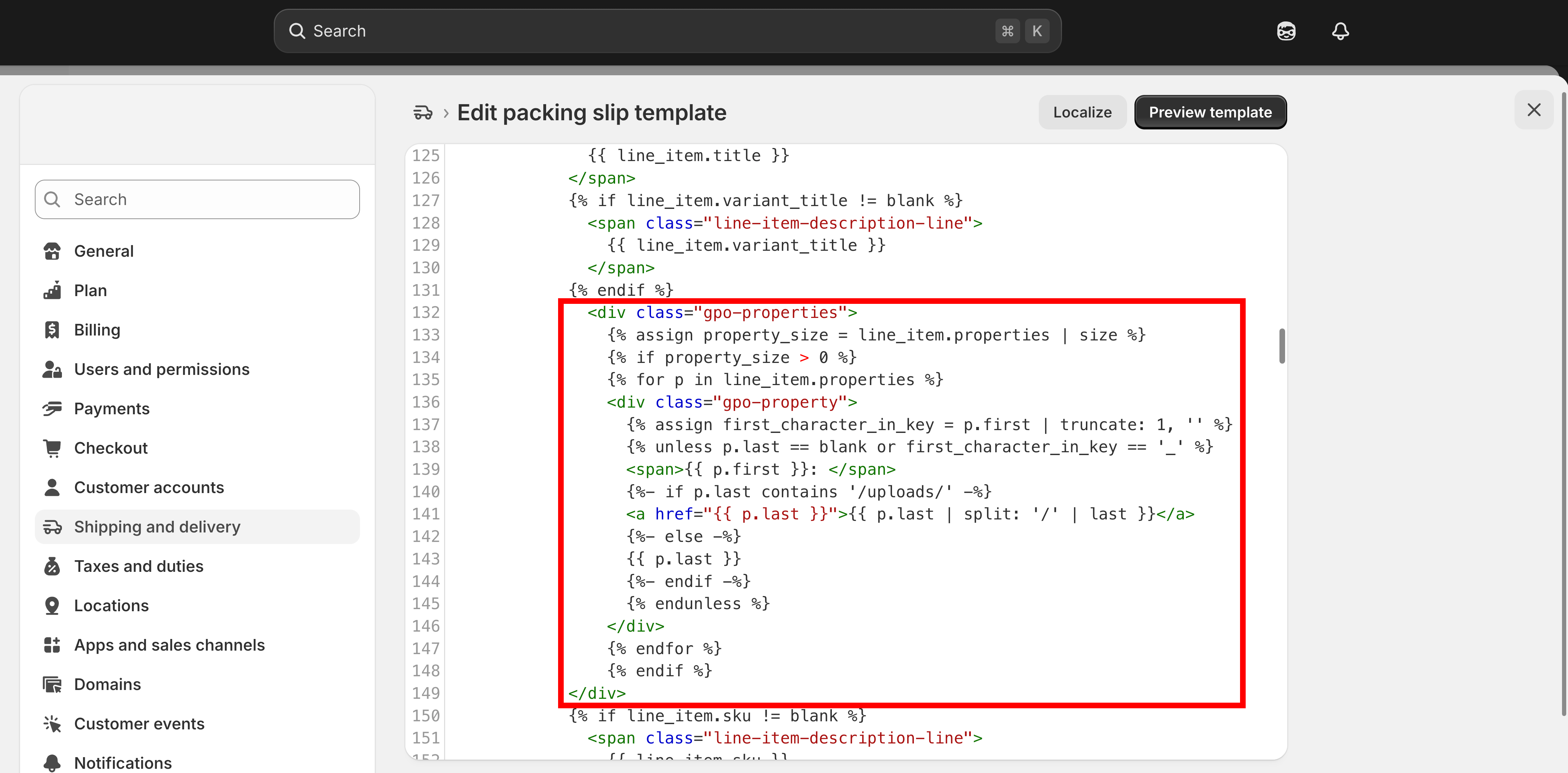
5

Copy the code and paste to Edit Packing Slip Template field

  <div class="gpo-properties">
          {% assign property_size = line_item.properties | size %} 
          {% if property_size > 0 %} 
          {% for p in line_item.properties %} 
          <div class="gpo-property">
            {% assign first_character_in_key = p.first | truncate: 1, '' %}
            {% unless p.last == blank or first_character_in_key == '_' %} 
            <span>{{ p.first }}: </span>
            {%- if p.last contains '/uploads/' -%} 
            <a href="{{ p.last }}">{{ p.last | split: '/' | last }}</a> 
            {%- else -%} 
            {{ p.last }} 
            {%- endif -%} 
            {% endunless %} 
          </div> 
          {% endfor %}
          {% endif %} 
    </div>
The Edit packing slip template field in Shopify settings with the snippet pasted in
Paste the snippet into the Edit Packing Slip Template field.
6

Save

📧 Need Help?

If you run into any issues while setting up your option set, feel free to reach out to us at Chat or email contact@globo.io.

See Contact support.

Last updated

Was this helpful?