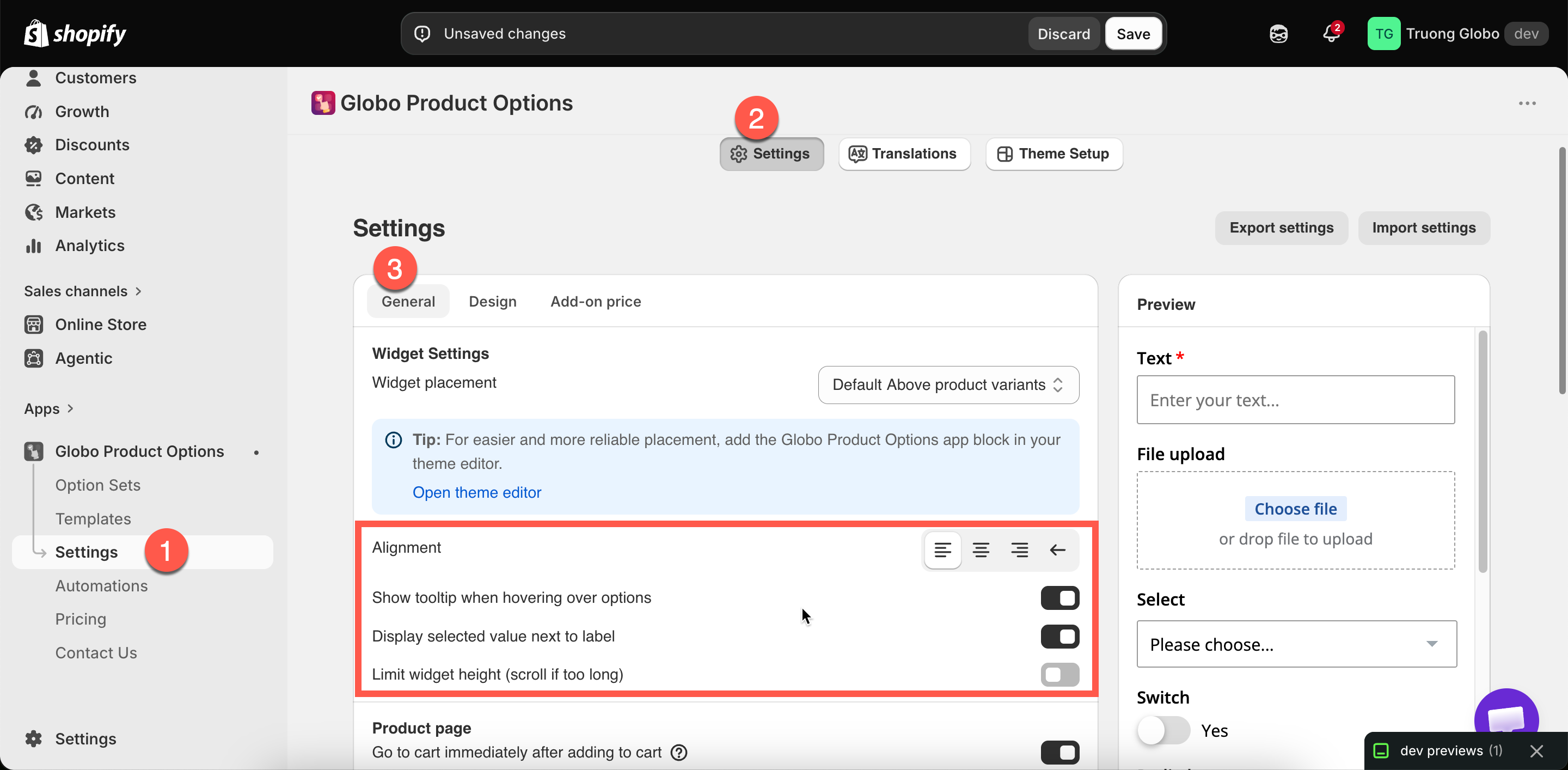
Widget behavior
Alignment, tooltips, showing the selected value, and limiting the widget's height.
Four settings in Settings > Settings > General > Widget Settings control how the widget behaves rather than how it looks. All of them are store-wide.
Alignment
Default
Left
Left
Left-aligned. Correct for left-to-right languages
Center
Centered, in either reading direction
Right
Right-aligned without changing reading direction
Right to left
Full right-to-left layout, for Arabic and Hebrew storefronts
Right to left changes the layout of the entire widget, not just the text alignment. See Right-to-left and non-Latin text.
Show tooltip when hovering over options
Default
On
Displays the option value's name when a customer hovers over a swatch. Without it, swatch names are not shown anywhere.
Keep this on. In a grid of color swatches, the tooltip is the only way a customer can see what each color is called.
Image swatch can also display a zoomed image in its tooltip, set per option. See Tooltip style.
Display selected value next to label
Default
On
Displays the selected value beside the option's label, for example Color: Sage rather than just Color.
Keep this on, particularly for swatches. It confirms the selection in words rather than only by highlighting a swatch, so customers can check their choices before adding to cart.
Limit widget height
Default
Off
Turning it on displays Fixed height, a value in pixels. The widget is limited to that height and scrolls inside it.
A very long option set pushes Add to cart far down the page
The widget is a reasonable length already
Your theme's layout needs a predictable height
You have not tried Sections and conditional logic first

Two related settings
These two are in the same section:
Auto-scroll to first error message
Under Product page. On by default. Scrolls the page to the first problem when add to cart is blocked. Keep it on — without it a customer sees nothing happen
File preview
Under Product page. Whether an uploaded image shows as a thumbnail or a link. See File upload
Notes
All four settings are store-wide and apply to every option set.
Alignment cannot be set per language. If you sell in both left-to-right and right-to-left languages, use custom CSS.
These are behavior settings. Appearance settings are in Design. See Colors and Borders and typography.
Last updated
Was this helpful?