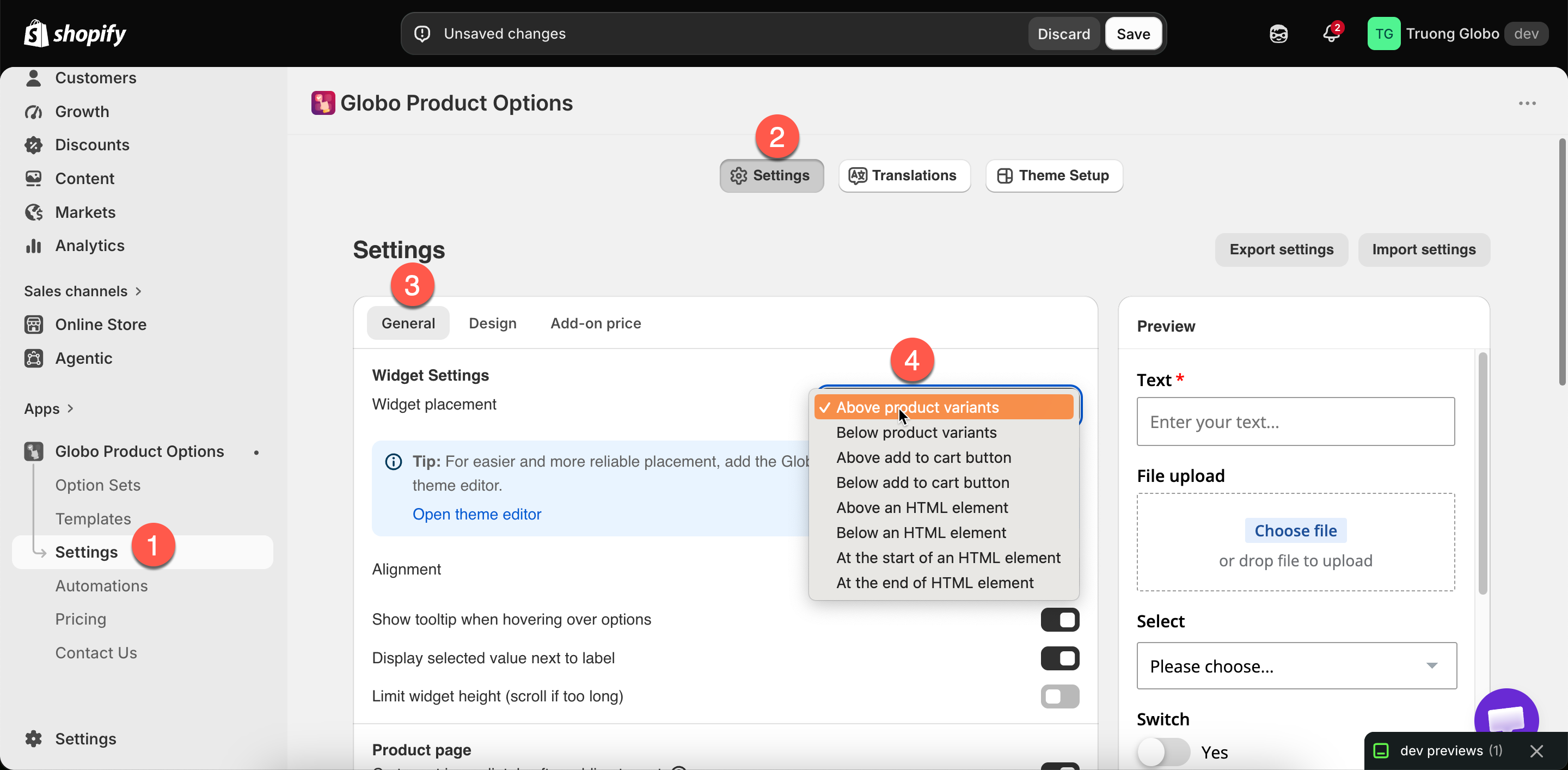
Widget placement, with the eight positions the widget can take.
| Position | Puts the widget |
|---|---|
| Above product variants | Before the variant pickers |
| Below product variants | After the variant pickers, before the buy buttons |
| Above add to cart button | Directly above the buy buttons. New stores start here |
| Below add to cart button | Directly below the buy buttons |
| Above an HTML element | Immediately before an element you specify |
| Below an HTML element | Immediately after it |
| At the start of an HTML element | Inside it, as its first content |
| At the end of an HTML element | Inside it, as its last content |
Widget placement, with the eight positions the widget can take.
| You want | Choose |
|---|---|
| The most reliable default | Above add to cart button — options are read before the customer commits |
| Options grouped with the variant pickers | Below product variants |
| Options before the customer picks a variant | Above product variants — rarely right, since variant choice usually comes first |
| Options after the buy buttons | Below add to cart button — only if your theme puts something useful there. Customers may miss them |
| An exact position none of the above gives | An app block first, and a custom selector only if the block will not do |
| Page | How the widget gets there |
|---|---|
| Collection quickview popups | Automatic. The app renders into the quickview's product form when your theme exposes one. There is no setting to turn on |
| Home page, featured product section | An app block in that section |
| Regular pages and blog pages, featured product section | The same app block |
| Cart page | Its own settings. See Cart page |