Custom templates
Save your own setups as reusable templates, and manage, duplicate, import, and export them.
A custom template is a template you create. After you build a setup that works, save it so your next product family starts from that setup rather than from an empty option set.
Two ways to create one
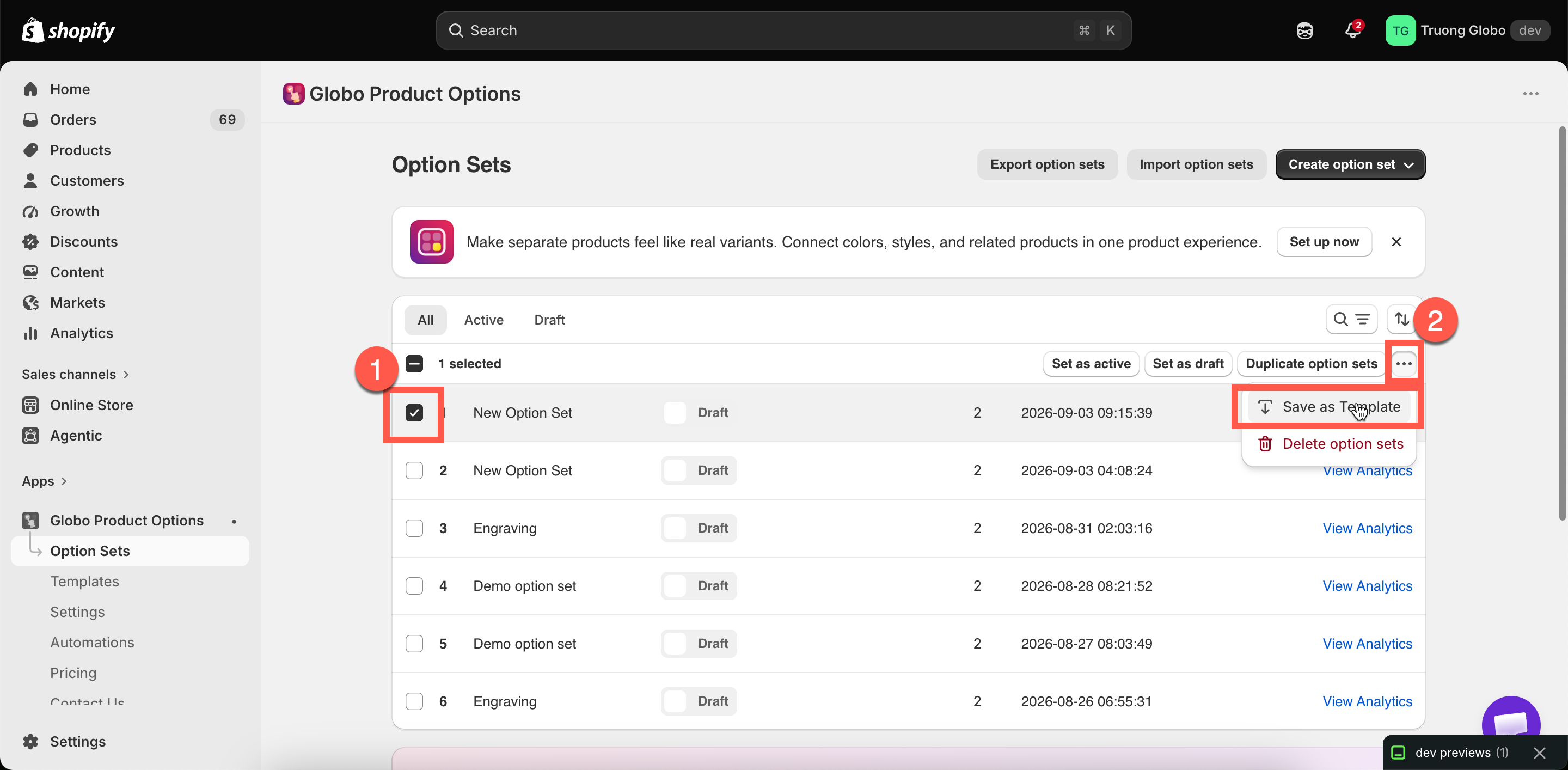
Save as Template from an existing option set
You have already built something that works. This is the usual route
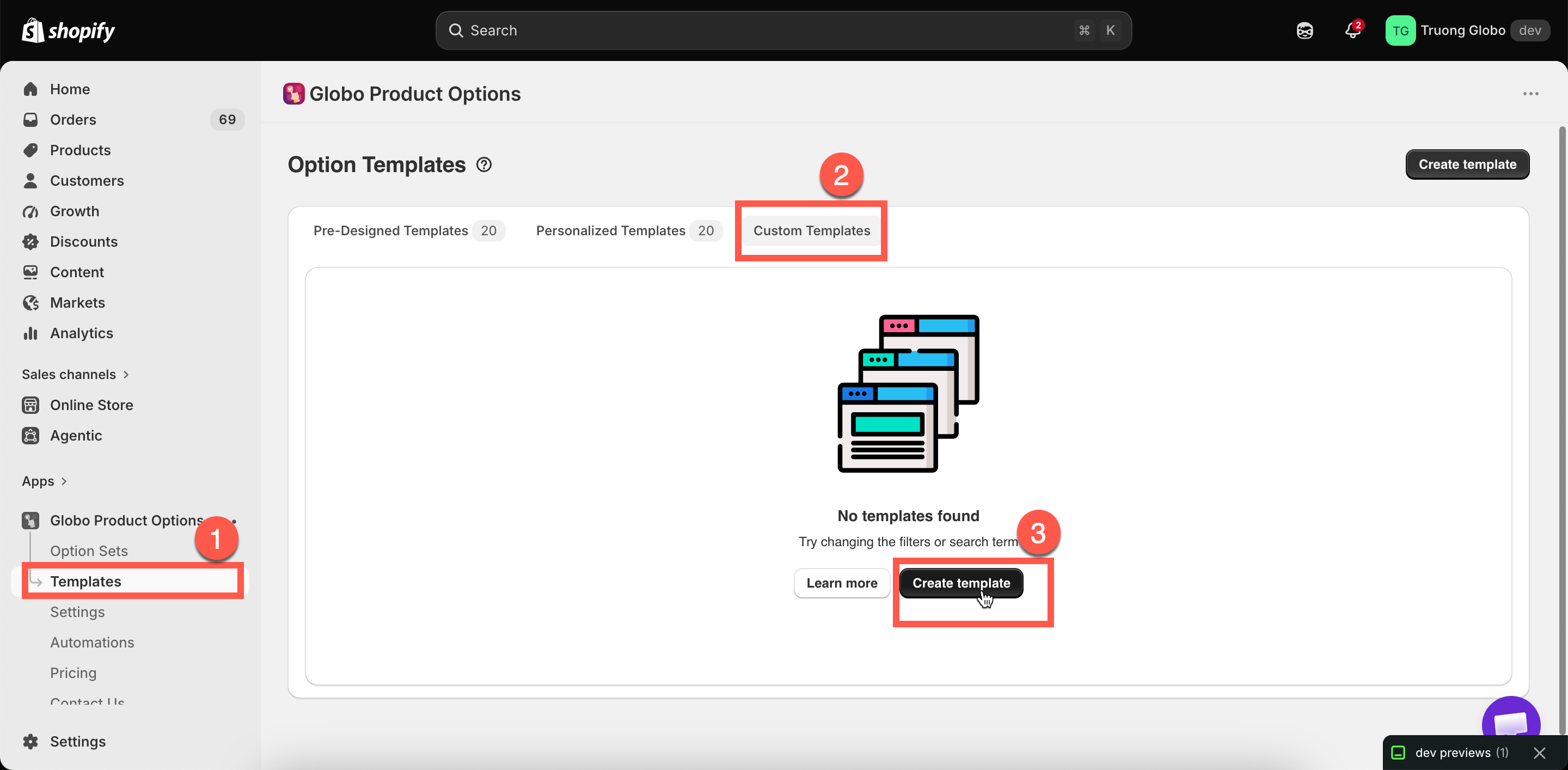
Create template from scratch
You want a reusable block that was never a live option set — a standard gift-options group, say
Save an option set as a template

Create one from scratch
Templates > Create template. The builder opens in template mode.
Template mode differs from an option set in one way: there is no Setup flow, and no product, customer, or country rules. A template has no targeting, because it is never displayed on your storefront. It only has options. The left rail shows Elements instead.

Using a custom template
There are two methods, and they produce different results.
Use template from the Templates page
Creates a whole new option set from it
Add template in the builder's add picker
Inserts its options into the option set you are already building
The second method is more useful once you have several templates. Inserting a standard "gift options" template into five option sets keeps those product families consistent, and you only build it once.
When you insert a template, names that match existing options are renumbered automatically, and conditional logic inside the template is updated so it continues to work. Check the names afterwards and set readable values.
Managing them
The Custom Templates tab lists your templates, in the same format as the option sets list.
Search and sort
By name, or by date created
Open
Edit the template's options
Duplicate templates
Copy one or more
Delete templates
Permanently remove them. Confirmed first
Import and export
Move templates between stores
Each row lists the option types the template contains, so you do not have to open it.
A useful set of templates
Three templates cover most of what a personalization store reuses:
Gift options
A gift-wrap switch, a gift message textarea with a conditional rule, and a recipient email
Engraving block
An engraving text field with your limits and input rules, a font picker with your fonts, and a position choice
Delivery preferences
A date picker with your lead time and blocked days, plus a delivery notes field
Insert the template you need into each new option set. Your wording, limits, and fonts then stay consistent across the store.
Notes
Custom templates may not be available on all plans. See Compare plans.
A template has no product, customer, or country rules — only options.
Add-on products used by a template's options work in the same way as elsewhere. An existing-product link points at the same product, and a generated product is shared. See Add-on pricing.
Templates are imported and exported separately from option sets. See Import and export.
Last updated
Was this helpful?