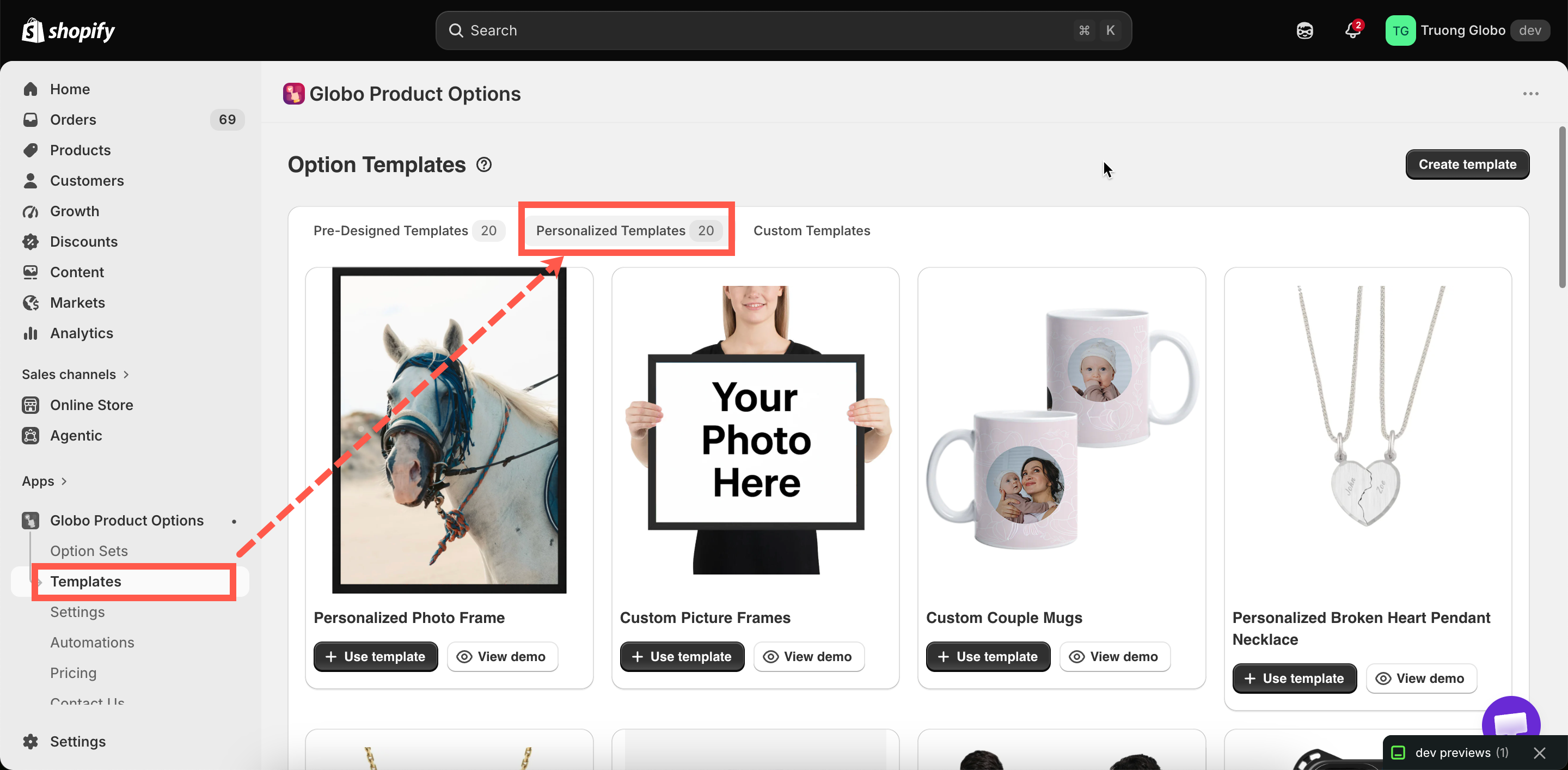
Twenty personalized setups, each with a preview and a demo.
Twenty personalized setups, each with a preview and a demo.
| Template | Product it is built for |
|---|---|
| Personalized Photo Frame | A frame with a customer photo |
| Custom Picture Frames | A frame with size and mount choices |
| Custom Couple Mugs | Mugs with names, curved to the surface |
| Personalized Broken Heart Pendant Necklace | A two-part engraved pendant |
| Personalized Birthstone Pendant | A pendant with a stone choice and engraving |
| Custom T-Shirts | Printed text and artwork on a garment |
| Custom Football Jerseys | A name and number on a shirt |
| Custom Phone Case | An uploaded image on a case |
| Embroidered Bag | An embroidered name or initials |
| Personalized Wooden Bears Family | Several names on a multi-part item |
| Custom LED Acrylic Light Stands | Engraved text on an illuminated panel |
| Unisex Crocs Classic | Personalized footwear |
| Personalized Tie | An embroidered monogram |
| Custom Notebook | A name on a cover |
| Engraved Pen | A short engraving on a small surface |
| Personalized Cushion | Printed text and images on fabric |
| Personalized Wooden Serving Platter | Engraving on wood |
| Personalized BBQ Fork | A short engraving on a narrow surface |
| Personalized Trophy Gold | Engraved presentation text |
| Personalized Wooden Ramp Racer Toy | A name on a toy |
| Check | Why |
|---|---|
| The background is your product | Otherwise every layer is positioned for somebody else's photograph |
| Every layer's position | The single biggest source of "the template looks wrong" |
| Character limits | The template's limit reflects its example product, not your engraving area |
| Fonts | Change them to fonts you can actually produce. See Fonts |
| Prices | Templates carry example prices, or none |
| Option Name fields | So your orders read properly. See Label and Name |
| The product rule | A template arrives unassigned |
| Your product needs | Start from |
|---|---|
| A customer photo in a window | Personalized Photo Frame, Custom Phone Case |
| Text curved around a surface | Custom Couple Mugs |
| A name and a number | Custom Football Jerseys |
| A short engraving on a small area | Engraved Pen, Personalized BBQ Fork |
| Several names on one item | Personalized Wooden Bears Family |
| Text plus artwork on fabric | Custom T-Shirts, Personalized Cushion |