For the complete documentation index, see llms.txt. This page is also available as Markdown.

Translate widget text

Reword the messages the app shows customers, including upload prompts, cart buttons, and validation messages.

Widget text is the text supplied by the app rather than the text you wrote, such as Choose file, This field is required, and Edit Options. It is set once for the store and applies to every option set.

Use this page for two purposes: translating the text for another storefront language, and rewording it in your own language.

Where it is

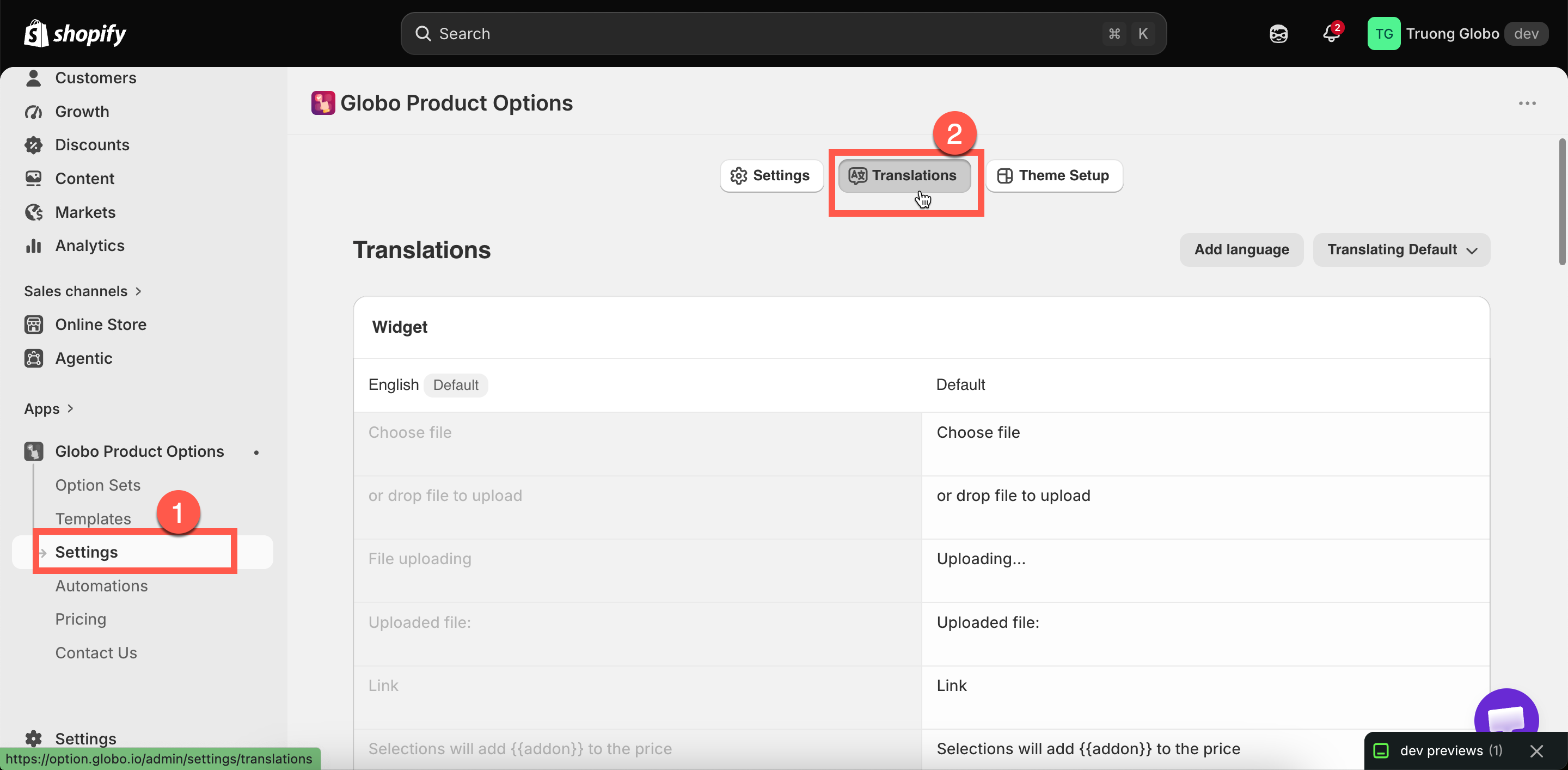
Settings in the app menu, then the Translations tab.

The Translations page with its four groups of widget text and the add language control
Four groups, and one set of values per language.

The four groups

Group
Covers

Widget

File upload prompts, the add-on message, quantity and search prompts

Cart widget

The cart controls: Edit Options, Save Changes, Preview Your Design, Show Design, Hide Design, Your Design, and Choose options for a cart drawer app upsell

Add to cart error messages

Two messages about items becoming unavailable or a checkout method not being usable

Validation error messages

Every message a customer sees when their entry does not pass a rule — about twenty of them

Adding a language

1

Select Add language

The list contains your storefront languages.

2

Choose the language

It is added as a tab alongside Default.

3

Fill in the values

Complete the four groups. Any value left blank falls back to the default.

4

Save

Then test the storefront in that language. Leave a required field empty and try to add to cart, so you see a validation message.

Remove language removes a language's set of values. The default set cannot be removed.

Variables

Several messages contain {{ }} placeholders that the app fills in from your option settings. Keep them in your translation; otherwise the message loses the value.

Variable
Filled with

{{addon}}

The add-on amount

{{min_character}} / {{character_limit}}

Your min and max character settings

{{character_count}}

How many characters the customer has typed

{{min_value}} / {{max_value}}

Your min and max value settings

{{min_selection}} / {{max_selection}} / {{exactly_selection}}

Your selection limits

{{min_files}} / {{max_files}}

Your file count limits

The app includes a reference for these placeholders, so you can check them without leaving the page.

Rewording the default messages

The default messages are accurate but generic. A few changes make them clearer:

Default
Better

This field is required

Please fill this in before adding to your bag

Please enter less than or equal to {{character_limit}} characters

That is too long — up to {{character_limit}} characters fit

File not allowed

We can only accept JPG and PNG files

Please select at least {{min_selection}} options

Choose at least {{min_selection}} to continue

Choose file

Upload your photo

Customers read error messages at the point where they are already blocked, so plain wording is worth the few minutes it takes.

Notes

  • These settings are store-wide. There is no per-option-set override.

  • Anything blank in a language falls back to the default set, so a partial translation still works.

  • This is separate from option content, which is your own labels and values, and from the app admin language, which is the language you work in.

Last updated

Was this helpful?