> For the complete documentation index, see [llms.txt](https://docs.globo.io/llms.txt). Markdown versions of documentation pages are available by appending `.md` to page URLs; this page is available as [Markdown](https://docs.globo.io/pre-order/integrations/third-party-integration/integrate-with-shopify.md).
# Integrate with Shopify
Follow the steps below to link your form fields with Shopify customer attributes:
***
**Step-by-Step Guide:**
1. From the **App Dashboard**, navigate to:\
**Settings > Integration > Shopify**
2. In the **Shopify Integration** panel, enable the fields you want to connect.
3. **Map form fields to Shopify attributes**:
* Select the Shopify attribute on the right (e.g., *Last name*)
* Match it with the corresponding form field on the left (e.g., *Last name field* in your form)
4. Click **Save** to apply the changes.
***
> ✅ **Example:**\
> If your form includes a “Last name” field, map it to Shopify’s **Last name** customer attribute to ensure the data syncs correctly.
{% hint style="info" %} Email Marketing Field (Email Marketing Consent Settings)
* **Default**: By default, customer will "not subscribed" to email marketing.
* **Fixed Value**: You can manually choose whether you want to be "Subscribed" or "Unsubscribed" to set value
* **Dynamic Value**: Accept term
* If customer accept the terms, customer will be "Subscribed" to email marketing.
* If customer do not accept, will remain "not subscribed."
{% endhint %}
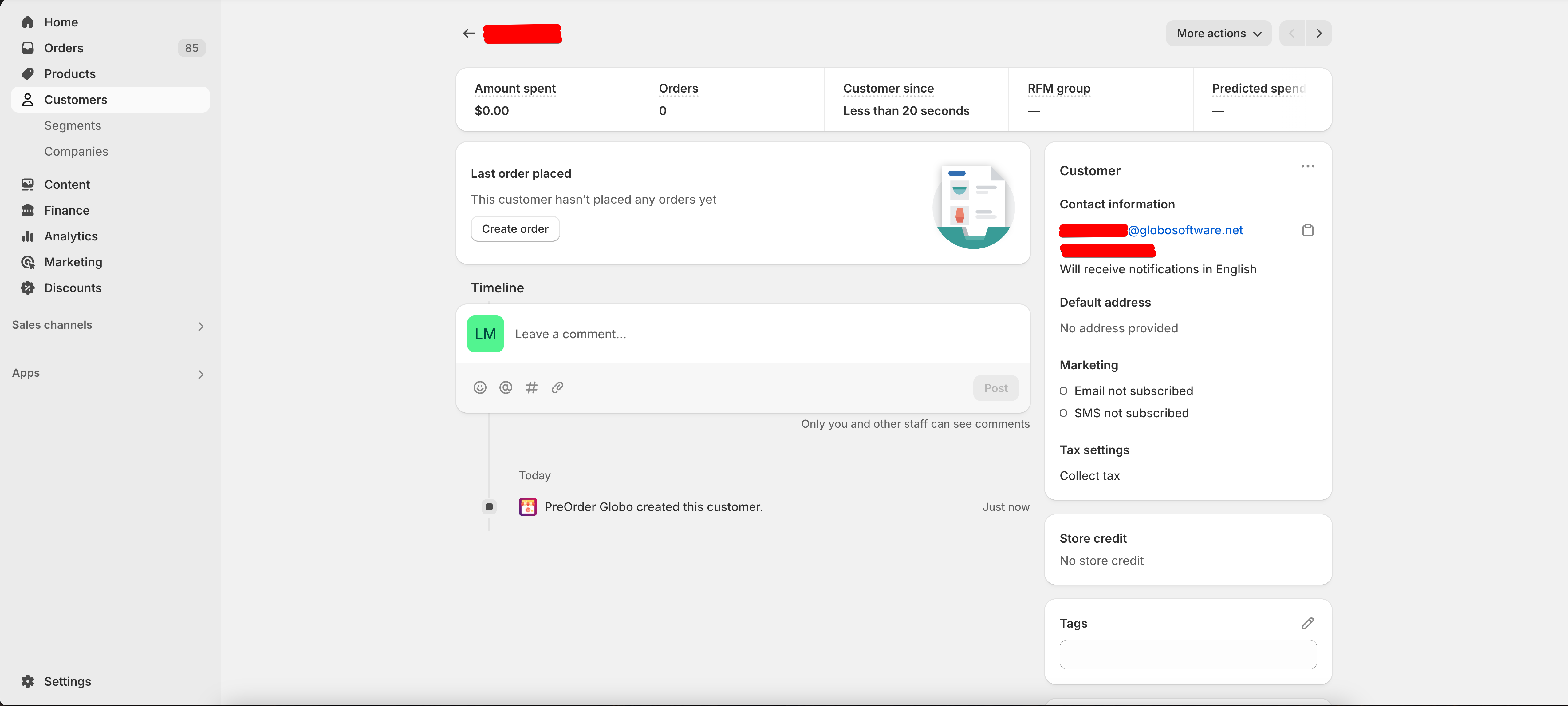
Here's it would be displayed
#### 📩 Need Help?
If you encounter any difficulties during setup, please don’t hesitate to reach out via **chat** or email us at ****. We're always here to help!