> For the complete documentation index, see [llms.txt](https://docs.globo.io/llms.txt). Markdown versions of documentation pages are available by appending `.md` to page URLs; this page is available as [Markdown](https://docs.globo.io/swatch/options/import-and-export-swatches-by-csv.md).
# Import and export swatches by CSV
The Export and Import feature allows you to manage multiple variant options at once using a CSV file.
This is especially useful when:
* Updating a large number of color swatches or image swatches.
* Migrating settings between stores.
* Making bulk changes more quickly than editing options one by one.
### Prerequisites \*
You need to sync data before performing the export/import process.
## Export
1. Go to **Options** and click **Set swatches** on an option.
2. Click the **More actions** button (⋯) at the top of the value list.
3. Choose **Export CSV**.
You get a file with one row per option value.
**The exported file** contains your current variant option configurations and can be edited in spreadsheet software such as Excel or Google Sheets, for example:
## The file format
The file has exactly three columns, in this order:
| Column | What it holds |
| --------------- | ---------------------------------------------------------------------------------------------------------------------------------------------------------- |
| **Value** | The option value's name, exactly as it appears in Shopify — for example `Red` or `Large`. Don't edit this column; it's how the app matches rows to values. |
| **Select type** | What kind of swatch this row sets: `One color`, `Two color` or `Image url`. |
| **Custom** | The content for that type. |
What goes in **Custom** depends on **Select type**:
| Select type | Custom |
| ----------- | ------------------------------------------------------------------------- |
| `One color` | One hex colour, e.g. `#FFFFFF` |
| `Two color` | Two hex colours separated by a comma, in quotes, e.g. `"#FF7F50,#000000"` |
| `Image url` | A full image URL starting with `http://` or `https://` |
Example rows:
```csv
Value,Select type,Custom
White,One color,#FFFFFF
Hot Coral Merlot Black,Two color,"#FF7F50,#000000"
Soft Peach,Image url,https://cdn.shopify.com/s/files/1/0000/0000/files/peach.png
```
To leave a value deliberately blank, use `One color` with `transparent`.
## Import
1. In the value editor, click **More actions** (⋯) → **Import CSV**.
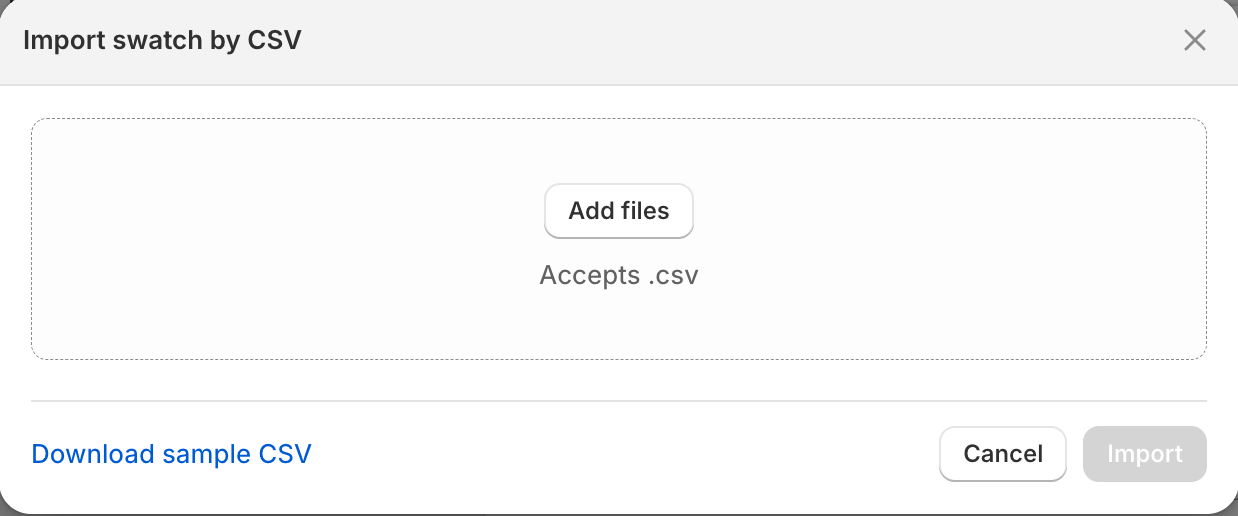
2. Click **Add files** and choose your file, or drop it onto the box. The window accepts `.csv` only.
3. Once a file is selected, tick **Override all items** if you want it to replace values that are already set up. Leave it unticked to fill in only the blanks.
4. Click **Import**, then **Save**.
Need a starting point? **Download sample CSV** at the bottom of the same window gives you a correctly formatted file.
Download sample CSV gives you a correctly formatted starting file.
## Things to watch
* The header row must be exactly `Value,Select type,Custom`. If it isn't, the import is rejected with a message telling you the configuration file is incorrect.
* Import only updates values that already exist in the app. It never creates new option values — add those in Shopify and run **Update data** first.
* Unrecognised **Select type** values are skipped silently, so check for typos if some rows don't take.
* Very large files may import only partially. If you have thousands of values, split the file.
## Related pages
* [Set color and image swatches](/swatch/options/set-color-and-image-swatches.md)
* [Sync product data](/swatch/getting-started/sync-product-data.md)
.png?alt=media)
.png?alt=media)
.png?alt=media)