> For the complete documentation index, see [llms.txt](https://docs.globo.io/llms.txt). Markdown versions of documentation pages are available by appending `.md` to page URLs; this page is available as [Markdown](https://docs.globo.io/globo-b2b-bulk-order/getting-started/readme.md).

# Welcome to Globo B2B Bulk Order

Globo B2B Bulk Order lets wholesale and B2B buyers order many products and variants at once, from a quick order form, a variant table or your collection pages.

Globo B2B Bulk Order adds three bulk ordering tools to your Shopify storefront. Wholesale and B2B buyers enter quantities for many products and variants and add them all to the cart in one go, instead of opening one product page at a time. You set everything up inside your Shopify admin, under **Apps** > **Globo B2B Bulk Order**.

| Tool                       | Where buyers see it                                                                      | What buyers do with it                                                                                                        |
| -------------------------- | ---------------------------------------------------------------------------------------- | ----------------------------------------------------------------------------------------------------------------------------- |
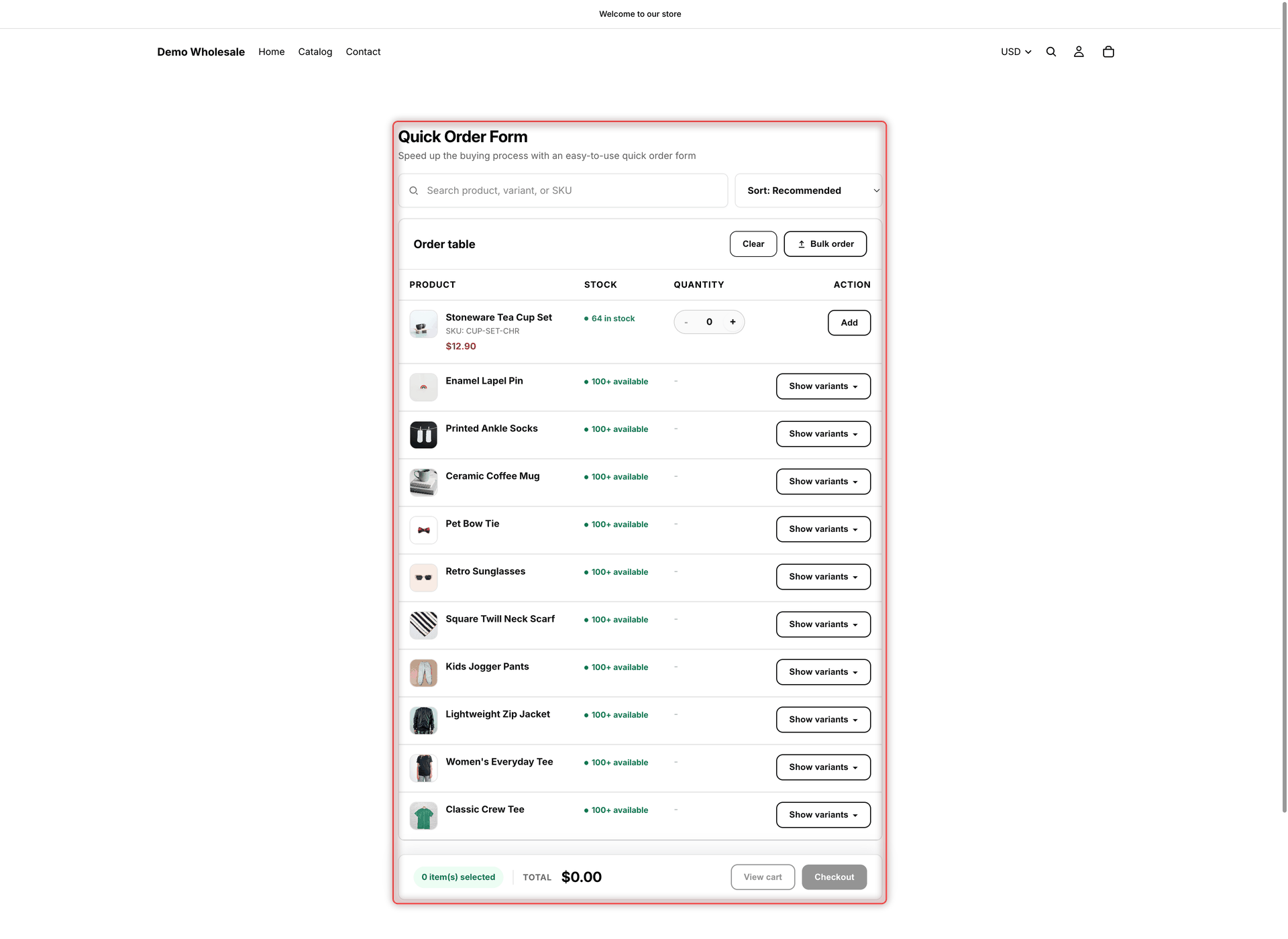
| **Quick Order Form**       | On any page where you add it, for example a "Quick order" page                           | Search your catalog, enter quantities in one table, upload an order file or paste a SKU list, then add everything to the cart |
| **Variant Table**          | On product pages, above your theme's **Add to cart** button                              | Enter quantities for many variants of one product (sizes, colors) at once                                                     |
| **Collection Quick Order** | On product cards in collection pages, search results, the home page and related products | Add a product to the cart straight from the list, with a button below the product or a cart icon on its image                 |

In **Settings**, you manage what the tools share: **Stock thresholds** (stock labels), **Toast** (add-to-cart messages) and **Translations** (storefront wording). In **Settings** > **Order export**, you can also let B2B buyers download their orders as a CSV file from their customer account.

<figure><img src="https://4205698016-files.gitbook.io/~/files/v0/b/gitbook-x-prod.appspot.com/o/spaces%2FcOPpR31lfLzPdPWnPtOU%2Fuploads%2Fgit-blob-fcdfe8fe4367e2b27535879f5573297147f30001%2Fscreenshot-storefront-quick-order-form.png?alt=media" alt="A Quick Order form on a storefront page, with a search box, a sort menu, Clear and Bulk order buttons, product rows with Show variants buttons, one product row with a quantity box and an Add button, and a footer with Total, View cart and Checkout"><figcaption><p>Buyers order many products from one Quick Order form.</p></figcaption></figure>

## Where to start

<table data-view="cards"><thead><tr><th></th><th></th><th data-hidden data-card-target data-type="content-ref"></th></tr></thead><tbody><tr><td><strong>Quickstart</strong></td><td>Turn on the app, create your first Quick Order form and see it on your storefront.</td><td><a href="/globo-b2b-bulk-order/getting-started/getting-started.md">Quickstart</a></td></tr><tr><td><strong>Quick Order Form</strong></td><td>Build an order table buyers can use on any page.</td><td><a href="https://github.com/globo-software/globo-docs/tree/main/bulk-order/features/quick-order-form/README.md">https://github.com/globo-software/globo-docs/tree/main/bulk-order/features/quick-order-form/README.md</a></td></tr><tr><td><strong>Variant Table</strong></td><td>Show all variants of a product in one table, with quantity rules.</td><td><a href="https://github.com/globo-software/globo-docs/tree/main/bulk-order/features/variant-table/README.md">https://github.com/globo-software/globo-docs/tree/main/bulk-order/features/variant-table/README.md</a></td></tr><tr><td><strong>Collection Quick Order</strong></td><td>Let buyers add products to the cart from collection pages.</td><td><a href="https://github.com/globo-software/globo-docs/tree/main/bulk-order/features/collection-quick-order/README.md">https://github.com/globo-software/globo-docs/tree/main/bulk-order/features/collection-quick-order/README.md</a></td></tr><tr><td><strong>What's new</strong></td><td>See the latest features and improvements.</td><td><a href="/globo-b2b-bulk-order/getting-started/whats-new.md">What's new</a></td></tr><tr><td><strong>Contact support</strong></td><td>Send a request to the Globo support team from the app.</td><td><a href="/globo-b2b-bulk-order/help/contact-support.md">Contact support</a></td></tr></tbody></table>

## What you can do

* Choose who sees each tool: all customers, logged-in customers only, guests only, or customers with tags such as `wholesale` or `b2b`. See [Customer & product targeting](/globo-b2b-bulk-order/targeting-and-design/customer-and-product-targeting.md).
* Let buyers [upload an order file](/globo-b2b-bulk-order/quick-order-form/upload-an-order-file.md) (CSV, XLSX, PDF or image) or [paste a SKU list](/globo-b2b-bulk-order/quick-order-form/paste-a-sku-list.md), review every line, and add all items to the cart at once.
* Set [quantity rules](/globo-b2b-bulk-order/variant-table/quantity-rules.md) on a Variant Table, such as minimum and maximum quantities, quantity steps or bundle quantities.
* Show stock labels such as **Low stock** and **Out of stock**, with your own [stock thresholds](/globo-b2b-bulk-order/settings/stock-status.md) and colors.
* Turn the add-to-cart message on or off and choose its position, duration and colors. See [Toast notifications](/globo-b2b-bulk-order/settings/cart-notifications.md).
* Match your theme with style settings and [custom CSS](/globo-b2b-bulk-order/targeting-and-design/design-and-custom-css.md).
* [Translate](/globo-b2b-bulk-order/settings/overview.md) the tools' storefront wording into your store's languages, by hand or with [AI Auto-translate](/globo-b2b-bulk-order/settings/auto-translate.md).
* Choose the columns B2B buyers get when they download an order as CSV from their customer account. See [Order export](/globo-b2b-bulk-order/settings/order-export.md).
* Use the app itself in one of 18 languages. See [Dashboard](/globo-b2b-bulk-order/getting-started/dashboard.md#change-the-app-language).

{% hint style="info" %}
Globo B2B Bulk Order uses your existing product prices. It does not calculate wholesale prices. For customer-specific or tiered wholesale pricing, use [Globo B2B Wholesale Pricing](https://apps.shopify.com/wholesale-sami). When that app is installed, it reprices the cart, and the Quick Order form's **Total** shows the discounted total.
{% endhint %}

## Support & legal

Globo B2B Bulk Order is made by Globo. Email <contact@globo.io>, or use **Contact Us** in the app (see [Contact support](/globo-b2b-bulk-order/help/contact-support.md)). Read our [Privacy policy](https://globo.io/privacy-policy/) and [Terms of service](https://globo.io/terms-of-service/).

## Next steps

* New to the app? Follow the [Quickstart](/globo-b2b-bulk-order/getting-started/getting-started.md).
* Turn on the [app embed](/globo-b2b-bulk-order/getting-started/enable-app-embed.md) so the tools can appear on your storefront.
* Find your way around the app's home page: [Dashboard](/globo-b2b-bulk-order/getting-started/dashboard.md).
