> For the complete documentation index, see [llms.txt](https://docs.globo.io/llms.txt). Markdown versions of documentation pages are available by appending `.md` to page URLs; this page is available as [Markdown](https://docs.globo.io/globo-b2b-bulk-order/variant-table/overview.md).

# Variant Table overview

Show every variant of a product in one table with a quantity box for each, so buyers can order many sizes and colors in one click.

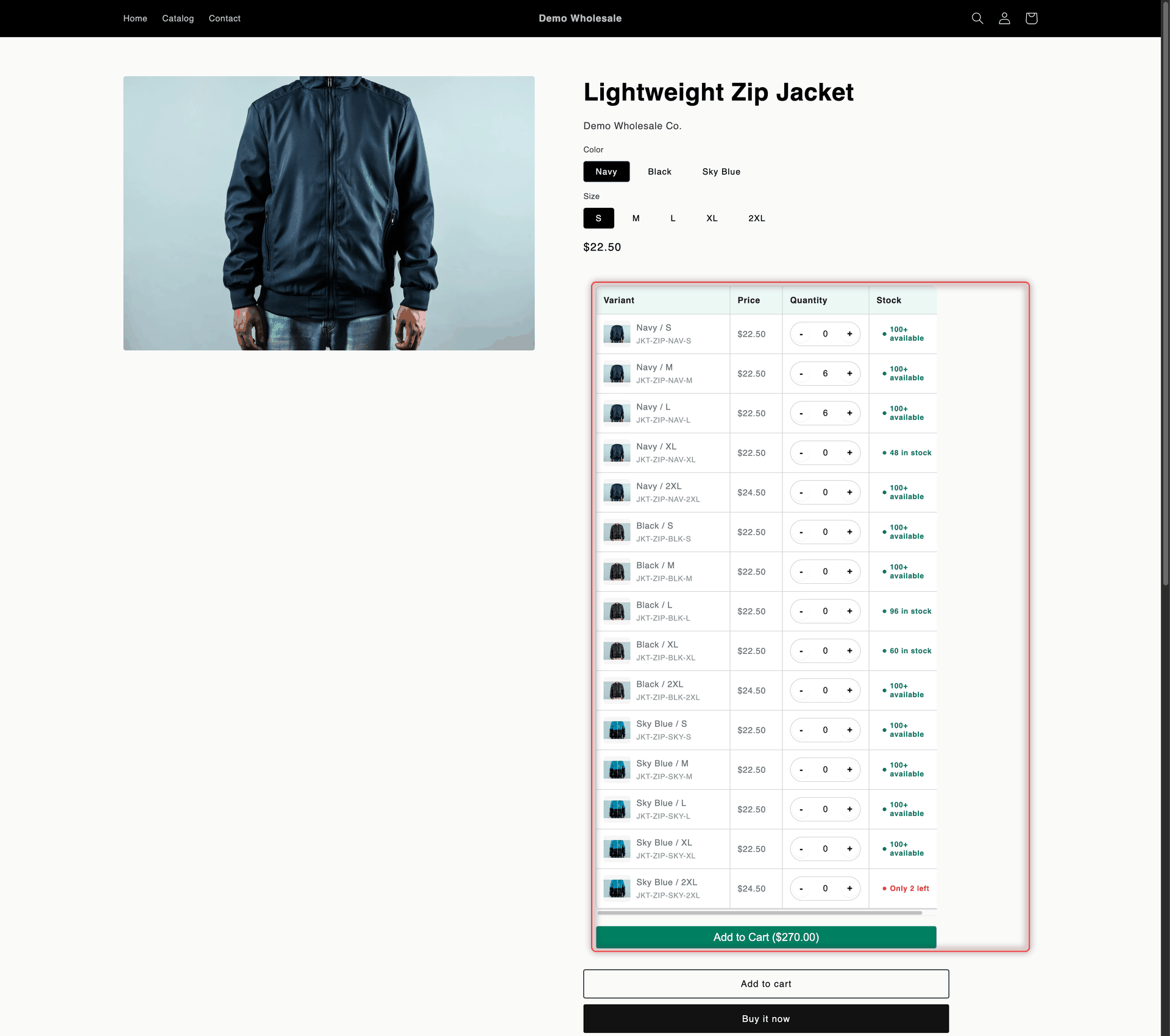
A Variant Table lists all variants of a product on its product page, each with its own quantity box. Buyers enter quantities across sizes, colors or other options and add them all to the cart with one **Add to Cart** button that shows the running total. The table appears automatically on the product pages you choose, just above your theme's own Add to cart button.

<figure><img src="https://4205698016-files.gitbook.io/~/files/v0/b/gitbook-x-prod.appspot.com/o/spaces%2FcOPpR31lfLzPdPWnPtOU%2Fuploads%2Fgit-blob-fc2eb502295762af9a8fabd35b3f0113860b1bd3%2Fscreenshot-storefront-variant-table.png?alt=media" alt="Product page for the Lightweight Zip Jacket with a Variant Table listing each color and size with its SKU, price, quantity stepper and stock label, and an Add to Cart button with the total"><figcaption><p>A Variant Table on a product page, placed above the theme's own Add to cart button.</p></figcaption></figure>

## What you can set up

<table data-view="cards"><thead><tr><th></th><th></th><th data-hidden data-card-target data-type="content-ref"></th></tr></thead><tbody><tr><td><strong>Create a Variant Table</strong></td><td>Choose the products and customers, pick a classic table or a matrix layout, style it and publish it.</td><td><a href="/globo-b2b-bulk-order/variant-table/create-a-variant-table.md">Create a Variant Table</a></td></tr><tr><td><strong>Set quantity rules</strong></td><td>Require minimum quantities, fixed packs, quantity steps or order values before buyers can add to cart.</td><td><a href="/globo-b2b-bulk-order/variant-table/quantity-rules.md">Set quantity rules</a></td></tr></tbody></table>

## Before you start

* Turn on the **Globo Bulk Order** app embed in your theme. Without it, no Variant Table appears. See [Enable the app embed](/globo-b2b-bulk-order/getting-started/enable-app-embed.md).
* You don't need an app block or a shortcode. The app adds the table to matching product pages by itself.
* Your theme's own variant picker, quantity box and Add to cart button stay on the page. The table adds a second way to order and doesn't replace them.

## Manage your tables

In Shopify admin, go to **Apps** > **Globo B2B Bulk Order**, then click **Variant Table** in the app navigation. The list shows each table's **Name**, **Status**, **Customer visibility** and **Products**.

* **Turn a table on or off:** click its **Status** switch. Only **Active** tables appear on your storefront. **Draft** tables are hidden.
* **Edit or delete a table:** in the **Actions** column, click the pencil icon to open it, or the trash icon to delete it.
* **Work with several tables:** select their checkboxes, then click **Duplicate**, **Set active**, **Set draft** or **Delete**. Deleting is permanent.

{% hint style="info" %}
A product shows only one Variant Table. If several Active tables match the same product and buyer, the table you created most recently wins. A copy made with **Duplicate** keeps the original's status and counts as newer, so an Active copy takes over from its original. See [When several tables match one product](/globo-b2b-bulk-order/variant-table/create-a-variant-table.md#when-several-tables-match-one-product).
{% endhint %}

## Advanced restrictions

Advanced restrictions are quantity rules that a buyer's selection in the table must meet before **Add to Cart** works. You find them on the **Customize** tab of a Variant Table, in the **Advanced restrictions** section. While a rule isn't met, the table shows a message under the button and the button stays disabled. The rules only check what the buyer selects in the table, not the rest of the cart.

| Rule                                      | What it requires                                                                                                                |
| ----------------------------------------- | ------------------------------------------------------------------------------------------------------------------------------- |
| **Min/Max Order Quantity**                | A minimum or maximum quantity for all variants in the table combined, for each selected variant, or both.                       |
| **Incremental Quantity / Quantity Steps** | Each selected variant is ordered in multiples of a step, for example 6, 12, 18.                                                 |
| **Mix and Match**                         | A quantity range for each selected variant, a number of different variants, and optionally a total quantity range.              |
| **Bundle Quantity**                       | The total quantity equals one of the pack sizes you list, for example 5, 10 or 20.                                              |
| **Min/Max Order Value**                   | A minimum or maximum order value (quantity × price) for all variants in the table combined, for each selected variant, or both. |
| **Variant Restriction**                   | A minimum or maximum number of different variants.                                                                              |
| **Limit Per Variant Option**              | A minimum or maximum quantity for each option value, such as each color and each size.                                          |
| **Mix n Max Multiple Bundle**             | A maximum total quantity of 5, 10, 20, 50 or 100.                                                                               |

You can turn on several rules at once. Only these combinations are blocked: **Min/Max Order Quantity** with **Mix and Match**, **Incremental Quantity / Quantity Steps** with **Bundle Quantity**, and **Mix n Max Multiple Bundle** with any other rule.

For each rule's fields, the exact messages buyers see and a worked example, see [Set quantity rules](/globo-b2b-bulk-order/variant-table/quantity-rules.md).

## Next steps

* [Create a Variant Table](/globo-b2b-bulk-order/variant-table/create-a-variant-table.md)
* [Set quantity rules](/globo-b2b-bulk-order/variant-table/quantity-rules.md)
* [Customer & product targeting](/globo-b2b-bulk-order/targeting-and-design/customer-and-product-targeting.md)
* [Stock thresholds](/globo-b2b-bulk-order/settings/stock-status.md)
