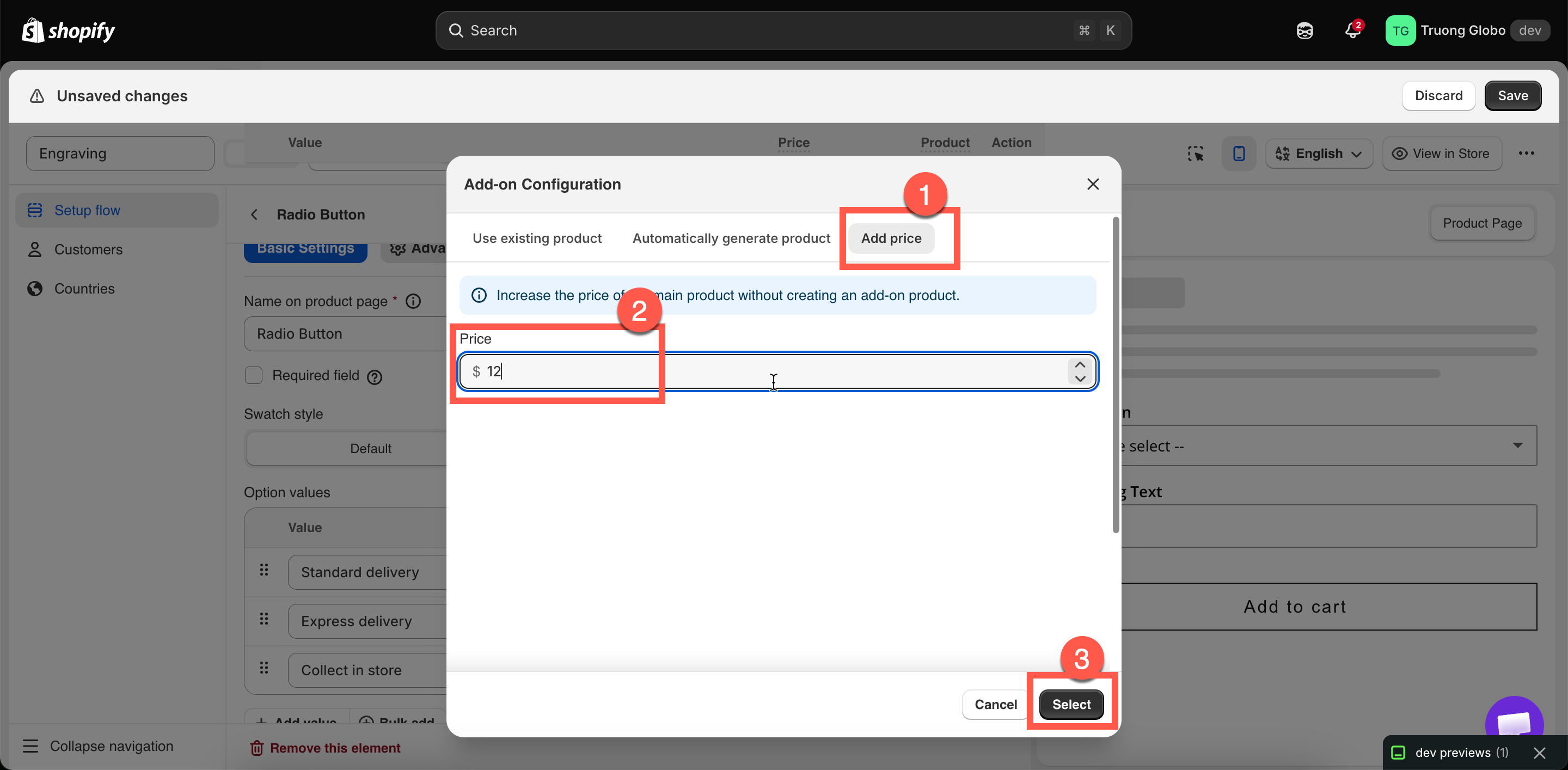
Fixed amount
Add a charge to the order without creating a Shopify product, and the two limitations of this mode.
The Fixed amount mode increases the amount the customer pays. No Shopify product is created or linked.
Use it for services with no inventory to track and nothing to ship separately, such as engraving, express production, or a design fee.
Steps
Open the price field
On an input type, that is Price under Add-on Settings on the Basic tab. On a selection type, it is the Price cell on the option value's row. See Where you can set add-ons.
Set how it scales
On Advanced, the Add-on quantity dropdown controls whether the charge follows the product quantity or uses a value the customer enters. Three of the modes cannot be used with Fixed amount — see What it cannot do below. See also Advanced add-on modes.
Save and test on your storefront
Add the product to a cart and check the total. The charge is applied at checkout. See How pricing is applied.

What the customer sees
The add-on amount is displayed beside the option, using the format set in your store-wide settings. The default format is (+ $5.00). Depending on your settings, the product price on the page can also update to include it.
There is no separate cart line. The charge is added to the main item's price, so the cart shows one line at the higher amount, with the option details listed below it.
This keeps the cart simple.
See Add-on price display settings.
What it cannot do
This mode also has no SKU, no weight, and no separate line in your Shopify product reports. If you need any of these, use New product instead. It takes the same amount of setup.
When to use Fixed amount
Engraving labor
Nothing physical is consumed
Express production
A scheduling promise, not an item
Artwork setup or proofing fee
A service
A custom-color surcharge
You are charging for effort, not for a product
A small handling fee
No stock, no shipping weight
When to use something else
Gift wrap, boxes, ribbon — anything you can run out of
Something you already sell
Anything you also sell in person
Either product-backed mode
Anything that changes the shipping weight
Either product-backed mode
Anything you want to see in Shopify product reports
Either product-backed mode
Examples
A flat engraving fee
Option
Engraving text, a Text option
Price
Fixed amount $5.00
Add-on quantity
Default — one charge per bracelet
Engraving by the character
The same option with Price $0.50 and Add-on quantity set to Per character. A Max character value of 20 limits the charge to $10.00.
Express production, once per order
A Switch labeled Express production, New product $10.00, and Add-on quantity set to One time charge, so a customer buying three items is charged once. A flat fee charged once needs a product-backed mode — Fixed amount cannot do it.
A tiered service charge
A Radio button with Standard free, Priority at $8.00, Same day at $20.00, all three using Fixed amount.
Notes
Negative amounts are rejected.
A price attached to a default value is charged as soon as the page loads. See Required field and default value.
A hidden option is not charged. Hiding an option with a conditional rule removes its price from the total.
On a multi-select option, every selected value with a price is charged. Use Max selections to limit the number.
Last updated
Was this helpful?