For the complete documentation index, see llms.txt. This page is also available as Markdown.

Advanced add-on modes

All eight modes that decide how an add-on charge scales with quantity, each with a worked calculation.

The price sets how much an add-on costs. Add-on quantity sets how many of it are charged.

For example, a $5.00 gift wrap charge on an order of three items is either $15.00 or $5.00, depending on the mode you select.

Where it is

The setting is Add-on quantity, in the Add-on card on the Basic tab — the same card as the Price field. It is set at option level, even when the prices are set on individual values, and it applies to the whole option.

It has no effect on an option with no price, which is what the field's tooltip means by "Only works if option has additional charges."

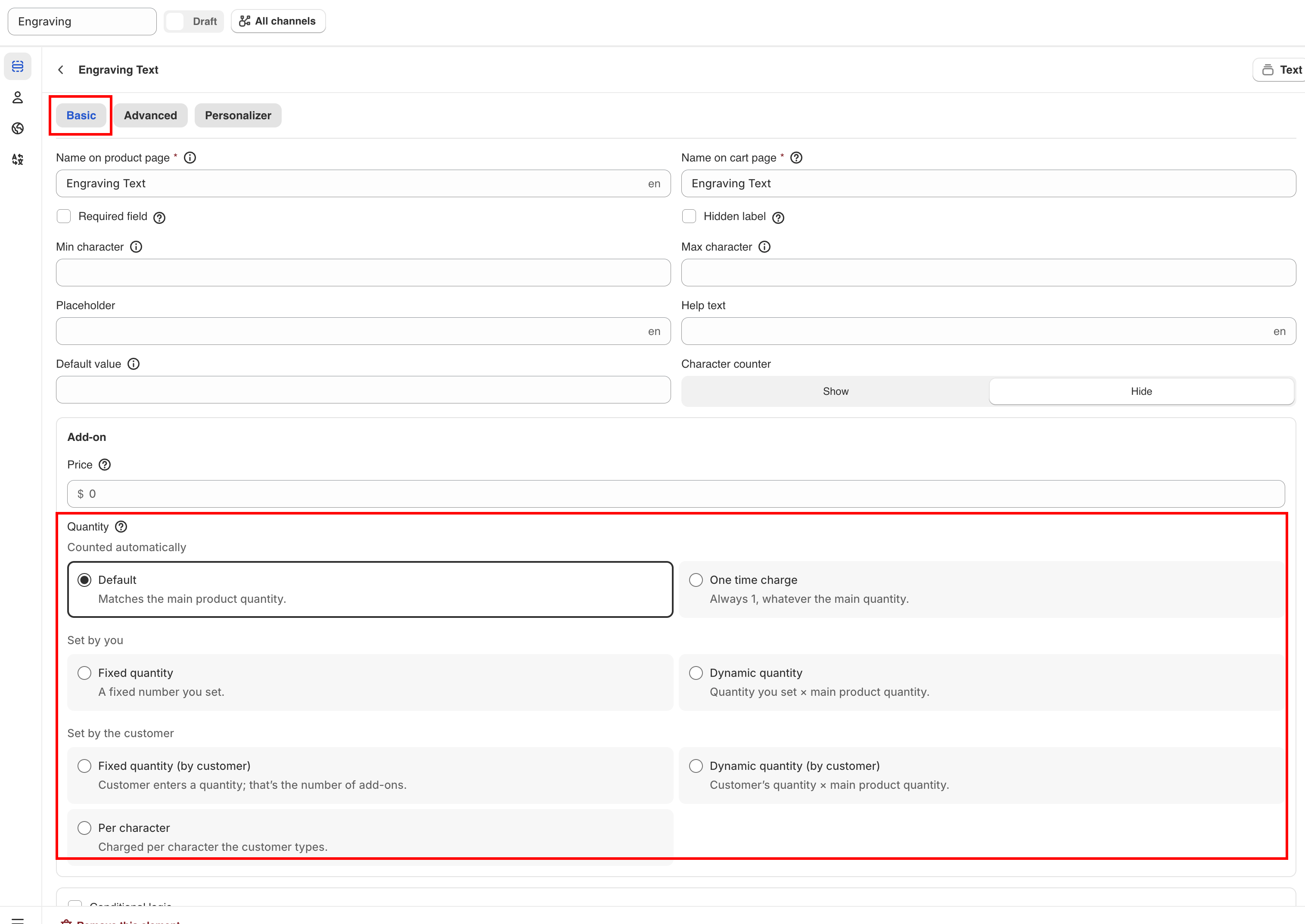
The Add-on quantity dropdown open, with the modes listed under their three group headings
The modes are grouped by who decides the quantity, and each carries a one-line explanation.

The eight modes

The dropdown groups them under three headings, by who decides the quantity: Counted automatically, Set by you, and Set by the customer.

GroupModeQuantity comes fromAvailable on

Counted automatically

Default

The main product's quantity

Everything with a price

One time charge

Always 1

Everything with a price

Set by you

Fixed quantity

A number you set

Everything with a price

Dynamic quantity

A number you set × main quantity

Everything with a price

Set by the customer

Fixed quantity (by customer)

A number the customer enters

Everything with a price

Dynamic quantity (by customer)

The customer's number × main quantity

Everything with a price

Mixed quantity

A number per option value, entered by the customer

Multi-select options only

Per character

How many characters were typed

Text and Textarea only

The two Set by you modes are the only ones that display the companion Quantity field.

Worked calculations

In all of the following examples, the add-on price is $4.00, and the customer is buying 3 of the main product.

Default

The add-on quantity follows the main product's quantity.

3 × $4.00 = $12.00

Use this for an add-on used once per item, such as an engraved plate per bracelet or fabric per cushion.

One-time charge

The add-on is charged once, regardless of the main product quantity.

1 × $4.00 = $4.00

Use this for a charge applied once per order, such as gift wrapping a parcel, a delivery upgrade, or a setup fee.

Fixed quantity

The quantity is always the number you enter in Quantity, regardless of the main product quantity. With Quantity set to 2:

2 × $4.00 = $8.00

Use this when the add-on always includes a fixed amount, such as a gift box with two ribbons.

Dynamic quantity

The Quantity value multiplied by the main product quantity. With Quantity set to 2:

2 × 3 × $4.00 = $24.00

Use this when each main item needs a fixed number of the add-on, such as two batteries per flashlight.

Fixed quantity (by customer)

A quantity field is displayed below the option. The customer's value is used as entered. If the customer enters 5:

5 × $4.00 = $20.00

Use this when the customer chooses the quantity independently of how many products they are buying, such as extra embroidered names or spare buttons.

Dynamic quantity (by customer)

The customer's value multiplied by the main product quantity. If the customer enters 5:

5 × 3 × $4.00 = $60.00

Use this when the customer's value applies to each item, for example, five extra names on each of three jerseys.

Mixed quantity

Each option value has its own quantity field. This mode is available on multi-select options only: Checkbox, or any selection type with Allow multiple enabled.

If a customer selects two of Chocolate and one of Vanilla, both priced at $4.00:

(2 × $4.00) + (1 × $4.00) = $12.00

Use this for mix-and-match add-ons such as toppings, flavors, or items in a hamper.

Per character

The charge is based on the number of characters the customer enters. This mode is available on Text and Textarea only. For Forever yours, which is 13 characters, at $0.50:

13 × $0.50 = $6.50

Use this for engraving and embroidery priced by length.

Always use Per character together with a Max character limit, so the charge has a maximum. Enable the Character counter so the customer can see how many characters they have entered.

Quantity

This field is used by Fixed quantity and Dynamic quantity. It is displayed only when one of those modes is selected. The other modes take the quantity from the customer or do not need one.

Choosing the right mode

The add-on is…
Mode

Consumed once per item bought

Default

Per order — wrapping, delivery, a setup fee

One time charge

A set amount that comes with the product

Fixed quantity

A set amount per item

Dynamic quantity

However many the customer wants, in total

Fixed quantity (by customer)

However many the customer wants, per item

Dynamic quantity (by customer)

Pick-and-mix across several values

Mixed quantity

Priced by the length of the text

Per character

Common mistake

Leaving a per-order charge such as gift wrap on Default.

If a customer buys five bracelets and selects gift wrapping, the Default mode charges for five wraps.

Use One-time charge for anything applied once per order, including delivery upgrades, gift wrapping, handling fees, artwork setup, and rush production.

Notes

  • The mode is set per option. If values in one option need different quantities, use two options with conditional logic, or use Mixed quantity.

  • Mixed quantity is displayed only when the option is multi-select.

  • Per character is available on Text and Textarea only.

  • Hidden options are not charged, regardless of the mode.

  • An add-on with a default value is charged as soon as the page loads. With the Default mode, the charge also multiplies by the product quantity.

Last updated

Was this helpful?