> For the complete documentation index, see [llms.txt](https://docs.globo.io/llms.txt). Markdown versions of documentation pages are available by appending `.md` to page URLs; this page is available as [Markdown](https://docs.globo.io/options/option-types/input-types/date-and-time-picker.md).

# Date and time picker

A calendar and clock field with date ranges, blocked days, lead times, cut-off times, time zones, and calendar languages.

A field the customer uses to select a date or a time. It has more settings than any other input type, because most businesses need to control which dates can be selected.

Use it for delivery dates, event dates, appointment slots, and subscription start dates.

## What customers see

A field that opens a calendar, a clock, or both. Dates you have blocked cannot be selected.

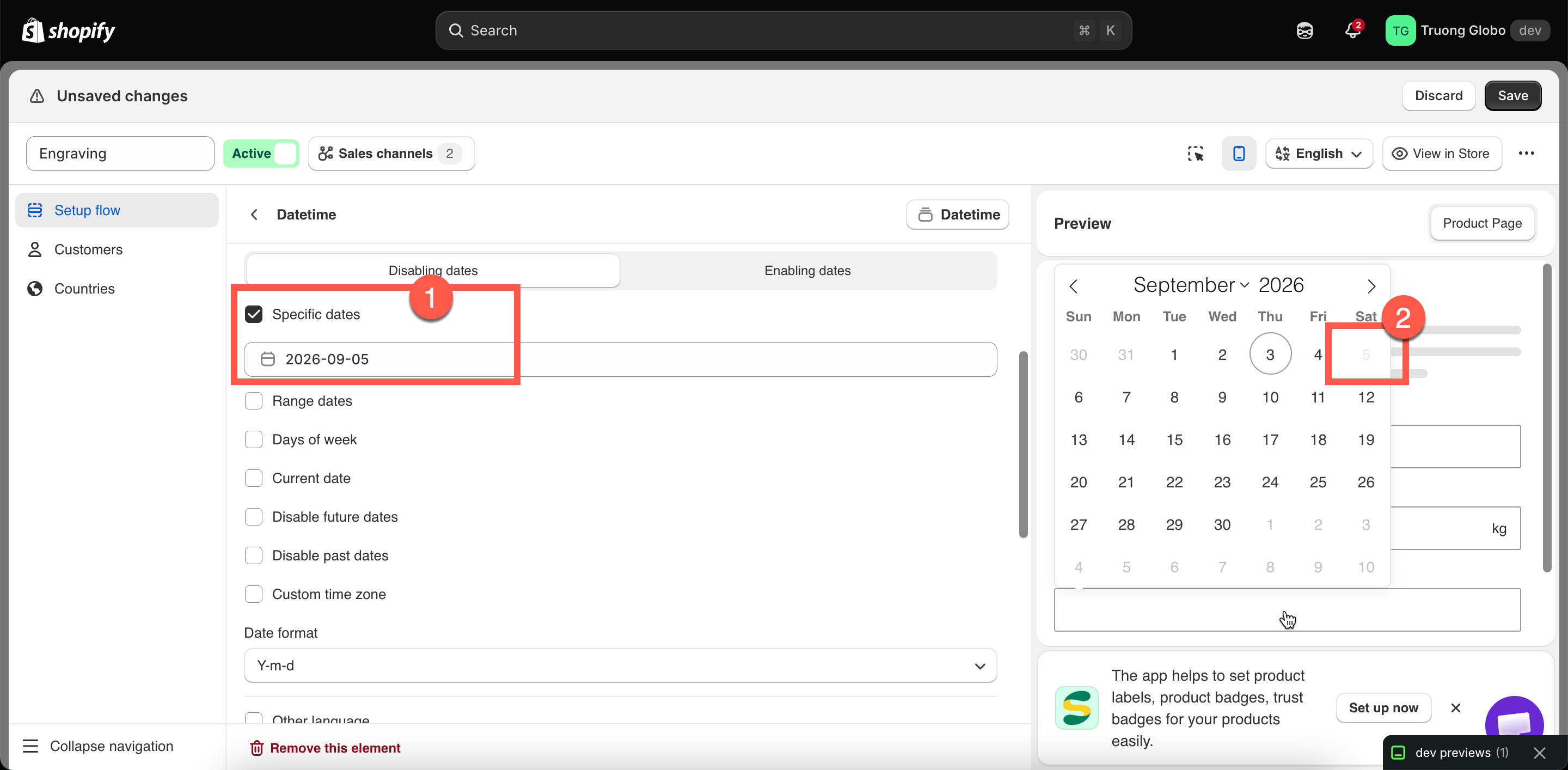
<figure><img src="https://3141646361-files.gitbook.io/~/files/v0/b/gitbook-x-prod.appspot.com/o/spaces%2FkMyxhAk2ZlJa4wZQGfBI%2Fuploads%2Fgit-blob-ec578a28181b29e9d5febe49e9e6cd66723d7882%2F2026-09-03_10-12-39.png?alt=media" alt="A date picker open on a storefront product page with weekend dates unavailable"><figcaption><p>Blocked dates are visibly unselectable, so customers cannot choose a day you cannot deliver.</p></figcaption></figure>

## Basic

<table><thead><tr><th width="250">Setting</th><th>What it does</th></tr></thead><tbody><tr><td><a href="/options/option-types/shared-settings/labels-and-visibility.md#label">Label</a> / <a href="/options/option-types/shared-settings/labels-and-visibility.md#name">Name</a></td><td>Customer-facing text, and the name on the order.</td></tr><tr><td><a href="/options/option-types/shared-settings/required-and-default-value.md#required-field">Required field</a></td><td>Blocks add to cart until a date is chosen.</td></tr><tr><td><a href="/options/option-types/shared-settings/labels-and-visibility.md#hidden-label">Hidden label</a></td><td>Hides the label.</td></tr><tr><td><a href="/options/option-types/shared-settings/placeholder-and-help-text.md#placeholder">Placeholder</a></td><td>Text in the empty field — worth using to show the format.</td></tr><tr><td><a href="/options/option-types/shared-settings/placeholder-and-help-text.md#help-text">Help text</a></td><td>Guidance that stays visible, such as your cut-off time.</td></tr><tr><td><a href="/options/option-types/shared-settings/conditional-logic-and-add-on-fields.md#conditional-logic">Conditional logic</a></td><td>Show or hide based on other choices.</td></tr></tbody></table>

There is no default value and no add-on price on this type.

## Advanced

### Format and mode

<table><thead><tr><th width="200">Setting</th><th width="230">Choices</th><th>Notes</th></tr></thead><tbody><tr><td><strong>Format</strong></td><td><strong>Date</strong>, <strong>Time</strong>, <strong>Date &#x26; time</strong></td><td>Default <strong>Date</strong>. Decides what the picker offers, and which settings below apply.</td></tr><tr><td><strong>Mode</strong></td><td><strong>Single</strong>, <strong>Range</strong></td><td>Default <strong>Single</strong>. <strong>Range</strong> lets the customer pick a start and end date — for hire periods or holiday cover. Only for <strong>Date</strong> and <strong>Date &#x26; time</strong>.</td></tr><tr><td><strong>Date format</strong></td><td><code>Y-m-d</code>, <code>d-m-Y</code>, <code>m-d-Y</code>, <code>Y.m.d</code>, <code>d.m.Y</code>, <code>m.d.Y</code>, <code>Y/m/d</code>, <code>d/m/Y</code>, <code>m/d/Y</code></td><td>Default <code>Y-m-d</code>. Choose the order your customers read dates in — <code>d/m/Y</code> in most of Europe, <code>m/d/Y</code> in the United States.</td></tr><tr><td><strong>Time format</strong></td><td><strong>12h</strong>, <strong>24h</strong></td><td>Default <strong>12h</strong>. Only for <strong>Time</strong> and <strong>Date &#x26; time</strong>.</td></tr></tbody></table>

{% hint style="warning" %}
Select a **Date format** that matches your market, and repeat the format in the **Placeholder**. For example, `03/04` can be read as 3 April or as 4 March, depending on the customer.
{% endhint %}

### Limiting which dates can be chosen

**Limit date picker** enables these settings. It applies to the **Date** and **Date & time** formats.

The setting below it determines how the other rules are applied:

<table><thead><tr><th width="230">Choice</th><th>Meaning</th></tr></thead><tbody><tr><td><strong>Disabling dates</strong></td><td>Everything you list below is <strong>blocked</strong>. Everything else is available. This is the default.</td></tr><tr><td><strong>Enabling dates</strong></td><td>Everything you list below is <strong>the only thing allowed</strong>. Everything else is blocked.</td></tr></tbody></table>

{% hint style="warning" %}
This setting reverses the meaning of every rule below it. Listing Saturday and Sunday under **Disabling dates** blocks weekends. The same list under **Enabling dates** allows only weekends. Check which mode you are using before building the list.
{% endhint %}

Then choose any combination of these:

<table><thead><tr><th width="250">Rule</th><th>What it targets</th></tr></thead><tbody><tr><td><strong>Specific dates</strong></td><td>Individual dates you select on a calendar — public holidays, your annual closure, a fully booked day.</td></tr><tr><td><strong>Range dates</strong></td><td>A start and end date — a factory shutdown, a holiday period.</td></tr><tr><td><strong>Days of week</strong></td><td>Any of Monday to Sunday. Starts with Saturday and Sunday selected, since most businesses do not dispatch at weekends.</td></tr><tr><td><strong>Current date</strong></td><td>Today itself.</td></tr><tr><td><strong>Disable future dates</strong></td><td>Everything after today. For dates that can only be in the past, such as a date of purchase.</td></tr><tr><td><strong>Disable past dates</strong></td><td>Everything before today. This is what you want on a delivery date, and it reveals the two lead-time settings below.</td></tr></tbody></table>

### Lead time and cut-off

These two settings appear when **Disable past dates** is on. Use them to require a notice period, and to accept same-day orders only before a cut-off time.

<table><thead><tr><th width="290">Setting</th><th>What it does</th></tr></thead><tbody><tr><td><strong>Enable after X days</strong></td><td>Sets how many days from today before the first selectable date. The minimum is <code>0</code>. For example, setting this to <code>3</code> makes the earliest selectable date three days from today, giving you time to prepare the order.</td></tr><tr><td><strong>Disable current date after X time</strong></td><td>Sets the cut-off time after which today is no longer selectable. For example, if you set it to <code>5:00 PM</code>, orders placed after 5 PM cannot select the current date for delivery or dispatch.</td></tr></tbody></table>

### Time zone

<table><thead><tr><th width="290">Setting</th><th>What it does</th></tr></thead><tbody><tr><td><strong>Custom time zone</strong></td><td>Turns on an explicit time zone rather than relying on the customer's device.</td></tr><tr><td><strong>Select time zone</strong></td><td>From GMT-12:00 to GMT+14:00.</td></tr></tbody></table>

Enable this setting when your cut-off time needs to be enforced consistently. Without it, the current date and time are based on the customer’s device, so a customer in another time zone could still select a date that has already passed your cut-off.

### Calendar language

<table><thead><tr><th width="290">Setting</th><th>What it does</th></tr></thead><tbody><tr><td><strong>Other language</strong></td><td>Turns on an explicit language for the calendar.</td></tr><tr><td><strong>Localization</strong></td><td>The language itself. More than fifty are available, from Albanian to Welsh.</td></tr></tbody></table>

This setting translates the month and day names in the calendar. It is separate from your option labels, which are translated for each storefront language. See [Translate option content](/options/translations-and-languages/translate-option-content.md).

### Layout and presentation

<table><thead><tr><th width="250">Setting</th><th>What it does</th></tr></thead><tbody><tr><td><a href="/options/option-types/shared-settings/placeholder-and-help-text.md#help-text-position">Help text position</a></td><td>Where the help text sits.</td></tr><tr><td><a href="/options/option-types/shared-settings/prefix-suffix-and-icons.md#prefix">Prefix</a> / <a href="/options/option-types/shared-settings/prefix-suffix-and-icons.md#prefix">Prefix icon</a> / <a href="/options/option-types/shared-settings/prefix-suffix-and-icons.md#prefix">Prefix text</a></td><td>An icon or text at the start — a calendar icon is the obvious choice.</td></tr><tr><td><a href="/options/option-types/shared-settings/prefix-suffix-and-icons.md#suffix">Suffix</a></td><td>Fixed text after the field.</td></tr><tr><td><a href="/options/option-types/shared-settings/direction-width-and-css.md#html-class">HTML class</a> / <a href="/options/option-types/shared-settings/direction-width-and-css.md#column-width">Column width</a></td><td>Styling hook and field width.</td></tr></tbody></table>

## Add-on pricing and Personalizer

Neither is supported. A date cannot carry a price and does not appear in the live preview.

To charge for a date-related choice, such as express delivery or a weekend slot, add the price to a separate [Switch](/options/option-types/input-types/switch.md), [Radio button](/options/option-types/selection-types/radio-button.md), or [Checkbox](/options/option-types/selection-types/checkbox.md). Then display the date field with [conditional logic](/options/conditional-logic/conditional-logic.md).

## Examples

**Delivery date with three days' lead time and no weekends**

<table><thead><tr><th width="290">Setting</th><th>Value</th></tr></thead><tbody><tr><td>Format</td><td><strong>Date</strong></td></tr><tr><td>Mode</td><td><strong>Single</strong></td></tr><tr><td>Date format</td><td><code>d/m/Y</code></td></tr><tr><td>Limit date picker</td><td>On, <strong>Disabling dates</strong></td></tr><tr><td>Disable past dates</td><td>On, <strong>Enable after X days</strong> <code>3</code></td></tr><tr><td>Days of week</td><td>Saturday, Sunday</td></tr><tr><td>Specific dates</td><td>Your public holidays</td></tr><tr><td>Custom time zone</td><td>On, your own zone</td></tr><tr><td>Help text</td><td><code>Orders take 3 working days to make. We do not deliver at weekends.</code></td></tr></tbody></table>

<details>

<summary>More examples: appointments, hire periods, cut-off times</summary>

**Appointments on Tuesdays and Thursdays only**

**Limit date picker** on with **Enabling dates**, **Days of week** set to Tuesday and Thursday. Only those two days are selectable.

**Hire period**

**Mode** set to **Range**, **Disable past dates** on, and weekends blocked if you cannot hand over on those days.

**Same-day collection with a 2pm cut-off**

**Disable past dates** on, **Enable after X days** `0`, **Disable current date after X time** set to 2pm, **Custom time zone** on.

**Preferred collection time**

**Format** set to **Time**, **Time format** **24h**, help text giving your opening hours.

</details>

## Notes

* Available on paid plans. **Limit date picker**, **Range** mode, and the custom calendar language may require a higher plan. See [Compare plans](/options/plans-and-billing/compare-plans.md).
* Works in Shopify POS.
* Cannot carry an add-on price, and has no Personalizer support.
* The date rules control which dates can be selected. They do not check your actual availability. A fully booked day remains selectable unless you add it to **Specific dates**.
* Rules are applied together. Blocked weekends, a three-day lead time, and a holiday list all apply at the same time.
