> For the complete documentation index, see [llms.txt](https://docs.globo.io/llms.txt). Markdown versions of documentation pages are available by appending `.md` to page URLs; this page is available as [Markdown](https://docs.globo.io/options/option-types/shared-settings/conditional-logic-and-add-on-fields.md).

# Conditional logic and add-on fields

The Conditional logic switch, Price field, Add-on quantity, and Quantity — four settings that unlock the app’s two most powerful features.

Four settings appear on nearly every option, and each one connects to a larger feature. This page explains what each setting does and where to find it.

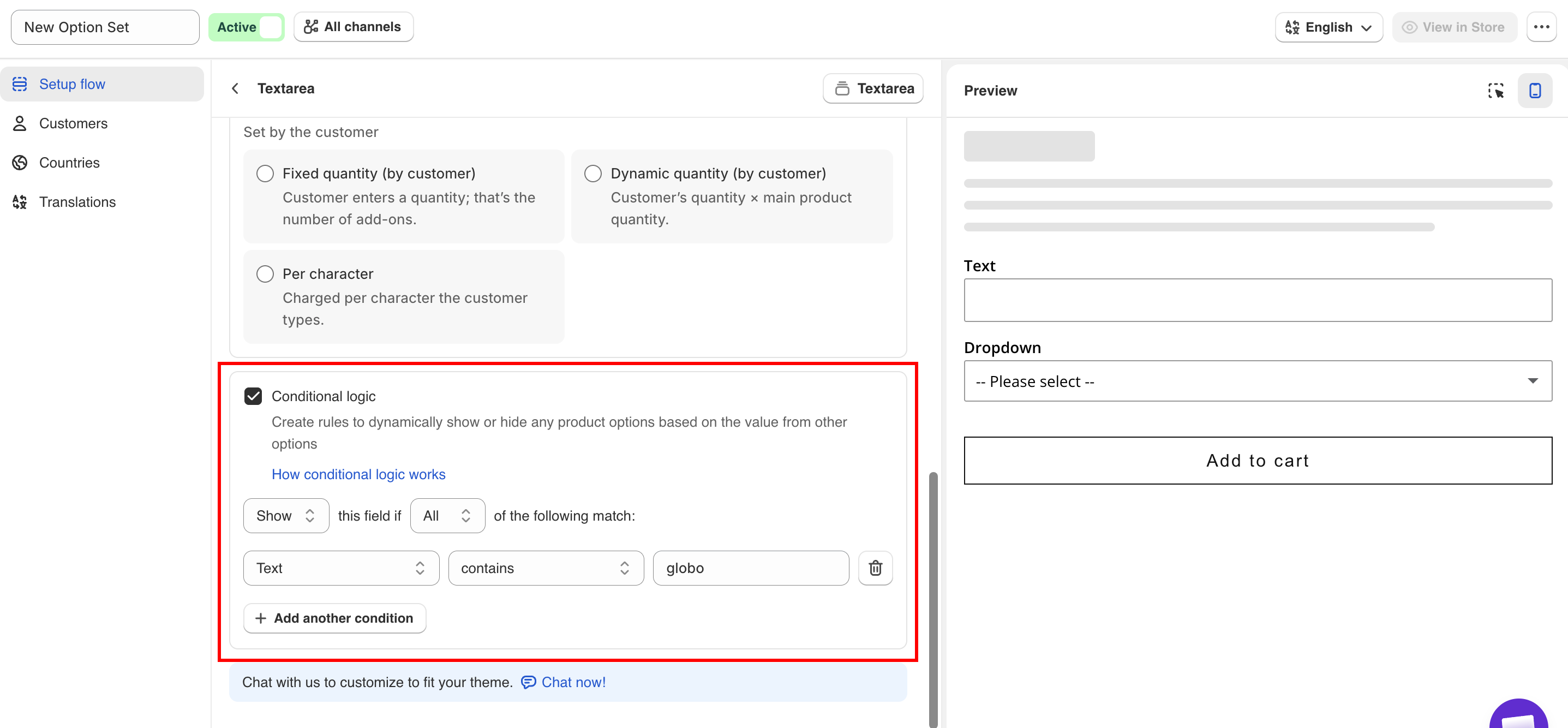
<figure><img src="https://3141646361-files.gitbook.io/~/files/v0/b/gitbook-x-prod.appspot.com/o/spaces%2FkMyxhAk2ZlJa4wZQGfBI%2Fuploads%2Fgit-blob-1d07ff06f6ec284a76bfa110cbf0cac15e7e1071%2Fclo.png?alt=media" alt="An option&#x27;s settings with Conditional logic enabled and a rule built underneath"><figcaption><p>Turning on Conditional logic reveals the rule builder directly underneath.</p></figcaption></figure>

## Conditional logic

Turns on rules that show or hide the option based on what the customer has already selected.

<table><thead><tr><th width="180">Tab</th><th>Basic</th></tr></thead><tbody><tr><td>Default</td><td>Off</td></tr><tr><td>Available on</td><td>All 32 option types, including <strong>Section</strong> and the visual statics</td></tr></tbody></table>

**What happens when you turn it on**

A rule builder appears directly underneath, with three parts:

<table><thead><tr><th width="200">Part</th><th>Choices</th></tr></thead><tbody><tr><td>Action</td><td><strong>Show</strong> or <strong>Hide</strong> this option when the conditions are met</td></tr><tr><td>Match</td><td><strong>all conditions</strong> or <strong>any condition</strong></td></tr><tr><td>Conditions</td><td>One or more rows: a source, an operator, and a value</td></tr></tbody></table>

The source of a condition can be another option in the same option set, **or the Shopify variant the customer selected**. This lets you display an option only for the Large size, for example.

#### Two things to know first

* The available operators depend on the type of the source option. A text source offers `contains` and character-count comparisons, a checkbox source offers selection-count comparisons, and a switch source offers only `is enabled` and `is disabled`.
* A hidden option is **not validated**. A required option that is currently hidden by a rule cannot block **Add to cart**.

#### Putting the rule on a Section

**Section** also supports conditional logic. A rule on a section shows or hides everything inside it at once, so if you are applying the same rule to six options, put it on the section that contains them instead.

For full detail, see [Conditional logic](/options/conditional-logic/conditional-logic.md), the [operators reference](/options/conditional-logic/operators-reference.md), and [conditions based on Shopify variants](/options/conditional-logic/conditions-on-shopify-variants.md).

## Price

Adds an extra charge to the option.

| Tab          | Basic tab, under **Add-on Settings**                                                                                                                                                                                           |
| ------------ | ------------------------------------------------------------------------------------------------------------------------------------------------------------------------------------------------------------------------------ |
| Default      | No add-on                                                                                                                                                                                                                      |
| Available on | At **option** level: Text, Textarea, Number, Switch, Color picker. At **option value** level, in the values table's **Price** column: all nine selection types with values. **Dimension** has its own price and formula fields |

{% hint style="info" %}
Where the price is set depends on the option type. An input option has one answer, so it has one price. A selection option has several choices that may cost different amounts, so the price is set on each value. See [Where you can set add-ons](/options/add-on-pricing/where-you-can-set-add-ons.md).
{% endhint %}

Selecting the field opens a dialog with three tabs, which are three different ways to charge:

<table><thead><tr><th width="290">Tab</th><th>What it does</th><th>Stock tracked?</th></tr></thead><tbody><tr><td><strong>Existing product</strong></td><td>Links a product and variant you already sell. The price comes from that variant.</td><td>Yes</td></tr><tr><td><strong>New product</strong></td><td>The app creates a product at the price you type.</td><td>Yes</td></tr><tr><td><strong>Fixed amount</strong></td><td>Adds money to the order with no product behind it.</td><td>No</td></tr></tbody></table>

**Fixed amount** is not supported on Shopify POS. If you sell in person, use one of the product-backed modes. See [POS limitations](/options/point-of-sale/limitations.md).

Once a value is linked to a product, a **Product** column appears in the values table, with a link to open that product in Shopify admin.

For full detail, see [Add-on pricing](/options/add-on-pricing/add-on-pricing.md).

## Add-on quantity

Controls how the add-on charge scales with the main product's quantity.

| Tab          | Basic, in the **Add-on** card       |
| ------------ | ----------------------------------- |
| Default      | **Default**                         |
| Available on | Every type that can carry an add-on |

{% hint style="warning" %}
This dropdown applies only when the option has a charge. On an option with no add-on, it has no effect — the app says so in the field's own tooltip.
{% endhint %}

The dropdown groups the eight modes by who decides the quantity.

<table><thead><tr><th width="230">Group</th><th width="250">Mode</th><th>Behavior</th></tr></thead><tbody><tr><td rowspan="2"><strong>Counted automatically</strong></td><td><strong>Default</strong></td><td>Matches the main product quantity.</td></tr><tr><td><strong>One time charge</strong></td><td>Always 1, whatever the main quantity.</td></tr><tr><td rowspan="2"><strong>Set by you</strong></td><td><strong>Fixed quantity</strong></td><td>A fixed number you set.</td></tr><tr><td><strong>Dynamic quantity</strong></td><td>Quantity you set × main product quantity.</td></tr><tr><td rowspan="4"><strong>Set by the customer</strong></td><td><strong>Fixed quantity (by customer)</strong></td><td>Customer enters a quantity; that’s the number of add-ons.</td></tr><tr><td><strong>Dynamic quantity (by customer)</strong></td><td>Customer’s quantity × main product quantity.</td></tr><tr><td><strong>Mixed quantity</strong></td><td>A quantity box per option value. Multi-select options only.</td></tr><tr><td><strong>Per character</strong></td><td>Charged by how many characters the customer typed. <a href="/options/option-types/input-types/text.md">Text</a> and <a href="/options/option-types/input-types/textarea.md">Textarea</a> only.</td></tr></tbody></table>

Three of them — **One time charge**, **Fixed quantity**, and **Fixed quantity (by customer)** — are unavailable when the option's price uses [Fixed amount](/options/add-on-pricing/add-price-directly.md), and are greyed out in the dropdown.

Each mode is explained with a worked example in [Advanced add-on modes](/options/add-on-pricing/advanced-add-on-modes.md).

## Quantity

Sets the number used by two of the modes above.

| Tab          | Basic, in the **Add-on** card                                                                                      |
| ------------ | ------------------------------------------------------------------------------------------------------------------ |
| Default      | Empty                                                                                                              |
| Available on | Appears only when **Add-on quantity** is **Fixed quantity** or **Dynamic quantity** — the two **Set by you** modes |

* With **Fixed quantity**, this is the exact number of add-ons added, regardless of the main product's quantity.
* With **Dynamic quantity**, this is multiplied by the main product's quantity.

## How the four settings interact

<table><thead><tr><th width="330">Combination</th><th>Result</th></tr></thead><tbody><tr><td>A priced option hidden by a rule</td><td>Not shown, not charged. Hiding an option removes its charge.</td></tr><tr><td>A priced option with a <strong>Default value</strong></td><td>Charged the moment the page loads, before the customer chooses anything.</td></tr><tr><td>A multi-select option with prices</td><td>Every selected value is charged. Cap it with <a href="/options/option-types/shared-settings/limits.md#min-and-max-selections">Max selections</a>.</td></tr><tr><td>A required option hidden by a rule</td><td>Not enforced while hidden.</td></tr><tr><td>A priced option on POS with <strong>Fixed amount</strong></td><td>Not supported. Use a product-backed mode.</td></tr></tbody></table>
