> For the complete documentation index, see [llms.txt](https://docs.globo.io/llms.txt). Markdown versions of documentation pages are available by appending `.md` to page URLs; this page is available as [Markdown](https://docs.globo.io/options/option-types/input-types/number.md).

# Number

A numeric field with minimum and maximum values, for quantities, measurements, and values you price by amount.

A field that accepts numbers only, with a minimum and maximum you set.

Use it for quantities or measurements within a product, such as how many names to embroider, how many place settings are needed, or a width in centimeters. For the product’s own quantity, use Shopify’s quantity field instead.

## What customers see

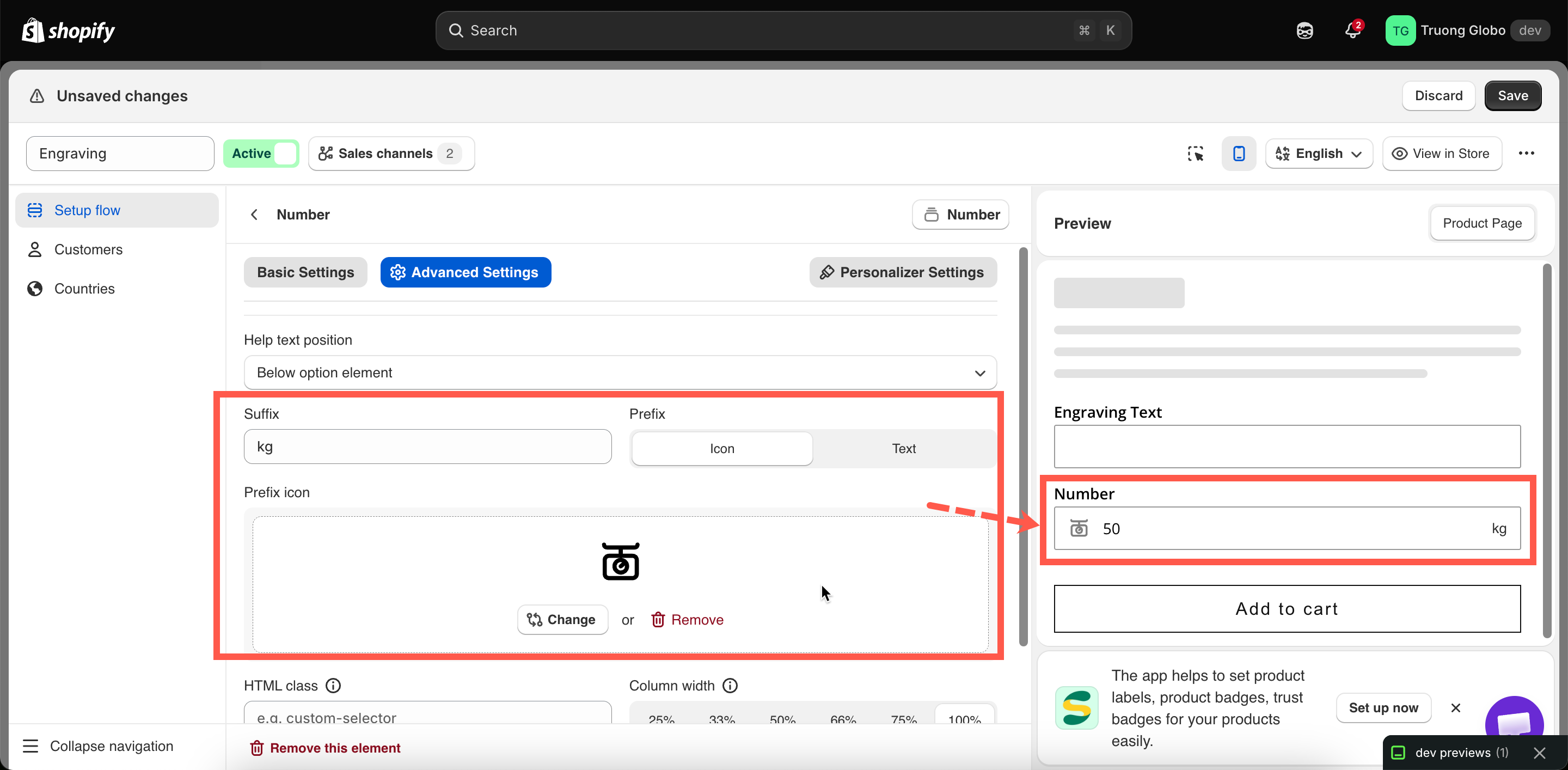
A numeric field with your label above it. You can add a prefix, such as a currency symbol, and a suffix, such as a unit.

<figure><img src="https://3141646361-files.gitbook.io/~/files/v0/b/gitbook-x-prod.appspot.com/o/spaces%2FkMyxhAk2ZlJa4wZQGfBI%2Fuploads%2Fgit-blob-64a332aff093097ea19b2be282e78ad452fcae97%2F2026-09-03_10-01-19.png?alt=media" alt="A number field on a storefront product page with a unit suffix"><figcaption><p>A number field with a unit as its suffix, so the customer types only the value.</p></figcaption></figure>

## Basic

<table><thead><tr><th width="250">Setting</th><th>What it does</th></tr></thead><tbody><tr><td><a href="/options/option-types/shared-settings/labels-and-visibility.md#label">Label</a> / <a href="/options/option-types/shared-settings/labels-and-visibility.md#name">Name</a></td><td>Customer-facing text, and the name on the order.</td></tr><tr><td><a href="/options/option-types/shared-settings/required-and-default-value.md#required-field">Required field</a></td><td>Blocks add to cart until a number is entered.</td></tr><tr><td><a href="/options/option-types/shared-settings/labels-and-visibility.md#hidden-label">Hidden label</a></td><td>Hides the label.</td></tr><tr><td><a href="/options/option-types/shared-settings/limits.md#min-and-max-value">Min value</a> / <a href="/options/option-types/shared-settings/limits.md#min-and-max-value">Max value</a></td><td>The lowest and highest accepted numbers. Leave one empty for no bound at that end.</td></tr><tr><td><a href="/options/option-types/shared-settings/placeholder-and-help-text.md#placeholder">Placeholder</a></td><td>An example number inside the empty field.</td></tr><tr><td><a href="/options/option-types/shared-settings/placeholder-and-help-text.md#help-text">Help text</a></td><td>Guidance that stays visible.</td></tr><tr><td><a href="/options/option-types/shared-settings/required-and-default-value.md#default-value">Default value</a></td><td>Pre-fills the field. Must fall inside min and max.</td></tr><tr><td><a href="/options/option-types/shared-settings/conditional-logic-and-add-on-fields.md#price">Price</a></td><td>The add-on charge.</td></tr><tr><td><a href="/options/option-types/shared-settings/conditional-logic-and-add-on-fields.md#conditional-logic">Conditional logic</a></td><td>Show or hide based on other choices.</td></tr></tbody></table>

## Advanced

<table><thead><tr><th width="250">Setting</th><th>What it does</th></tr></thead><tbody><tr><td><a href="/options/option-types/shared-settings/conditional-logic-and-add-on-fields.md#add-on-quantity">Add-on quantity</a> / <a href="/options/option-types/shared-settings/conditional-logic-and-add-on-fields.md#quantity">Quantity</a></td><td>How the add-on scales with quantity.</td></tr><tr><td><a href="/options/option-types/shared-settings/placeholder-and-help-text.md#help-text-position">Help text position</a></td><td>Where the help text sits.</td></tr><tr><td><a href="/options/option-types/shared-settings/prefix-suffix-and-icons.md#suffix">Suffix</a></td><td>A unit after the field — <code>cm</code>, <code>kg</code>, <code>days</code>.</td></tr><tr><td><a href="/options/option-types/shared-settings/prefix-suffix-and-icons.md#prefix">Prefix</a> / <a href="/options/option-types/shared-settings/prefix-suffix-and-icons.md#prefix">Prefix icon</a> / <a href="/options/option-types/shared-settings/prefix-suffix-and-icons.md#prefix">Prefix text</a></td><td>A symbol or icon before the field.</td></tr><tr><td><a href="/options/option-types/shared-settings/direction-width-and-css.md#html-class">HTML class</a> / <a href="/options/option-types/shared-settings/direction-width-and-css.md#column-width">Column width</a></td><td>Styling hook and field width.</td></tr></tbody></table>

## Add-on pricing

The price applies to the whole option. The **Add-on quantity** modes let the number the customer enters set the quantity of the add-on:

<table><thead><tr><th width="290">Mode</th><th>With price $2.00 and the customer entering 5</th></tr></thead><tbody><tr><td><strong>Default</strong></td><td>$2.00, following the main product quantity</td></tr><tr><td><strong>One time charge</strong></td><td>$2.00, once, whatever the main quantity</td></tr><tr><td><strong>Fixed quantity (by customer)</strong></td><td>$10.00 — the customer's 5 × $2.00</td></tr><tr><td><strong>Dynamic quantity (by customer)</strong></td><td>$10.00 per main product — so $30.00 on three</td></tr></tbody></table>

For example, to charge $2.00 for each extra embroidered name, use a Number field with **Min value** `0`, **Max value** `6`, a price of $2.00, and the **Fixed quantity (by customer)** mode.

See [Advanced add-on modes](/options/add-on-pricing/advanced-add-on-modes.md).

## Personalizer

Number supports the live preview and works the same way as [Text](/options/option-types/input-types/text.md). The digits are drawn on the product photo, with color, font, effects, position, **Curve**, and **Auto-fit max width**.

Use it for jersey numbers, house numbers, and years. See [Product Personalizer](/options/product-personalizer/personalizer.md).

## Examples

**Extra embroidered names**

<table><thead><tr><th width="270">Setting</th><th>Value</th></tr></thead><tbody><tr><td>Label / Name</td><td><code>Extra names</code></td></tr><tr><td>Min value / Max value</td><td><code>0</code> / <code>6</code></td></tr><tr><td>Default value</td><td><code>0</code></td></tr><tr><td>Price</td><td>$2.00</td></tr><tr><td>Add-on quantity</td><td><strong>Fixed quantity (by customer)</strong></td></tr><tr><td>Help text</td><td><code>$2.00 per additional name, up to six</code></td></tr></tbody></table>

**Width to cut, priced by size**

**Min value** `10`, **Max value** `240`, suffix `cm`, **Required field** on. To calculate a price from two or three measurements, use [Dimension](/options/option-types/input-types/dimension.md) instead, which supports a formula.

**Jersey number**

**Min value** `0`, **Max value** `99`, **Personalizer** on, drawn large and centered on the back of the shirt.

**Number of guests**

**Min value** `2`, **Max value** `12`, **Default value** `4`, no price. The number is only recorded for production.

## Notes

* Available on all plans.
* Works in Shopify POS.
* Only numbers can be entered, so no input rule is needed.
* A **Default value** outside the minimum and maximum is rejected when you save.
* To prevent negative numbers, set **Min value** to `0`.
* To let customers choose a value by dragging instead of typing, use [Range slider](/options/option-types/input-types/range-slider.md).
