> For the complete documentation index, see [llms.txt](https://docs.globo.io/llms.txt). Markdown versions of documentation pages are available by appending `.md` to page URLs; this page is available as [Markdown](https://docs.globo.io/options/option-types/input-types/range-slider.md).

# Range slider

A number the customer selects by dragging a slider, within a minimum, maximum, and step you define.

A track the customer drags to select a number. It records the same type of value as a Number field, but uses a different input method.

Use it when the value can be approximate and the range matters more than precision, such as a budget, length, or quantity within a defined range.

## What customers see

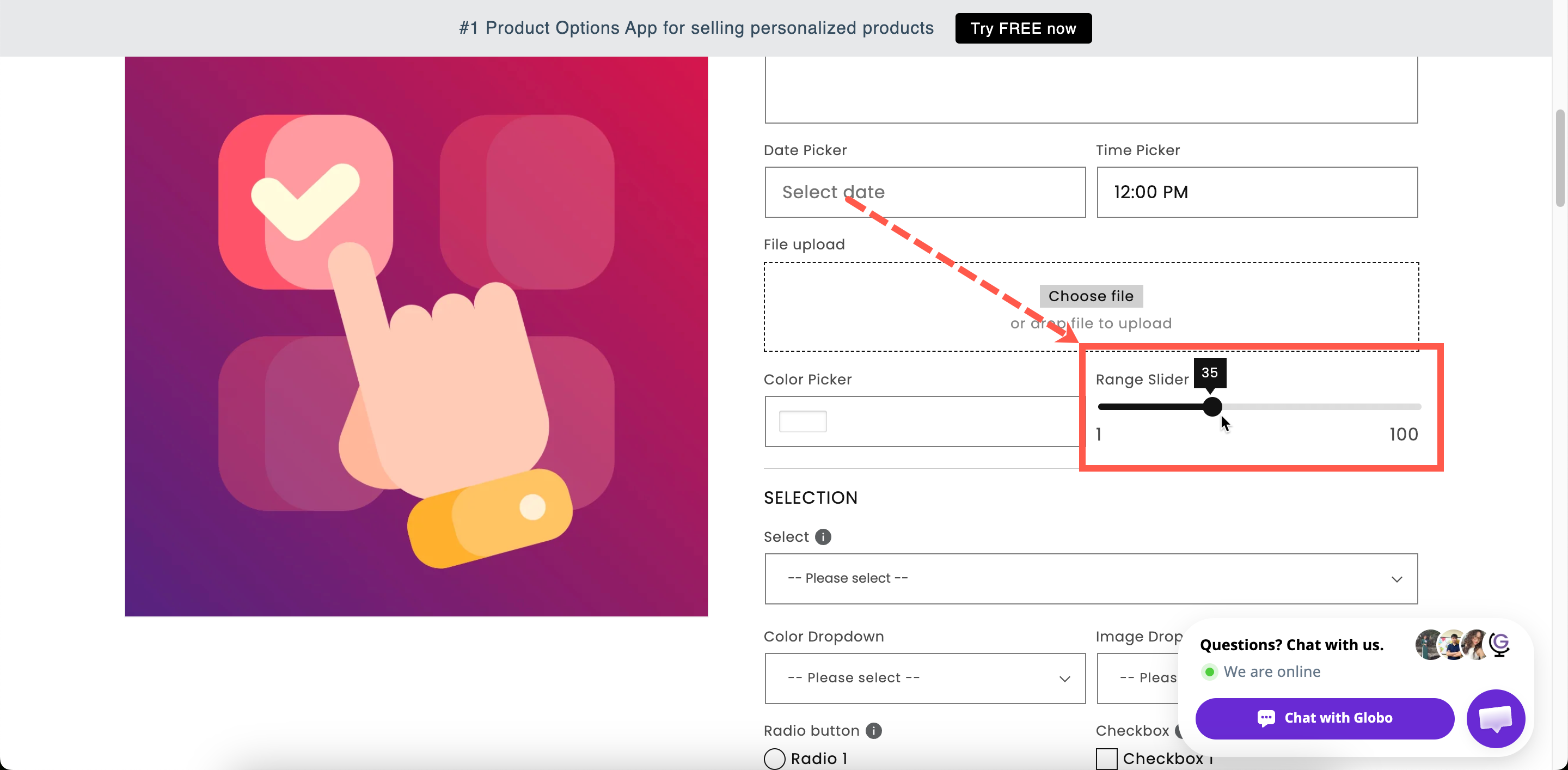
A slider with the current value displayed and a fixed minimum and maximum. You can add a prefix and a suffix so the value is displayed with its unit.

<figure><img src="https://3141646361-files.gitbook.io/~/files/v0/b/gitbook-x-prod.appspot.com/o/spaces%2FkMyxhAk2ZlJa4wZQGfBI%2Fuploads%2Fgit-blob-42164ab3cbfb352ccc0cdc088696fb415241275d%2F2026-09-03_10-32-28.png?alt=media" alt="A range slider on a storefront product page showing its current value with a unit"><figcaption><p>A slider communicates the available range at a glance.</p></figcaption></figure>

## Basic

<table><thead><tr><th width="250">Setting</th><th>What it does</th></tr></thead><tbody><tr><td><a href="/options/option-types/shared-settings/labels-and-visibility.md#label">Label</a> / <a href="/options/option-types/shared-settings/labels-and-visibility.md#name">Name</a></td><td>Customer-facing text, and the name on the order.</td></tr><tr><td><a href="/options/option-types/shared-settings/required-and-default-value.md#required-field">Required field</a></td><td>Blocks add to cart until a value is set.</td></tr><tr><td><a href="/options/option-types/shared-settings/labels-and-visibility.md#hidden-label">Hidden label</a></td><td>Hides the label.</td></tr><tr><td><a href="/options/option-types/shared-settings/limits.md#min-and-max-value">Min value</a></td><td>The left end of the track. Starts at <code>0</code>.</td></tr><tr><td><a href="/options/option-types/shared-settings/limits.md#min-and-max-value">Max value</a></td><td>The right end of the track. Starts at <code>100</code>.</td></tr><tr><td><strong>Step</strong></td><td>The increment the slider moves in. Starts at <code>1</code>.</td></tr><tr><td><a href="/options/option-types/shared-settings/placeholder-and-help-text.md#help-text">Help text</a></td><td>Guidance that stays visible.</td></tr><tr><td><a href="/options/option-types/shared-settings/required-and-default-value.md#default-value">Default value</a></td><td>Where the handle starts.</td></tr><tr><td><a href="/options/option-types/shared-settings/conditional-logic-and-add-on-fields.md#conditional-logic">Conditional logic</a></td><td>Show or hide based on other choices.</td></tr></tbody></table>

Unlike Number, **Min value** and **Max value** are required because they define the track length.

### Step

**Step** sets which values the customer can select.

<table><thead><tr><th width="180">Min / Max</th><th width="130">Step</th><th>Selectable values</th></tr></thead><tbody><tr><td>0 / 100</td><td><code>1</code></td><td>0, 1, 2, … 100</td></tr><tr><td>0 / 100</td><td><code>5</code></td><td>0, 5, 10, … 100</td></tr><tr><td>0 / 10</td><td><code>0.5</code></td><td>0, 0.5, 1, … 10</td></tr><tr><td>10 / 240</td><td><code>10</code></td><td>10, 20, 30, … 240</td></tr></tbody></table>

A wide range with a step of `1` is difficult to set precisely on a touch device. Choose a step that matches the precision you need. If you need an exact value, use a [Number](/options/option-types/input-types/number.md) field instead.

## Advanced

<table><thead><tr><th width="250">Setting</th><th>What it does</th></tr></thead><tbody><tr><td><strong>Prefix</strong></td><td>Fixed text before the value, such as a currency symbol. A plain text field on this type — there is no icon-or-text choice.</td></tr><tr><td><strong>Suffix</strong></td><td>Fixed text after the value, such as <code>cm</code> or <code>%</code>.</td></tr><tr><td><a href="/options/option-types/shared-settings/placeholder-and-help-text.md#help-text-position">Help text position</a></td><td>Where the help text sits.</td></tr><tr><td><a href="/options/option-types/shared-settings/direction-width-and-css.md#html-class">HTML class</a> / <a href="/options/option-types/shared-settings/direction-width-and-css.md#column-width">Column width</a></td><td>Styling hook and field width.</td></tr></tbody></table>

Add a suffix when the value has a unit. A slider showing `180 cm` is clearer than one showing `180`.

## Add-on pricing and Personalizer

Neither is supported. The slider cannot carry a price and is not displayed in the live preview.

Use [Number](/options/option-types/input-types/number.md) when the value must set a charge. Its **Fixed quantity (by customer)** and **Dynamic quantity (by customer)** modes use the entered number as the add-on quantity. Range slider does not support this.

To calculate a price from two or three measurements, use [Dimension](/options/option-types/input-types/dimension.md), which supports a formula.

## Design

The slider colors are set store-wide under **Settings > Design**: **Range slider thumb**, **Range slider background**, and **Range slider active background**. See [Colors](/options/storefront-display-and-design/colors.md).

## Examples

**Length within a comfortable span**

<table><thead><tr><th width="290">Setting</th><th>Value</th></tr></thead><tbody><tr><td>Label / Name</td><td><code>Chain length</code></td></tr><tr><td>Min / Max</td><td><code>40</code> / <code>60</code></td></tr><tr><td>Step</td><td><code>2</code></td></tr><tr><td>Default value</td><td><code>45</code></td></tr><tr><td>Suffix</td><td><code>cm</code></td></tr></tbody></table>

**A budget for a bespoke commission**

**Min value** `100`, **Max value** `2000`, **Step** `50`, prefix `$`, help text `We will come back to you with options in this range.`

**Firmness or intensity**

**Min value** `1`, **Max value** `5`, **Step** `1`, suffix `/ 5`, no price.

**A donation added to the order**

Use a [Number](/options/option-types/input-types/number.md) field instead so the value can set the add-on quantity. A Range slider cannot carry a price.

## Notes

* Available on the Advanced plan.
* Works in Shopify POS.
* Cannot carry an add-on price; no Personalizer support.
* Both **Min value** and **Max value** are required, because they define the track.
* Not suitable for precise entry, especially on touch devices. Use Number for exact values.
* The selected number is stored in the order without the prefix or suffix.
