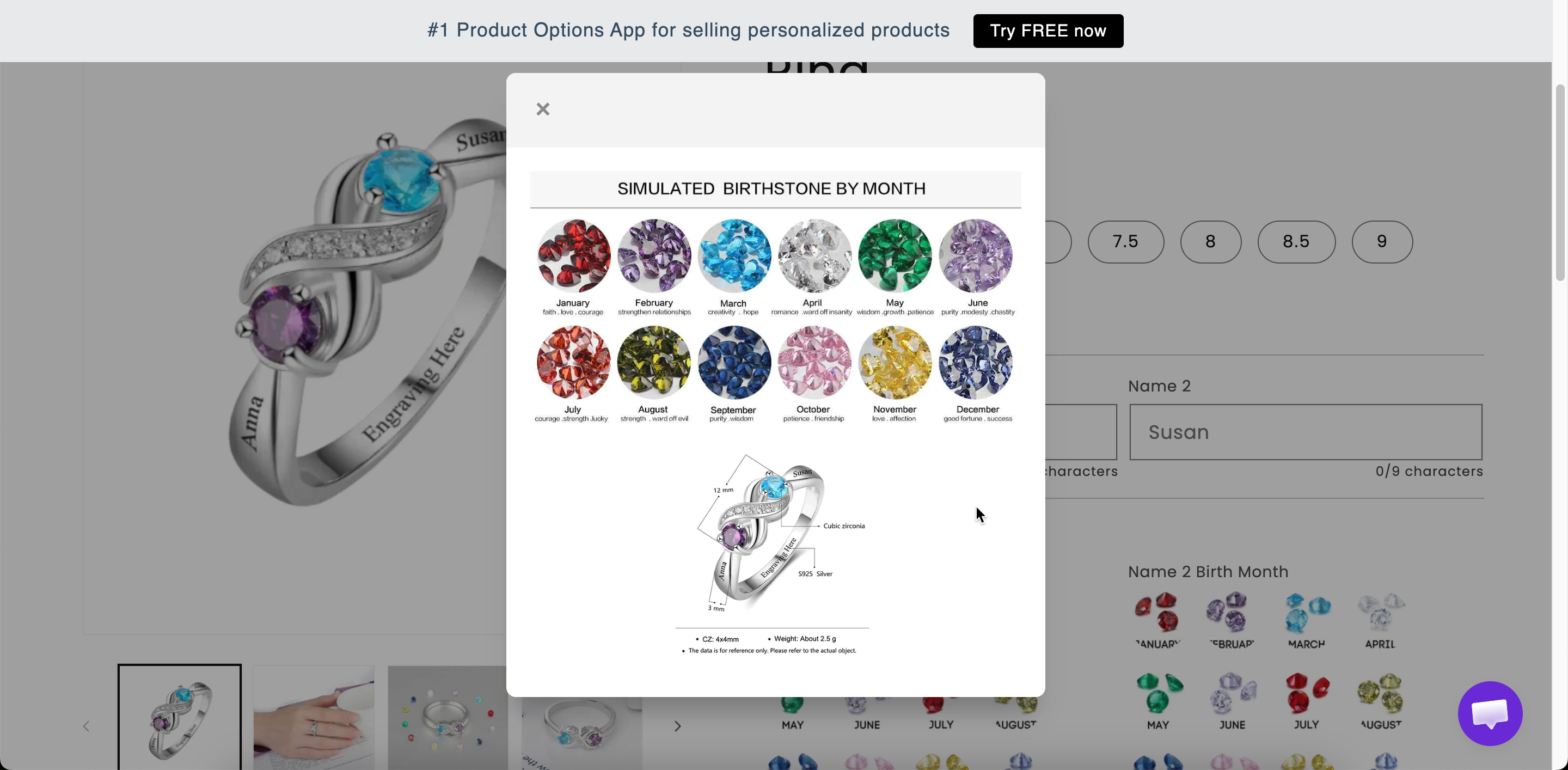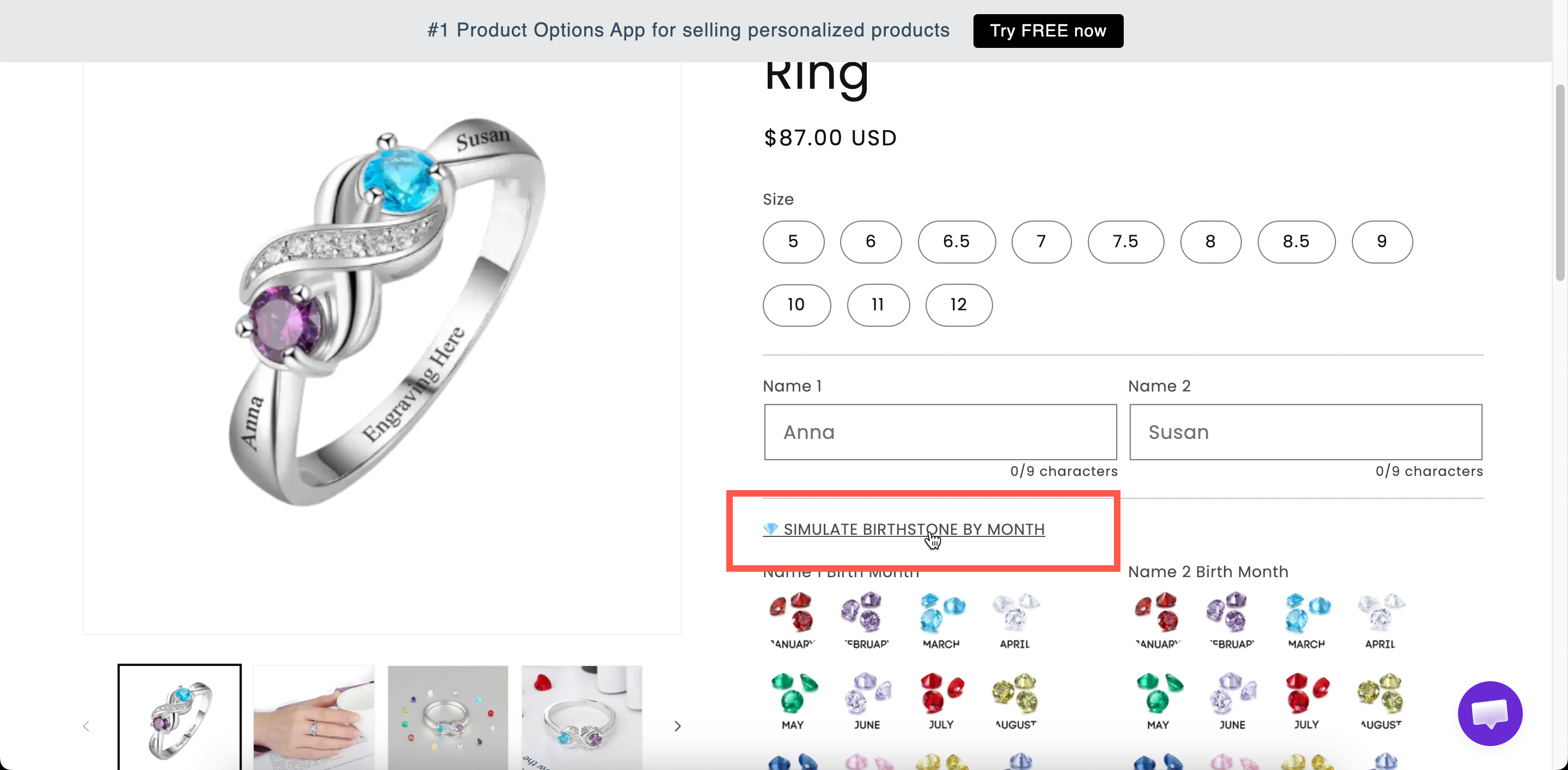
Pop-up modal
A link that opens formatted content in a dialog, so long explanations do not lengthen the page.
A link on the product page that opens a dialog with your content. The information is available to customers who want it, without taking up space for everyone else.
Use it for care instructions, personalization policies, return terms, delivery details, or anything important that not every customer needs to read.
How to add Image to Pop-up Modal and Paragraph
Steps to Manage:
Go to Shopify Dashboard Navigate to:
Content → Files → Upload filesUpload Your Image Upload the image file you want to display in your popup or paragraph.
Copy the Image URL After uploading, copy the image URL provided by Shopify.

Preview the Image
Open a new browser tab
Paste the copied URL
Right-click on the image
Select “Copy image” (or copy image address)

Go to Globo Product Options App
Open the Popup Modal or Paragraph element
Paste the image tag or URL inside the content field

What customers see
A link with your title. Selecting it opens a dialog with your content, at the width you set.


Settings
Modal title
The link text on the product page, and the dialog's heading. Starts as Open modal.
Modal width
The dialog width in pixels. Starts at 600.
Modal content
The content, written in a rich-text editor.
Show or hide the link.
Styling hook and width of the link, not the dialog.
Modal width
400–500
A few short paragraphs
600
The default. Comfortable for most text
800+
Content with a table or images
Dialogs are resized to fit narrow screens, so a wide value still works on mobile. A table inside a dialog is cramped on a phone, so use Size chart for a size table.
Modal or Tabs?
One block of content
Several blocks
Hidden until opened
Always on the page, one panel at a time
Takes one line on the page
Takes the height of a panel
Best when most customers skip it
Best when most customers read at least one panel
If you have several topics to present, such as care, delivery, and returns, Tabs is usually the better choice. If you have a single policy that only some customers need to read, use a Popup modal.
Examples
A personalization policy
Modal title
How personalization works
Modal width
600
Modal content
Lead times, what can and cannot be engraved, the returns position
Care instructions
Title Care instructions, with a short formatted list as the content, placed at the bottom of the form.
A conditional warning
Title Important: engraved items cannot be returned, displayed by conditional logic only when the customer has entered engraving text.
Notes
Available on all plans.
Works in Shopify POS.
The content can be translated for each storefront language. See Translate option content.
The rich-text editor covers most formatting needs. Use HTML only when you need formatting that the editor does not support.
A modal is not suitable for information customers must read before making a choice, because they may never open it. Use a Paragraph instead.
Last updated
Was this helpful?